EducationSoftwareStrategy.com
StrategyCommunity

Knowledge Base

Product

Community

Knowledge Base

TopicsBrowse ArticlesDeveloper Zone

Product

Download SoftwareProduct DocumentationSecurity Hub

Education

Tutorial VideosSolution GalleryEducation courses

Community

GuidelinesGrandmastersEvents
x_social-icon_white.svglinkedin_social-icon_white.svg
Strategy logoCommunity

© Strategy Inc. All Rights Reserved.

LegalTerms of UsePrivacy Policy
  1. Home
  2. Topics

KB9035: How to define a subtotal that calculates an average based only on metric values greater than zero in MicroStrategy Developer 9.4.1 and 10.x.


Stefan Zepeda

Salesforce Solutions Architect • Strategy


In some scenarios, a user will be required to calculate the average of metric values that are greater than zero.

SYMPTOM:
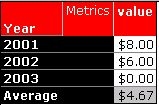
A user has the following metric result in a report and needs to calculate the average on only the values that are greater than zero. In the example below, the average is being calculated using all the values rather than those greater than zero:
 

ka02R000000kZz6QAE_0EM440000002G32.jpeg

In this example, there are zeros on the database appearing as data, thus, the zeros must be ignored. These zeros must be treated as nulls in order to have the calculated average on only those values greater than zero.
ACTION:
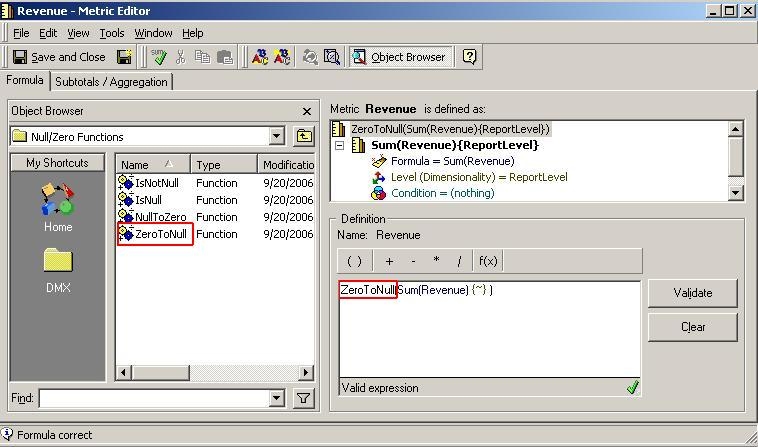
  • Modify the metric to change the zeros that are coming from the database to a null value using the 'ZeroToNull' function, as illustrated below. The Strategy Analytical Engine will treat zeros as nulls.
ka02R000000kZz6QAE_0EM440000002G30.jpeg
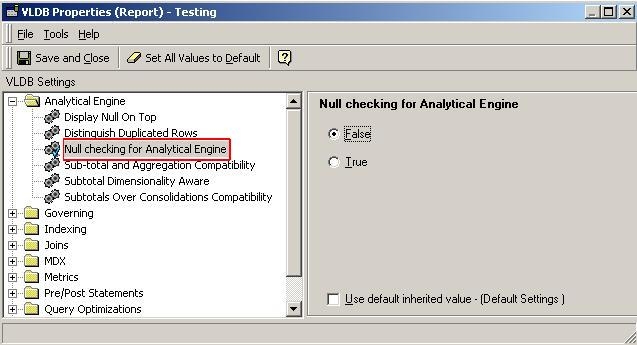
  • In the report editor, go to the 'Data' menu and select 'VLDB properties'. Next, select 'False' for null checking for the Strategy Analytical Engine, as shown below:
ka02R000000kZz6QAE_0EM440000002G3C.jpeg
  • Consequently, the Strategy Analytical Engine will ignore any null value during the mathematical calculation, such as total or average.
     
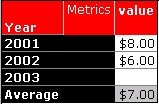
  • The executed report will appear as follows:
ka02R000000kZz6QAE_0EM440000002G3A.jpeg
  • Note: It is still possible to display the zeros through the 'null value display' option as show below.
     
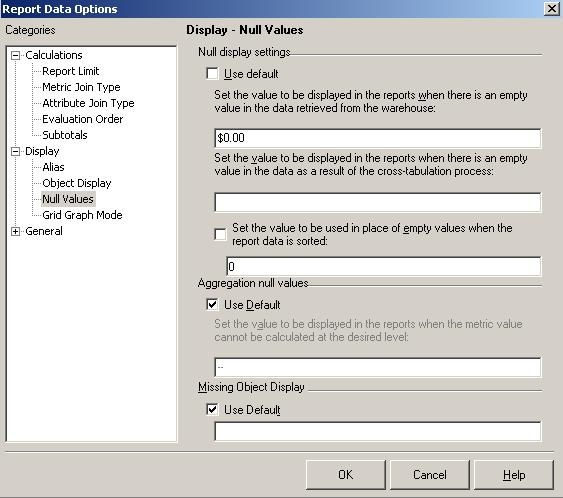
  • On the Report Editor, go to 'Data' and select 'Report Data Options' to display null values. Enter $0.00, as illustrated below, so the report will display "$0.00" instead of a blank for the null value in the report:
ka02R000000kZz6QAE_0EM440000002G2u.jpeg
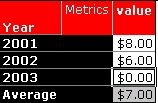
  • The newly executed report will now display zeros but the average is calculated only on the values that are greater than zero, as shown in the screen shot below:
ka02R000000kZz6QAE_0EM440000002G34.jpeg

Comment

0 comments

Details

Knowledge Article

Published:

June 1, 2017

Last Updated:

June 1, 2017