EducationSoftwareStrategy.com
StrategyCommunity

Knowledge Base

Product

Community

Knowledge Base

TopicsBrowse ArticlesDeveloper Zone

Product

Download SoftwareProduct DocumentationSecurity Hub

Education

Tutorial VideosSolution GalleryEducation courses

Community

GuidelinesGrandmastersEvents
x_social-icon_white.svglinkedin_social-icon_white.svg
Strategy logoCommunity

© Strategy Inc. All Rights Reserved.

LegalTerms of UsePrivacy Policy
  1. Home
  2. Topics

KB9141: How to specify the top number of rows to be retrieved in a MicroStrategy Developer report


Stefan Zepeda

Salesforce Solutions Architect • Strategy


How to specify the top number of rows to be retrieved in a MicroStrategy Developer report

A user wants a Strategy Developer report to only retrieve a specified number of rows. In this example, the report will be modified to only return the top five rows.
 
To achieve this, perform the following steps:
 

  • Create a running sum metric which will return the row number for each record.
     
    For example, the value of this metric will be one for the first record and two for the second record, etc. Any metric can be used to define this Running Sum metric. This example uses a metric named 'Max1':
ka02R000000kYQWQA2_0EM440000002G2t.gif
  •  
    Defining a metric this way can save unnecessary Structured Query Language (SQL) processing.
     
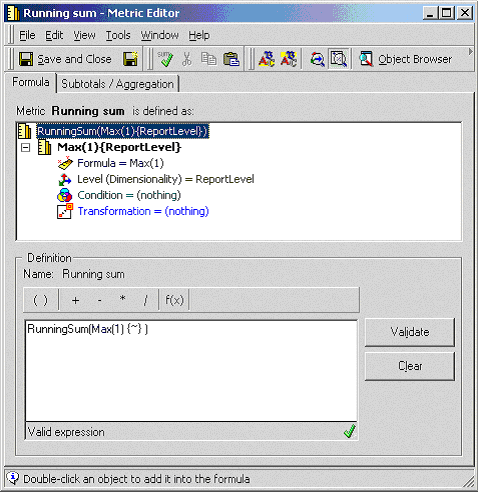
    The screen shot below shows the Running Sum metric definition:
     
ka02R000000kYQWQA2_0EM440000002G2x.gif
  •  
    RunningSum(Max(1){~})
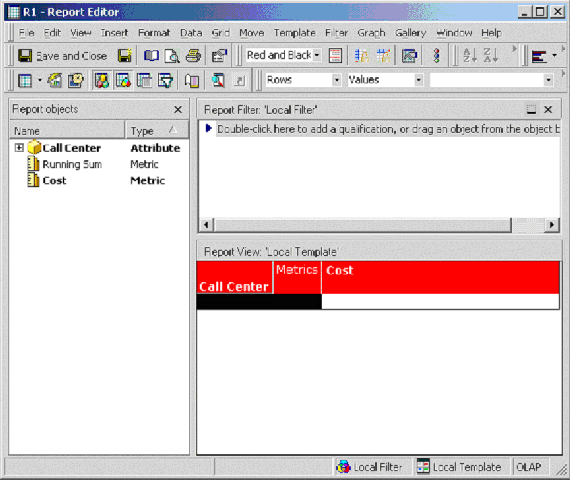
  • Place the Running Sum metric in a report object window so that it won't display in the report template, as shown below:
ka02R000000kYQWQA2_0EM440000002G2z.gif
  •  
    Note: If a user doesn't have Strategy OLAP Services privileges, the Report Object window will not be available.
     
  • With the report open, add a report limit against the Running Sum metric so it only returns top five row's records.
    To achieve this, go to Data > Report Data Options > Report Limit> Modify to specify the report limit definition, as shown below:
     
ka02R000000kYQWQA2_0EM440000002G2v.gif
  • Re-execute the report.

Now, the report will retrieve only the top five rows of data.


Comment

0 comments

Details

Knowledge Article

Published:

June 8, 2017

Last Updated:

June 8, 2017