EducationSoftwareStrategy.com
StrategyCommunity

Knowledge Base

Product

Community

Knowledge Base

TopicsBrowse ArticlesDeveloper Zone

Product

Download SoftwareProduct DocumentationSecurity Hub

Education

Tutorial VideosSolution GalleryEducation courses

Community

GuidelinesGrandmastersEvents
x_social-icon_white.svglinkedin_social-icon_white.svg
Strategy logoCommunity

© Strategy Inc. All Rights Reserved.

LegalTerms of UsePrivacy Policy
  1. Home
  2. Topics

KB9235: How to use Control Documents in MicroStrategy Narrowcast Server 10.x to send an email to an administrator when the Information Object returns an error


Community Admin

• Strategy


This article explains how to use Control Documents in MicroStrategy Narrowcast Server 10.x to send an email to an administrator when the Information Object returns an error.

The Execution Control Document is a plain text document containing specific information to be used by the Information transmitter. In this example, users include a Control Document that indicates to Strategy Narrowcast Server 10.x who is the recipient of the service. If the Information Object returns with an error, the email will be sent to the recipients and the email address defined in the Control Document. If there is no error with the Information Object, the email will be sent to the recipients subscribed to the service.
 
To achieve this, perform the following steps:
 

  • Create a service with the Service Wizard.
  • Select Email (SMTP) as the delivery method and click 'Next'.
  • Add an Information Object in the body or attachment sections.
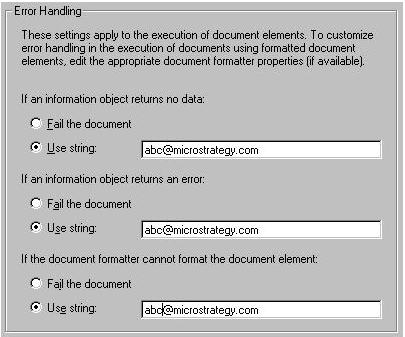
  • Verify error handling is set to "Use string" in the Document Element.
  • Select the 'Show advanced content sections' checkbox. A new option called "Define Execution Control" will appear.
  • Right click on the option 'Define Execution Control (Advanced)'.
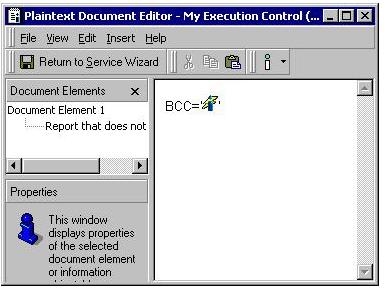
  • In the Email (SMTP) Execution Control window, enter the following: BCC=' '
  • Insert the same Information Object used is Step 3 between the single quotes of BCC=' '.
ka04W000000OgdpQAC_0EM440000002G2f.jpeg
  • Click on 'View' and select Document Element List from the drop down menu.
  • Double click on the Document Element and the Document Element Properties window will appear.
  • Select the option "Use string" under Error handling and enter the email address of the recipient of the emails in the event of an error.
ka04W000000OgdpQAC_0EM440000002G2W.jpeg
  • Click 'OK' and return to the Service Wizard.
  • Define the subscription set and schedule.
  • Finish the service creation.

Comment

0 comments

Details

Knowledge Article

Published:

June 13, 2017

Last Updated:

June 13, 2017