The following procedure explains how to verify the version of Microsoft .NET Framework installed on the Strategy 10.x Web Server machine:
Go to the following folder in Windows Explorer:
C:\WINNT\MICROSOFT.NET\Framework\
Note: The .NET Framework version number will be the greater of the two folders, as shown in the example screen shot below:
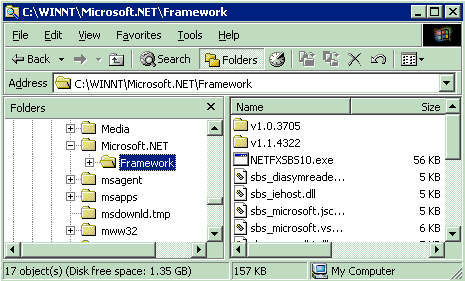
Note: The .NET Framework version is determinant upon the OS on which Strategy Web is installed. If the .NET Framework version is incorrect, per the Strategy Web 8.x Read Me document, then the appropriate .NET version can be downloaded from the following Microsoft Uniform Resource Locator (URL):
http://www.microsoft.com/downloads
Third Party Software Installation
WARNING:
The third-party product(s) discussed in this technical note is manufactured by vendors independent of Strategy. Strategy makes no warranty, express, implied or otherwise, regarding this product, including its performance or reliability.
9288
