EducationSoftwareStrategy.com
StrategyCommunity

Knowledge Base

Product

Community

Knowledge Base

TopicsBrowse ArticlesDeveloper Zone

Product

Download SoftwareProduct DocumentationSecurity Hub

Education

Tutorial VideosSolution GalleryEducation courses

Community

GuidelinesGrandmastersEvents
x_social-icon_white.svglinkedin_social-icon_white.svg
Strategy logoCommunity

© Strategy Inc. All Rights Reserved.

LegalTerms of UsePrivacy Policy
  1. Home
  2. Topics

KB9323: How to change the alignment of a column’s element values in a MicroStrategy Web report


Community Admin

• Strategy


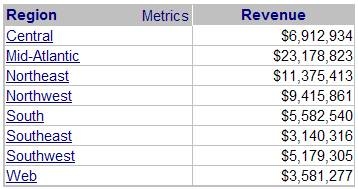
When a user creates a report, attribute column elements are defaulted to left align and metric columns are defaulted to right align, as illustrated below:
 

ka04W000000Of4mQAC_0EM44000000294h.jpeg

 
However, users can change the alignment of a column's element values. To achieve this, perform the following steps:
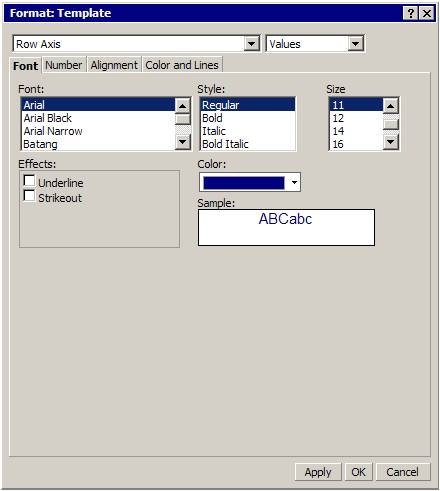
 

  • Go to the Format menu and choose Advanced Formatting. The format window will display.
  • Change the "Format" row to display the correct column and value to be changed, as illustrated in the screen shot below:
ka04W000000Of4mQAC_0EM44000000294c.jpeg
  • After selecting the column and value to change, click on the "Alignment" link in the first Font row. The alignment options will appear.
  • Choose the desired options and click on the 'Apply' button and the changes should immediately be reflected, as shown below:
ka04W000000Of4mQAC_0EM44000000294f.jpeg

Comment

0 comments

Details

Knowledge Article

Published:

June 12, 2017

Last Updated:

June 12, 2017