If a user right-clicks the table to be viewed and selects "Table Database Instances…" within the Strategy Developer 9.x and 10.x Warehouse Catalog editor, then the "Available Database Instances" window will appear.
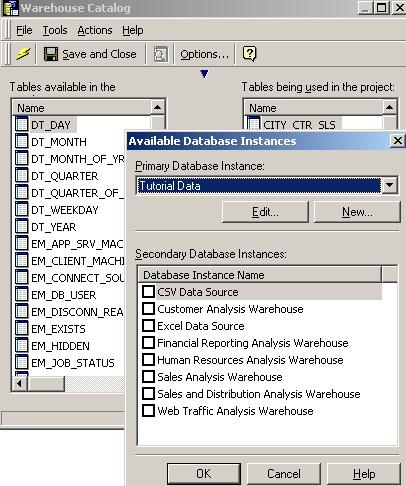
The Available Database Instances dialog box is related to reporting from multiple databases. Support for multisource reporting has changed as of Strategy.
Strategy Developer 9.x and 10.x
Strategy 9.x, when installed with the Multisource option, can report natively against multiple databases in the same report, without the need for a third-party gateway. When using the native Multisource option, the Available Database Instances window displays the alternate database instances containing the table. Unchecking the checkbox for a database instance disables that database instance for the table.
In Strategy 9.x and 10.x, tables must be imported from secondary database instances, to ensure that table structures and column data types are compatible. It is not possible to enable a secondary database instance using this window. If a table has been imported from only one database instance, the secondary database instance panel will be empty and disabled.
Strategy 9.x and 10.x still supports third-party gateway solutions. The method used for multiple data source access is controlled by a project-level VLDB Property. To configure it, open the Project Configuration dialog, go to Project Definition > Advanced and click the button to configure Analytical Engine settings. Under Query Optimizations, find the property "Multiple data source support" and choose the appropriate option for the project.
For more details on the use of multiple data sources, consult the Strategy 9 Project Design Guide PDF manual, chapter 9, "Optimizing and Maintaining Your Project" > Accessing multiple data sources in a project.
