EducationSoftwareStrategy.com
StrategyCommunity

Knowledge Base

Product

Community

Knowledge Base

TopicsBrowse ArticlesDeveloper Zone

Product

Download SoftwareProduct DocumentationSecurity Hub

Education

Tutorial VideosSolution GalleryEducation courses

Community

GuidelinesGrandmastersEvents
x_social-icon_white.svglinkedin_social-icon_white.svg
Strategy logoCommunity

© Strategy Inc. All Rights Reserved.

LegalTerms of UsePrivacy Policy
  1. Home
  2. Topics

KB9558: How to use MicroStrategy Command Manager and Windows Scheduler to setup automatic (scheduled) restarts of MicroStrategy Intelligence Server 10.x and later on Windows


Community Admin

• Strategy


The steps below have been provided to give general guidelines for setting up automatic restarts of Strategy Intelligence Server on Windows Operating Systems. The exact steps may vary based on the type of the Windows Operating System.
 
Automatic scheduled restarts of Strategy Intelligence Server can be setup using "Scheduled Tasks" in a Windows operating system in conjunction with Strategy Command Manager. To achieve this, perform the following steps:
 

  • Using Strategy Command Manager, create a script file for restarting the Strategy Intelligence Server as "restartserver.scp":
    RESTART SERVER IN "";
    For example:
    
    RESTART SERVER IN "Server1";

  • Using the command manager script file created in Step1, create a batch file that can be used to restart the Strategy Intelligence Server.
    "" -n "" -u -p -f
    For example:
    "C:\Program Files\Strategy\Administrator\Command Manager\cmdmgr.exe" -n "Strategy Tutorial" -u Administrator -p 007007 -f C:\restartserver.scp
    Save the file as Filename.bat, (i.e. "XXX.bat").
     
  • Create a schedule for restarting the Strategy Intelligence Server with the above batch file using "Scheduled Tasks" in a Windows operating system. Create a schedule to run a batch file for restarting the server. To achieve this, perform the following steps:
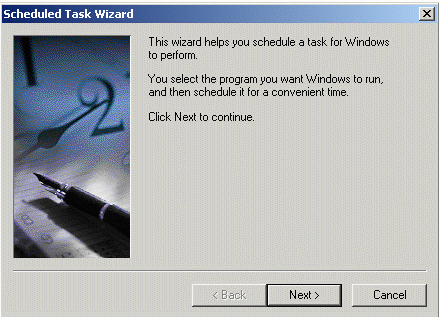
    • Go to Start > Settings > Control Panel > Scheduled tasks > Add Scheduled Task and click 'Next', as shown below:
ka04W000000Of8aQAC_0EM440000002Bra.gif
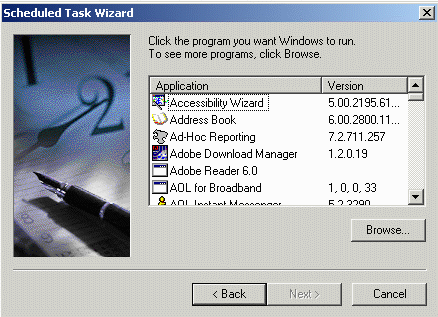
    • Select 'Browse', as shown below:
ka04W000000Of8aQAC_0EM440000002BrX.gif
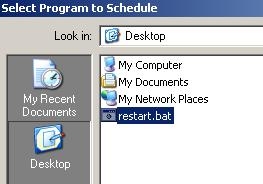
    • Find the location of the 'Restart' batch file created above:
       
       
ka04W000000Of8aQAC_0EM440000002BrQ.jpeg
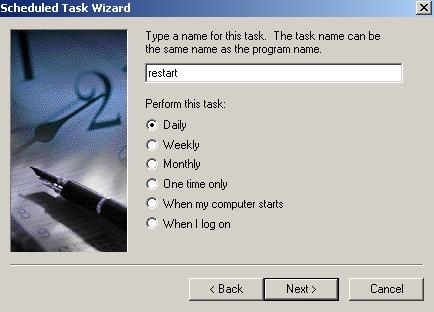
    • Enter the time frame on which the task schedule should be based and click 'Next':
       
ka04W000000Of8aQAC_0EM440000002BrZ.jpeg
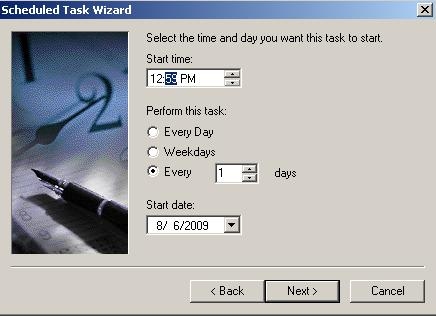
    • Select the time and day on which this task will be performed and click 'Next':
       
ka04W000000Of8aQAC_0EM440000002Brg.jpeg
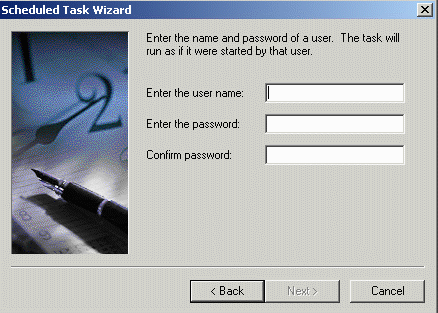
    • Enter the Windows NT account with Task Scheduling privileges, as shown below:
ka04W000000Of8aQAC_0EM440000002BrO.gif
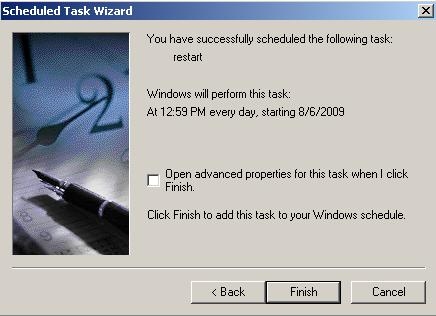
    • Click on 'Finish' to complete the schedule task creation for restarting the Strategy Intelligence Server:
       
ka04W000000Of8aQAC_0EM440000002BrS.jpeg

NOTES:

  • If needed, administrators can create separate script files and schedules for stopping and starting the Intelligence Server.
  • Special characters like a parenthesis (") and semi-colon (;) should not be omitted in the scripts and batch files.
  • Ensure there is a sufficient gap between the running of the batch files for stopping the Strategy Intelligence Server and the batch file for starting the server.

Comment

0 comments

Details

Knowledge Article

Published:

June 2, 2017

Last Updated:

June 2, 2017