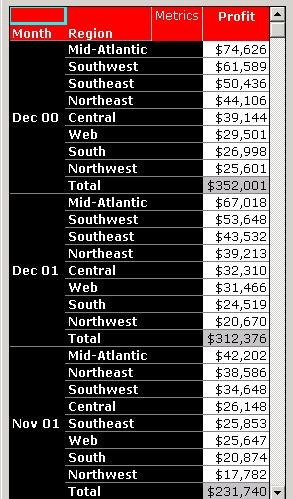
Strategy users have the ability to sort the subtotals of attribute elements according to their metric values in either ascending or descending format. The Strategy Tutorial project is used to illustrate how to achieve this.
The following screen shot shows a report with subtotals enabled:
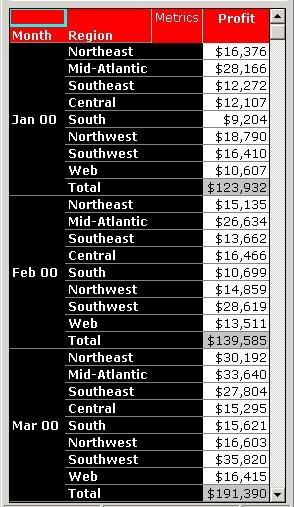
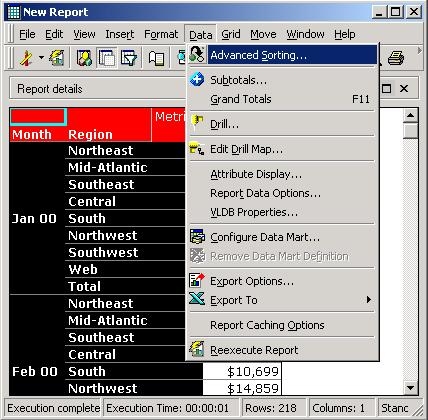
For this example, the subtotals will be set to sort descending. This is achieved by accessing the 'Advanced Sorting' option in the Data menu on the top of the Grid View of the report, as illustrated below:
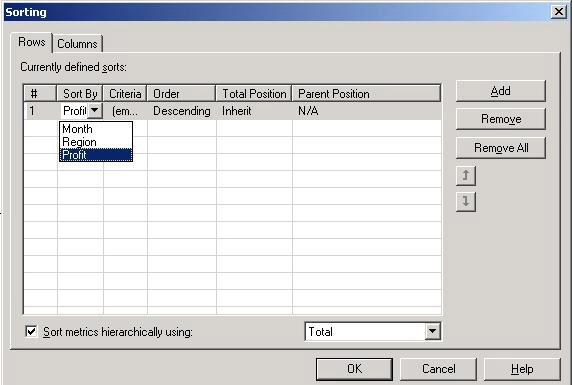
Add a sorting row by clicking the 'Add' button and then go to the 'Sort By' column and select the metric with subtotaling (in this case, 'Profit'). Ensure the Order column is set properly to either Ascending or Descending in order to achieve the desired results.
Check the "Sort metrics hierarchically using" box and set the drop down menu to whichever subtotal that was selected. In the screen shot below, it is set to Total:
The report will now be sorted in descending order based on the subtotals, as shown in the screen shot below: