EducationSoftwareStrategy.com
StrategyCommunity

Knowledge Base

Product

Community

Knowledge Base

TopicsBrowse ArticlesDeveloper Zone

Product

Download SoftwareProduct DocumentationSecurity Hub

Education

Tutorial VideosSolution GalleryEducation courses

Community

GuidelinesGrandmastersEvents
x_social-icon_white.svglinkedin_social-icon_white.svg
Strategy logoCommunity

© Strategy Inc. All Rights Reserved.

LegalTerms of UsePrivacy Policy
  1. Home
  2. Topics

KB9652: How to change the web services URL in MicroStrategy Office 9.x


Community Admin

• Strategy


How to change the web services URL in MicroStrategy Office 9.x

When a user logs into Strategy Office 9.x, the default Web Services Universal Resource Locator (URL) may be set to http://localhost/MicroStrategyWS/MSTRWS.asmx.
 
However, users can change this Web Server URL by performing either of the following methods:
 
Method A:
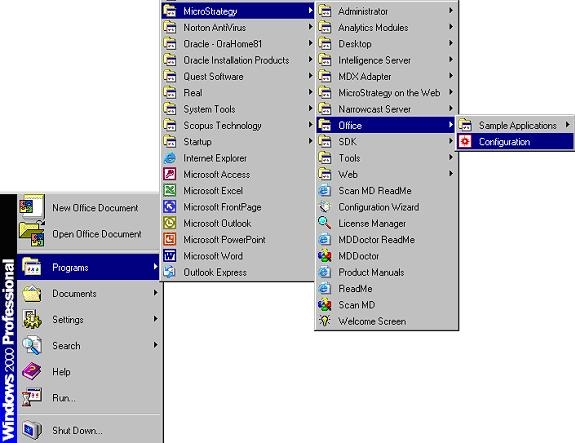
  • On the the Strategy Web Server, go to Start > Programs > Strategy > Office > Configuration, as shown below:
ka04W000000OhIMQA0_0EM44000000294A.jpeg
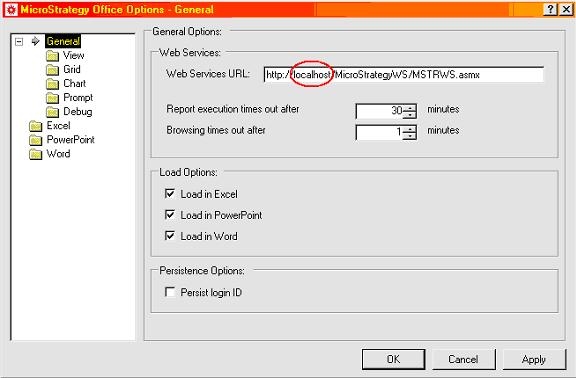
  • In the Strategy Office configuration window, change the Web Services URL to point to the desired web server, as shown below:
ka04W000000OhIMQA0_0EM44000000294B.jpeg

Method B:

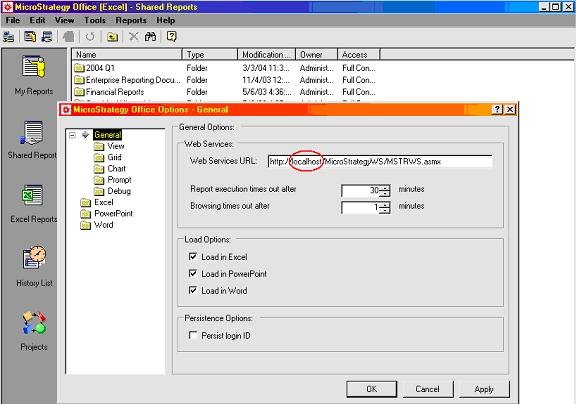
  • Once logged into Strategy Office, go to the Tools menu and choose Options. The following configuration window will appear:
ka04W000000OhIMQA0_0EM440000002948.jpeg
  • Change "localhost" to the desired web server.

Note: Changes to Web Services URLs are applied when Microsoft Office applications are restarted.


Comment

0 comments

Details

Knowledge Article

Published:

May 26, 2017

Last Updated:

May 26, 2017