EducationSoftwareStrategy.com
StrategyCommunity

Knowledge Base

Product

Community

Knowledge Base

TopicsBrowse ArticlesDeveloper Zone

Product

Download SoftwareProduct DocumentationSecurity Hub

Education

Tutorial VideosSolution GalleryEducation courses

Community

GuidelinesGrandmastersEvents
x_social-icon_white.svglinkedin_social-icon_white.svg
Strategy logoCommunity

© Strategy Inc. All Rights Reserved.

LegalTerms of UsePrivacy Policy
  1. Home
  2. Topics

KB9665: How to force the deletion of an application object's dependent objects in MicroStrategy Developer 9.4.x-10.x


Stefan Zepeda

Salesforce Solutions Architect • Strategy


How to force the deletion of an application object's dependent objects in MicroStrategy Developer 9.4.x-10.x

Strategy Developer provides an option that allows users to recursively delete dependent objects when deleting an application object.
Enabling the "Dependent Objects Deletion" feature:
Administrative users must enable this option for each project by performing the following steps:
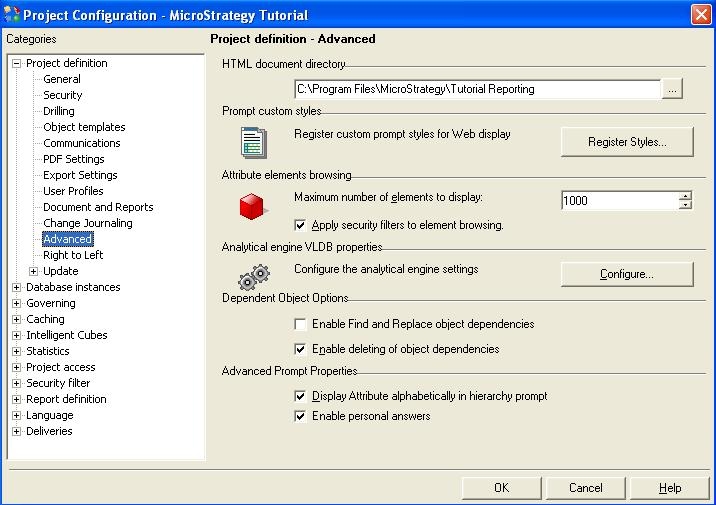
 

  • Open Strategy Developer and log into the project.
  • Right-click on the project and select Project Configuration.
  • Under Project Definition, select the Advanced section.
  • Select the "Enable deleting of object dependencies" checkbox under Dependent Object Deletion, as shown below:
ka02R000000kcbbQAA_0EM440000002Fzk.jpeg


Using the "Dependent Objects Deletion" feature:
Once an Administrative user has selected the "Enable deleting of object dependencies" setting, end-users must enable the setting "Offer ability to delete dependent objects upon object deletion" by following the steps below:
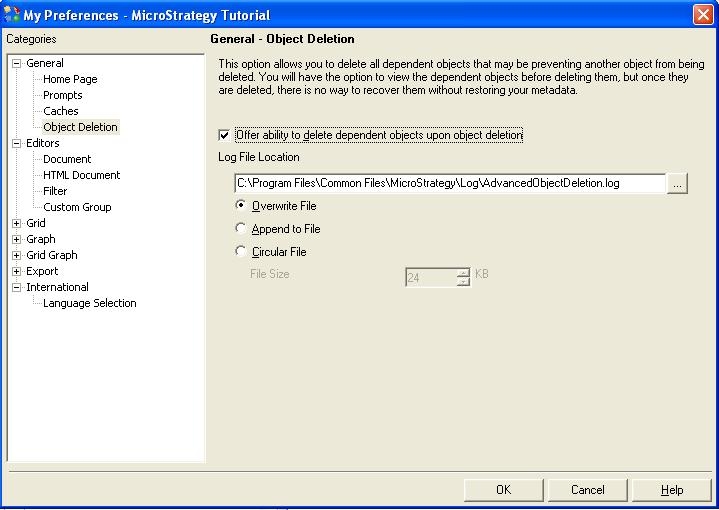
 

  • Select the 'Tools' menu in Strategy Developer.
  • Select 'My Preferences' and go to the "General>Object Deletion>
  • Select the "Offer ability to delete dependent objects upon object deletion" checkbox, as shown below:
ka02R000000kcbbQAA_0EM440000002Fzl.jpeg

Users have the option to modify the path and name of the log file that contains the deleted objects' name. By default, the log file is called AdvancedObjectDeletion.log.
 
NOTES:
 

  • Users must have the preference 'Change user preference' enabled to view "My Preference" in the 'Tools' menu.
  • Users must have at least the 'Modify' permission to successfully delete the object.

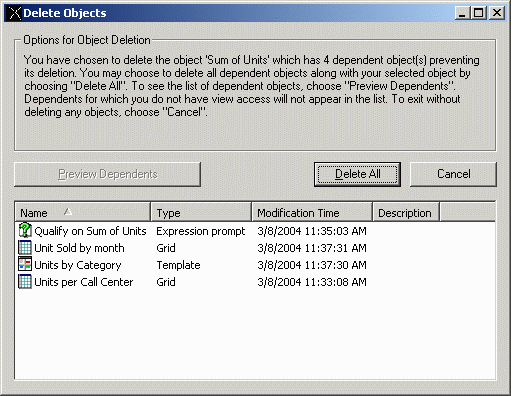
When an end-user selects to delete an object that contains dependents, a window with the options for Object Deletion will appear. To select the option 'Delete All', users must select the Preview Dependents button, as illustrated below:
 

ka02R000000kcbbQAA_0EM440000002FzW.gif


  • Preview Dependents: Displays a list of the dependent objects to which the user has view access.
  • Delete All: The dependent objects and the object are deleted. This action is irreversible and should only be carried out once it is determined that the objects concerned are no longer required and can be deleted.
  • Cancel: Ends the process without deleting any objects.

If the user selects 'Delete All', all of the dependent objects will be deleted permanently and the name of the deleted objects will be logged in the AdvancedObjectDeletion.log. The following is an example of an entry in the log file:
 
Time: 03082004 11:38:18
Base selected object:
0 Sum of Units Metric \Strategy Tutorial\Public Objects\Metrics\Sum of Units
Parent Dependents:
1 Qualify on Sum of Units Prompt \Strategy Tutorial\Public Objects\Reports\Jan Reports\Qualify on Sum of Units
2 Unit Sold by month Report \Strategy Tutorial\Public Objects\Reports\Jan Reports\Unit Sold by month
3 Units by Category Template \Strategy Tutorial\Public Objects\Reports\Jan Reports\Units by Category
4 Units per Call Center Report \Strategy Tutorial\Public Objects\Reports\Jan Reports\Units per Call Center
Above object deletion is successful
NOTE: The Dependent objects deletion functionality only applies to application objects (reports, metrics, filters, etc.). It does not work with schema or configuration objects.


Comment

0 comments

Details

Knowledge Article

Published:

April 11, 2017

Last Updated:

April 11, 2017