Embedded metrics are objects whose definitions and object IDs are unique to and exist only in the context of the Strategy Report in which they reside. An embedded metric will have a different object ID than that from which it originated. As its name implies, an embedded metric does not exist outside the report object. In other words, that particular object's definition and ID do not exist independently in the metadata object info and object definition tables and, therefore, cannot be used in other reports. Instead, the report definition contains an "embedded objects" folder as part of its definition (not a freestanding folder), and the embedded metric exist only in this folder.
Embedded metrics are created when there exists a prompted filter in the condition of a metric and where the report is saved after answering those prompts. Consider the example below:
A new report has been created using existing objects. It is comprised of the 'Year' attribute and a 'Revenue' metric, defined as follows:
Revenue = Sum (Revenue) {~} <>
"Prompt1" is the condition on the metric and is defined to prompt on elements of the 'Year' attribute. The following screen shot illustrates how this report will appear:
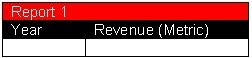
Before executing the report, the metric definition is as follows:
Sum (Revenue) {~} Prompt1 ("No Answer")
Run and save the report. Click 'OK' when prompted for the Save Options:
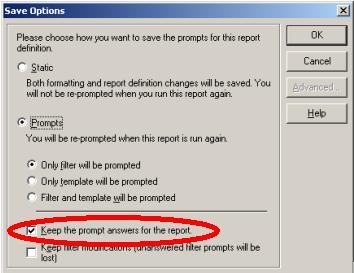
The metric is now defined as:
Sum (Revenue) {~} Prompt1 ("With Answer")
Users can verify the metric is embedded by viewing its properties, as shown in the image below.
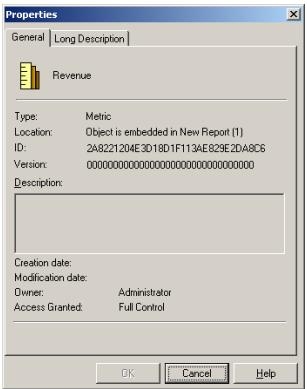
Explanation:
If a metric contains an embedded prompt, answering those prompts will change the metric definition. When this change occurs, a copy of the metric definition is placed within the report. This copy is given a new Object ID, but an actual object has not been created in the metadata. It is only referenced within the report where it resides. Once the report is saved, the embedded metric will be made permanent.
There are two methods in which a user can prevent Embedded Metrics from remaining permanent in a report:
If users have existing embedded metrics in the report and would like them to be removed, they will need to remove the embedded metric from the report and add the original metric object. Save and Close the report before executing.
