EducationSoftwareStrategy.com
StrategyCommunity

Knowledge Base

Product

Community

Knowledge Base

TopicsBrowse ArticlesDeveloper Zone

Product

Download SoftwareProduct DocumentationSecurity Hub

Education

Tutorial VideosSolution GalleryEducation courses

Community

GuidelinesGrandmastersEvents
x_social-icon_white.svglinkedin_social-icon_white.svg
Strategy logoCommunity

© Strategy Inc. All Rights Reserved.

LegalTerms of UsePrivacy Policy
  1. Home
  2. Topics

KB9860: How to force wide grids to overflow onto the same page rather than separate pages when viewing a document in PDF Mode using MicroStrategy Developer 10.x


Stefan Zepeda

Salesforce Solutions Architect • Strategy


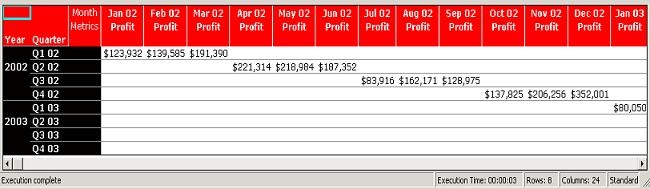
A user executes a grid report with numerous columns and observes that this report (because of its width) has a scrollbar at the bottom to allow the user to scroll left and right horizontally

SYMPTOM:
A user executes a grid report with numerous columns and observes that this report (because of its width) has a scrollbar at the bottom to allow the user to scroll left and right horizontally, as shown in the screen shot below:
ka02R000000kVhBQAU_0EM440000002Fyh.jpeg

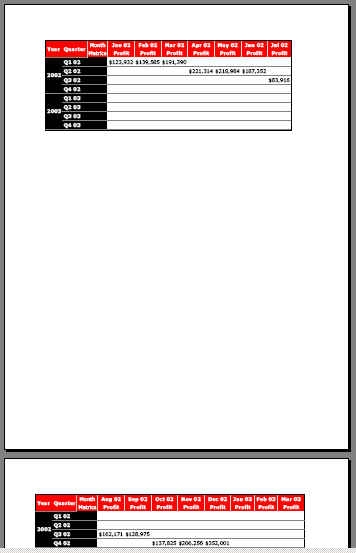
When placing this grid report onto a Strategy 10.x Report Services document and switching to PDF mode, the user observes that the wide report is broken up onto separate PDF pages with wasted whitespace in between, as illustrated below:
ka02R000000kVhBQAU_0EM440000002Fyv.jpeg

Instead of breaking the report up onto separate pages, the user desires to keep the report on a single PDF page.
CAUSE:
By default, PDF documents have been configured to overflow horizontal grids onto separate PDF pages.
 
ACTION:
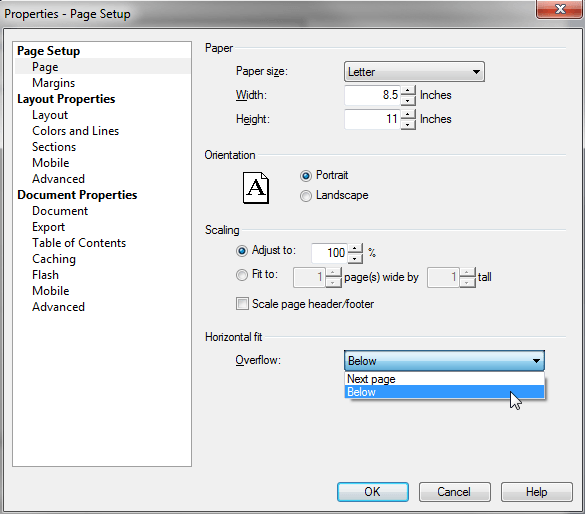
Edit the document and go to the top menu options: File > Page Setup… >Page Setup > Page, as seen in the screen shot below:
ka02R000000kVhBQAU_0EM440000002Fyf.png

 
The Horizontal Fit setting is configured to overflow onto the 'Next page'. Change the Overflow setting to 'Below'.
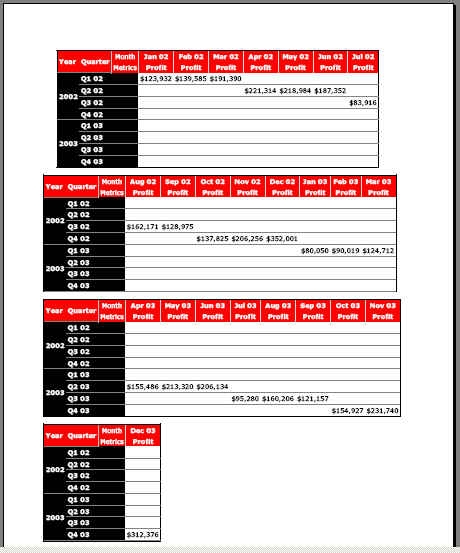
Now, when the document is viewed in PDF mode, the report will overflow onto the same page:
ka02R000000kVhBQAU_0EM440000002Fyl.jpeg


Comment

0 comments

Details

Knowledge Article

Published:

May 28, 2017

Last Updated:

May 28, 2017