EducationSoftwareStrategy.com
StrategyCommunity

Knowledge Base

Product

Community

Knowledge Base

TopicsBrowse ArticlesDeveloper Zone

Product

Download SoftwareProduct DocumentationSecurity Hub

Education

Tutorial VideosSolution GalleryEducation courses

Community

GuidelinesGrandmastersEvents
x_social-icon_white.svglinkedin_social-icon_white.svg
Strategy logoCommunity

© Strategy Inc. All Rights Reserved.

LegalTerms of UsePrivacy Policy
  1. Home
  2. Topics

Launching the MicroStrategy Diagnostics and Performance Logging Tool Produces the Error, "This machine does not have MicroStrategy Intelligence Server"


Juliana Schoettler

Product Manager, Senior • MicroStrategy


This article details how to resolve an error that appears when attempting to launch the MicroStrategy Diagnostics and Performance Logging tool.

Description

When launching the Diagnostics and Performance Logging tool, an error message is returned that states, "This machine does not have Strategy Intelligence Server."
Steps to reproduce

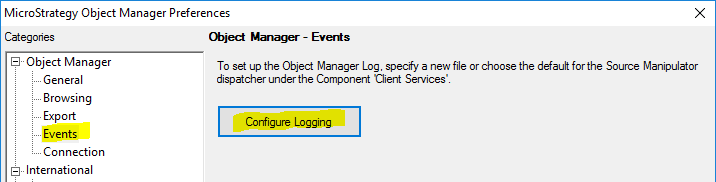
  • Launch the Diagnostics and Performance Logging Tool. You can launch the application directly or when editing the Object Manager Preferences and clicking Configure Logging in the Events window.
ka02R000000g2zUQAQ_0EM2R000000mDDe.jpeg
  • Click OK when the error message appears.
ka02R000000g2zUQAQ_0EM2R000000mDE8.jpeg
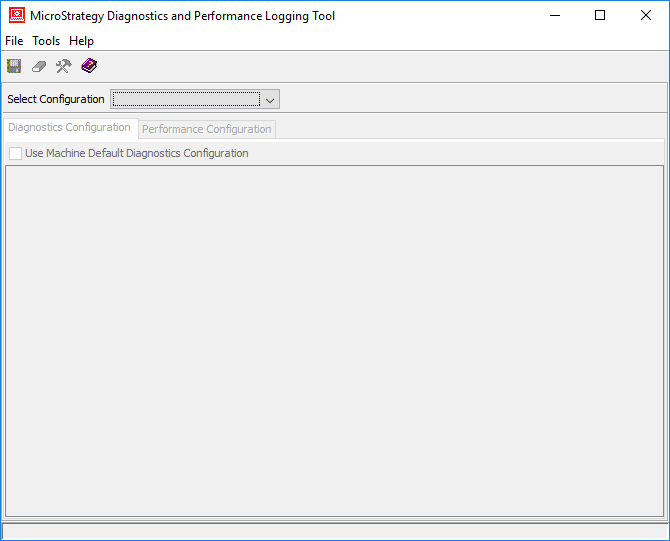
  • The Diagnostics and Performance Logging Tool opens. All of the options are unavailable.
ka02R000000g2zUQAQ_0EM2R000000mDEN.jpeg

Why is this happening?

This is a known defect. The Diagnotics tool requires a registry key that is added during the installation of Intelligence Server components. If the server components are not installed, the registry is not written.

Solution

You can upgrade to Strategy 2019 Critical Update 3 or higher to resolve this issue. Alternatively, you can add the Intelligence Server registry key and string on the client machine.

  1. Go to the following location in the Registry Editor:
    
    HKEY_LOCAL_MACHINE\SOFTWARE\WOW6432Node\MicroStrategy\Server Control\Servers\IntelligenceServer

  2. 
    At that location, add the following registry key:
    
    "LibraryPath"="MJISCAPI"


Comment

0 comments

Details

Knowledge Article

Published:

September 30, 2019

Last Updated:

September 30, 2019