Starting in Strategy 2020, you can use a visualization in one dossier to filter data in a different dossier. First, define one visualization as the source. Then, select a page from a different dossier that you want to filter as the target. The target visualizations only display data that also appears in the source.
When you choose to filter data within another dossier, you also have the option to pass the filter conditions in the source dossier to the target dossier. However, to successfully pass the filter, there are some best practices you should follow.
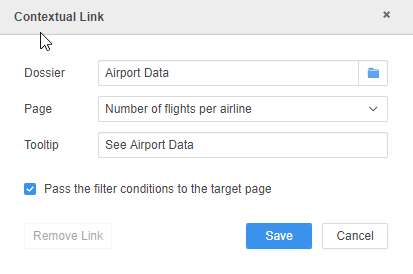
When you choose to filter data within another dossier, you have the option to pass the filter(s) under the Filter panel in the source dossier to the target dossier. The following matching rules apply for attribute and metric filters:
Similarly, if the metric filter name and the metric object ID are the same, the filter condition can be passed from the source to the target dossier.
Dossier linking also supports passing selections made in a visualization in the Filter panel. For this situation, similar rules apply to as those mentioned in the Attribute Filters section above. The filter name should be the same between the source and target.
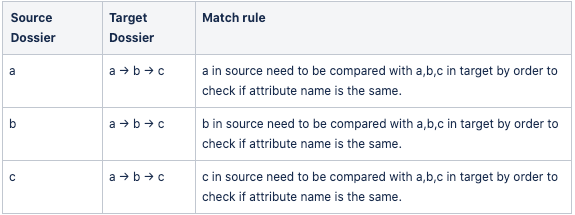
When you select a data point from a grid or visualization in the source dossier, the selected data point(s) are automatically passed from the source to the target dossier as a view filter to the visualizations contained in the page of the target dossier. The following rules apply for passing data selections as filters:
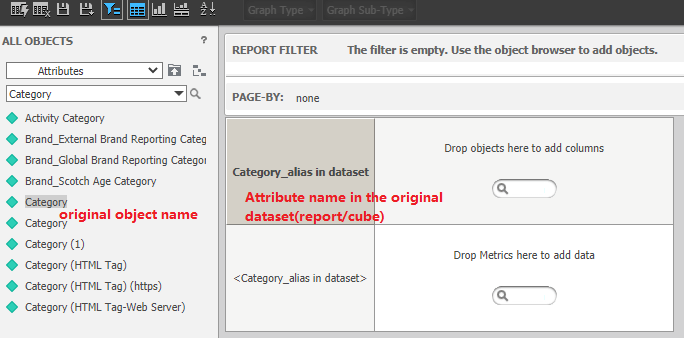
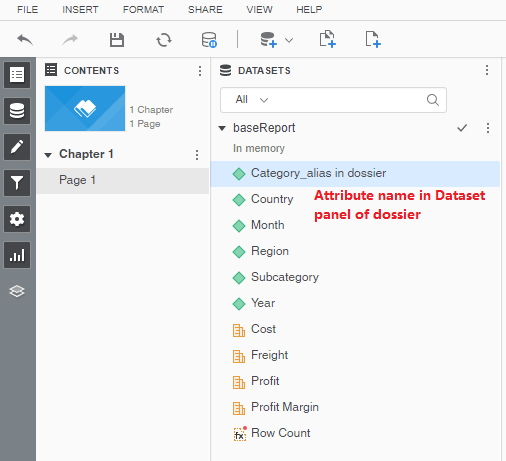
Note that for rule 2, there are three levels in which an attribute names can be defined in the product: at the individual attribute object level (applicable to project schema attributes), at the report or cube level, and at the level of the dossier (via the Datasets panel).
For more information on how to use visualizations to filter data in a different dossier, see the MicroStrategy Workstation Help.
