EducationSoftwareStrategy.com
StrategyCommunity

Knowledge Base

Product

Community

Knowledge Base

TopicsBrowse ArticlesDeveloper Zone

Product

Download SoftwareProduct DocumentationSecurity Hub

Education

Tutorial VideosSolution GalleryEducation courses

Community

GuidelinesGrandmastersEvents
x_social-icon_white.svglinkedin_social-icon_white.svg
Strategy logoCommunity

© Strategy Inc. All Rights Reserved.

LegalTerms of UsePrivacy Policy
  1. Home
  2. Topics

KB441771: Line breaks disappear when exporting HTML text in 10.11 and lower


Community Admin

• Strategy


When a data import uses line breaks or character returns in the texts, the attribute for the text does not retain the line breaks when the text is exported as HTML.

Symptom

When a data import uses line breaks or character returns in the text fields, an attribute created for the text does not retain the line breaks when the text is exported as HTML.
Steps to Reproduce

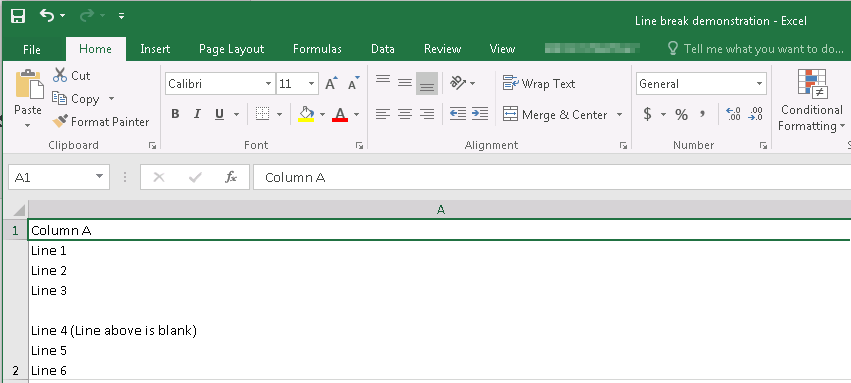
  1. Create an excel document that contains one column with two rows. The text in the first row contains the column header. The second row contains multiple lines of text that are separated by a line break (alt +enter in Excel). Some of the lines in between the text are completely blank. 
ka04W000000Ob4EQAS_0EM44000000Qpu8.png
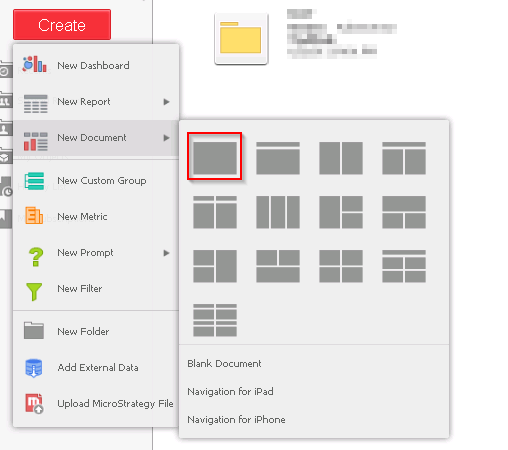
  1. In Strategy Web create a new blank document. Remove the panel in the document. 
ka04W000000Ob4EQAS_0EM44000000Qptt.png
  1. Add the excel document as a dataset.
    1. Click the add a dataset button
    2. Select “Add External Data”
    3. Select "File From Disk"
    4. Upload the excel document as the external data and click finish.
    5. Save the dataset in any report folder. 
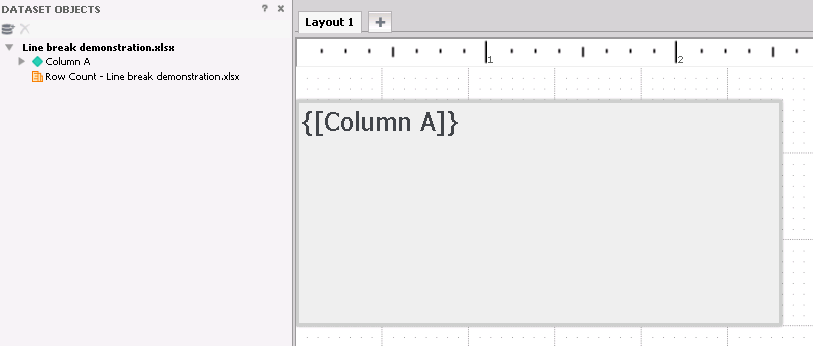
  2. Drag the attribute onto the document and expand the size of the text box 
ka04W000000Ob4EQAS_0EM44000000Qpu3.png
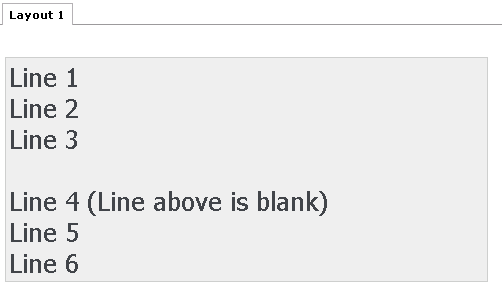
  1. Open the document in Presentation mode. Note that line breaks and empty spaces are still appearing as they did in excel 
ka04W000000Ob4EQAS_0EM44000000QqZ6.png
  1. Export the document to an email.
    1. Click the menu button in the top right corner of the screen.
    2. Click "Send Now…" 
    3. Change the to field to a recipient with an Microsoft Outlook device.
    4. Change the email subject to something meaningful
    5. Click ok. 
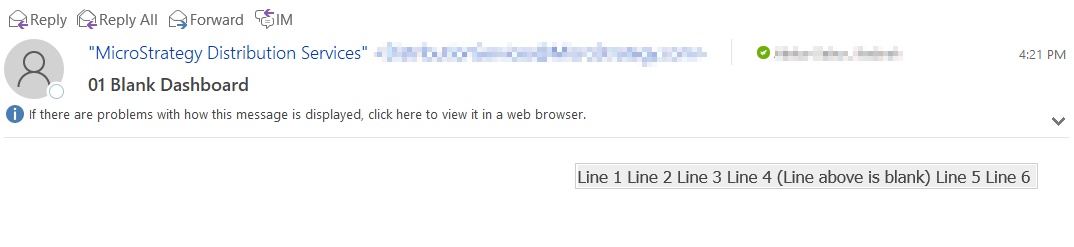
  2. Check the recipient’s email. Note the HTML is no longer formatted
ka04W000000Ob4EQAS_0EM44000000QqZB.png

Cause


This is a known defect in Strategy 10.11 and earlier. The newline character "\n" was not converted into a linebreak <"br>" in the context text of document.

Action


Upgrade to Strategy 11.1 or higher where the issue is fixed in and the format is correct when HTML is delivered Email.


Comment

0 comments

Details

Knowledge Article

Published:

September 28, 2018

Last Updated:

December 27, 2018