EducationSoftwareStrategy.com
StrategyCommunity

Knowledge Base

Product

Community

Knowledge Base

TopicsBrowse ArticlesDeveloper Zone

Product

Download SoftwareProduct DocumentationSecurity Hub

Education

Tutorial VideosSolution GalleryEducation courses

Community

GuidelinesGrandmastersEvents
x_social-icon_white.svglinkedin_social-icon_white.svg
Strategy logoCommunity

© Strategy Inc. All Rights Reserved.

LegalTerms of UsePrivacy Policy
  1. Home
  2. Topics

Local & Remote Data Homepage


Stefan Zepeda

Salesforce Solutions Architect • Strategy


A dataset is a set of data that can be displayed in a dashboard or document. The data can be displayed in objects such as visualizations, filters, text fields, and so on. You can import data directly into MicroStrategy Web, for use in creating dashboards, documents, and reports. You can import data from many different data sources, such as Excel files, csv files, JSON, text and SAS data files.

A dataset is a set of data that can be displayed in a dashboard or document. The data can be displayed in objects such as visualizations, filters, text fields, and so on. You can import data directly into Strategy Web, for use in creating dashboards, documents, and reports. You can import data from many different data sources, such as Excel files, csv files, JSON, text and SAS data files.  

ka02R000000kcQAQAY_0EM440000002JgV.png
ka02R000000kcQAQAY_0EM440000002Jga.png

In this section the focus will be on importing local and remote data. 

ka02R000000kcQAQAY_0EM440000002JML.png

Consider the following best practices when importing data:
  • If you are importing data from a file that contains crosstabbed data, be sure to appropriately highlight and specify the cells that contain your metric data, attribute element data, and the names of metric headers
  • Be sure that your system has enough free memory to accommodate the file. In general, your browser will require memory that is an additional 1.1 times the size of the file you want to upload. For example, to upload a 75 MB file, be sure to have at least 83 MB for the browser to use.
  • A space usage summary is displayed on the Import Data page and shows the amount of memory currently being occupied by published Intelligent Cubes, as well as the maximum amount of memory allocated for the Intelligent Cubes by the Administrator. You can expand this summary to view the name and size of each Intelligent Cube. Web will display a warning message if you are close to reaching this quota.
  • If you use the default web server, which is Microsoft Internet Information Services, only 4 MB of data can be imported at a time. For steps to increase this default amount, refer to the Strategy Tech Note KB34465.
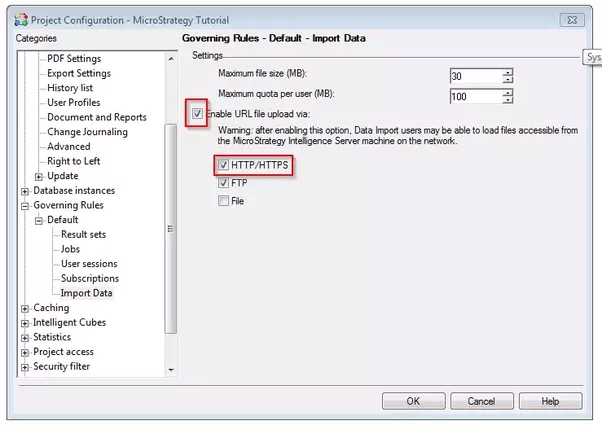
  • ​When using the import data from URL feature insure the setting in the project configuration is checked in developer
ka02R000000kcQAQAY_0EM440000002Jgf.png
  • Additionally, if you imported the data using a URL, you must ensure that the URL has not changed, to successfully republish the Intelligent Cube. If the URL has changed, you are prompted to provide the new URL.

    You can include port information in URLs. However, question marks in URLs are not supported.
  • You can import data from local files on your computer using a file URI scheme. For example, you can provide the location of your file as File://ComputerName/Path/FileName, where ComputerName is the name of the machine on which the file is located, Path is the file path in which the file is located, and FileName is the name of the file. Specifying the location of your file as a file URI scheme allows you to republish or schedule updates for an Intelligent Cube created using the file, without having to manually upload the file each time the Intelligent Cube is updated.
  • You can republish an Intelligent Cube by clicking the name of the Intelligent Cube in Web. If the original data source of the Intelligent Cube was a Freeform script, a file from a URL or file URI scheme, Web attempts to automatically republish the Intelligent Cube with new data from the same data source. If the original data source was a file uploaded from your computer, you must reupload the file. However, you can avoid having to reupload files stored on your computer by specifying the locations of files as a file URI scheme instead.
  • When importing data, keep in mind these suggested maximum file sizes for data sources:

    Note: For optimum performance, be sure your file sizes and system requirements match the recommendations in the System Administration Guide.
    • When importing data from a file on your computer or network:
      • Excel, text, and CSV files: 100 MB. If you strictly adhere to the system tuning best practices described in this section and increase various governing options as required, you can support maximums of up to 750 MB when using Mozilla Firefox to import data, and 400 MB when using Microsoft Internet Explorer to import data.
    • When importing data from a file from a URL: 

      Note: Your administrator must strictly adhere to the system tuning best practices described in the Importing Data chapter in the Advanced Reporting Guide, and increase various governing options as required to support these maximum file sizes.
      • Excel file: 800 MB
      • Text/CSV file: 1500 MB
  •  You can provide the location of your file using an http, https, or ftp URL. Anonymous authentication (and basic authentication, for https and ftp URLs) is supported during the import. To support basic authentication, the user name and password must be included as part of the URL. You can include port information in URLs. Question marks in URLs are not supported.
  • Depending on the type of file you are importing, you must meet the following requirements:
    • For any type of supported file:
      • Leave cells or data empty to represent NULL values rather than using the text NULL.
      • Determine whether the data for a column is numeric or textual. If there is any non-numeric value in the values for a column, use a text data type. If all values are numeric, a numeric data type can be used.
      • Avoid leaving more than 20 empty rows between column headers and data on the worksheet, so that you will see an accurate preview of your data.
    • For text and CSV files:
      • Use commas to separate values.
      • Multiple worksheets in a single file can be uploaded at the same time.
      • The file must use either UTF-8, UTF-16, or UTF-32 encoding.
    • For Excel files:
      • Multiple worksheets can be included in the file.


Comment

0 comments

Details

Knowledge Article

Published:

April 18, 2017

Last Updated:

April 25, 2017