EducationSoftwareStrategy.com
StrategyCommunity

Knowledge Base

Product

Community

Knowledge Base

TopicsBrowse ArticlesDeveloper Zone

Product

Download SoftwareProduct DocumentationSecurity Hub

Education

Tutorial VideosSolution GalleryEducation courses

Community

GuidelinesGrandmastersEvents
x_social-icon_white.svglinkedin_social-icon_white.svg
Strategy logoCommunity

© Strategy Inc. All Rights Reserved.

LegalTerms of UsePrivacy Policy
  1. Home
  2. Topics

KB486239: Login screen is empty or invalid after project security setting from MicroStrategy Web were modified to use another authentication mode


Gustavo Sulbaran

Product Specialist • MicroStrategy


This article indicates the situation in which the user was trying to modify inside preference the Login mechanism used to enter Web, afterwards because of lack of a complete configuration the login screen appears as empty or invalid. When an admin user tries to set Standard authentication in Web admin page, the changes do not get set.

ISSUE:
When the user enters the login screen of web they encounter the following screen, or an empty screen or a message informing about an invalid login Mode.

ka0PW0000000AnNYAU_0EMPW000002W6XN.jpeg
ka0PW0000000AnNYAU_0EMPW000002W6Yz.jpeg

CAUSE:
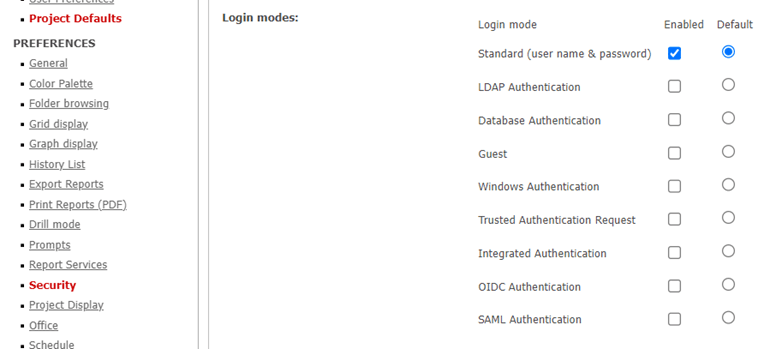
The user has modified the login mode to be another type inside preferences:
ka0PW0000000AnNYAU_0EMPW000002W6ab.jpeg

User does not have this item properly configured but this change has been forgotten about.
They also have the setting of override Project Login Modes disabled and at some point, they restarted the web server.
Because the admin page cannot override the project setting logging mode the current deployment becomes inaccessible displaying an invalid or empty login screen.
ACTION:
The following actions will be indicating how to restore the standard authentication.
To quickly restore the deployment to be accessible via Standard  authentication, the user you could follow 3 procedures:
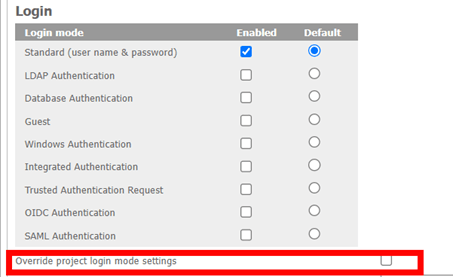
 

  1. If you have access to the admin page, then; check Override The project login screen once again:
ka0PW0000000AnNYAU_0EMPW000002W6fR.jpeg

In some cases, a restart of the web server is necessary.
 

  1. If you have no access to the admin page you could add overrideProjectLoginModes=true inside the sys_defaults.properties located in /StrategySTD/WEB-INF/xml/ and then restart the web server
  1. Lastly check the sys_defaults.properties for the following parameters: 

“enabledloginmode” and “ defaultloginmode” and set them equal to 1 (Standard authentication) and if parameters are not set, add them.
For example:
connectmode=auto
connectorWebBaseURL=https\://machine0000.Strategy.com\:8443/Communityonnectors/
showLoginPageAfterLogout=false
consumerWebBaseURL=https\://machine0000.Strategy.com\:8443/MicroStrategyLibrary/
enabledloginmode=1
defaultloginmode=1
Finally restart the web server for the changes to take effect and login with Standard authentication should now be successful.
Note: This procedure can be followed also for other authentication modes.


Comment

0 comments

Details

Knowledge Article

Published:

December 15, 2023

Last Updated:

December 15, 2023