EducationSoftwareStrategy.com
StrategyCommunity

Knowledge Base

Product

Community

Knowledge Base

TopicsBrowse ArticlesDeveloper Zone

Product

Download SoftwareProduct DocumentationSecurity Hub

Education

Tutorial VideosSolution GalleryEducation courses

Community

GuidelinesGrandmastersEvents
x_social-icon_white.svglinkedin_social-icon_white.svg
Strategy logoCommunity

© Strategy Inc. All Rights Reserved.

LegalTerms of UsePrivacy Policy
  1. Home
  2. Topics

Manual Compliance Auditing for Mixed Named User CPU Licenses in MicroStrategy 2021


Andrew Geyster

Principal Product Specialist • MicroStrategy


This article provides general steps for manually checking compliance of a mixed deployment to assist MicroStrategy Administrators in maintaining their environments.

Starting with the release of Strategy ONE (March 2024), dossiers are also known as dashboards.
Starting with the release of Strategy 2019 and later versions, certain customers have informed Strategy about incorrect Out of Compliance messages for their environments. After internal investigation, it was found that this is related to having both a Named User and CPU License Key for the same Intelligence server cluster, referred to as a Mixed Named User CPU License Key.
By default, License Manager automatically performs compliance checks and provides information about the compliance status to System Administrators. To eliminate false positive messages from License Manager, compliance checks for Mixed Named User CPU deployments are temporarily suspended in Strategy Secure Enterprise 2019 Update 2 (11.1.2) while Strategy’s Technology Team is works on system improvements.
This article provides general steps for manually checking compliance of a mixed deployment to assist Strategy Administrators in maintaining their environments. If you have any questions about these changes or need assistance manually checking compliance, please contact your Account Executive.

Environment Configuration


Deploying an environment using both a CPU and Named User License in a clustered Intelligence server varies from situation to situation. The most common method of setting up this type of environment is using User Fencing to dictate the Named User License profiles to a single node and then using the CPU License for the remaining unfenced users. This method restricts the traditionally higher functionality or higher priority Users to a system that can utilize all the available hardware, while the bulk of Users would be sharing the hardware limited machines.
For the purpose of running a Manual Compliance Check, it's best to have a single User Group containing all Users who will be fenced to the Named User Licensed Intelligence server node. This allows for quick identification of fenced Users and a faster analysis of the Named User compliance.

How to Manually Check License Compliance

Named User Check

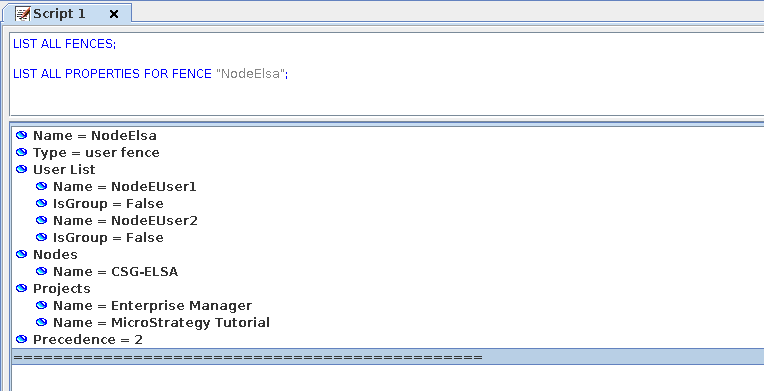
  • Determine the users who are relegated to the Intelligence server node by running the following script in Command Manager:
    LIST ALL FENCES;	LIST ALL PROPERTIES FOR FENCE “<user-fence>”

ka0PW0000001JmoYAE_0EM2R000000hNEu.jpeg
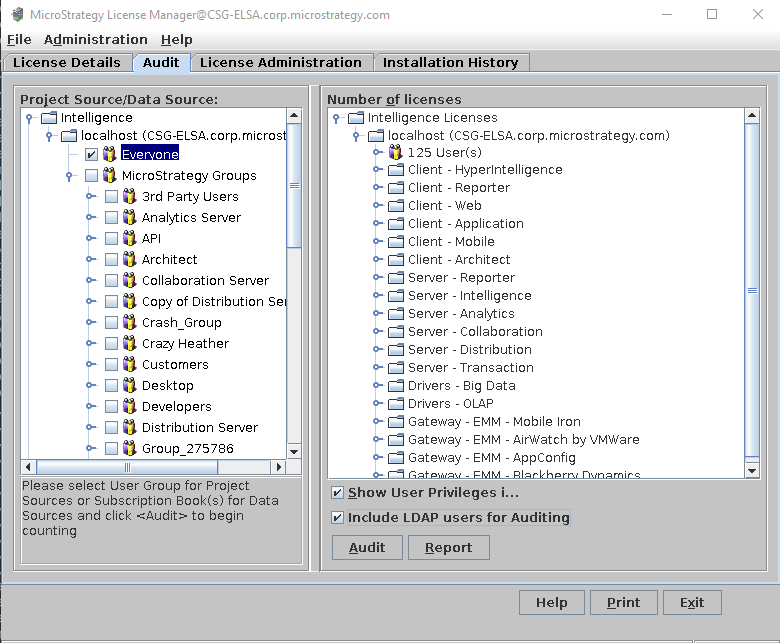
  • After, generate an Audit Report through License Manager. To run the audit, navigate to the Audit tab and select the project source/data source you added the fencing configuration to.
    • If a single User Group contains the fence configuration, select that group.
    • If you did not specify a single User Group, select Everyone.
    • If you are using LDAP, select the checkbox Include LDAP users for Auditing. 
ka0PW0000001JmoYAE_0EM2R000000hNFJ.jpeg
  • Click Audit.
  • Click Report. This generates a set of three License Manager files containing the Named User information. 
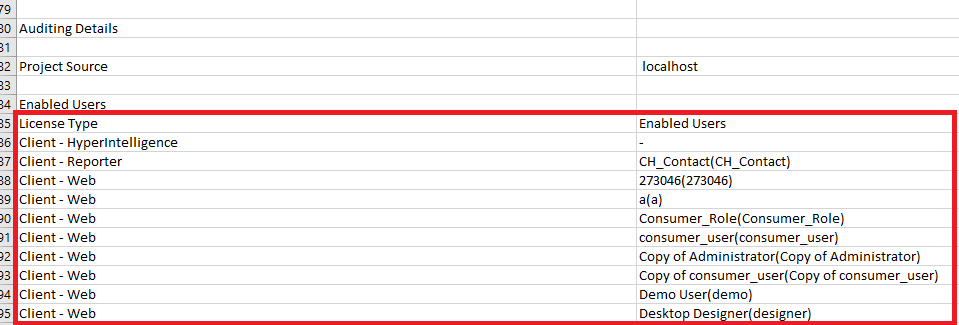
  • Open the .csv file generated from the report. Highlight and copy the row License Type and Enabled Users and highlight all the rows to the bottom of the sheet. 
ka0PW0000001JmoYAE_0EM2R000000hNFs.jpeg
  • Paste the rows into a new .csv file and save the file.
  • Open Strategy Web and click Create > Add External Data. Upload your new .csv file and click Finish.
  • Create a dossier using the data from your .csv file. 
  • Right-click the attribute Enabled Users and select Create Metric.
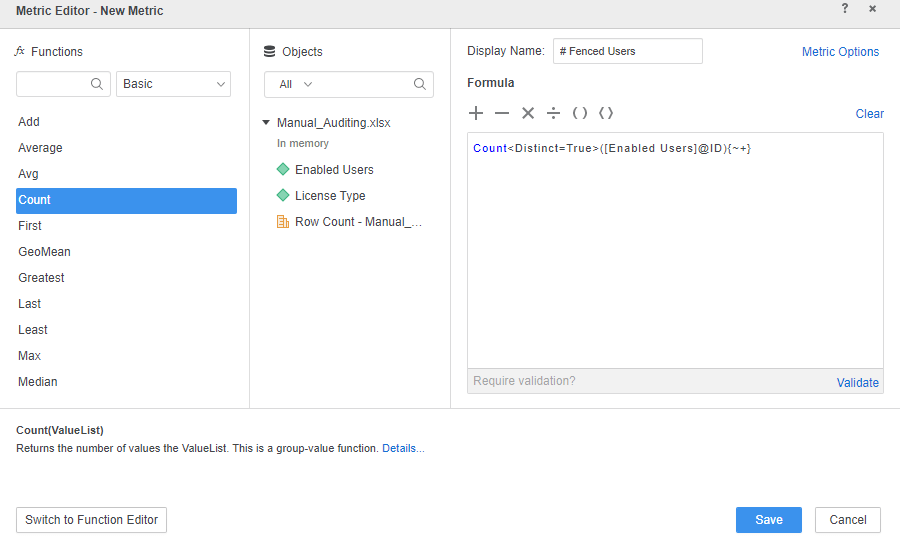
  • In the Metric Editor, name the metric # Fenced Users and enter the formula:
    Count<Distinct=True>([Enabled Users]@ID){~+}

ka0PW0000001JmoYAE_0EM2R000000hNGl.jpeg
  • Click Validate, then click Save.
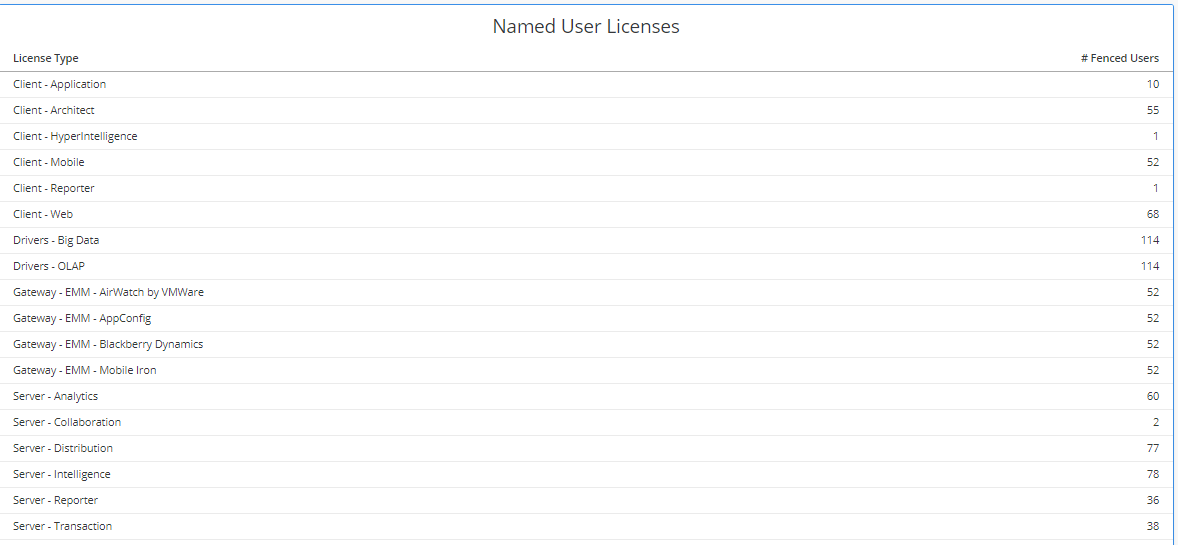
  • Add the License Type attribute and the # Fenced Users derived metric to a grid visualization.
  • If the fenced Users exist in a single User Group, review the results of the visualization.
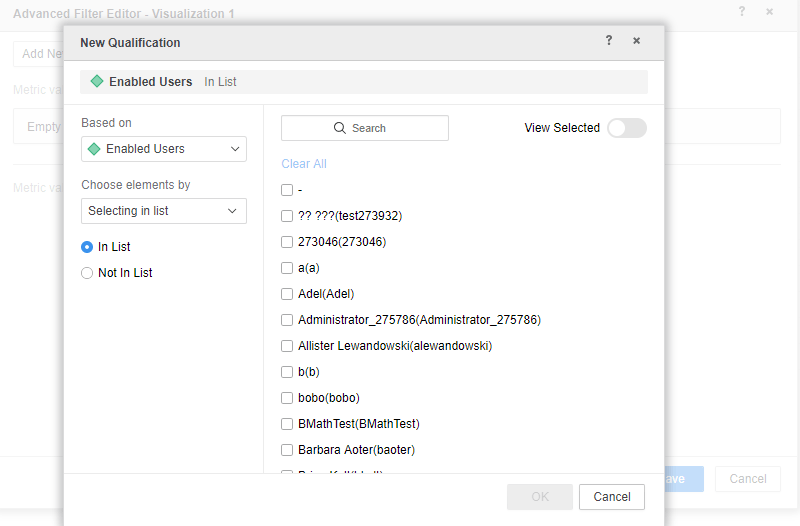
    However, if you did not specify a single User Group and selected Everyone, you must create a filter to view the correct results.You can create the filter at either the Chapter level or the Visualization level.
    • In the Advanced Filter Editor, click Add New Qualification.
    • From the Based on drop-down, select the Enabled Users attribute.
    • Choose elements by In List.
    • Select each User identified through the Command Manager script ran in step 1.
ka0PW0000001JmoYAE_0EM2R000000hNI8.jpeg
  • Name your visualization Named User Licenses and view the results.
ka0PW0000001JmoYAE_0EM2R000000hNID.jpeg

CPU Check


To check the CPU compliance in a mixed deployment, you can use Service Manager or MSIReg.reg. 
The CPU compliance of an environment is based on the total number of processors utilized by the Strategy Secure Enterprise for the same DSI and Key Group. This means that for a Mixed Named User CPU deployment, each Intelligence server using the CPU portion of the license in the same subnet needs to aggregate the number of processors.
Using Service Manager for the CPU Check

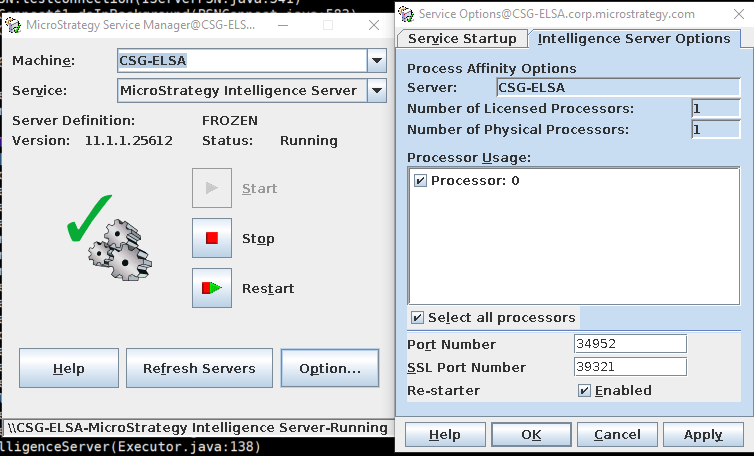
  • Open Service Manager and select the Intelligence server machine from the Machine drop-down. 
  • Select Strategy Intelligence Server from the Service drop-down.
  • Click Options.
  • From the Service Options dialog, select the Intelligence Server Options tab to view the number of configured processors.
ka0PW0000001JmoYAE_0EM2R000000hNJB.jpeg
  • Verify this number for each Intelligence server node that has the CPU License. If the number of selected processors is below the licensed number, the environment is in compliance.

Using MSIReg.reg for the CPU Check


You can find the same information from Service Manager using MSIReg.reg.

  • Details can be found using 
    [HKEY_LOCAL_MACHINE\SOFTWARE\Strategy\DSS Server\Castor].
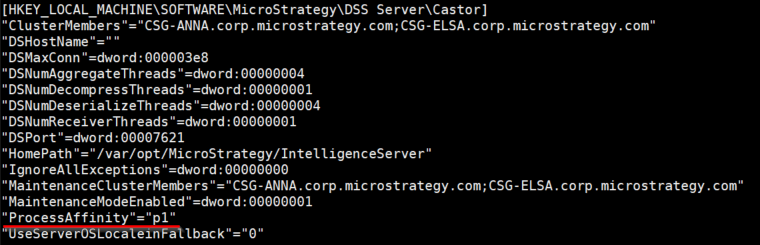
  • Locate the bitmask function ProcessAffinity.
ka0PW0000001JmoYAE_0EM2R000000hNJp.jpeg
  • ProcessAffinity 
    is followed by a
    p
    and any number of
    0
    's and
    1
    's. Each
    1
    present inside the mask represents a processor selected for affinity. Each
    0
    is a restricted processor. The mask does not need to have the number of digits equal to the total number of processors on the Intelligence server. If there are less than the number of processors on the I-server, it will begin counting from
    processor 0
    onward.

Additional Resources


When performing a Manual Compliance Audit, if you find your environment is out of compliance or you have questions, please contact your Account Team. If your environment is out of compliance, they can discuss methods of bringing the environment back into compliance.


Comment

0 comments

Details

Knowledge Article

Published:

June 21, 2019

Last Updated:

March 21, 2024