EducationSoftwareStrategy.com
StrategyCommunity

Knowledge Base

Product

Community

Knowledge Base

TopicsBrowse ArticlesDeveloper Zone

Product

Download SoftwareProduct DocumentationSecurity Hub

Education

Tutorial VideosSolution GalleryEducation courses

Community

GuidelinesGrandmastersEvents
x_social-icon_white.svglinkedin_social-icon_white.svg
Strategy logoCommunity

© Strategy Inc. All Rights Reserved.

LegalTerms of UsePrivacy Policy
  1. Home
  2. Topics

KB485672: MicroStrategy Community Connector is greyed out, unclickable and no error message displayed


Gustavo Sulbaran

Product Specialist • MicroStrategy


This article indicates how to troubleshoot and what could be the culprit of having the Community Connector of MicroStrategy unavailable (greyed out) even if previous requirements indicated by the connector as errors were followed.

Prerequisite


Before starting with this article, it is assumed the user with the issue has privileges to use the connector, the project has already enabled the URL file upload as the community connector do not work without these pre-checks  
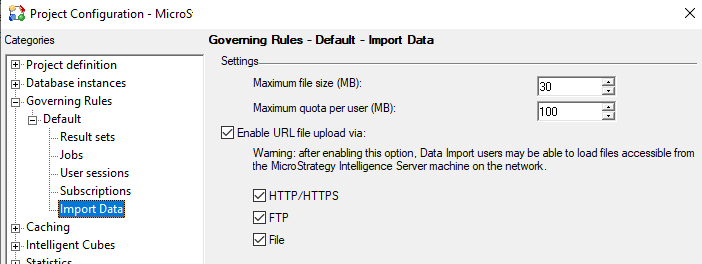
ka0PW0000000uVFYAY_0EM4W000005n7x0.png

And lastly that the connector itself is reachable. Example: http://mypage:port/CommunityConnectors/mstr-native/ 
 

Cause


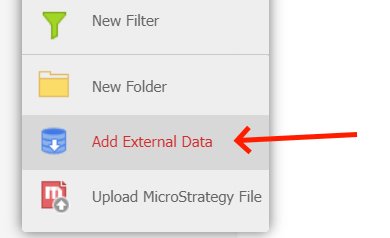
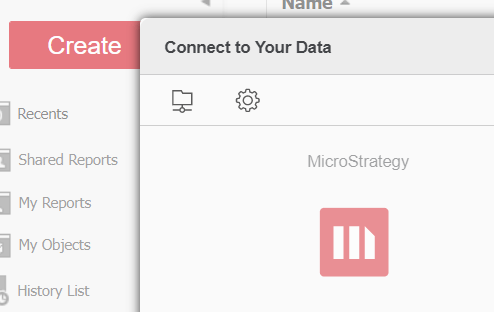
The user has set up community connectors correctly and when clicking add external data: 
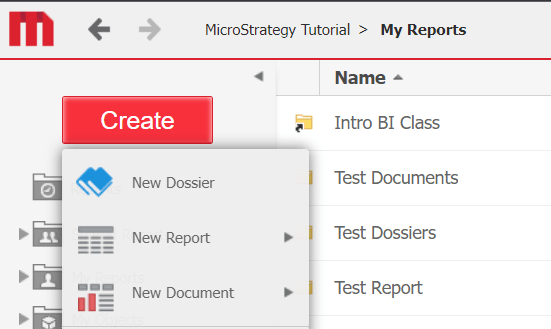
ka0PW0000000uVFYAY_0EM4W000005n7x1.png
ka0PW0000000uVFYAY_0EM4W000005n7x2.png

The next panel never has the connector enable, meaning it displays greyed out and unclickable. 
ka0PW0000000uVFYAY_0EM4W000005n7x3.png

When hovering over the connector an error message is expected but nothing is indicated as an action to correct this behavior: 
What the user sees: 
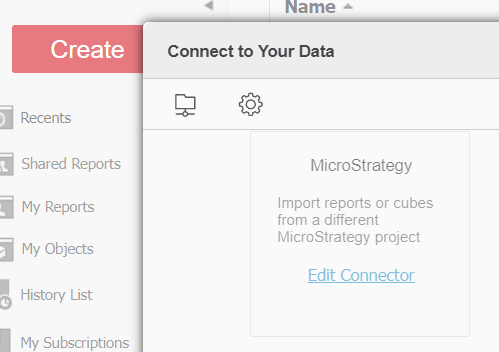
ka0PW0000000uVFYAY_0EM4W000005n7x4.png

What normally a user should receive (some error message): 
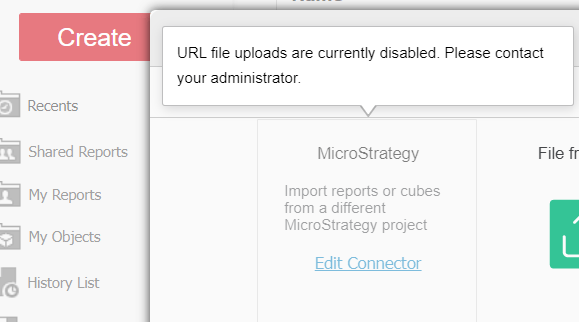
ka0PW0000000uVFYAY_0EM4W000005n7x5.png


Troubleshoot


As this issue could be coming from the lack of a particular requirement that the user system does not comply with, the best first recommendation would be setting up a custom connector and see if an error is thrown at some point. 
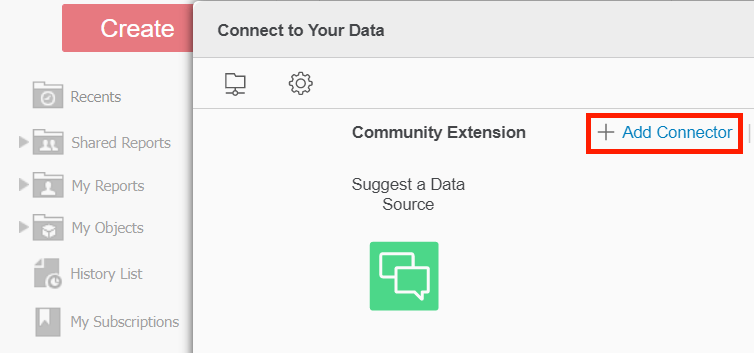
Troubleshooting steps

  1. Go to the bottom of the “add external data” and click “Add Connector” 
ka0PW0000000uVFYAY_0EM4W000005n7x6.png


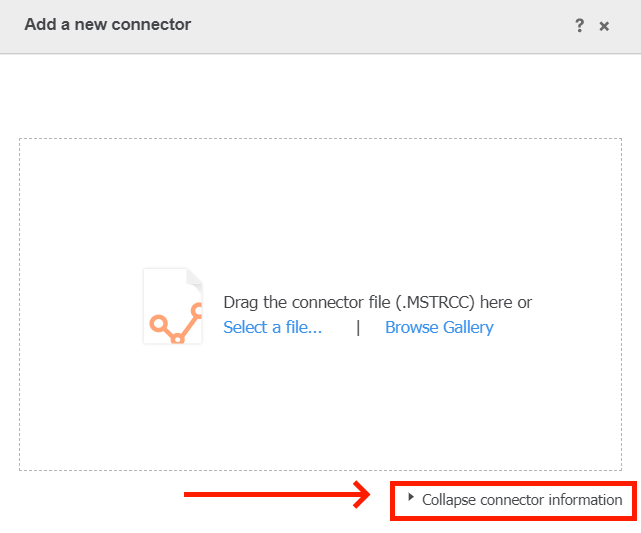
  1. Chose the Collapse connector information  


ka0PW0000000uVFYAY_0EM4W000005n7x7.png
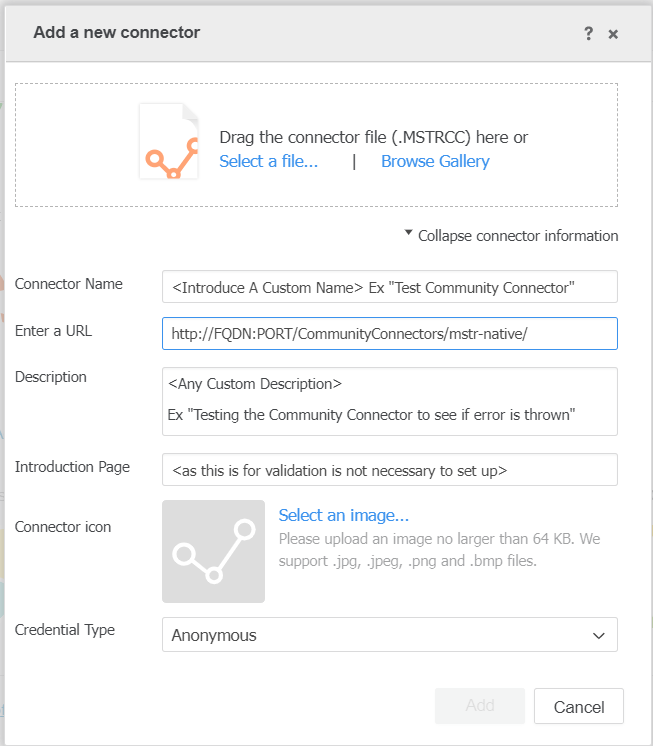
  1. Please, fill the values with the basic information to access the connector and the authentication we will keep in anonymous for testing purposes 


ka0PW0000000uVFYAY_0EM4W000005n7x8.png


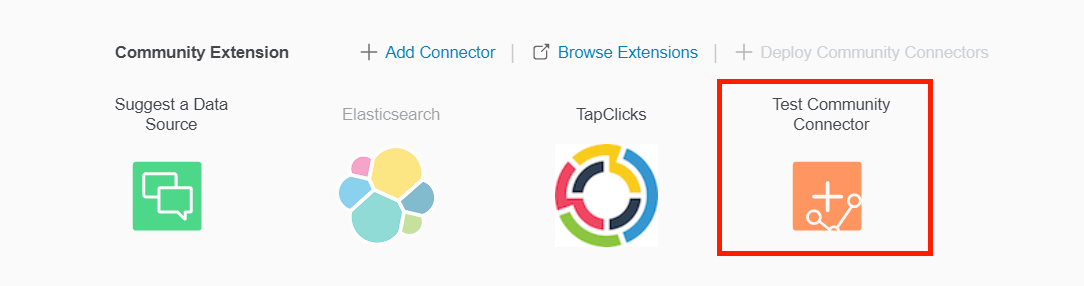
  1. After this is done, you will be able to click the connector and finally see if there is an underlying issue that does not let the connector to properly function 


ka0PW0000000uVFYAY_0EM4W000005n7x9.png


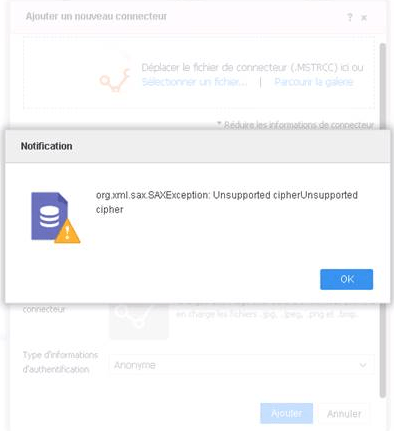
  1. Most of the times you will find the following error being thrown at some point during the setup of the connector: 


ka0PW0000000uVFYAY_0EM4W000005n7xA.png


Action


When the org.xml.sax.SAXException: Unsupported cipherUnsupported cipher is given the necessary step in order to overcome the issue will be the ones given in the following KB485044 . 
After the indication from the article are performed, a restart of the web server may be necessary for the Community Connector of Strategy to be finally available (not greyed out).
If a different error is thrown, do please contact technical support to further troubleshoot the issue. 


Comment

0 comments

Details

Knowledge Article

Published:

September 22, 2022

Last Updated:

February 26, 2024