EducationSoftwareStrategy.com
StrategyCommunity

Knowledge Base

Product

Community

Knowledge Base

TopicsBrowse ArticlesDeveloper Zone

Product

Download SoftwareProduct DocumentationSecurity Hub

Education

Tutorial VideosSolution GalleryEducation courses

Community

GuidelinesGrandmastersEvents
x_social-icon_white.svglinkedin_social-icon_white.svg
Strategy logoCommunity

© Strategy Inc. All Rights Reserved.

LegalTerms of UsePrivacy Policy
  1. Home
  2. Topics

MicroStrategy Dataset Connector for Power BI


Community Admin

• Strategy


The MicroStrategy Connector for Power BI allows Power BI users to fetch datasets from cubes or reports in their MicroStrategy projects.

Strategy 2019+


For the documentation for Strategy Power BI Dataset Connector, click here.

NOTE: To use the Strategy for Power BI connector in Strategy 2019 Update 2 or later, a user would need, at a minimum, a client-application-powerBI and server-reporter. Please contact the sales team for pricing details.

The Strategy Dataset Connector for Power BI leverages the MicroStrategy REST API and Power BI’s Power Query SDK. From Strategy 10.9 onward, the MicroStrategy REST API is included as part of the Strategy Library web application. This API grants users the ability to fetch report or cube data from a Strategy Intelligence Server in JSON format.


Features


This connector provides the following features:

  • Ability to import data from Strategy’s Reports and Cubes
  • Navigation through the Strategy Projects to select reports and cubes
  • Importing multiple datasets at once
  • Previewing of data before importing it

Prerequisites

This connector is built by using the Strategy REST API, so the Strategy Library web application is required.
  • Deploy the Strategy Library web application
  • Configure the default Intelligence Server and authentication mode to use for Strategy Library from the Library Administration Control Panel. You can access the Library Control Panel by navigating to <FQDN>:<port>/StrategyLibrary/admin. Refer to MicroStrategy Library Help » Library Administration » Library Administration Control Panel for more details.

Connector Configuration

  1. Download the .mez extension file from the MicroStrategy download site.
  2. If it doesn't already exist, create a Power BI Desktop\Custom Connectors directory in your user’s My Documents folder.
  3. Copy the extension file into the Custom Connectors directory that was created in the above step.
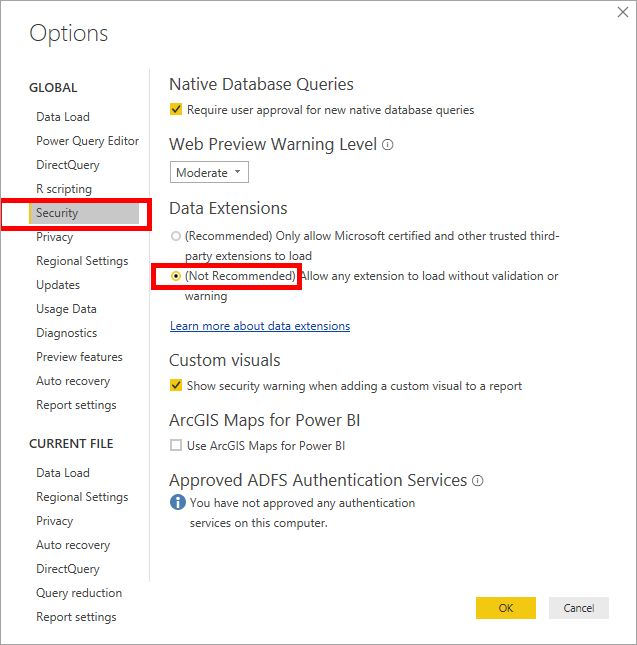
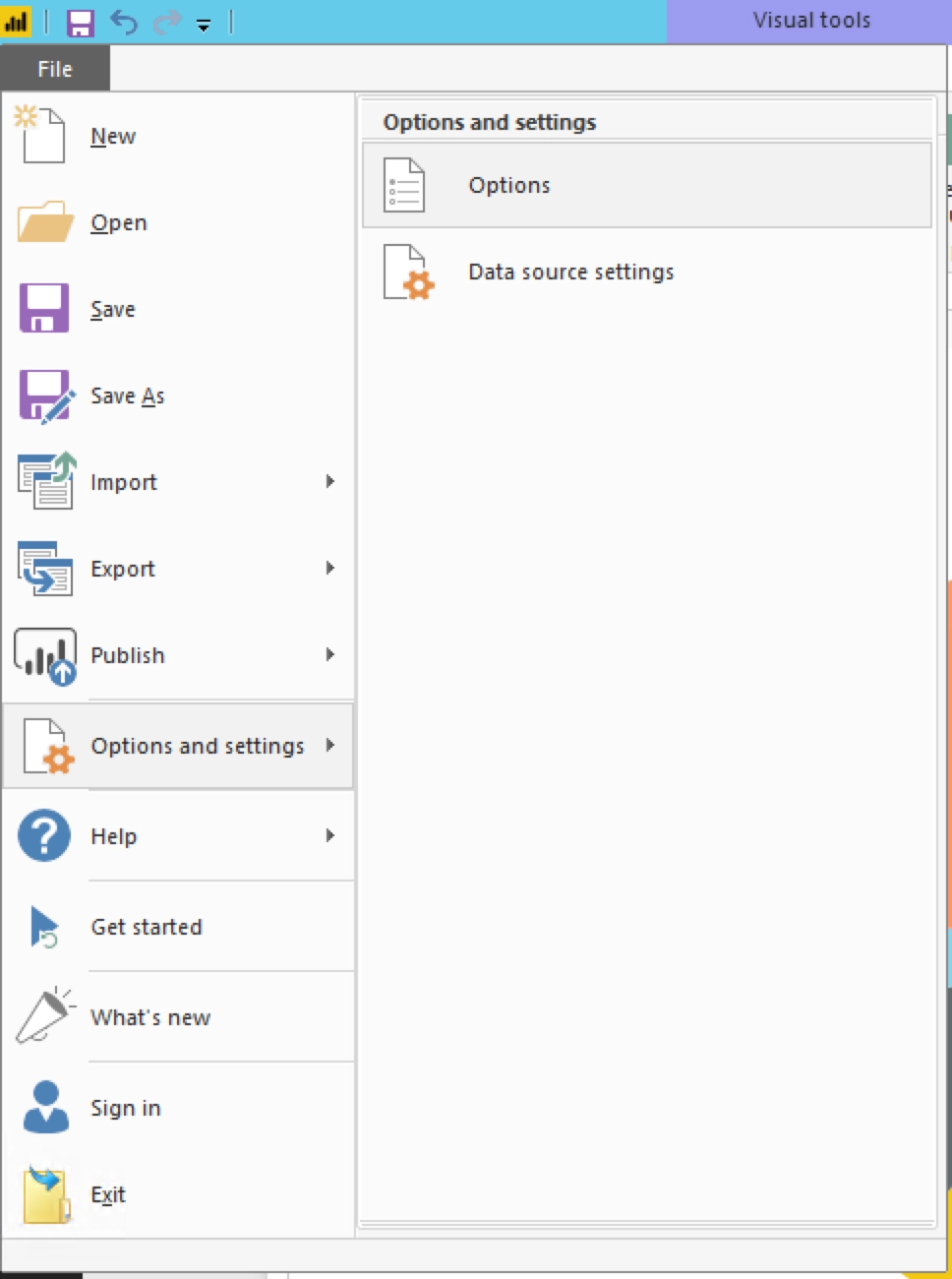
  4. Select the Allow any extension to load without validation or warning option in Power BI Desktop (under File > Options and settings > Options > Security > Data Extensions)


ka04W000001Ix1LQAS_0EM44000000QEHt.png


ka04W000001Ix1LQAS_0EM2R000000gr94.jpeg
  1. Restart Power BI Desktop


Using the Connector

  1. Start Power BI Desktop
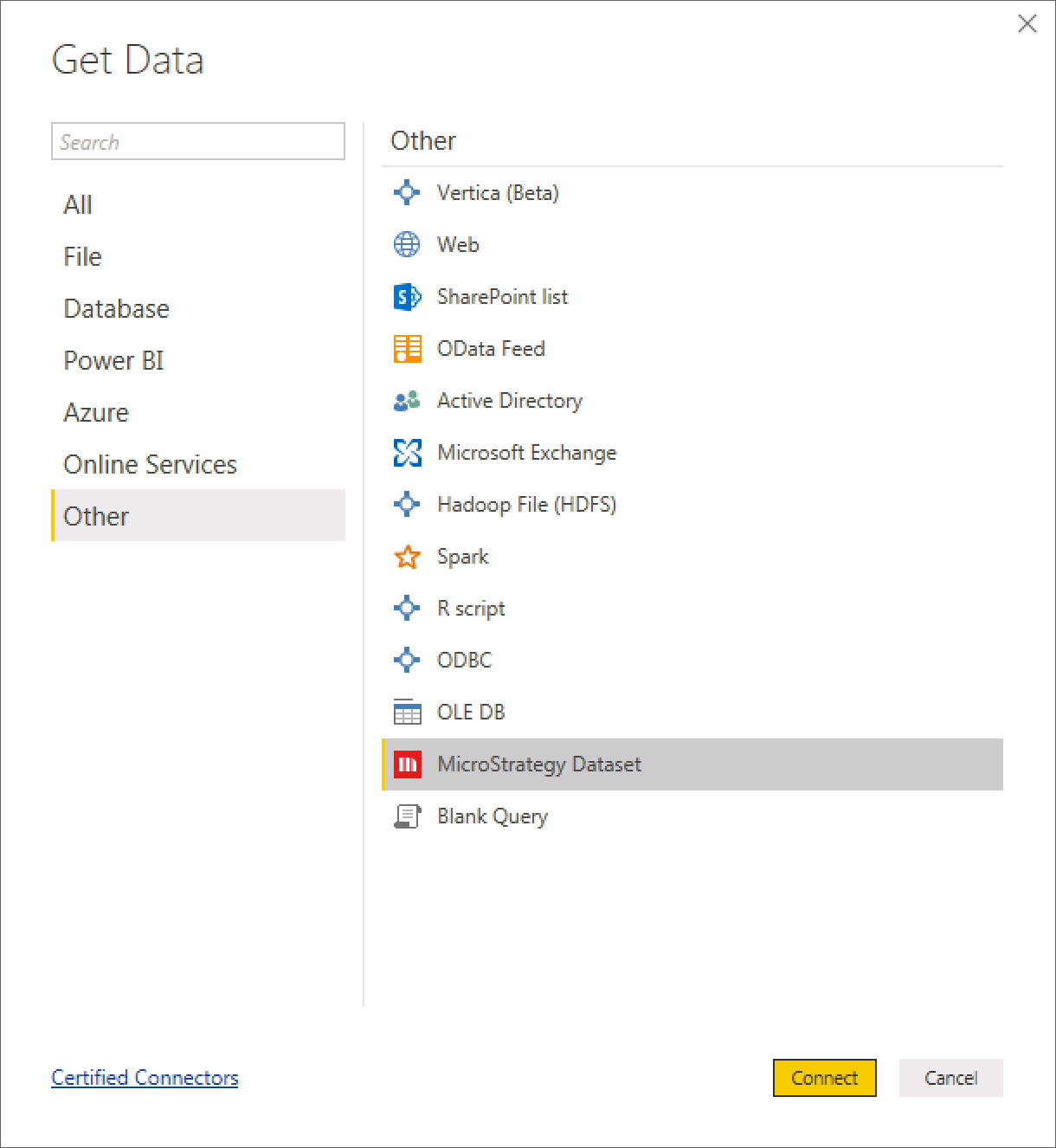
  2. Open the Get Data menu and select the Strategy Dataset connector under the Other category. Click the Connect button to launch the connector.
ka04W000001Ix1LQAS_0EM44000000R4f1.png
  1. Click Continue if the Preview Connector warning message pops up
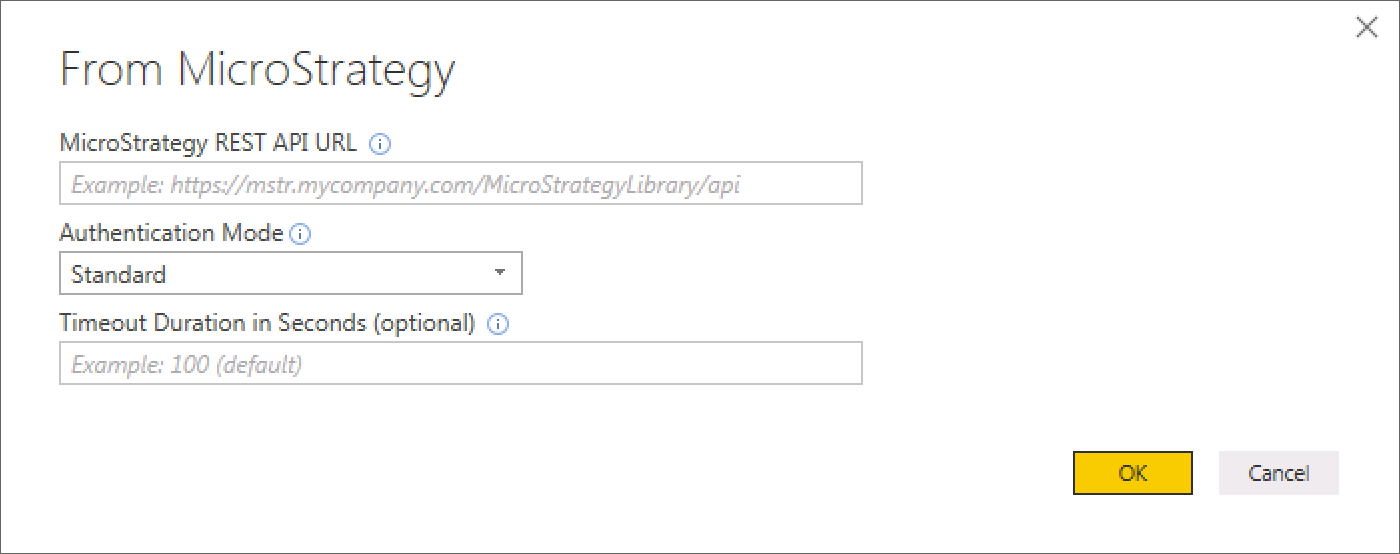
  2. Input connection parameters for the connector:
    1. Strategy REST API URL: The base URL of your Strategy REST API (e.g. https://mstr.mycompany.com/MicroStrategyLibrary/api/
    2. Authentication Mode: select either Standard or LDAP from the dropdown, depending on your environment’s authentication mode
    3. Timeout Duration in Seconds (optional): number of seconds before an API call should return a timeout error – default is 100 seconds


Note: If you receive timeout errors in later steps when browsing or previewing datasets from your Strategy projects, re-launch the connector and increase the Timeout Duration value on this screen.
 

ka04W000001Ix1LQAS_0EM44000000R4fa.png


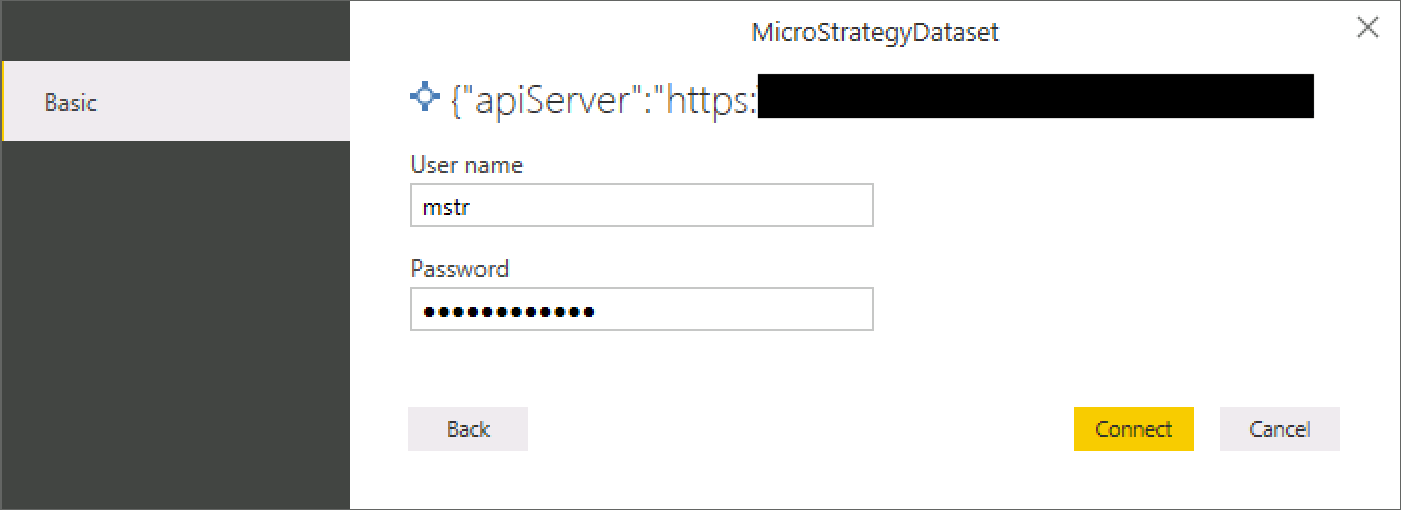
  1. Click the OK button, then input your login credentials and click the Connect button
ka04W000001Ix1LQAS_0EM44000000R4fk.png

Note: If the input credentials popup does not appear, it means that Power BI found existing credentials for the Strategy API REST URL you provided. To update/delete saved credentials, go to File | Options and settings | Data Source Settings to edit or delete credentials for each saved connection.
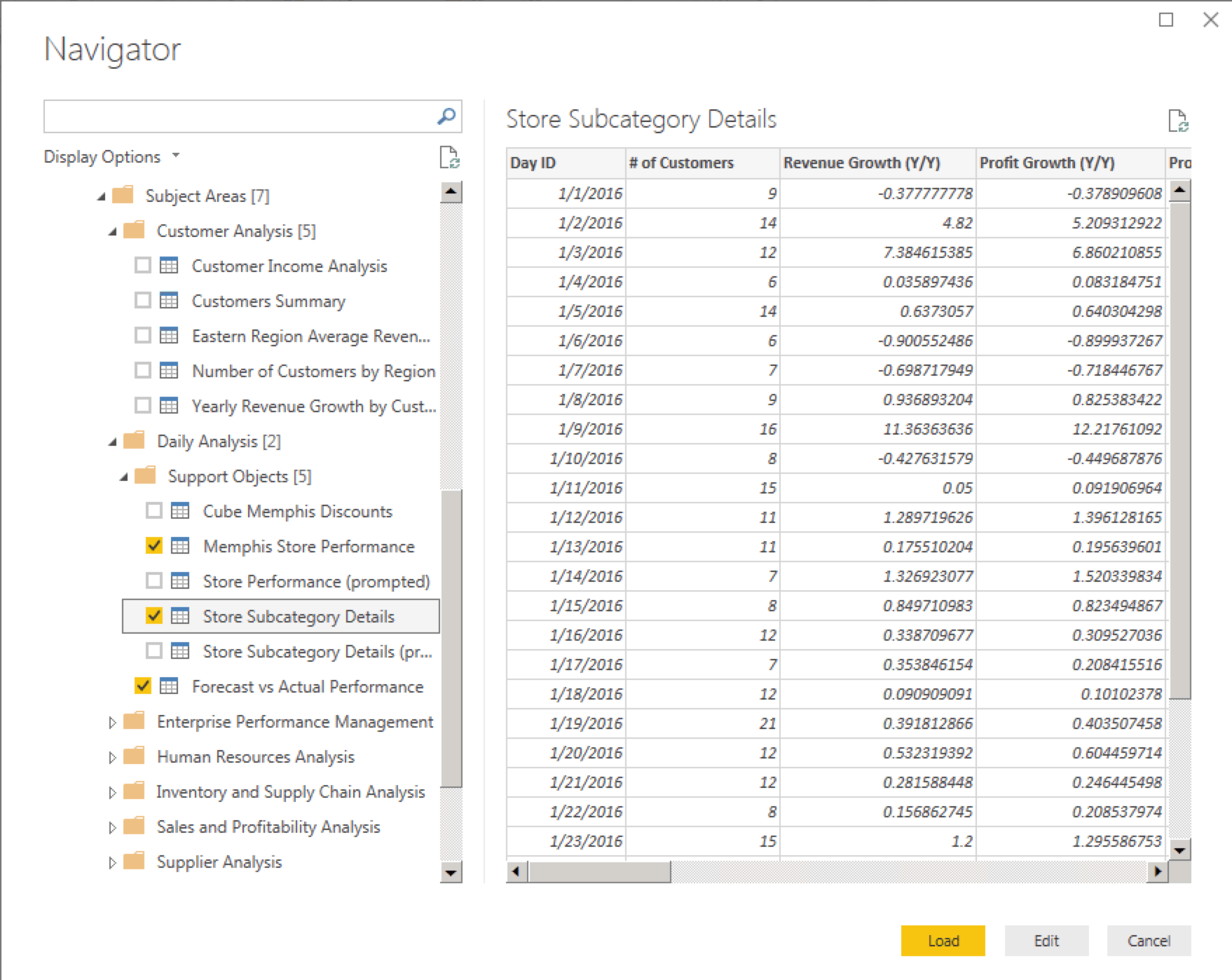
 

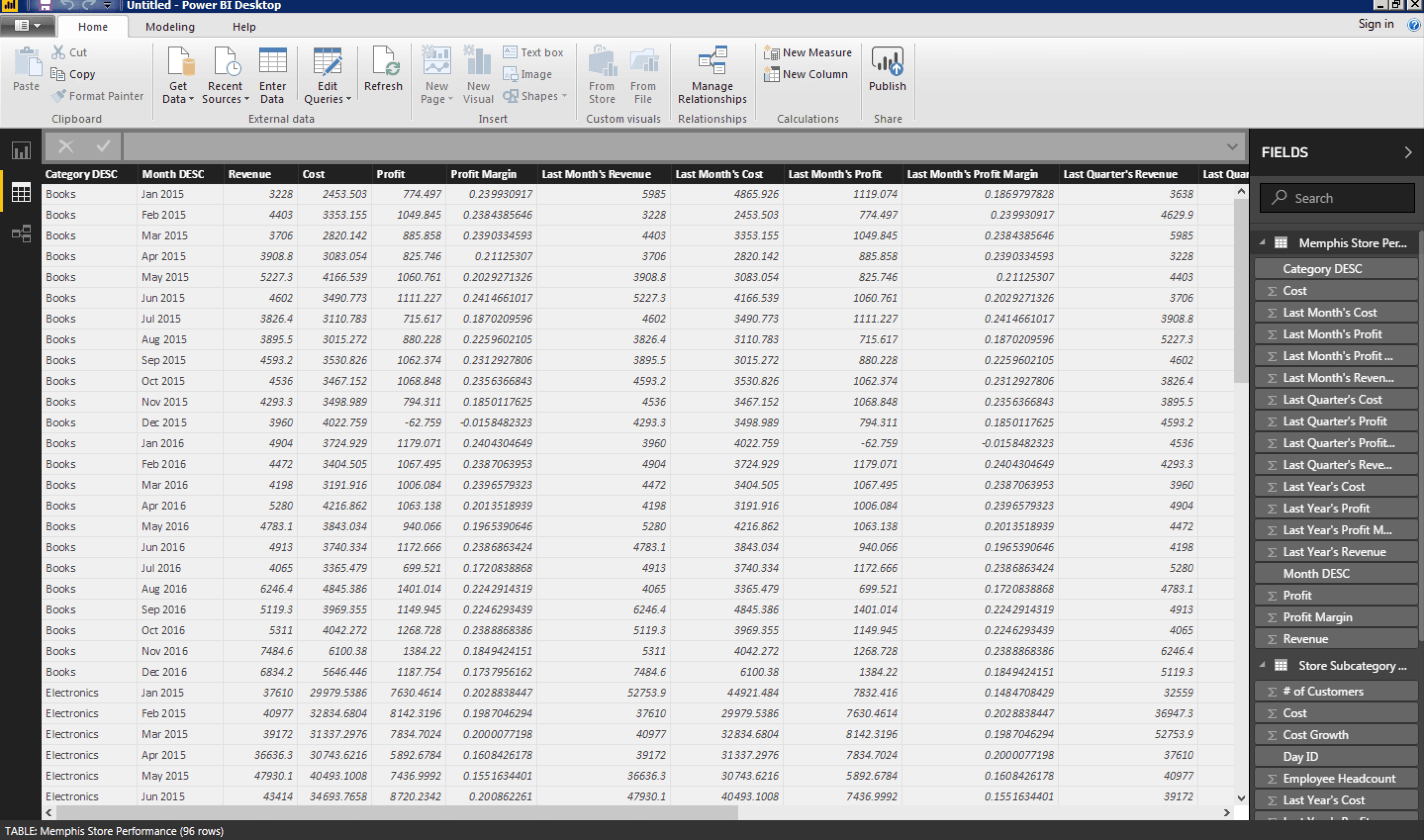
  1. Upon successful connection, you will be able to browse through your Strategy projects to see existing reports and cubes using the Navigation Tree. Click on a dataset to preview it and tick its checkbox to select it for import -- you can select multiple datasets at once. When you’re finished, click the Load button to import the selected datasets into Power BI.


ka04W000001Ix1LQAS_0EM44000000QFaS.png


ka04W000001Ix1LQAS_0EM44000000QFac.png


Download updated (07/31/2019)


Updated .mez file available on the download site. 


Comment

0 comments

Details

Knowledge Article

Published:

January 8, 2018

Last Updated:

September 22, 2022