EducationSoftwareStrategy.com
StrategyCommunity

Knowledge Base

Product

Community

Knowledge Base

TopicsBrowse ArticlesDeveloper Zone

Product

Download SoftwareProduct DocumentationSecurity Hub

Education

Tutorial VideosSolution GalleryEducation courses

Community

GuidelinesGrandmastersEvents
x_social-icon_white.svglinkedin_social-icon_white.svg
Strategy logoCommunity

© Strategy Inc. All Rights Reserved.

LegalTerms of UsePrivacy Policy
  1. Home
  2. Topics

KB483759: MicroStrategy Developer does not display unicode characters correctly on the beta version of Windows Server 2019


Community Admin

• Strategy


This article provides a workaround for using Developer with unicode characters on the beta version of Windows Server 2019.

Description


Strategy Developer does not display unicode characters correctly on the beta version of Windows Server 2019.
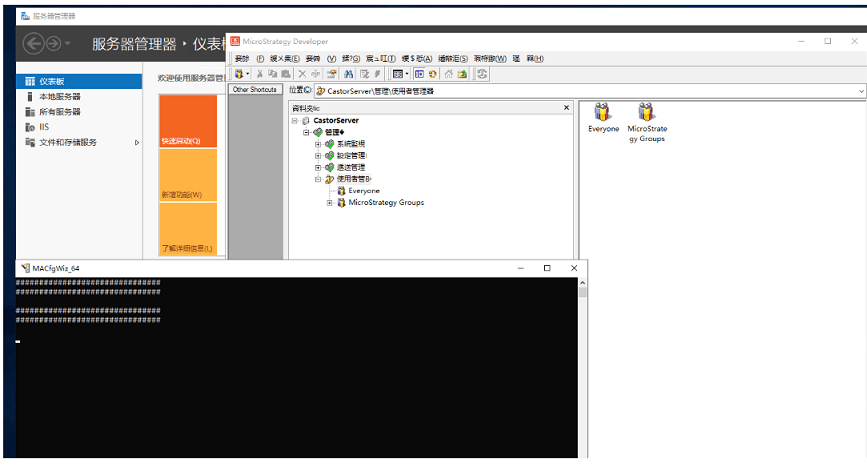
Steps to Reproduce

  • Change your OS language to Chinese.
  • Change Developer's language to Chinese. Notice unicode characters do not display correctly.
ka04W000001Iwv4QAC_0EM2R000000maQI.jpeg

Why is this happening?


Changing the language setting on Windows will switch the encoding language. In the example of Chinese, switching from ENG to CHR switches the encoding from ANSI to UTF-8. However, Strategy Developer is a VB6 application, which does not support UTF-8 encoding. As a result, this setting is not compatible to I18N on VB6 applications. 

Solution


This issue is currently under investigation by Strategy's Technology team. For an immediate solution, use the workaround below.
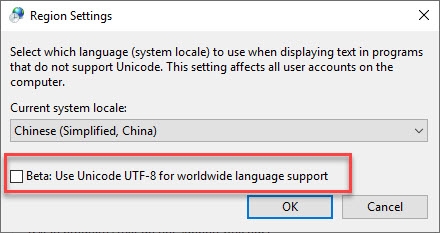
Workaround

  • On your Windows machine, open the Control Panel.
  • Select Clock and Region.
  • Click Region.
  • On the Region dialog, select the Administrative tab.
  • Click Change system locale.
  • Uncheck the Beta: Use Unicode UTF-8 for worldwide language support checkbox.
ka04W000001Iwv4QAC_0EM2R000000maQh.jpeg
  • Click OK. Now Developer will display correctly.

Comment

0 comments

Details

Knowledge Article

Published:

October 29, 2019

Last Updated:

October 29, 2019