Description
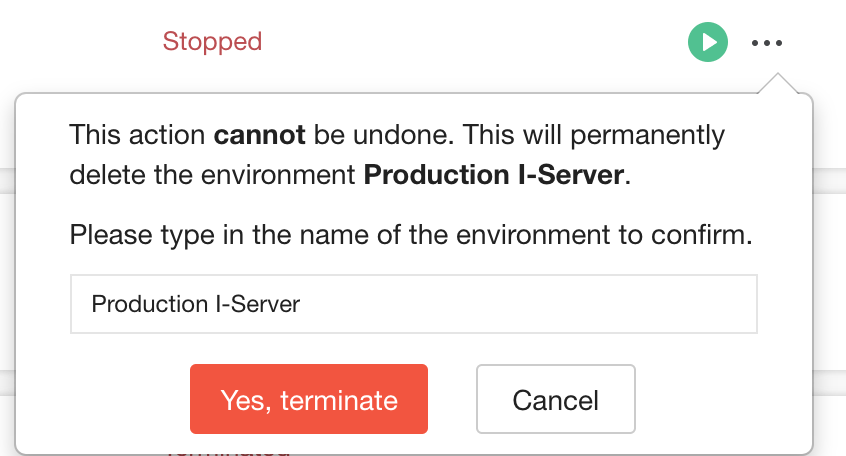
On Strategy on AWS users had the ability to terminate their environments directly from the console by simply typing the name of their environment and clicking terminate.
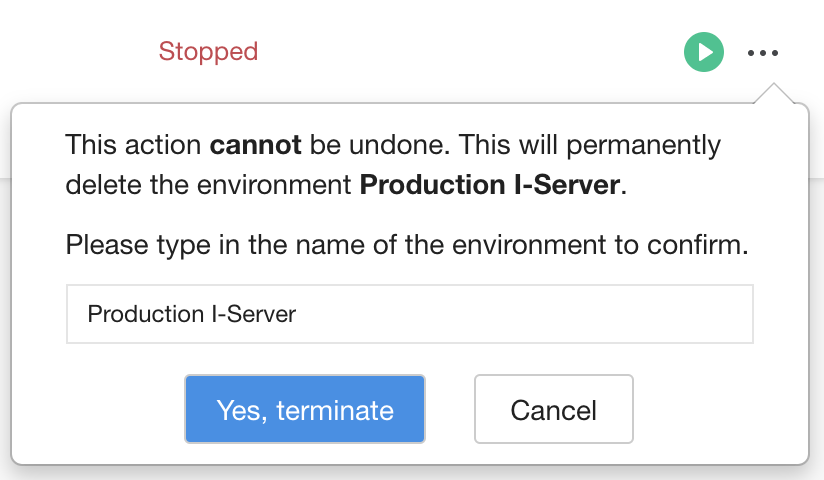
The environments would also be terminated 24 hours after they expire without further confirmation that the user would like it to terminate.
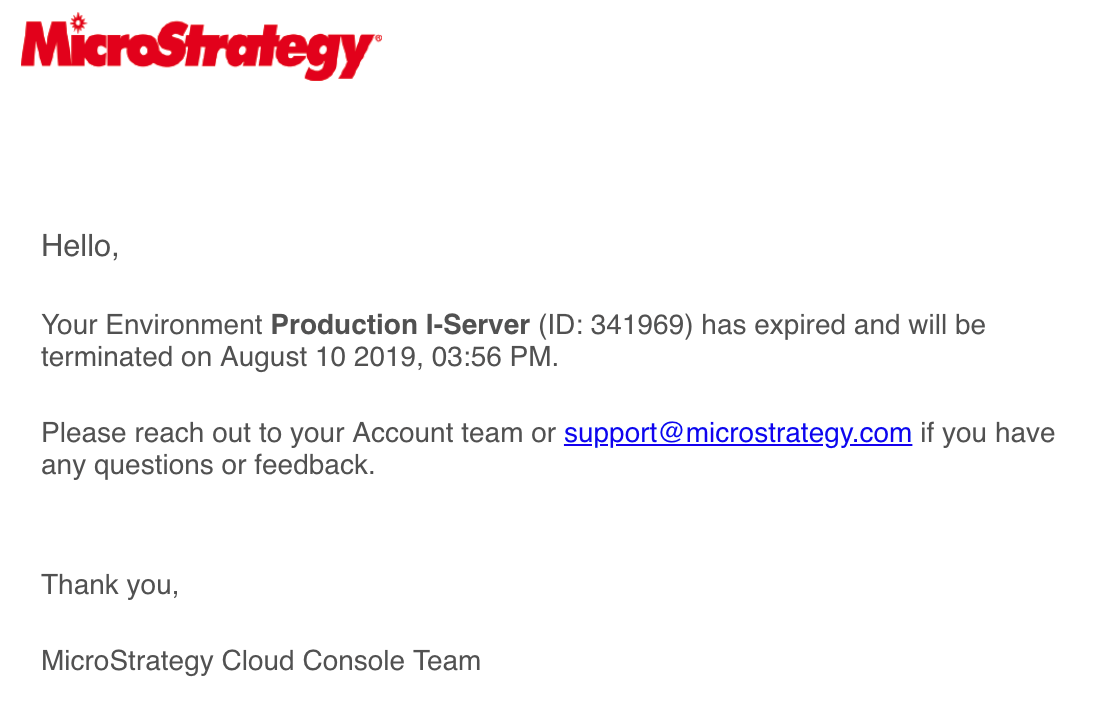
With environment termination being permanent and irreversible, Strategy on AWS has implemented a new workflow to prevent accidental terminations in the future.
New Workflow
For all new environments as well as existing environments upgraded to CloudFormation-v21, environment termination will follow the steps below:
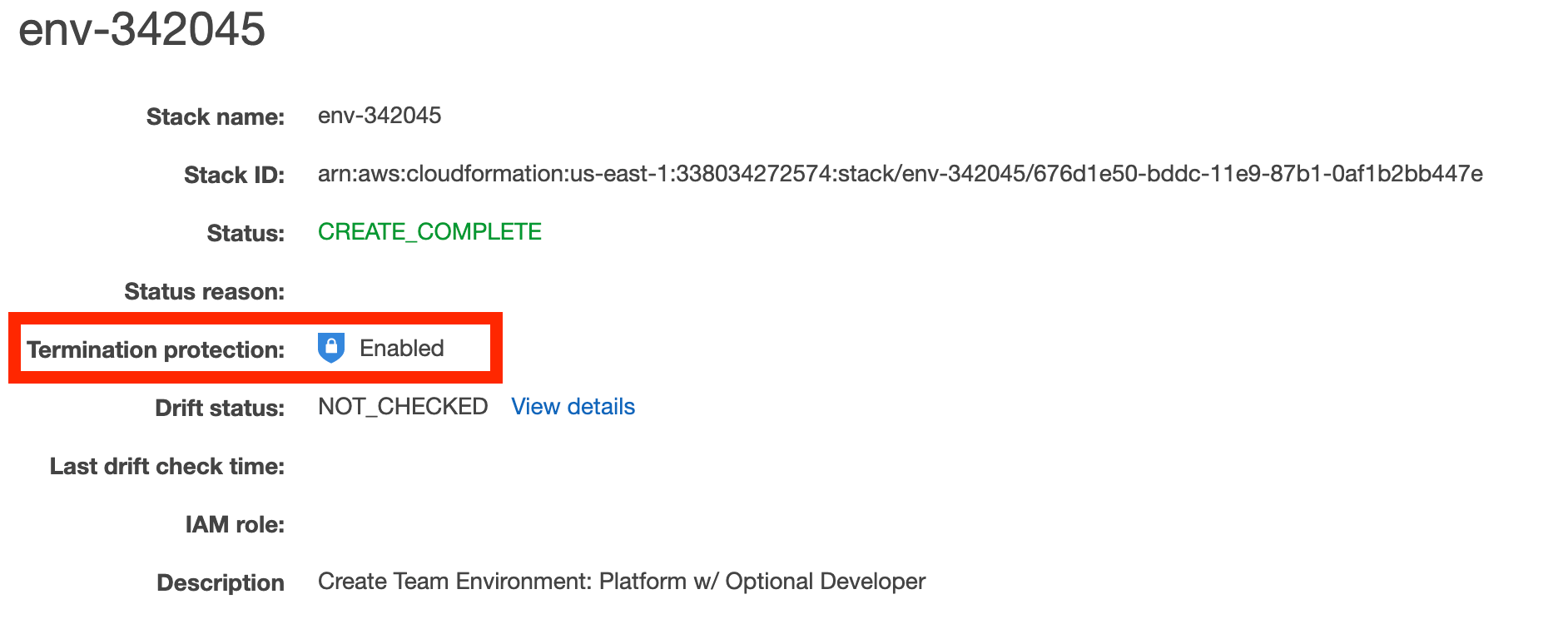
In CloudFormation on the AWS console the environment stack will have termination protection enabled by default:
When attempting to terminate via the Provisioning Console a pop-up will be displayed allowing for a termination email to be sent to the environment owner:
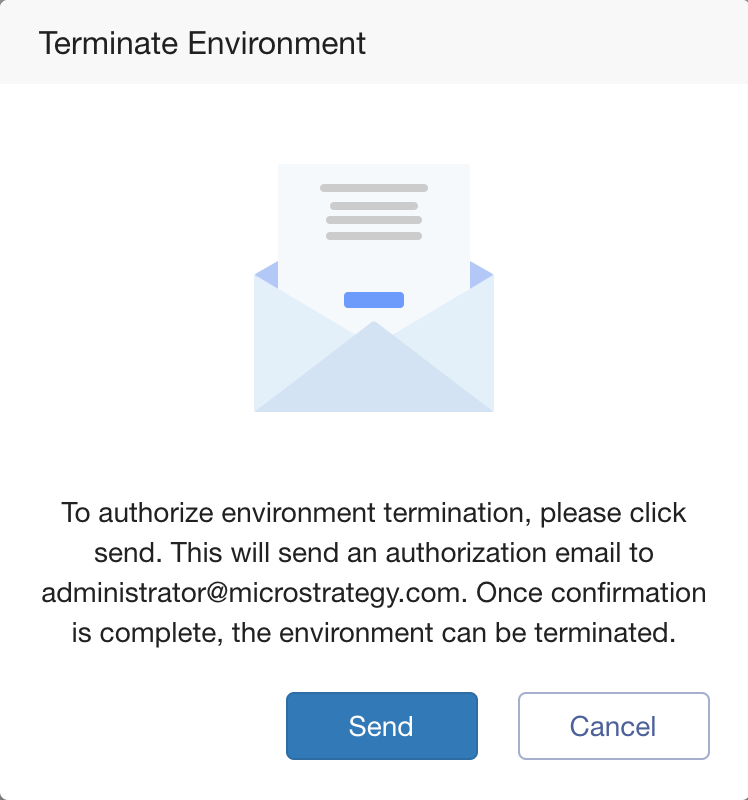
Clicking "Send" will send an email to the environment owner asking for permission to authorize termination:
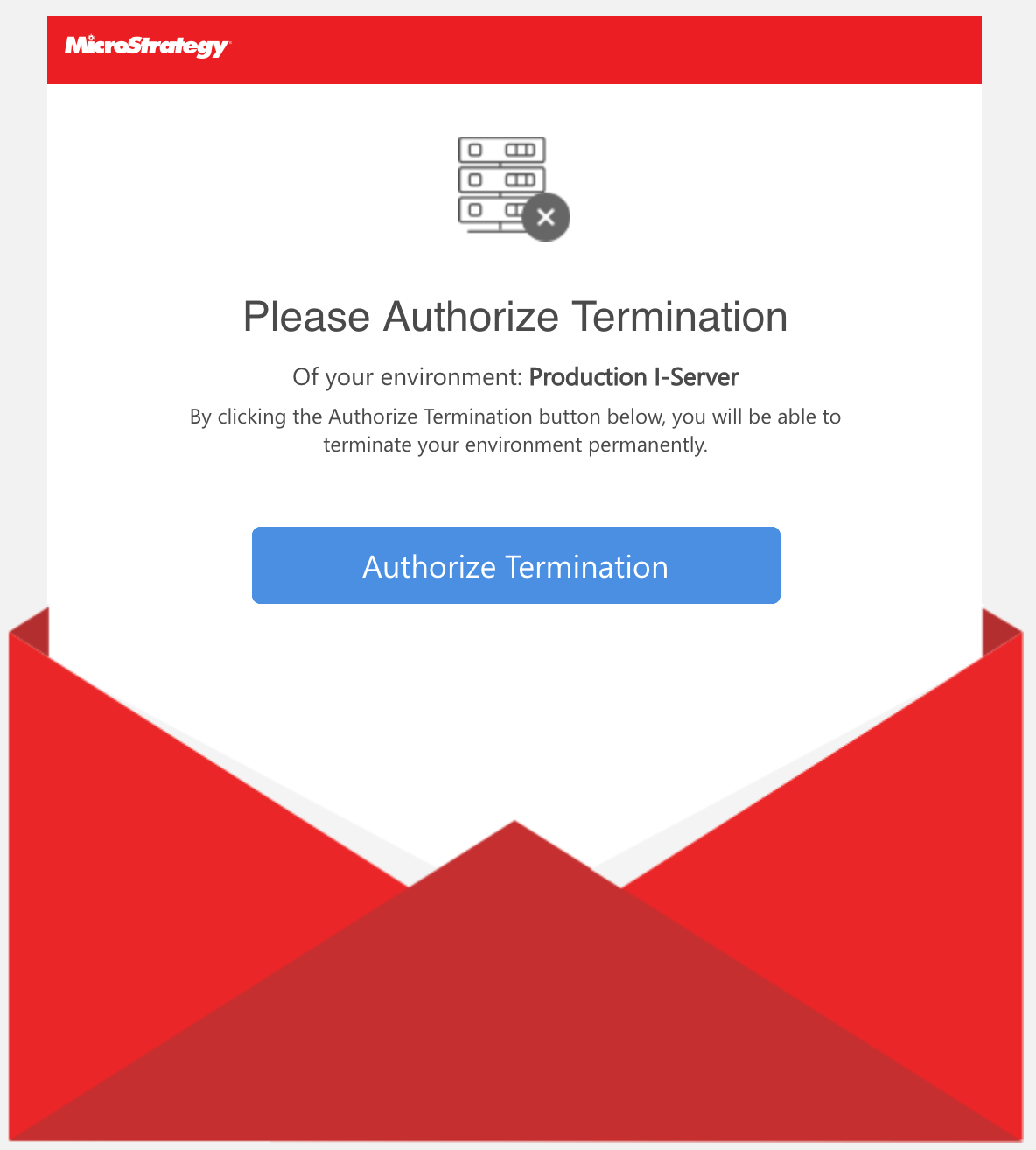
Clicking "Authorize Termination" will disable termination protection on CloudFormation and allow the environment to be terminated normally.
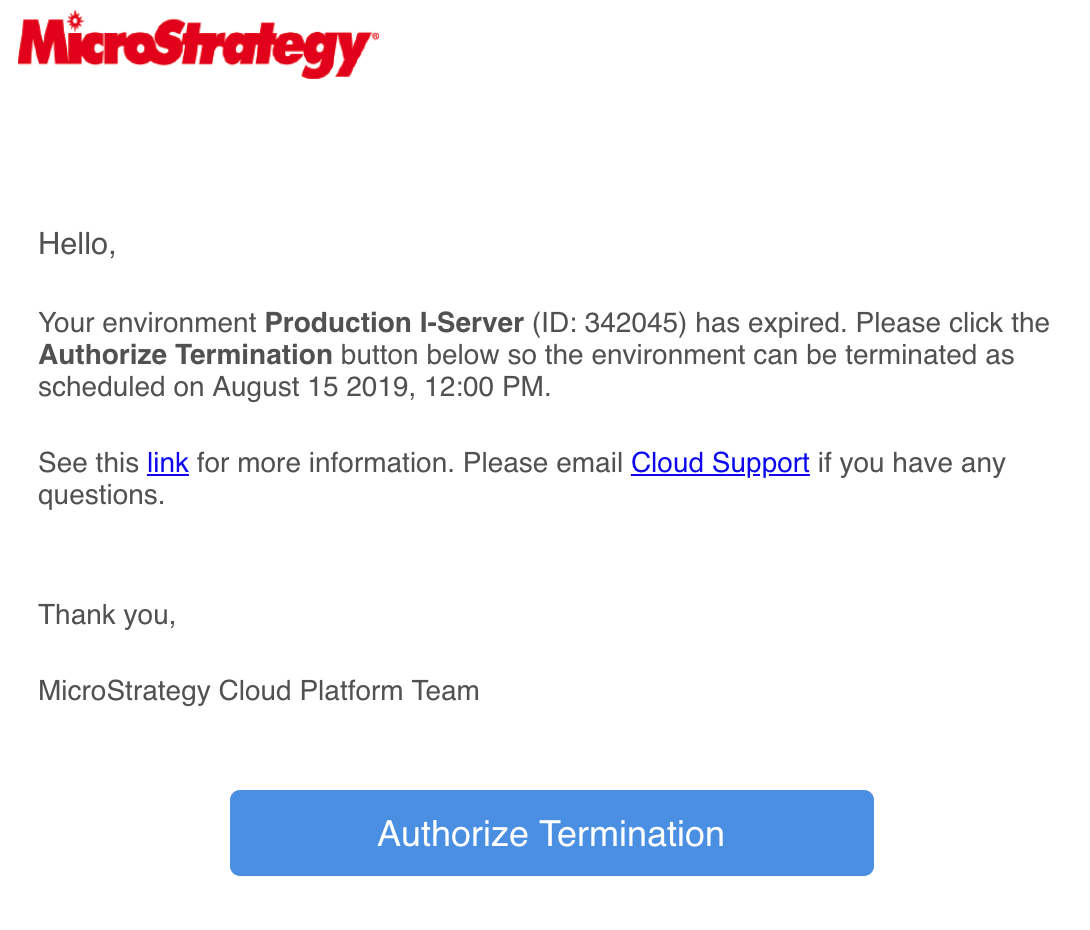
A change has been made to the automatic termination of expired environments. If the environment expires an email will be sent to the environment owner prompting them to authorize termination on the environment. If the button is clicked, this will remove termination protection from the CloudFormation stack and it will be terminated 48 hours after the expiration time. If the owner does not want the environment to be terminated they will need to access the Strategy on AWS Provisioning console and extend the expiration.
For any environments that have existed prior to 8/23/19, termination protection will need to be enabled manually either in CloudFormation as shown below or through the attached Python script.
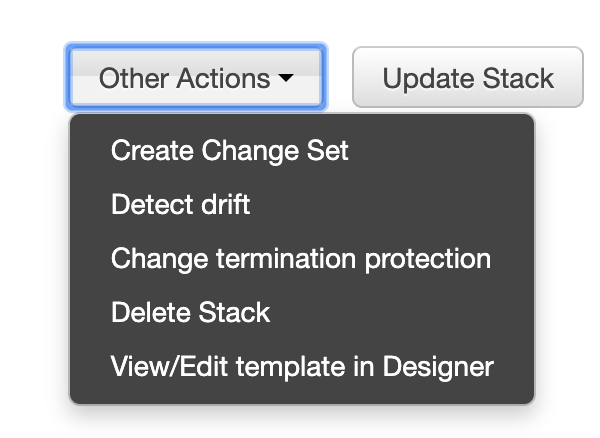
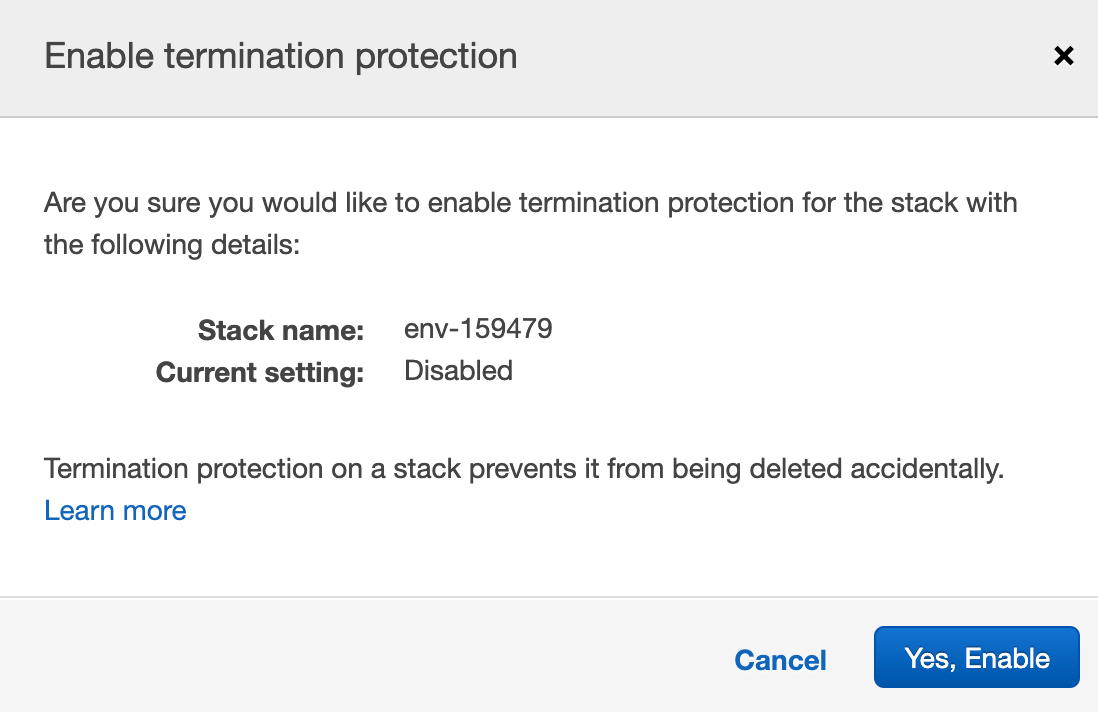
The Python script that is attached can be used to perform this action programmatically. A user will need to be created with the correct policy (an existing one can be used as well if it has permission to alter termination protection for CloudFormation). The user's secret key and access keys will be used in the script to access the CloudFormation stack and enable termination protection.
