EducationSoftwareStrategy.com
StrategyCommunity

Knowledge Base

Product

Community

Knowledge Base

TopicsBrowse ArticlesDeveloper Zone

Product

Download SoftwareProduct DocumentationSecurity Hub

Education

Tutorial VideosSolution GalleryEducation courses

Community

GuidelinesGrandmastersEvents
x_social-icon_white.svglinkedin_social-icon_white.svg
Strategy logoCommunity

© Strategy Inc. All Rights Reserved.

LegalTerms of UsePrivacy Policy
  1. Home
  2. Topics

KB485492: Mobile Configuration


Dorota Bednarek

Senior Consultant • Strategy


This article outlines step by step MicroStrategy Mobile Configuration procedure.
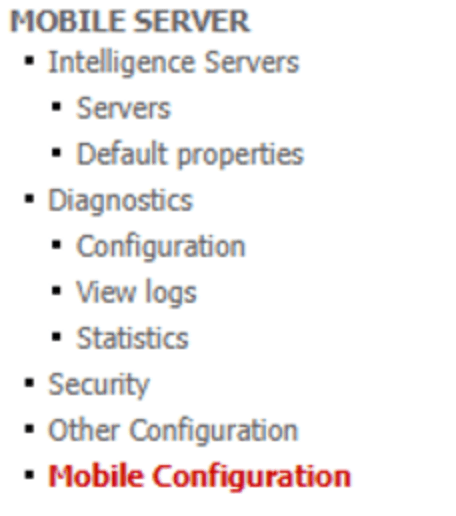
  1. To access Mobile configuration, go to Mobile Admin page: https://machinename:8443/StrategyMobile/servlet/mstrWebAdmin and to Mobile Configuration page:
ka04W000001IvW0QAK_0EM4W000004ZvGE.jpeg
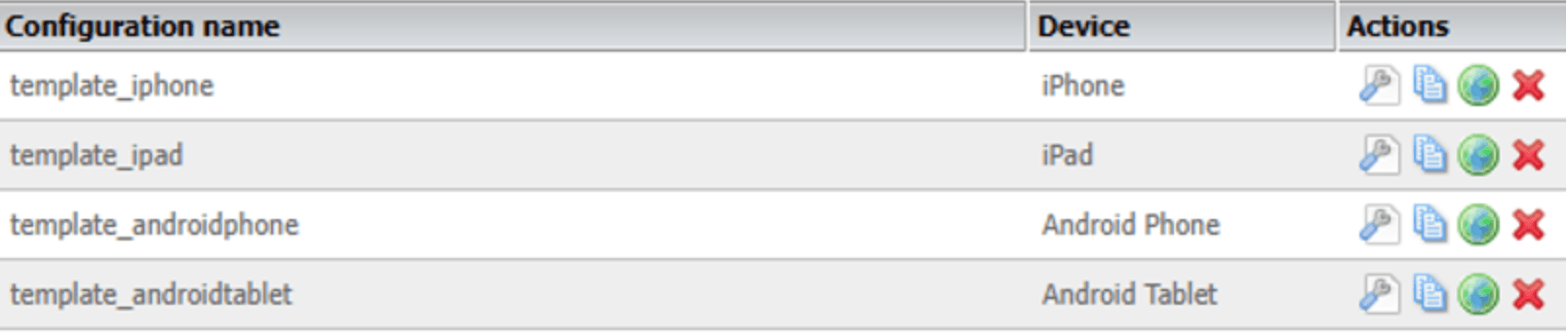
  1. By default, there are 4 templates available, for iPhone, iPad, Android Phone and Android Tablet.  These templates can be modified or duplicated. New configuration can be also defined.
ka04W000001IvW0QAK_0EM4W000004ZvGJ.jpeg
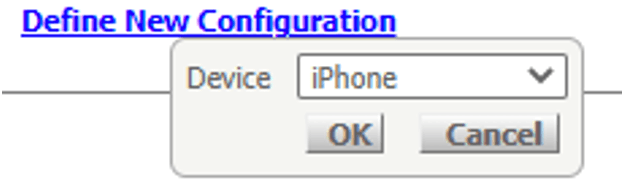
  1. Clicking Define New Configuration, window to choose device pops up. 
ka04W000001IvW0QAK_0EM4W000004ZvGT.jpeg
  1. Mobile Configuration window appears. On the top, the configuration can be given specific name. Then, it contains following tabs: 
  • Settings tab: contains Mobile app behavior options, governing limits, and security settings. Here, the administrator can configure how much memory the app consumes, the network timeout for project connection attempts, and access to the Settings screen in the app, among other options. 
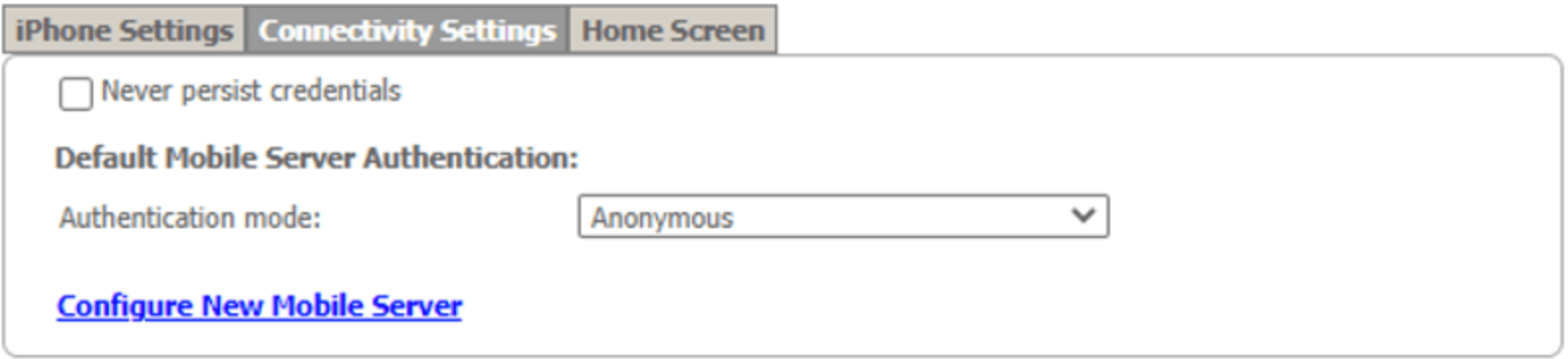
  • Connectivity Settings tab: enables authentication information to be set for Mobile servers and projects. 
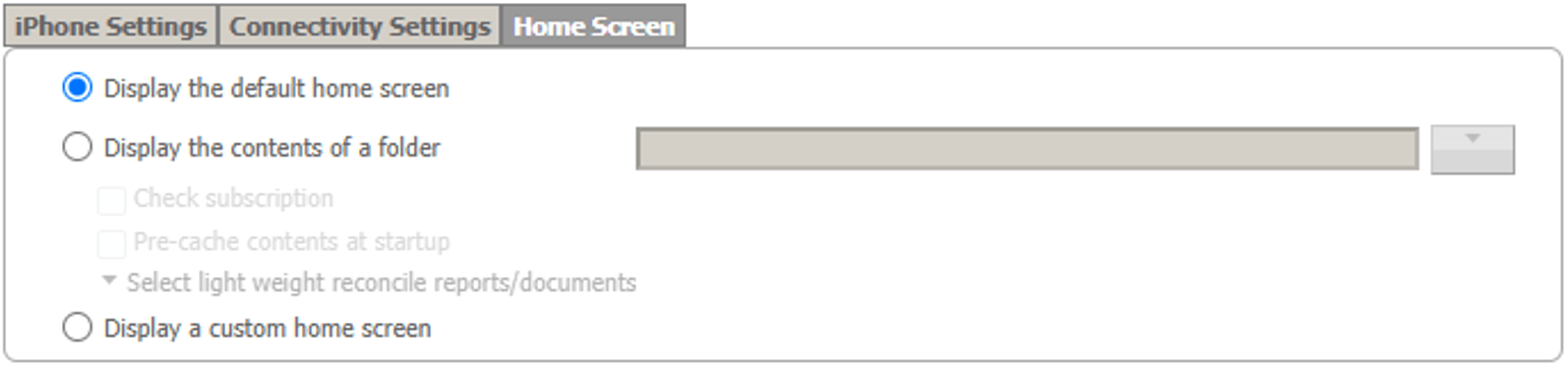
  • Home Screen tab: provides choices for what users see after opening Strategy Mobile for iPhone, iPad, or Android.
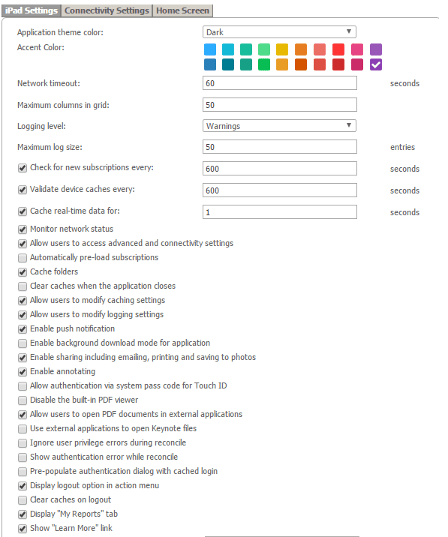
  1. Settings tab:
ka04W000001IvW0QAK_0EM4W000004ZvGn.jpeg


  • Application theme color: determines whether theme will be dark or light
  • Accent Color: sets color from pre-determined set of colors. It will serve as color for highlights etc. in the app
  • Network timeout: sets limit for network timeout for the app in seconds
  • Maximum columns in grid: determines limit of columns for visualizations for this app. The default number is different for each device
  • Logging level: determines at what level logs will be saved. Drop-down to choose from Warnings, Errors, Messages, All and Off
  • Maximum log size: determines the limit for log file. The limit is defined in number of entries

Checkboxes:

  • Check for new subscriptions every: defines how of the app checks the Intelligence Server for new subscriptions (in seconds)
  • Validate Caches every: defines how the app validates caches on the device with Intelligence Server (in seconds)
  • Cache real-time data for: defines whether the app should use local caches for a specified amount of time (in seconds)
  • Monitor network status: defines whether Mobile Server network response quality is shown on end users screen
  • Allow users to access advanced and connectivity settings: defines whether users would be prevented from changing the configuration settings in the application
  • Automatically pre-load subscriptions: determines whether caches are loaded for all subscribed reports and documents when the application is launched
  • Cache folders: determines whether folders would be cached or they would be refreshed every time they are opened 
  • Clear caches when the application closes: determines whether caches are cleared when application is closed
  • Allow users to modify caching settings: determines whether users are prevented from modifying caching settings
  • Allow users to modify logging settings: determines whether users are prevented from modifying logging settings
  • Enable push notification: determines whether push notifications alerts are enabled
  • Enable background download mode for application: determines whether data would be downloaded in the background when the application is running in the background
  • Enable sharing including emailing, printing, and saving to photos: determines whether users can share the documents or reports viewed in the application
  • Enable annotating: determines whether users can annotate an image of the report or document that they are viewing in the application, and email a copy to their contacts
  • Allow authentication via system pass code for Touch ID/Face ID: this checkbox is for the applications with elevated security settings. If users are required to use passcode to access some reports or documents, they can be allowed to use native features of their device, such as Apple TouchID. This checkbox determines whether native authentication is allowed
  • Disable the built-in PDF viewer: determined whether Strategy Mobile's built-in PDF viewer is enabled
  • Allow users to open PDF documents in external applications: determines whether users could open pdfs in other applications than Strategy Mobile’s built-in PDF viewer
  • Use external applications to open Keynote files: determines whether Keynote files could be open in external applications 
  • Ignore user privilege errors during reconcile: determines whether user privilege errors would be ignored when the mobile device is reconciling
  • Show authentication error while reconcile: determines whether authentication errors would be displayed while the mobile device is reconciling
  • Pre-populate authentication dialog with cached login: determines whether users would be able to only enter their password as login would be saved
  • Display logout option in action menu: determines whether users would be able to log out. Their username, password, and session information would be removed from the device, and they would be logged out of the project on the connected Intelligence Server
  • Clear caches on logout: determines whether caches would be cleared when user logs out
  • Display “My Reports” tab: determines whether “My Reports” tab is displayed
  • Show “Learn More” link: determines whether “Learn More” link is displayed. This is link to official Strategy website. This link can be changed to custom link


ka04W000001IvW0QAK_0EM4W000004ZvIZ.jpeg


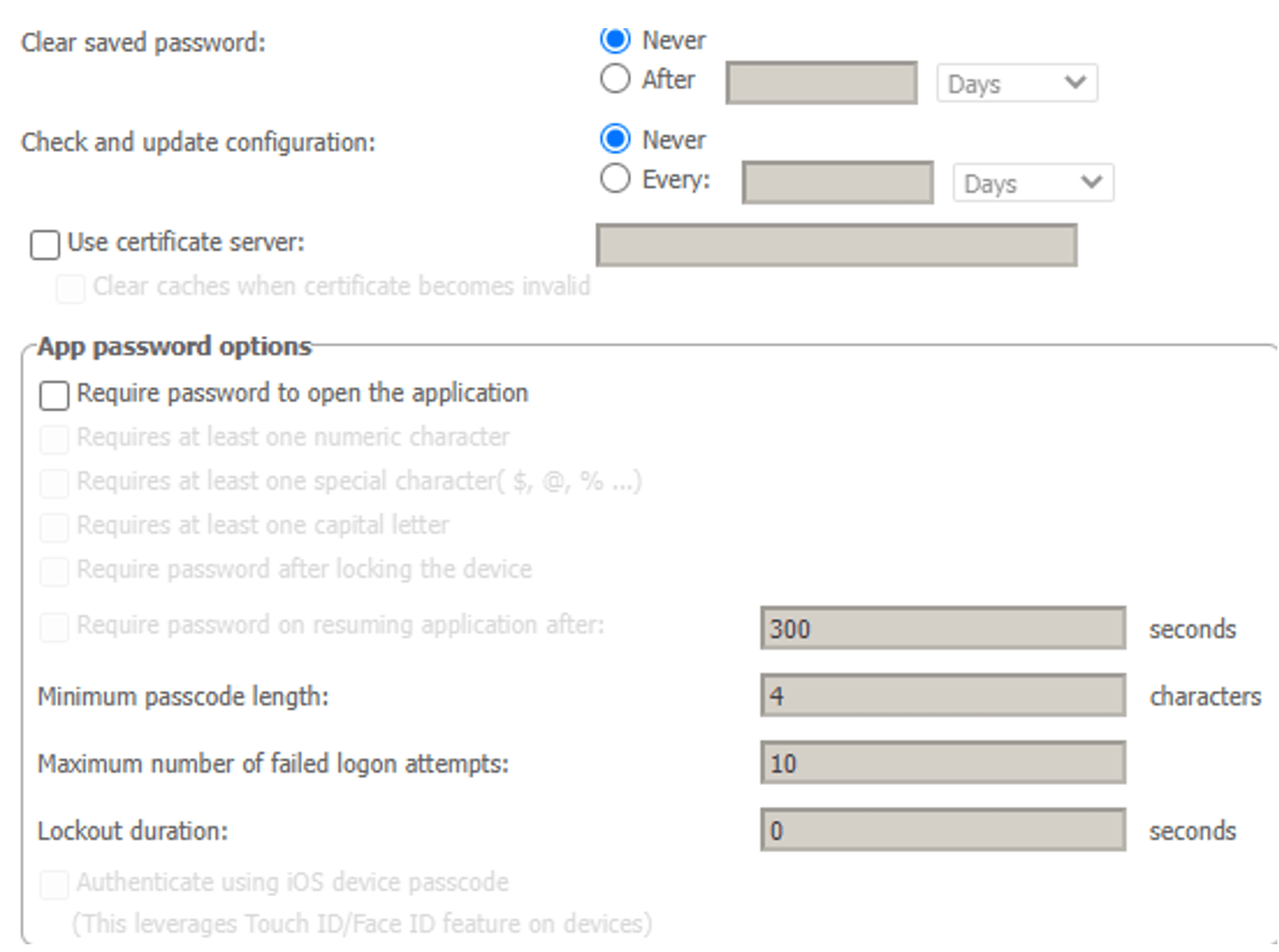
  • Clear saved password: determines whether passwords used to log in to projects would be saved in the application. 
  • Check and update configuration: determines whether the configuration used on the device would be updated automatically
  • Use Certificate Server: determines setup of a client certificate server responsible for creating certificates for mobile clients. These certificates are required from mobile clients attempting to access the Mobile Server. This field must begin with https:// and requires the use of the fully qualified name of the certificate server in the URL
  • Require password to open the application: determines whether users would be required to enter password to open application
  • Require password after locking the device: determines whether users would be required to enter password to open application after the mobile is device is unlocked

Password requirements checkboxes:

  • Requires at least one numeric character
  • Requires at least one special character ($, @, %...)
  • Requires at least one capital letter
  • Minimum passcode length
  • Maximum number of failed logon attempts: sets the limit for failed login attempts
  • Lockout duration: determines how long users would have to wait before they could enter password again after failed attempt
  • Require password on resuming application after: determines inactive time required before another password request


  1. Connectivity Settings
ka04W000001IvW0QAK_0EM4W000004ZvJ3.jpeg


  • Never Persist Credentials: determines whether users logins and passwords would be cached on the device for a specified amount of time.

Default Mobile Server Authentication:

  • Authentication Mode: determines default Mobile Server authentication. Choose from Anonymous, Basic, Windows, Integrated Authentication.

Configure New Mobile Server:

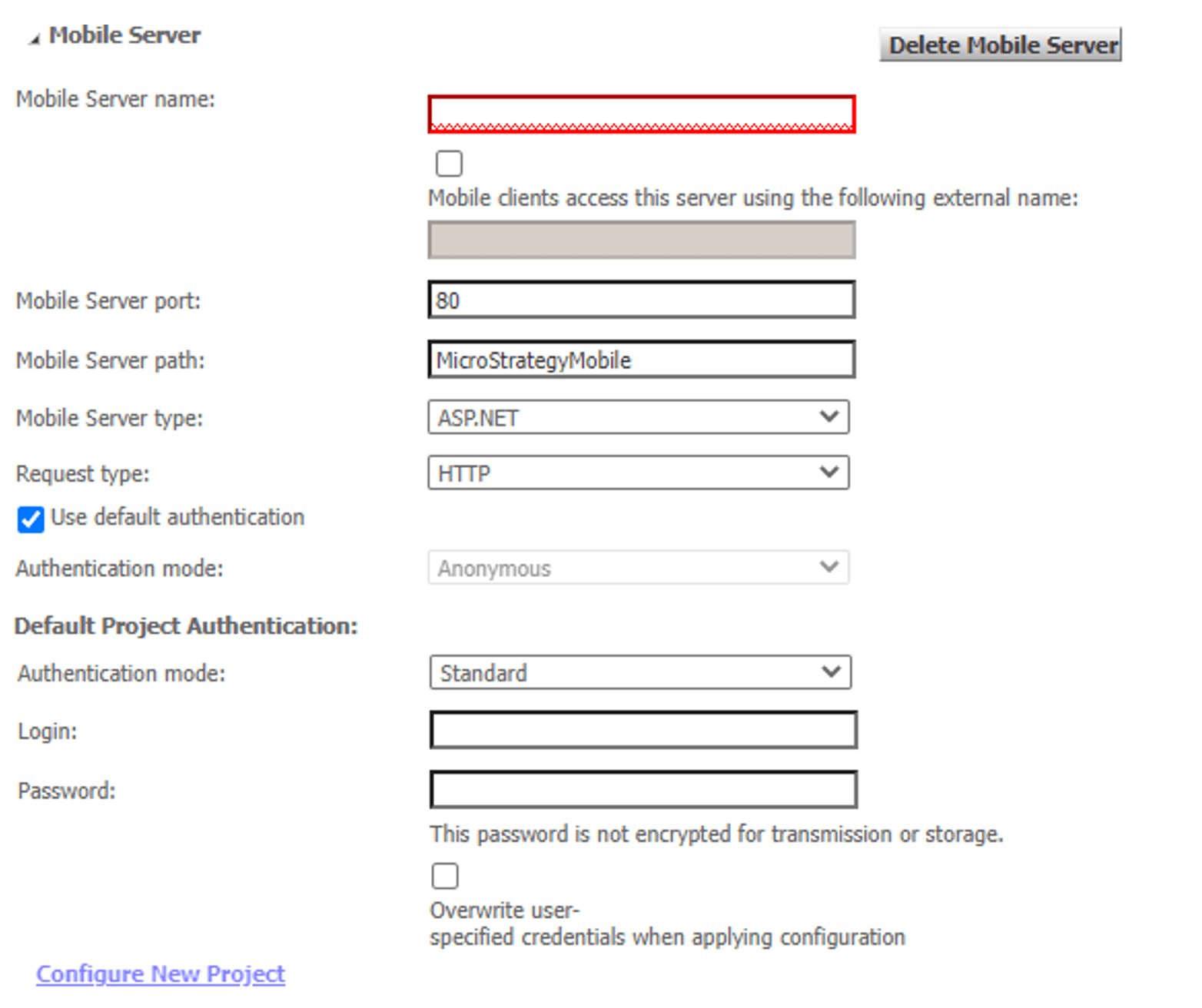
ka04W000001IvW0QAK_0EM4W000004ZwqN.jpeg


  • Mobile Server name: must contain fully qualified host name of Mobile Server machine that application would connect to
  • Mobile clients access this server using the following external name: must be selected if mobile clients must use a different name to access Mobile Server
  • Mobile Server port: must contain port number used by Mobile Server
  • Mobile Server path: must contain the path to the Strategy Mobile Server files
  • Mobile Server type: determines whether Mobile Server type is ASP.NET (Strategy Mobile) or J2EE (Strategy Mobile Universal)
  • Request type: determines whether the device would use HTTP or HTTPS
  • Use default authentication: determines whether the authentication settings specified above would be used to log to this Mobile Server

Default Project Authentication:

  • Authentication mode: determines authentication used by Intelligence Server
  • Login: must contain username to log in to Intelligence Server
  • Password: must contain password for the above username


  1. Home Screen
ka04W000001IvW0QAK_0EM4W000004Zwqh.jpeg


  • Display the default home screen: determines whether the application would be started with default home screen which contains buttons for Shared Library, Reports, Settings, and Help
  • Display the contents of a folder: defines which folder should be displayed when the application is opened
  • Display a custom home screen: defines custom home screen which can be set to display a single report or document when the application is started


  1. Save Configuration

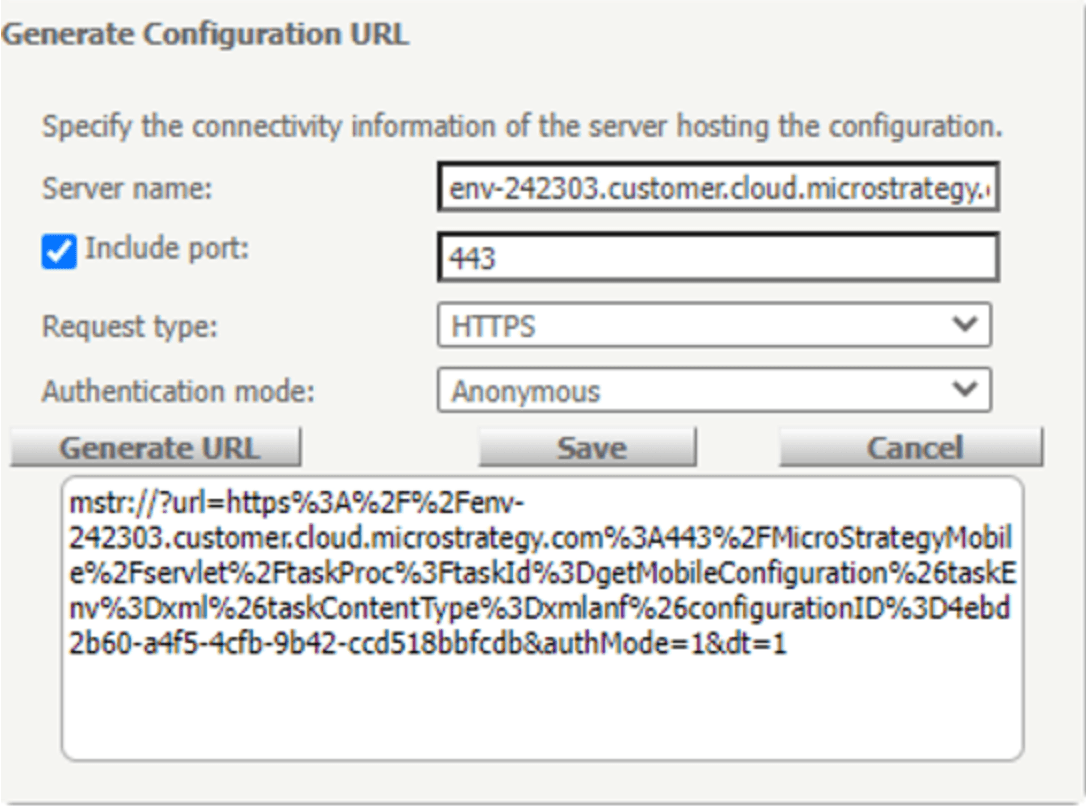
Saving configuration, allows generation of URL.
ka04W000001IvW0QAK_0EM4W000004Zwqm.jpeg

Due to a requirement of the Android operating system, a short URL must be created when sending the configuration URL to users. To generate a short URL for Android, option Use short URL must be selected.
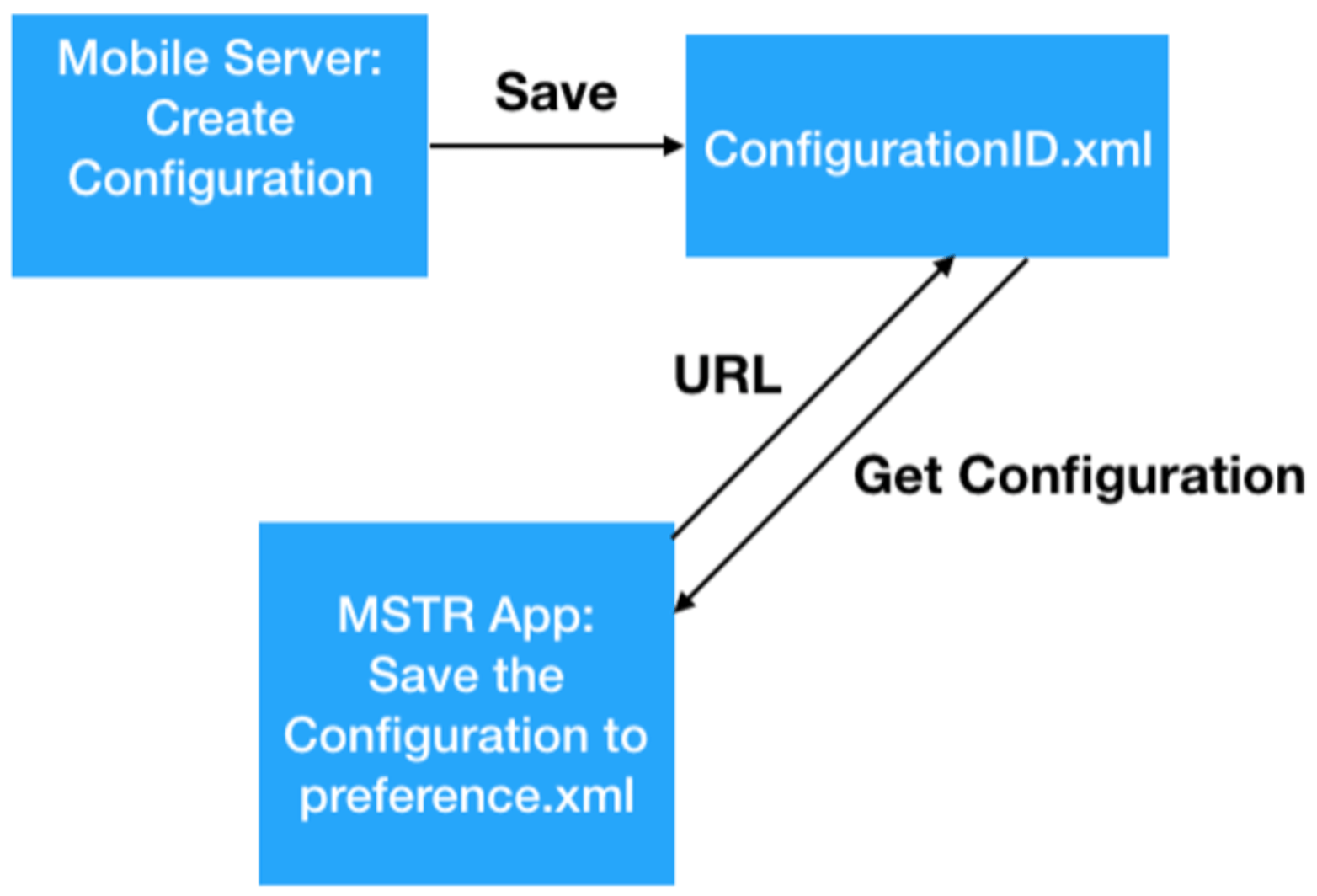
Mobile Server generate ConfigurationID.xml in the C:\Program Files (x86)\Strategy\Mobile Server ASPx\WEB-INF\xml\mobile1
ka04W000001IvW0QAK_0EM4W000004Zwqr.jpeg

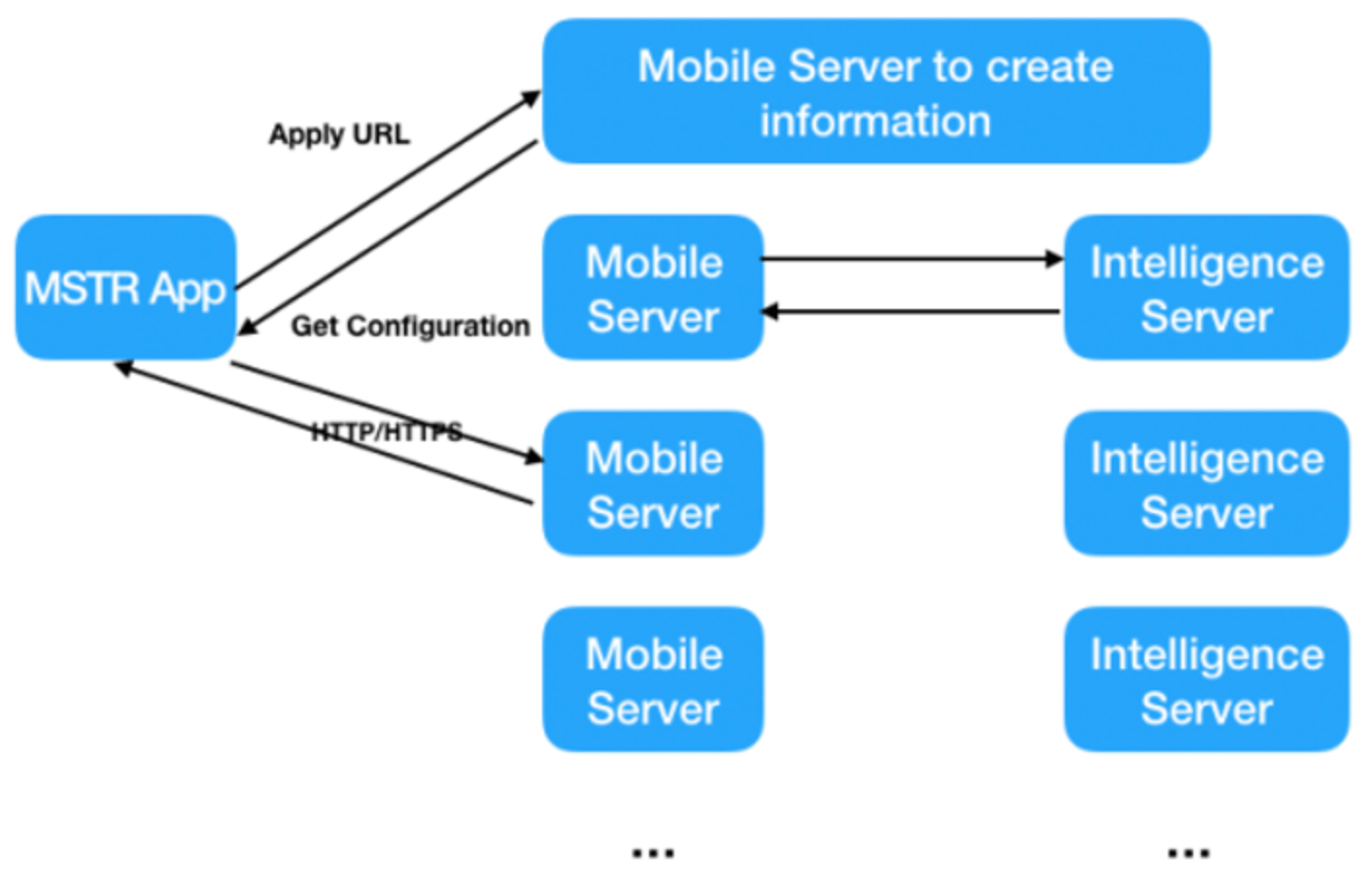
Strategy application use Mobile Server to connect to Intelligence Server. 
ka04W000001IvW0QAK_0EM4W000004Zwr6.jpeg


Comment

0 comments

Details

Knowledge Article

Published:

May 18, 2022

Last Updated:

May 18, 2022