EducationSoftwareStrategy.com
StrategyCommunity

Knowledge Base

Product

Community

Knowledge Base

TopicsBrowse ArticlesDeveloper Zone

Product

Download SoftwareProduct DocumentationSecurity Hub

Education

Tutorial VideosSolution GalleryEducation courses

Community

GuidelinesGrandmastersEvents
x_social-icon_white.svglinkedin_social-icon_white.svg
Strategy logoCommunity

© Strategy Inc. All Rights Reserved.

LegalTerms of UsePrivacy Policy
  1. Home
  2. Topics
  3. KB442148: Natural Language Query in A Nutshell in MicroStrategy Web

KB442148: Natural Language Query in A Nutshell in MicroStrategy Web


Monica Gallegos Salazar

Principal Product Specialist • MicroStrategy


This article describes the Natural Language Query (NLQ) and how to make use of it as well as certain limitations in MicroStrategy Web.
Starting with the release of MicroStrategy ONE (March 2024), dossiers are also known as dashboards.
Natural Language Query (NLQ) allows end users to build dossiers and get insights just by typing questions.
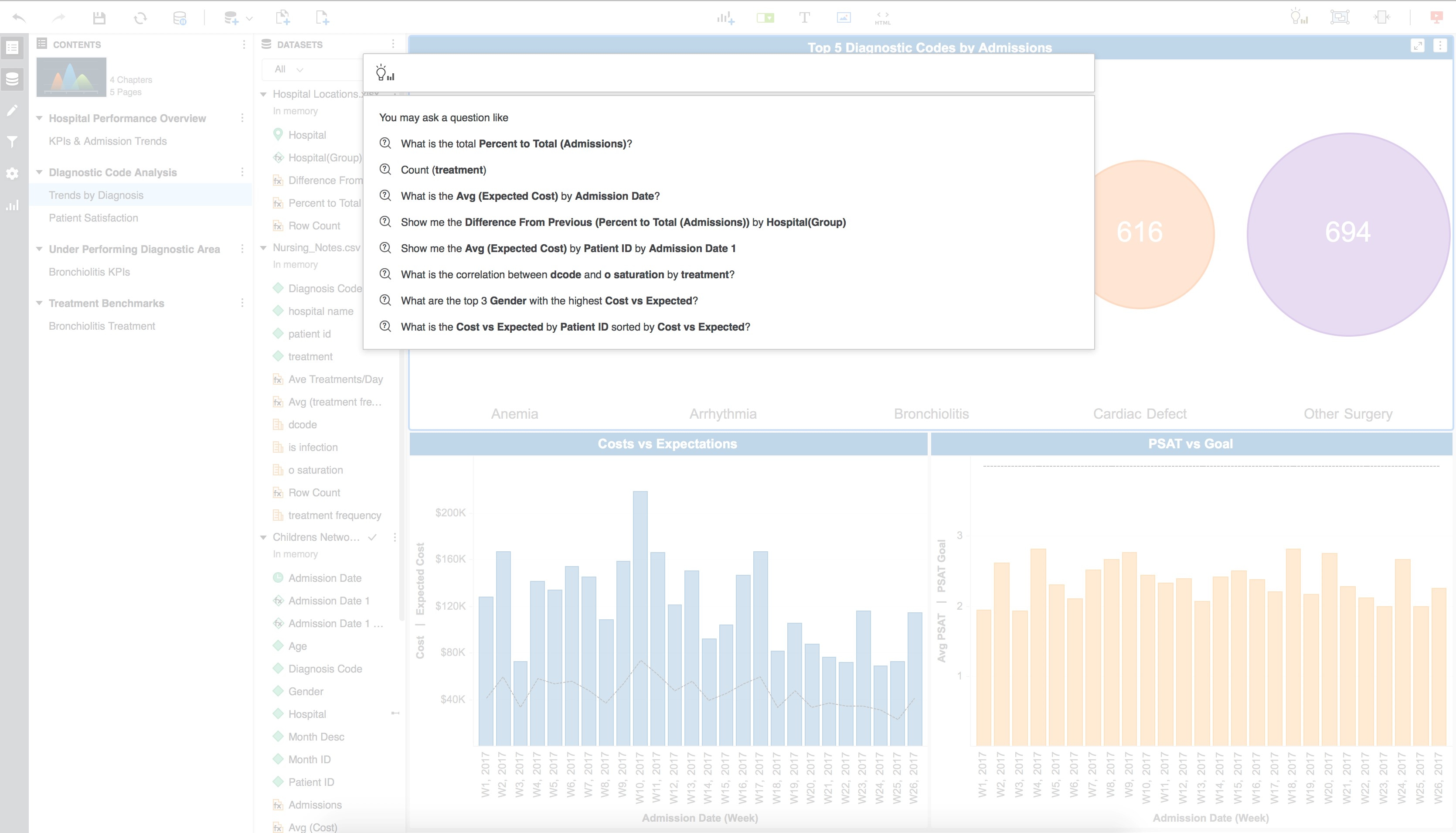
To use Natural Language Query, go to the Dossier Authoring interface (Web, Workstation, or Desktop), and click on the insight icon located at the top right corner: ImageAn input box will be displayed with a list of recommended questions based on the objects in your datasets:
ka0PW0000001JaZYAU_0EM44000000R6M8.jpeg
Users can either type a question as they would normally ask, or pick a recommended question and, if needed, modify it. This article will briefly walk through best practices for MicroStrategy’s Natural Language Query for Dossier™ while describing its varying capabilities.
 
Smart Insights Generation Process:

MicroStrategy NLQ automatically generates insights based on what the user types.  The input patterns below result in the following generated insights:
 

User Input Contains

Sample Query Pattern

Sample Question

Widget Used

Visualization and Insights

Only 1 Metric

What is the [metric]

What is the Number of Flights?

KPI

Image

1 Metric + 1 Time Attribute + 0~N Attributes

What is the [metric] by "time attribute"

Please show Profit by Month.

Line Graph

Image

1 Metric + 1 Geo Attribute + 0~N Attribute

Distribution of [metric] by "geo attribute"
A map of [metric] by "geo attribute" and "attribute 2"

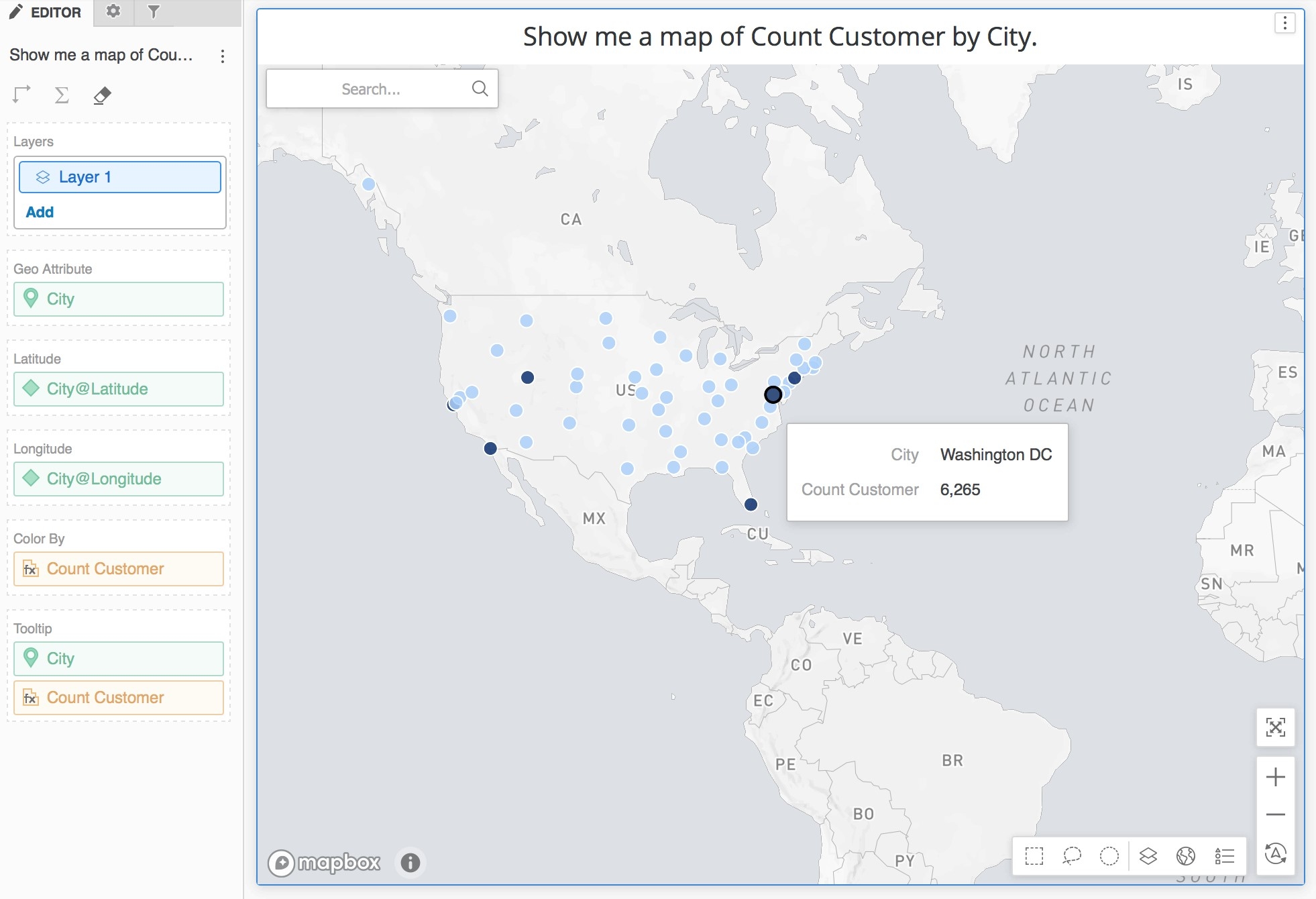
What is the Revenue by City?

Map

Image

2 Metrics + 1 Attribute

Correlation between "metric 1" and "metric 2" by [attribute]

Can you tell me the correlation between Cost and Revenue by Customer Age?

Scatter-plot

Image

0~N Metric + 1~N Attribute
Or
2~N Metric only

What is [metric] by "attribute 1" and by "attribute 2"

What is the Profit by ‌Item and by ‌Customer Gender‌?

Bar Graph

Image

Manual Visualization Selection:
Even though the MicroStrategy Dossier Authoring is designed to pick the best visualization based on a user’s question, sometimes a user may want to choose a different visualization.

If a user is not satisfied with the automatically-selected visualization, there are multiple ways to improve the results. A user can change the visualization type from the visualization gallery after the visualization is created using NLQ, or a user can specify the visualization type in the query itself.

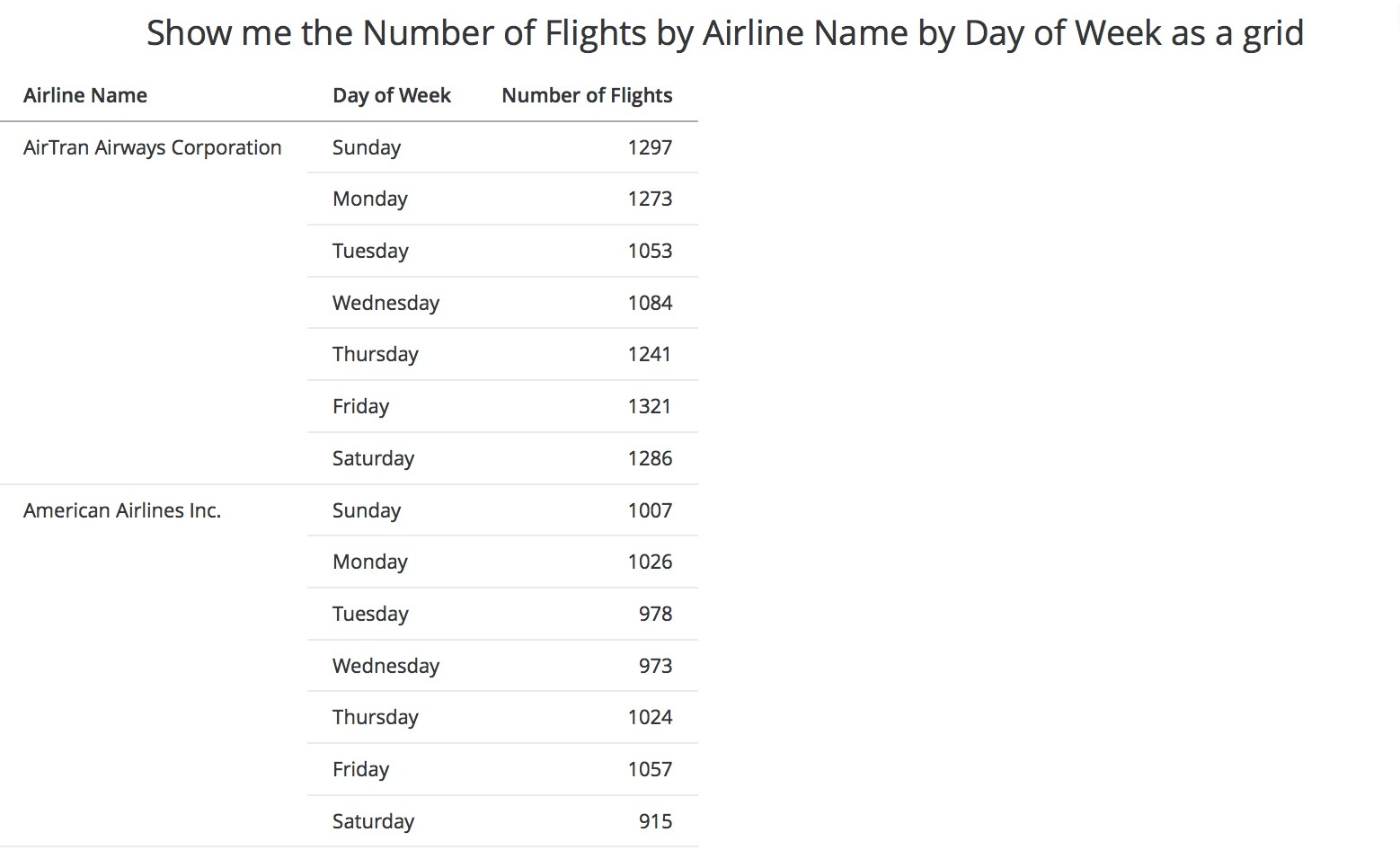
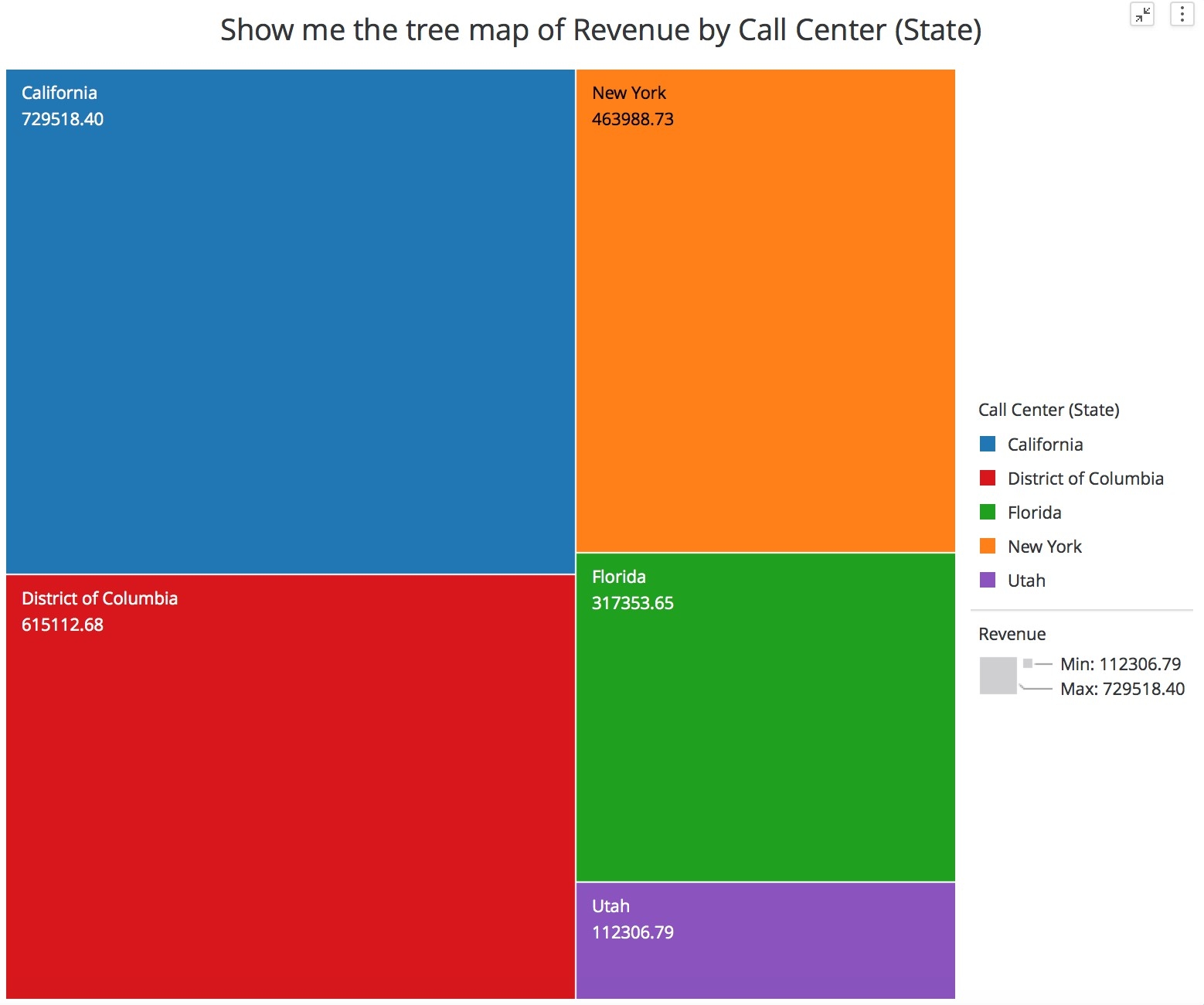
User can specify a visualization type by including keywords in their query. Supported visualization keywords include:
  • Grid
  • Heat map, Heatmap
  • Tree map
  • Bar, Bar Chart, Bar Graph
  • Line, Line Chart, Line Graph
  • Pie, Pie Chart, Pie Graph
  • Network, Network Visualization
  • KPI
  • Map

Examples:
ka0PW0000001JaZYAU_0EM44000000R6Mw.jpeg
ka0PW0000001JaZYAU_0EM44000000R6N1.jpeg
ka0PW0000001JaZYAU_0EM44000000R6N6.jpeg
Sorting Capabilities:

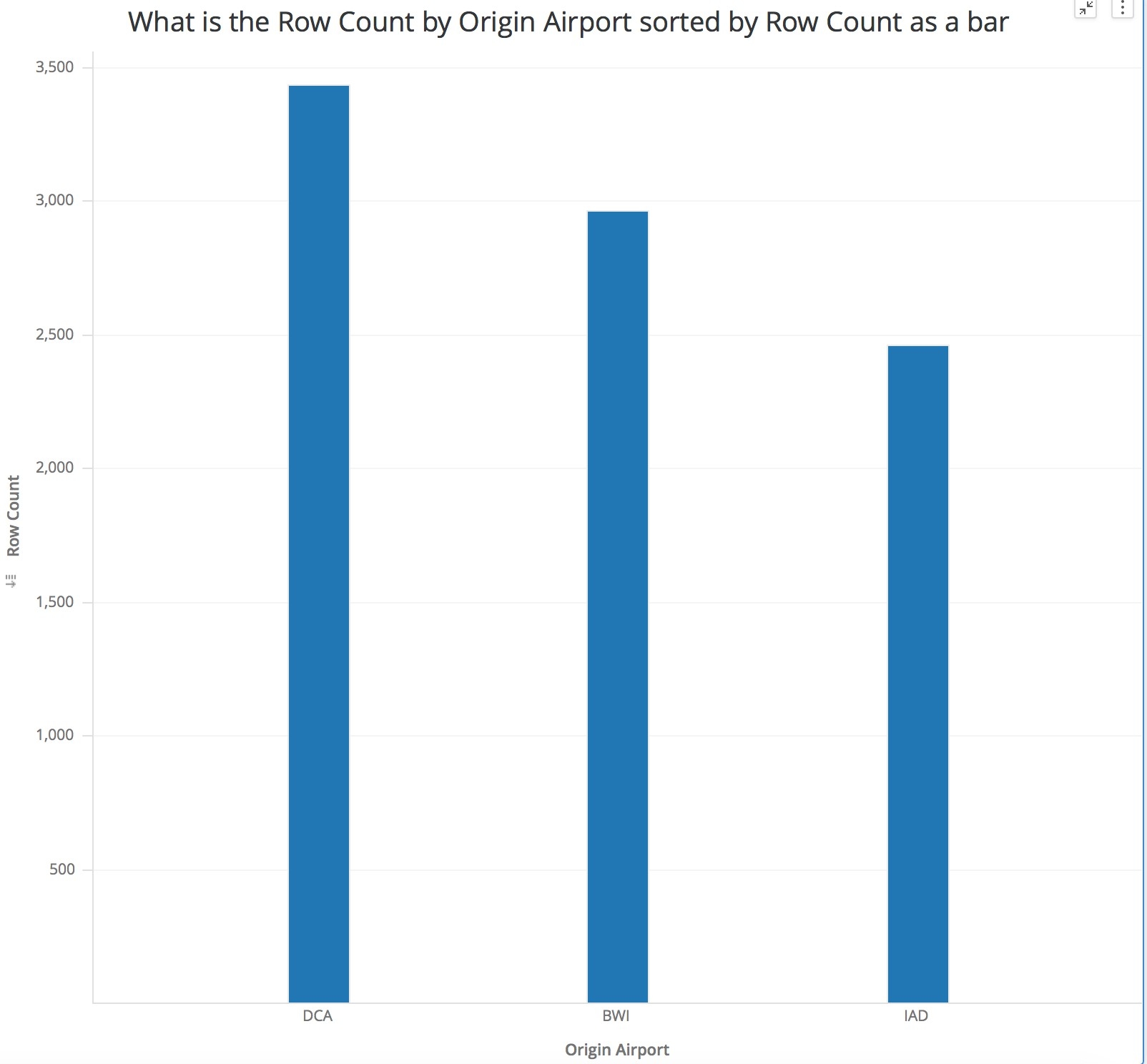
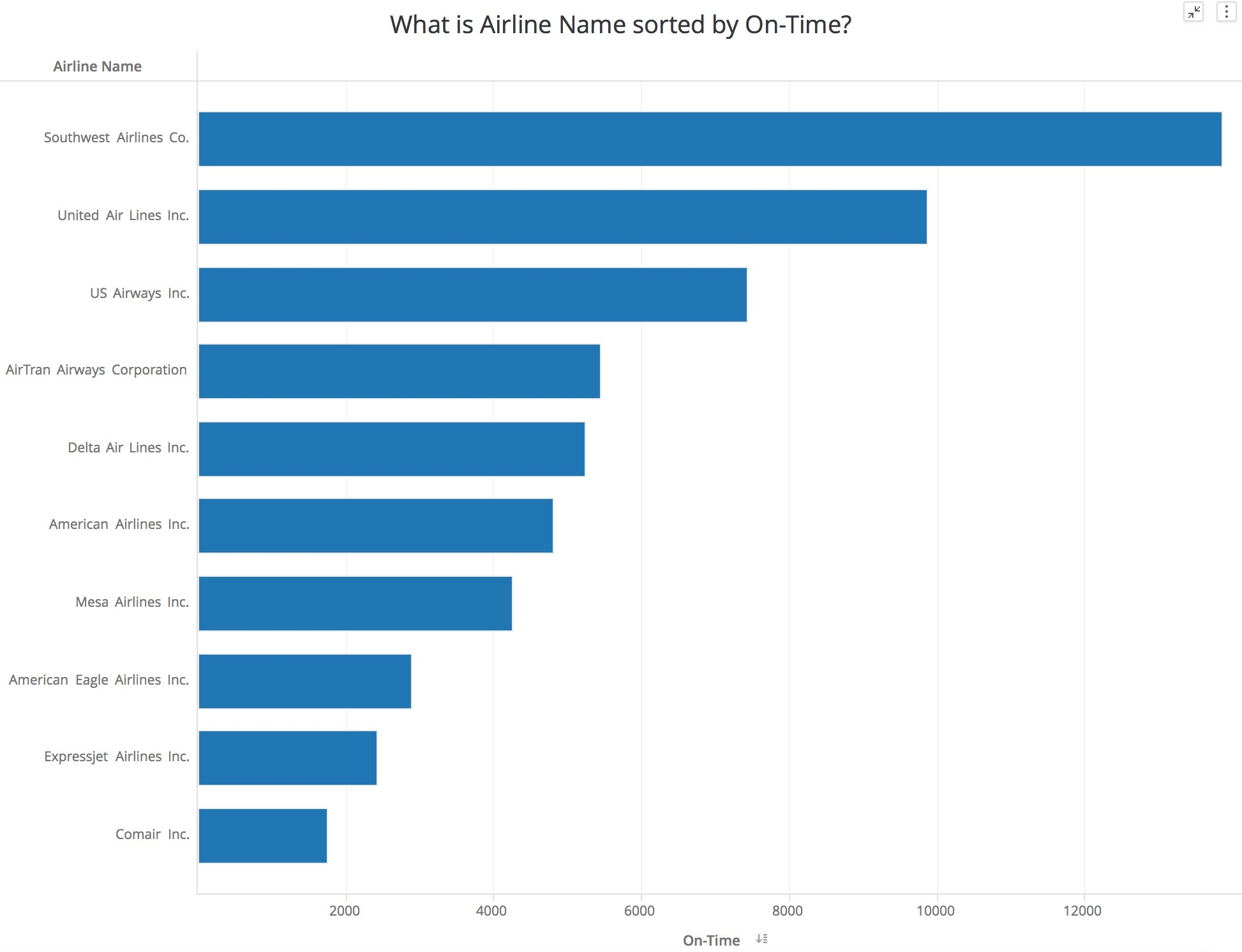
In the query, users can also specify a sort-by criterion:
  • sort by + [attribute]/[metric]
  • sorted by + [attribute]/[metric]
MicroStrategy will sort the attribute/metric in the visualization based on the query.

Example:
ka0PW0000001JaZYAU_0EM44000000R6NB.jpeg
Filtering Capabilities:

A user can also specify filter condition in the query as follows:
  • [metric] + bigger than + xxx (a number)
  • [metric] + larger than + xxx (a number)
  • [metric] + greater than + xxx (a number)
  • [metric] + smaller than + xxx (a number)
  • [metric] + less than + xxx (a number)
  • [metric] + is + xxx (a number)
  • [metric] + are + xxx (a number)
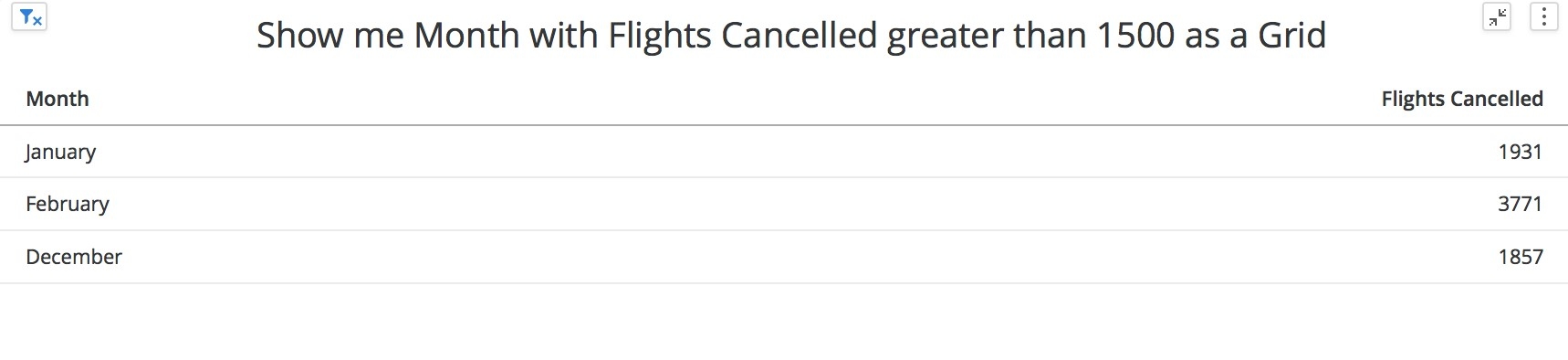
In 11.0, only metric conditions are supported, not attribute qualifications. That means you can ask “What is the category with profit over 1000000?”, but you cannot ask “What is the profit for Year 2018?”. We are actively working to enhance our NLQ features, and attribute filter may be supported in a future release.

Example:
ka0PW0000001JaZYAU_0EM44000000R6NG.jpeg

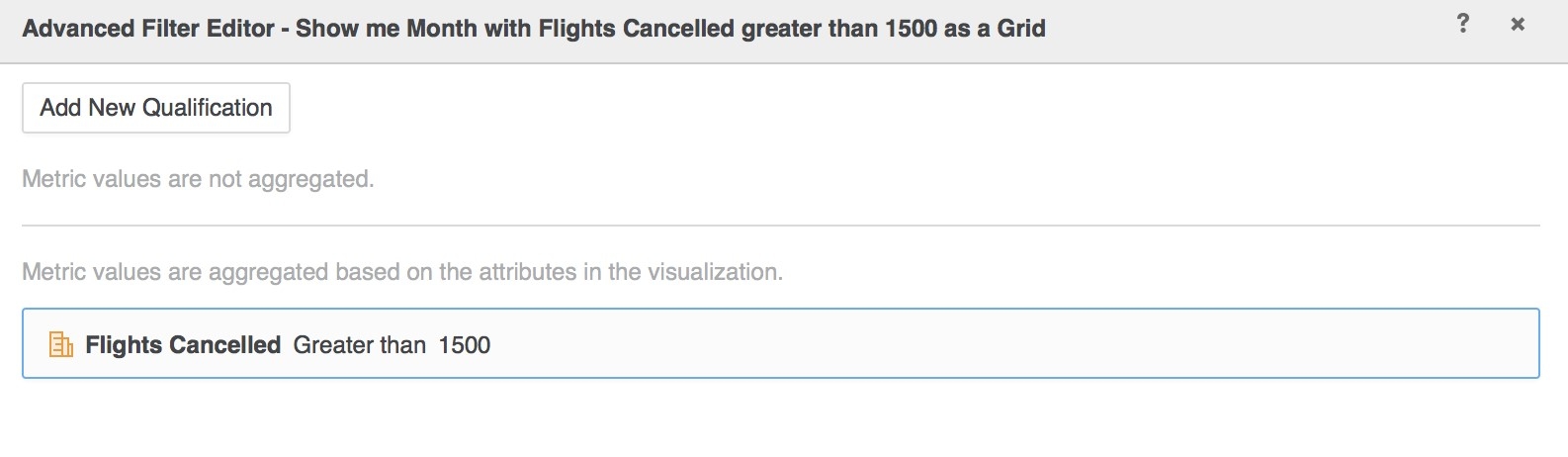
Within the filtering condition of the created visualization, you can see that an advanced filter condition, “[Flights Cancelled] Greater than [1500]”, was created. This was translated from natural human language to a filter on a MicroStrategy visualization.
ka0PW0000001JaZYAU_0EM44000000R6NL.jpeg
Ranking Capabilities:

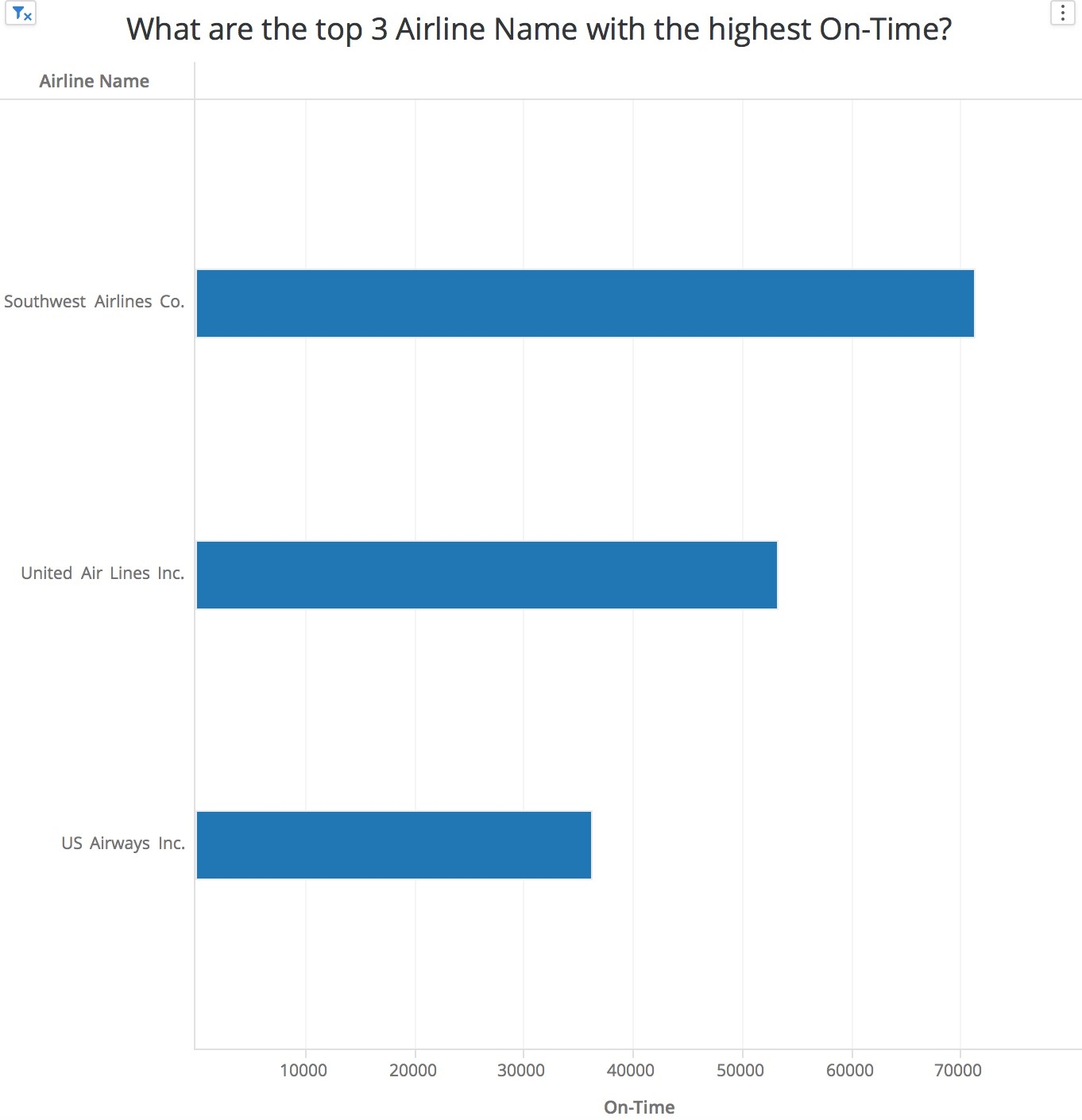
A user can also rank attribute elements based on a metric as shown below:
  • Top ‘N’ + [attribute]/[metric]
Example:
ka0PW0000001JaZYAU_0EM44000000R6NQ.jpeg

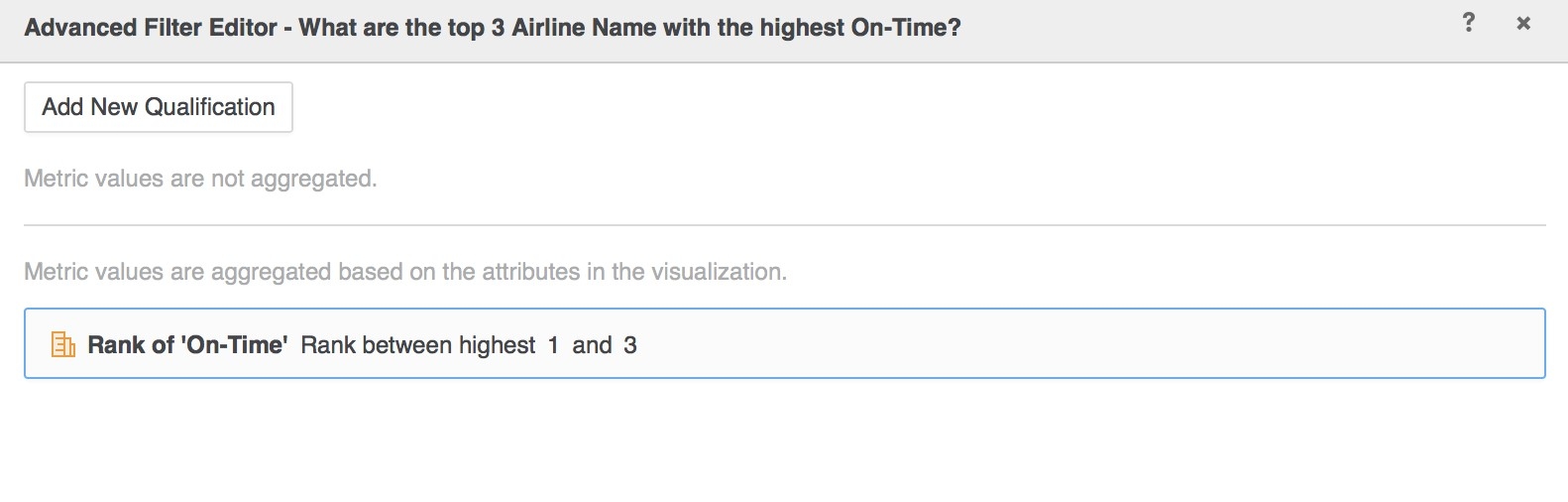
With this query, an advanced filter was created:
ka0PW0000001JaZYAU_0EM44000000R6NV.jpeg
Metric Aggregation

Users can type certain keywords to specify and create aggregation derived metrics based on an existing attribute/metric. The supported keywords are the following:
  • Average + [attribute]/[metric] -> avg (attribute/metric)
  • Maximum + [attribute]/[metric] -> max (attribute/metric)
  • Max + [attribute]/[metric] -> max (attribute/metric)
  • Minimum + [attribute]/[metric] -> min (attribute/metric)
  • Min + [attribute]/[metric] -> min (attribute/metric)
  • Sum + [attribute]/[metric] -> sum (attribute/metric)
  • Sum of [attribute]/[metric] -> sum (attribute/metric)
  • Count + [attribute]/[metric] -> count (attribute/metric)
  • Count of + [attribute]/[metric] -> count (attribute/metric)
Examples:
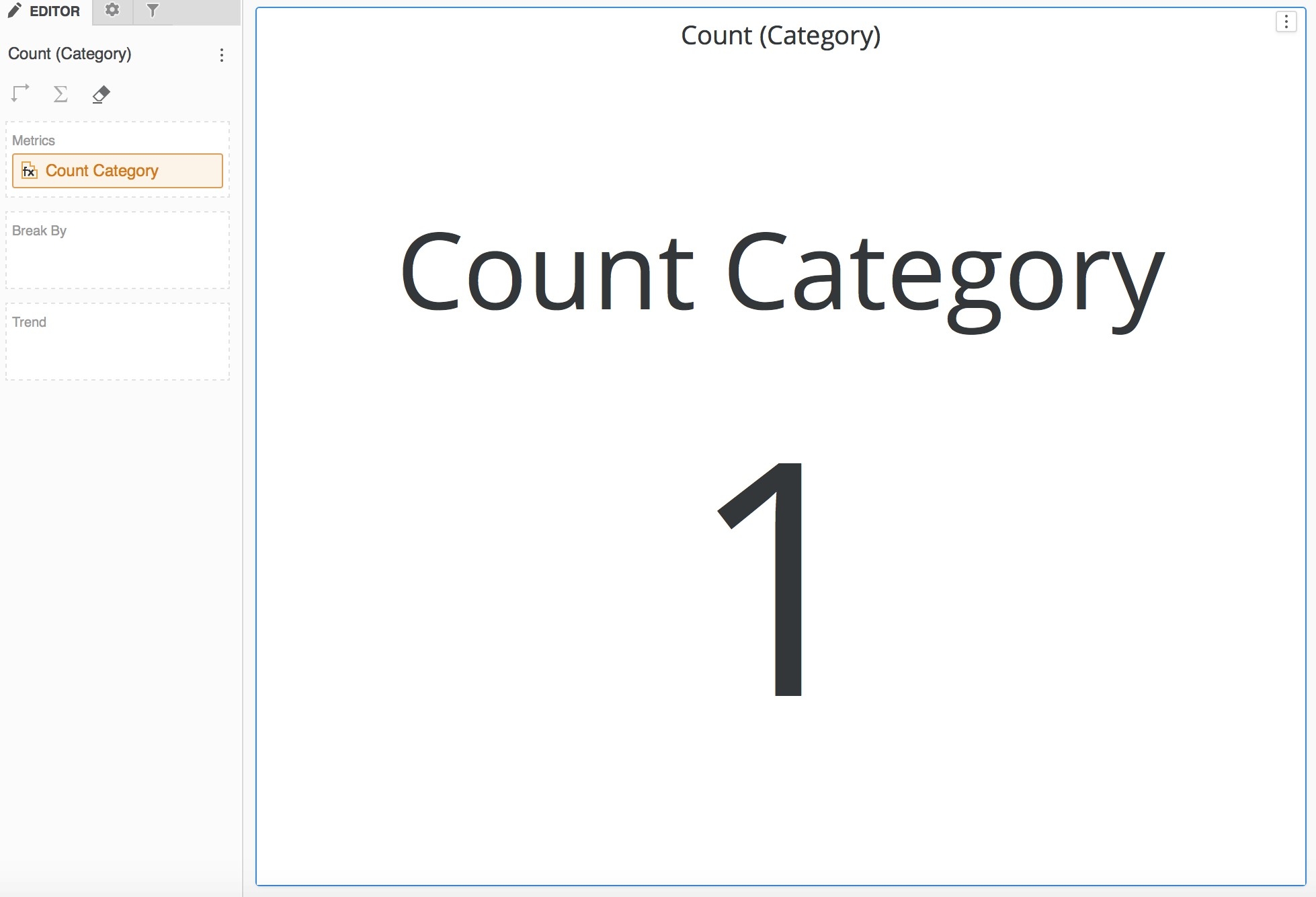
ka0PW0000001JaZYAU_0EM44000000R6Na.jpeg
ka0PW0000001JaZYAU_0EM44000000R6Nf.jpeg
Notice the metric [Count Customer] in the visualization drop zone is an automatically created derived metric.

Some Known Limitations/Issues for 11.0

At MicroStrategy, we want to make our product smarter than the best data scientist on earth, but there is still some work to be done. Here is a list of limitations and known gaps for NLQ capabilities on MicroStrategy 11.0.
  • The keyword “Sort by” only supports ascending sorting.
  • Numbers in the query can only be numeric, not words (e.g., 20 not twenty).
  • NLQ filtering capabilities are currently only available with metric-based queries, NOT attributes.
  • NLQ ranking capabilities do not include the following keywords: “highest”, “lowest” “largest”, or “smallest”.
  • With NLQ-generated derived metrics, the user is not able to specify aggregation function parameters (e.g., “count distinct”). However, NLQ-generated derived metrics can be edited and manually adjusted to set more advanced parameters.
  • When a user specifies KPI visualizations in the NLQ, all attributes will be ignored.
  • If there are attributes/metrics with the same name from different datasets in a Dossier, there is no guarantee which dataset the object/data is coming from (as you cannot specify which dataset to use).
  • Currently, “Sort-by” aggregation is unavailable (e.g., “Show me country sort by count of state as a grid”).
  • You must type exact attribute/metric name in your query (e.g., no plurals).
  • Changing the order of attributes/metrics in your query may lead to slightly different visualizations, as the order of objects within the query is used to decide how the visualization is built.
NLQ offers a great way to start exploring your data. Using it allows anyone to quickly create stunning visualizations that are professionally formatted. You can use it as a starting point and polish your visualization using the visualization gallery, editor panel, function editor, and formatting panel to better enhance your MicroStrategy Dossier. Bon Voyage! KB442148

Comment

0 comments

Details

Knowledge Article

Published:

March 21, 2024

Last Updated:

March 21, 2024