Starting with the release of Strategy ONE (March 2024), dossiers are also known as dashboards.
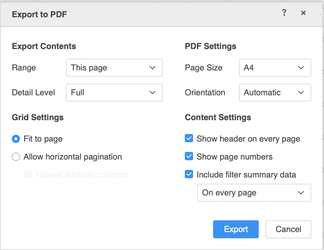
In Strategy 2020, the Export to PDF window in a dossier allows for more customization and provides new default settings. The following items are new enhancements added to exporting a dossier to a PDF.
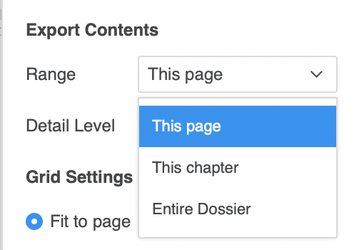
You can now select which part of the dosser to export. The Range drop-down options allows you to choose This page, This chapter, or the Entire Dossier to export to a PDF.
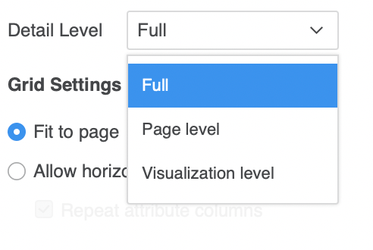
You can now select the level of detail exported from your dossier. The Detail Level drop-down allows you to choose Full, Page level, or Visualization level.
The Full option exports a snapshot of each page and each individual visualization. The Page level option only provides a snapshot of each page. This setting is ideal if you have numerous visualizations on one page. The
Visualization level exports individual visualizations. This option is ideal if you have one visualization and you'd like to see the full details of the visualization.
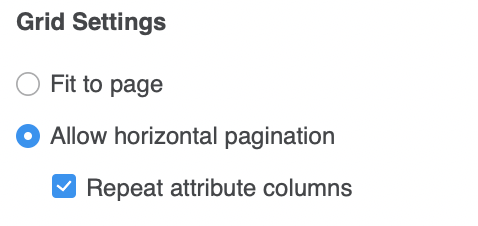
You can choose how to export wide grids. The Grid Settings section allows you to select the Fit to page option, which fits the grid's width onto one PDF page width, or you can select the Allow horizontal pagination option, which breaks a wide grid onto numerous pages. Select the Repeat attribute column checkbox to display the attribute columns on each page.
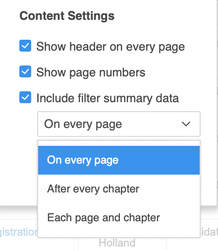
You can now export a filter summary from dossiers in Web, Workstation, and Desktop.The Include filter summary data drop-down allows you to select the amount of detail exported about the filters.
Select On every page to display a one sentence summary of the filters on each exported page. If the filter summary exceeds one sentence, the rest of the sentence is replaced by "..." Select After every chapter to display all filters and their details on one or more pages after each chapter. Select Each page and chapter to display a one sentence summary of the filters on each exported page as well as a larger detailed summary on one or more pages after each chapter.
In Strategy 2020, the new default settings for exporting a dossier to a PDF are:
Range: This page
Detail Level: Full
Fit to page
Page Size: A4
Orientation: Automatic
Show header on every page
Show page numbers
Include filter summary data: On every page