EducationSoftwareStrategy.com
StrategyCommunity

Knowledge Base

Product

Community

Knowledge Base

TopicsBrowse ArticlesDeveloper Zone

Product

Download SoftwareProduct DocumentationSecurity Hub

Education

Tutorial VideosSolution GalleryEducation courses

Community

GuidelinesGrandmastersEvents
x_social-icon_white.svglinkedin_social-icon_white.svg
Strategy logoCommunity

© Strategy Inc. All Rights Reserved.

LegalTerms of UsePrivacy Policy
  1. Home
  2. Topics

KB423940: "No server defined. You can add a server at Preferences" warning appears when uploading an *.mstr file to MicroStrategy Desktop 10.4 that was downloaded from MicroStrategy Web 10.4


Community Admin

• Strategy


This technical note article describes an issue where a user tries to upload an *.mstr file and a prompt will appear asking for the user to authenticate with a Web Server in MicroStrategy Desktop 10.4

SYMPTOM:
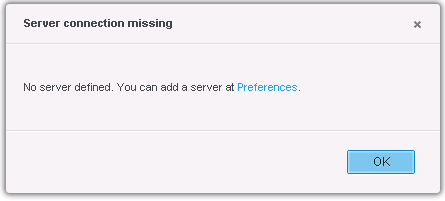
When a user downloads a *.mstr file from Strategy Web 10.4 and tries to upload the file to Strategy Desktop 10.4, the following message will appear:        
ka04W000000OfXMQA0_0EM440000002LXa.png


Server connection missing
No server defined. You can add a server at Preferences.
CAUSE:
This is working as design in Strategy Desktop 10.4.  In Strategy Web 10.4, datasets can either be in "Live" mode or in "In-Memory" mode. 
If a Visual Insight dashboard in Strategy Web is in "Live" mode, the downloaded *.mstr file will necessarily require authentication to connect to the Strategy Web Server. If a Visual Insight dashboard is in "In-Memory" mode, it will have to meet two requirements in order to avoid being prompted to authenticate to a Strategy Web Server.
ACTION:
To download an *.mstr file as "In-Memory" and avoid being prompted to authenticate to a Strategy Web Server, follow these steps to meet the requirements.

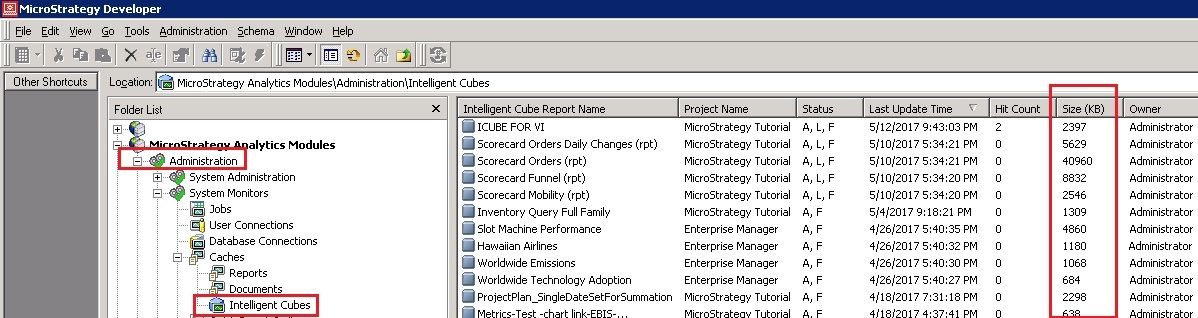
  • In Strategy Developer 10.4, go to Administration > System Monitors > Caches > Intelligent Cubes.  
  • Find the cube that is being used in the Visual Insight Dashboard that will be exported to *.mstr, and convert the cube size from KB to MB, like shown below. 
ka04W000000OfXMQA0_0EM440000002Lca.jpeg
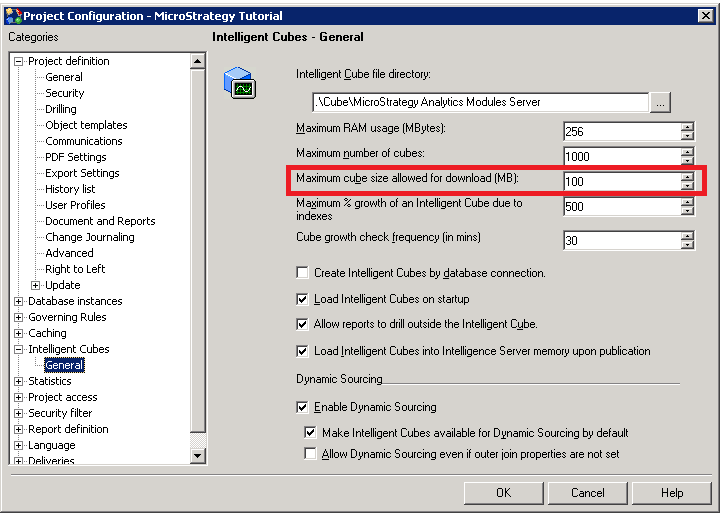
  • Go to the Strategy Project Configuration > Intelligent Cubes > General.
  • The cube size should not exceed the "Maximum cube size allowed for download (MB)". If it does exceed the size, increase the value in the setting shown below:
ka04W000000OfXMQA0_0EM440000002LVe.png
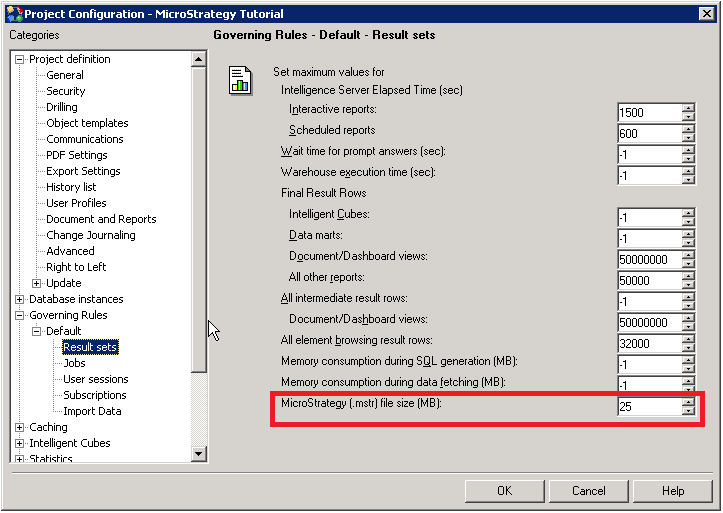
  • The *.mstr file will be compressed to a rate of 30% to the size of the cubes. It should not exceed the max "Strategy (.mstr) file size (MB)" allowed for download. If it does, increase the value in the setting shown below:
ka04W000000OfXMQA0_0EM440000002LVj.png

Note: If one of these two requirements is not met, the *.mstr file will still download, but as a "Live" cube that will prompt users to authenticate to a Strategy Web Server, instead of as an In-Memory cube that is self-contained.
The Strategy Internal Reference Number for this issue is: KB423940. KB423940


Comment

0 comments

Details

Knowledge Article

Published:

May 12, 2017

Last Updated:

January 3, 2019