EducationSoftwareStrategy.com
StrategyCommunity

Knowledge Base

Product

Community

Knowledge Base

TopicsBrowse ArticlesDeveloper Zone

Product

Download SoftwareProduct DocumentationSecurity Hub

Education

Tutorial VideosSolution GalleryEducation courses

Community

GuidelinesGrandmastersEvents
x_social-icon_white.svglinkedin_social-icon_white.svg
Strategy logoCommunity

© Strategy Inc. All Rights Reserved.

LegalTerms of UsePrivacy Policy
  1. Home
  2. Topics

Object Manager: No error message appears when importing a package with a missing dependency


Ryan Chadly

Software Engineer • MicroStrategy


This article describes a known issue in MicroStrategy 2019 Update 1 and Update 2. If a package with a missing dependency is imported into Object Manager, no error message appears and the import is successful. Later, there is a metadata inconsistency due to the missing dependency.

Symptom


In Strategy 2019 Update 1 and Update 2, importing a package with a missing dependency into Object Manager does not cause an error message to appear. Instead, it says the import was successful.
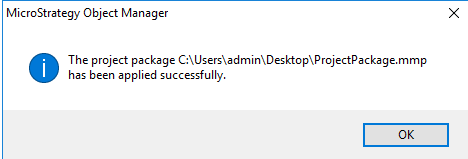
ka02R000000g4y4QAA_0EM2R000000hCeD.jpeg

However, when you run the package, an error appears because there is a metadata inconsistency. 

ka02R000000g4y4QAA_0EM2R000000hCeI.jpeg

Steps to Reproduce

  1. In Developer, create a report and a filter. 
  2. Add the newly created filter to your newly created report.
  3. Save the report.
  4. In Object Manager, create a package with the report. Do not click Add All Used Dependencies.
  5. Import the package in another project to Object Manger. The import is successful.
  6. Open Developer and try to run the newly imported report, the metadata error appears.


Cause


This is an identified defect in Object Manager.
 

Solution

This issue is resolved in Strategy 2019 Update 3. Upgrade to Strategy 2019 Update 3 or later to take advantage of the fix.

Workaround


To resolve the error on Strategy 2019 Update 2, perform the following steps on the machine where Object Manager is installed.
If the machine with Object Manager has the Intelligence Server installed:

  • Open the MicroStrategy Diagnostics and Performance Logging Tool.
  • In Select Configuration, choose Machine Default.
  • Enable logging on Client Services > Sources Manipulator.
ka02R000000g4y4QAA_0EM2R000000hCeS.jpeg
  • Click Save.
  • Restart Object Manager.


If the machine with Object Manager does not have the Intelligence Server installed:

  • Open the Registry Editor.
  • Navigate to HKEY_LOCAL_MACHINE\SOFTWARE\WOW6432Node\MicroStrategy\Diagnostics\Log2\Client Services\Source Manipulator.
  • Add the three strings:
    • DebugOutput
    • DSSErrors
    • SystemLog
ka02R000000g4y4QAA_0EM2R000000hCeh.jpeg
  • Restart Object Manager.

KB483333


Comment

0 comments

Details

Knowledge Article

Published:

June 3, 2019

Last Updated:

December 3, 2019