EducationSoftwareStrategy.com
StrategyCommunity

Knowledge Base

Product

Community

Knowledge Base

TopicsBrowse ArticlesDeveloper Zone

Product

Download SoftwareProduct DocumentationSecurity Hub

Education

Tutorial VideosSolution GalleryEducation courses

Community

GuidelinesGrandmastersEvents
x_social-icon_white.svglinkedin_social-icon_white.svg
Strategy logoCommunity

© Strategy Inc. All Rights Reserved.

LegalTerms of UsePrivacy Policy
  1. Home
  2. Topics

KB442216: "Object doesn't support property or method 'match'" error occurs when using oAuth sources in MicroStrategy 10.x and above on IE11


Community Admin

• Strategy


This article offers a solution to a known issue when using oAuth sources to import data on IE11. The OAuth source includes Salesforce, Dropbox, Twitter, Google Drive, Google Analytics and Google BigQuery.

SYMPTOM:
 
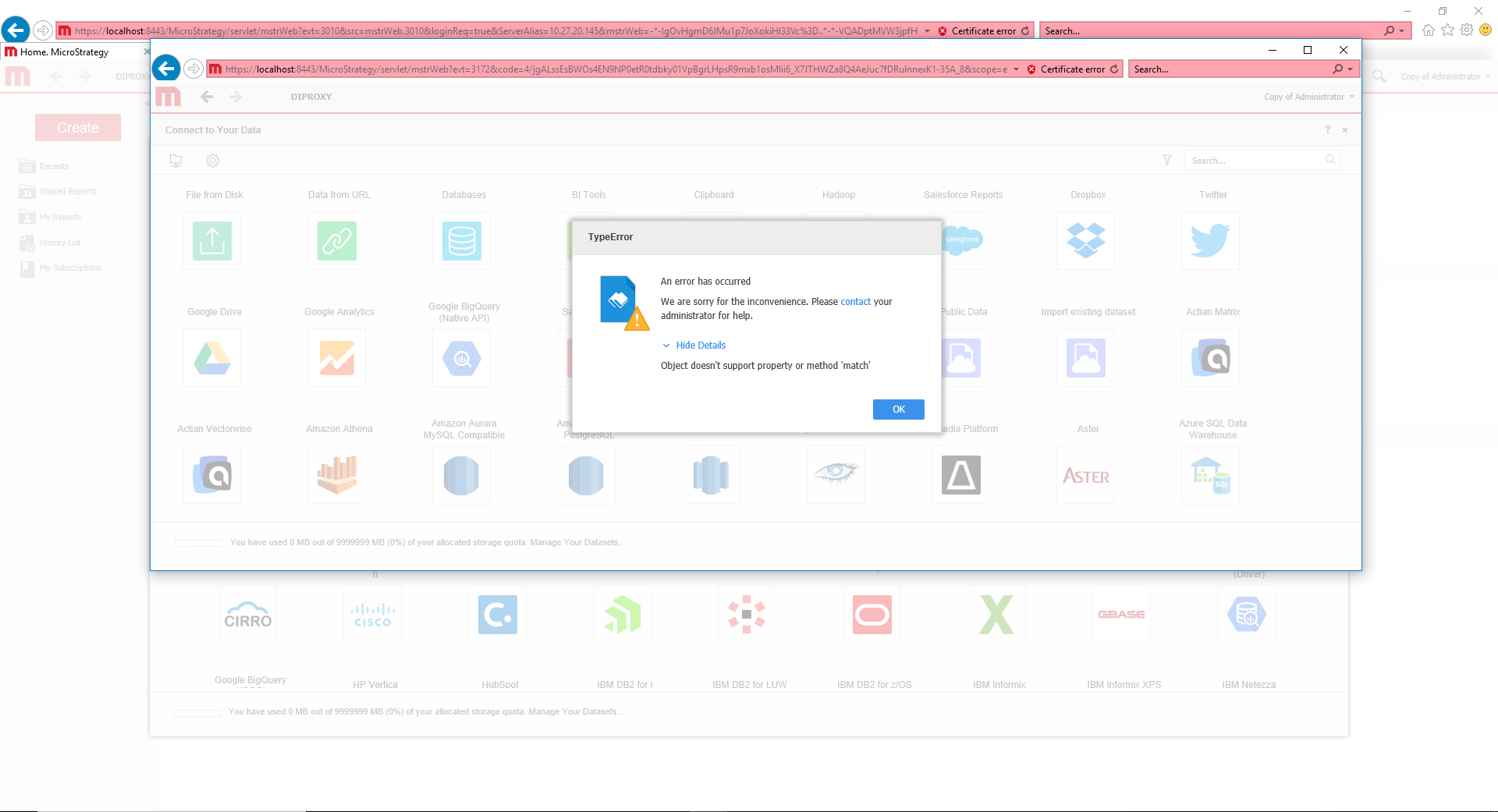
In Strategy 10.x and above, "Object doesn't support property or method 'match'" error occurs when using oAuth sources to import data on IE11 as shown below:
ka04W000000OcMxQAK_0EM44000000RDkl.png

 
STEPS TO REPRODUCE:

  1. Open Strategy web in IE11 and Login in
  2. Click 'Add External Data'
  3. Click any oAuth source, such as Salesforce, Dropbox, Twitter, Google Drive, Google Analytics, Google BigQuery.
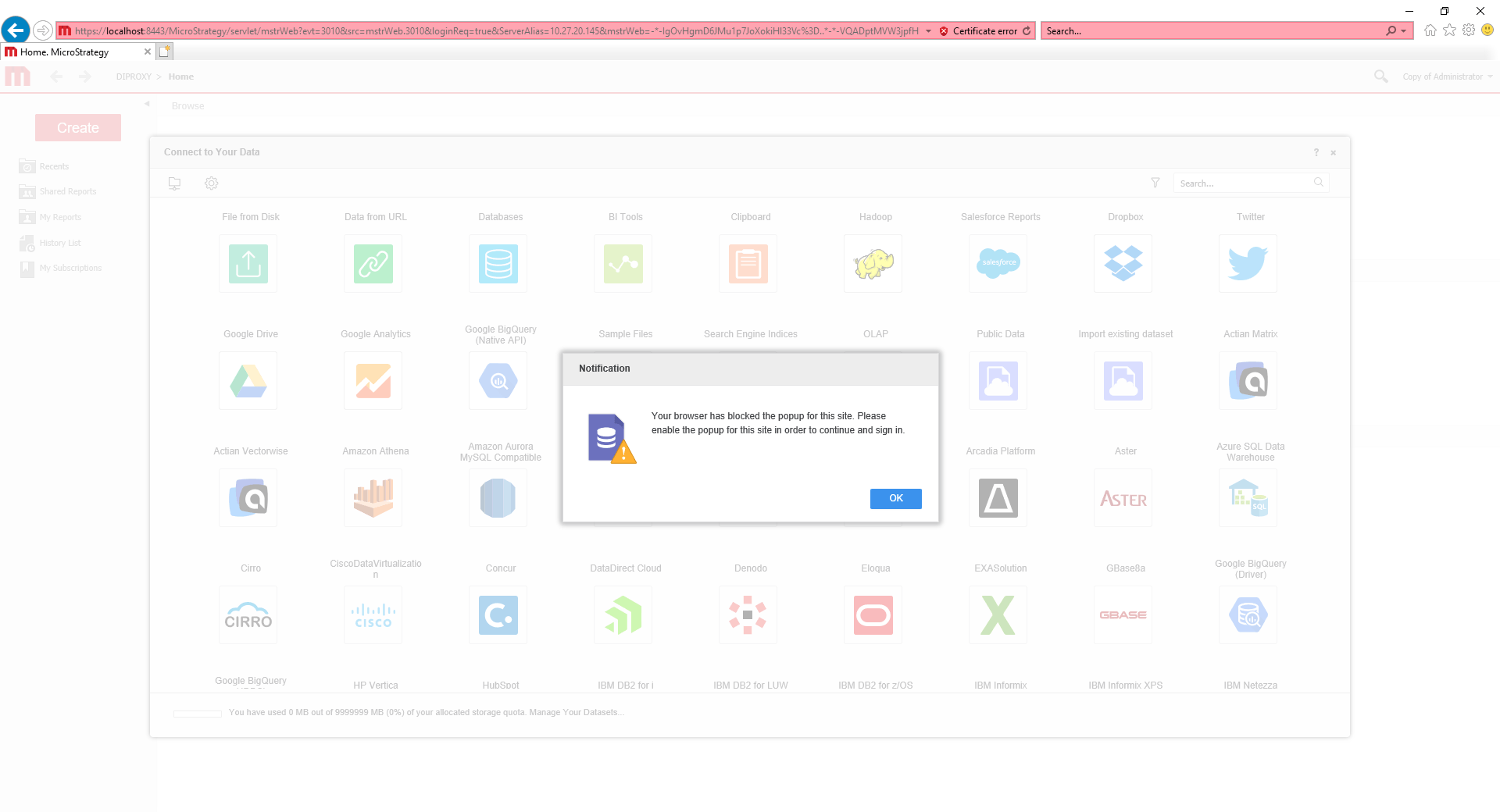
  4.  A notification in the original window and a window pop up as well as shown below:

“Your browser has blocked the popup for this site. Please enable the popup for this site in order to continue and sign in.”
ka04W000000OcMxQAK_0EM44000000RDkq.png

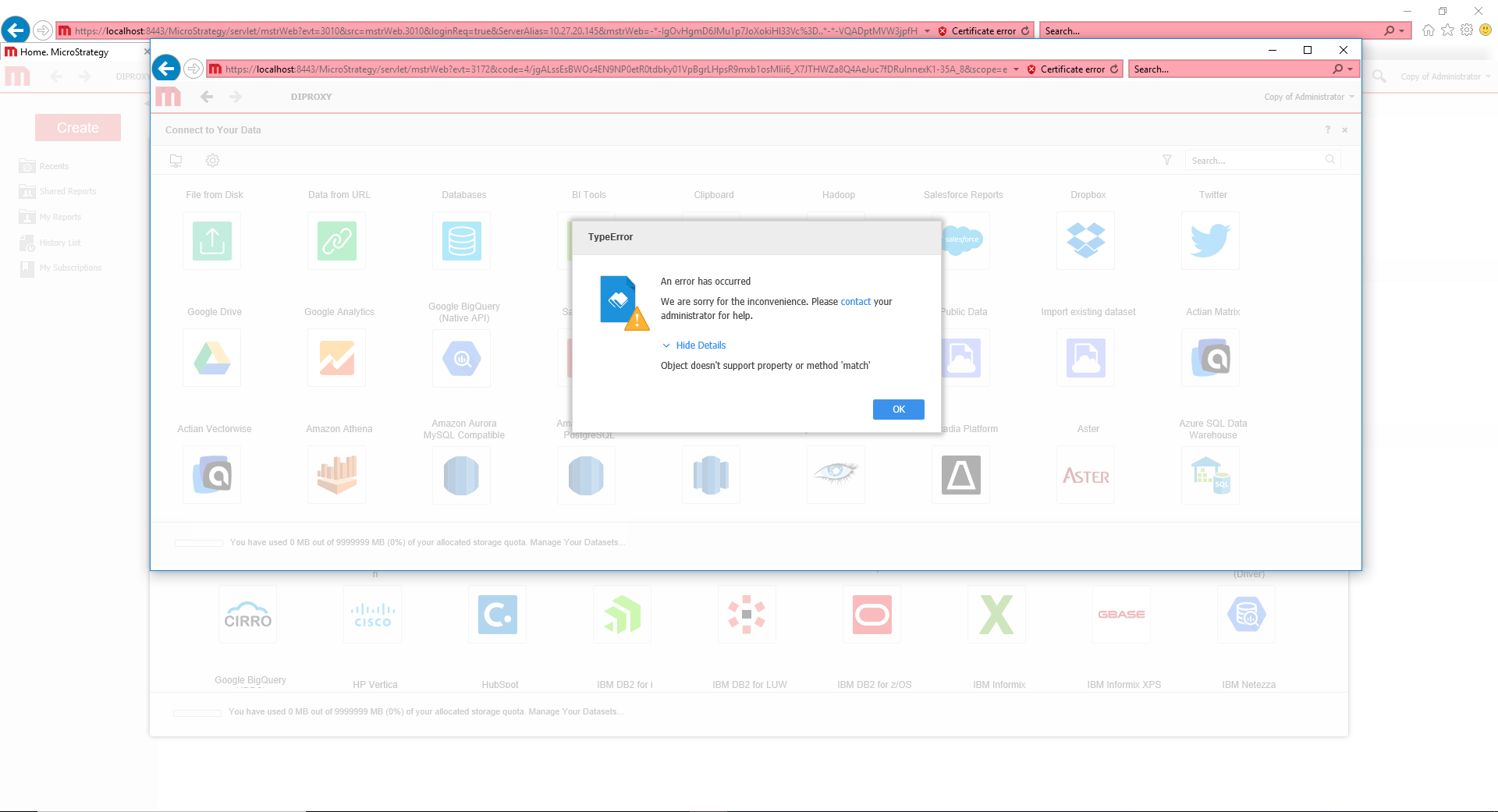
         5. Login on the new window, following error pops up as shown below:
"Object doesn't support property or method 'match'"
ka04W000000OcMxQAK_0EM44000000RDkv.png

 
CAUSE:
This is a known issue with IE11. Some versions of IE11 block Strategy oAuth process in JavaScript level.
 
 
ACTION:
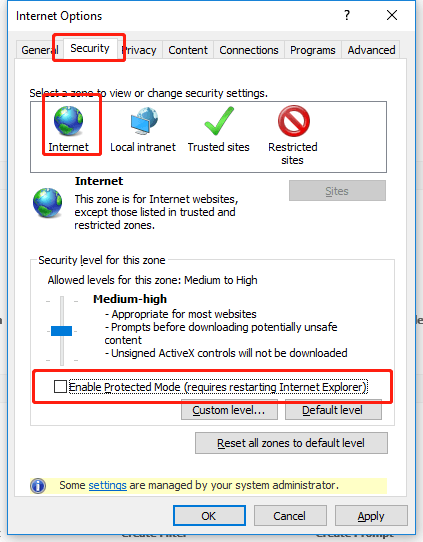
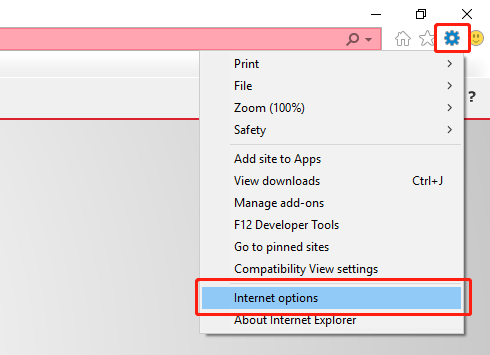
Disable protect mode in IE setting.  Follow steps below to apply this change.
     1.   Click setting in IE11, Open ‘Internet option’
ka04W000000OcMxQAK_0EM44000000RDkb.png

     2.   Open ‘Internet option’ in Setting

ka04W000000OcMxQAK_0EM44000000RDkg.png

     3.  Switch to ‘Security’
     4.  Select ‘Internet’
     5.  Disable option ‘Enable Protected Mode’  


Article Reference Number: KB442216


Comment

0 comments

Details

Knowledge Article

Published:

November 8, 2018

Last Updated:

November 9, 2018