EducationSoftwareStrategy.com
StrategyCommunity

Knowledge Base

Product

Community

Knowledge Base

TopicsBrowse ArticlesDeveloper Zone

Product

Download SoftwareProduct DocumentationSecurity Hub

Education

Tutorial VideosSolution GalleryEducation courses

Community

GuidelinesGrandmastersEvents
x_social-icon_white.svglinkedin_social-icon_white.svg
Strategy logoCommunity

© Strategy Inc. All Rights Reserved.

LegalTerms of UsePrivacy Policy
  1. Home
  2. Topics

Opening a Prompted Dossier in MicroStrategy Library 2019 Whlle Using a WebLogic Server Produces the Error, Unable to resolve bean name "PromptsContainerBean" to a bean class


Mengran (Molly) Wang

Senior Cloud Support Engineer III • MicroStrategy


This article details how to resolve an issue where opening a prompted dossier in MicroStrategy Library 2019 while using a WebLogic server produces the error, Unable to resolve bean name "PromptsContainerBean" to a bean class.

Starting with the release of Strategy ONE (March 2024), dossiers are also known as dashboards.

Description

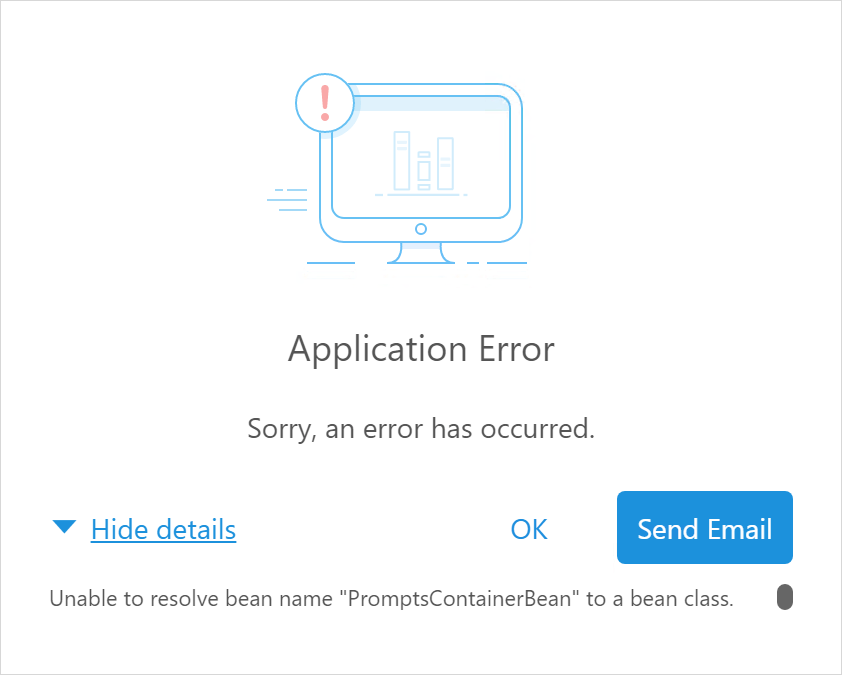
Opening a prompted dossier in Library while using a WebLogic server produces the error, "Unable to resolve bean name "PromptsContainerBean" to a bean class. This error has not been seen with a Tomcat Library server.
ka0PW0000001JaRYAU_0EM2R000000mqfV.jpeg

Steps to Reproduce

  1. Create a prompted report (element prompt).
  2. Add a dataset to a dossier.
  3. Execute the dossier in MicroStratgy Web. The dossier functions as expected.
  4. Run the dossier in Library. The error, Unable to resolve bean name "PromptsContainerBean" to a bean class appears. The error also appears when trying to re-prompt the dossier in Library.

Why is this happening?

The root cause of the issue is that WebLogic is running in development mode and the system time zone is not set to UTC. To deploy web applications, we do not recommend using development mode, even though it is the default mode. If you are in development mode, the server checks class modification and reloads files each time you restart your server.

Workaround

To resolve this issue, there are a few different workarounds.

WebLogic Server Level

Change the WebLogic startup mode to production mode to disable the WebLogic servlet load check.
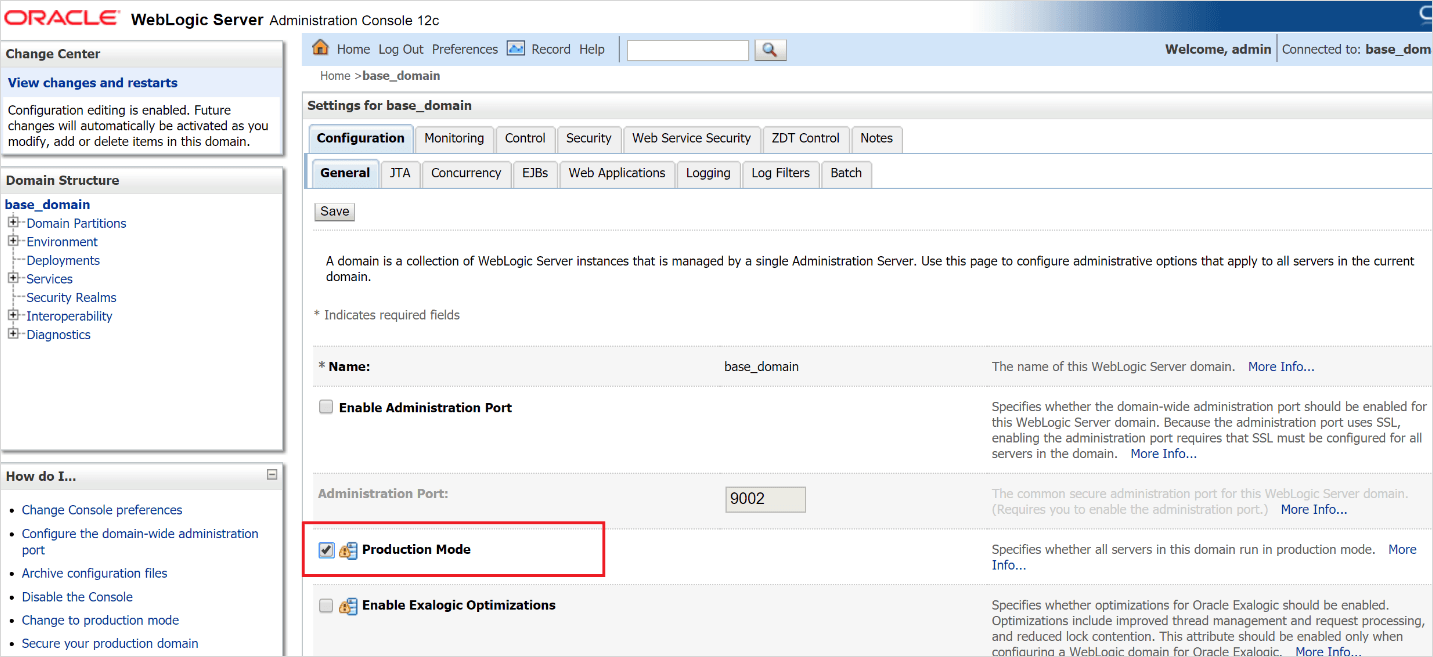
  • Open the WebLogic Server Administration Console.
  • Go to Domain Structure > base_domain and select the Production Mode checkbox.
    Note: You can also edit the setDomainEv script located in DOMAIN_NAME/bin and set the PRODUCTION_MODE variable to true.
ka0PW0000001JaRYAU_0EM2R000000mqgd.jpeg
  • Restart the WebLogic server.

Set the Default Time Zone to UTC

  1. Open the startWebLogic script in DOMAIN_NAME/bin for editing.
  2. Set the time zone to UTC.
    
    JAVA_OPTIONS=-Duser.timezone=UTC

Library Web Application Level

  1. Open WEB-INF\weblogic.xml for editing.
  2. Disable WebLogic servlet reload check by adding <servlet-reload-check-secs>-1</servlet-reload-check-secs>.
    
    <wls:weblogic-web-app
        xmlns:wls="http://xmlns.oracle.com/weblogic/weblogic-web-app"
        xmlns:xsi="http://www.w3.org/2001/XMLSchema-instance"
        xsi:schemaLocation="http://xmlns.oracle.com/weblogic/weblogic-web-app http://xmlns.oracle.com/weblogic/weblogic-web-app/1.8/weblogic-web-app.xsd">
      <security-role-assignment>
        <role-name>admin</role-name>
       <principal-name>Administrators</principal-name>
     </security-role-assignment>
      <wls:container-descriptor>
        <wls:prefer-application-packages>
         <wls:package-name>org.opensaml</wls:package-name>
        </wls:prefer-application-packages>
         <wls:show-archived-real-path-enabled>true</wls:show-archived-real-path-enabled>
         <wls:servlet-reload-check-secs>-1</wls:servlet-reload-check-secs>
      </wls:container-descriptor>
    </wls:weblogic-web-app>


Comment

0 comments

Details

Knowledge Article

Published:

November 20, 2019

Last Updated:

March 21, 2024