To create connection against Palantir Foundry, the best practice is to use Workstation, this will help us create a JDBC based connection to Palantir Foundry.
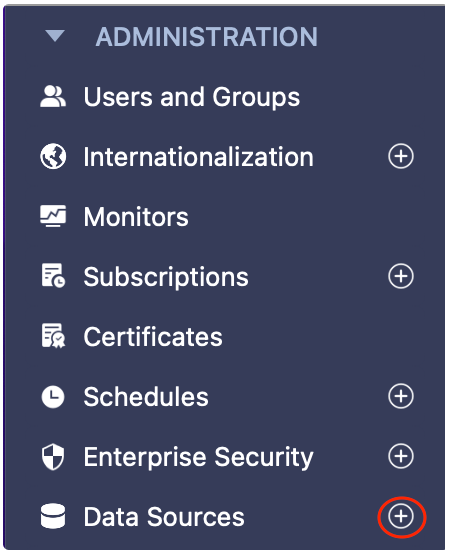
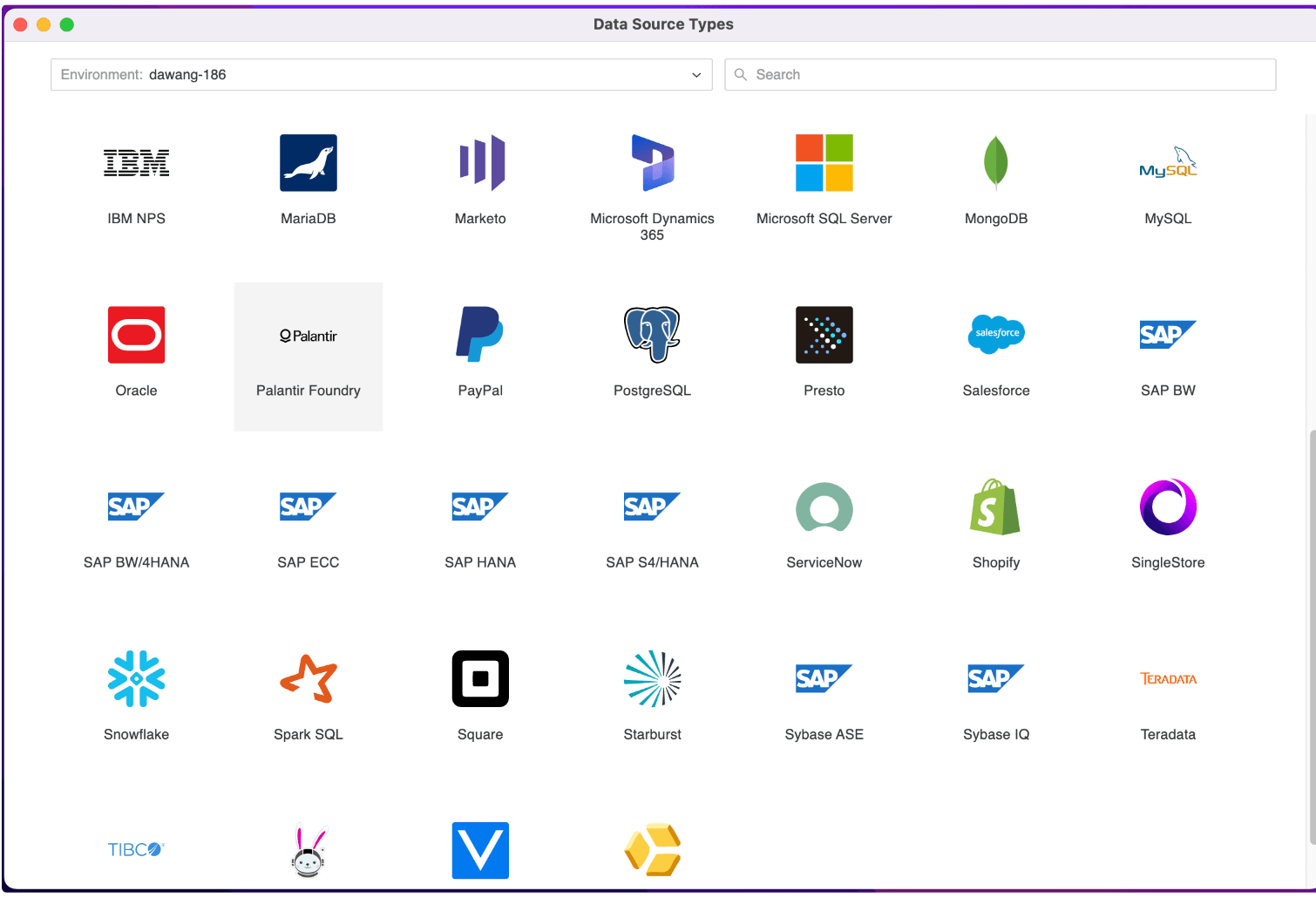
Input Name, Description field. And choose Projects from drop-down list to assign these Data Source to projects.
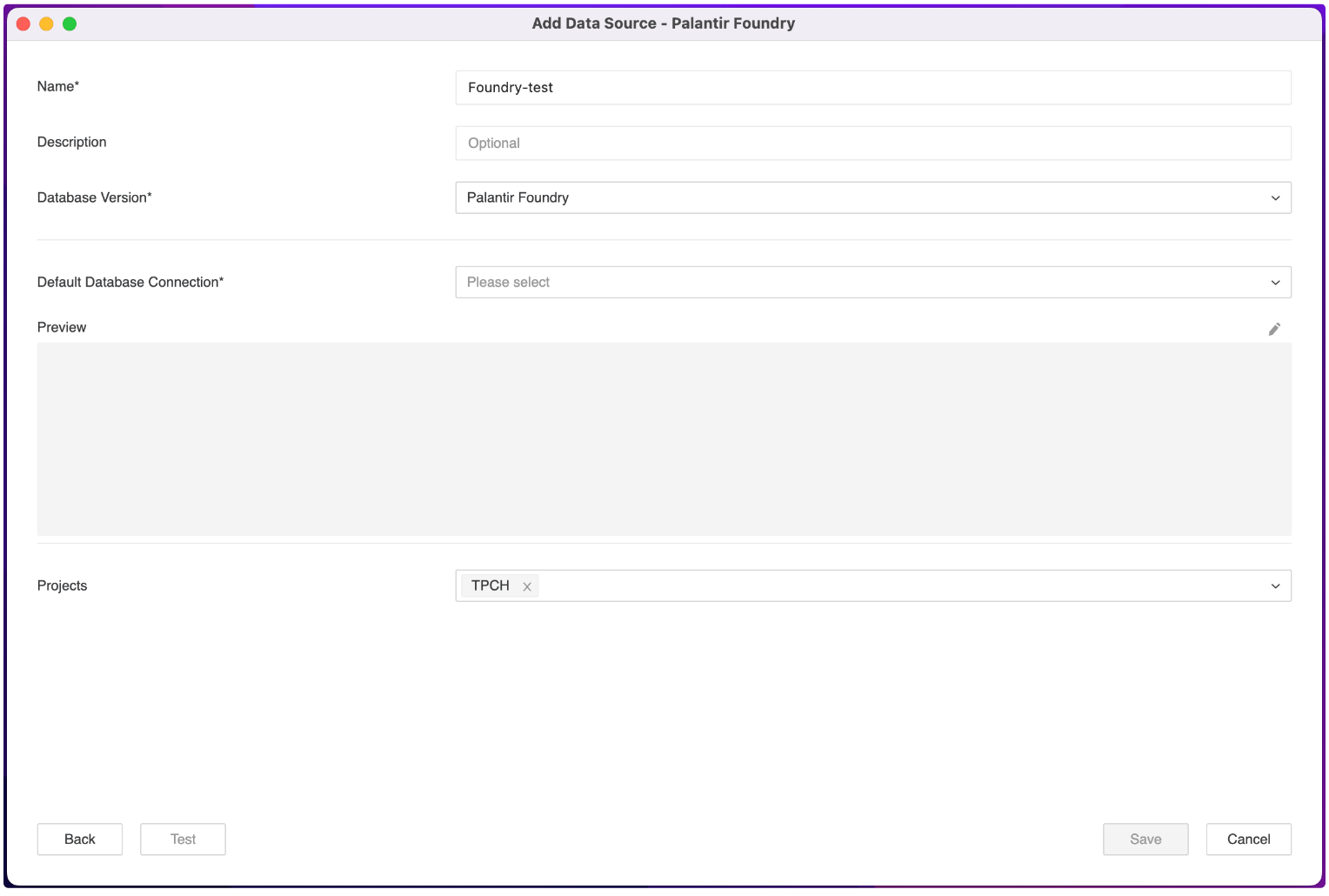
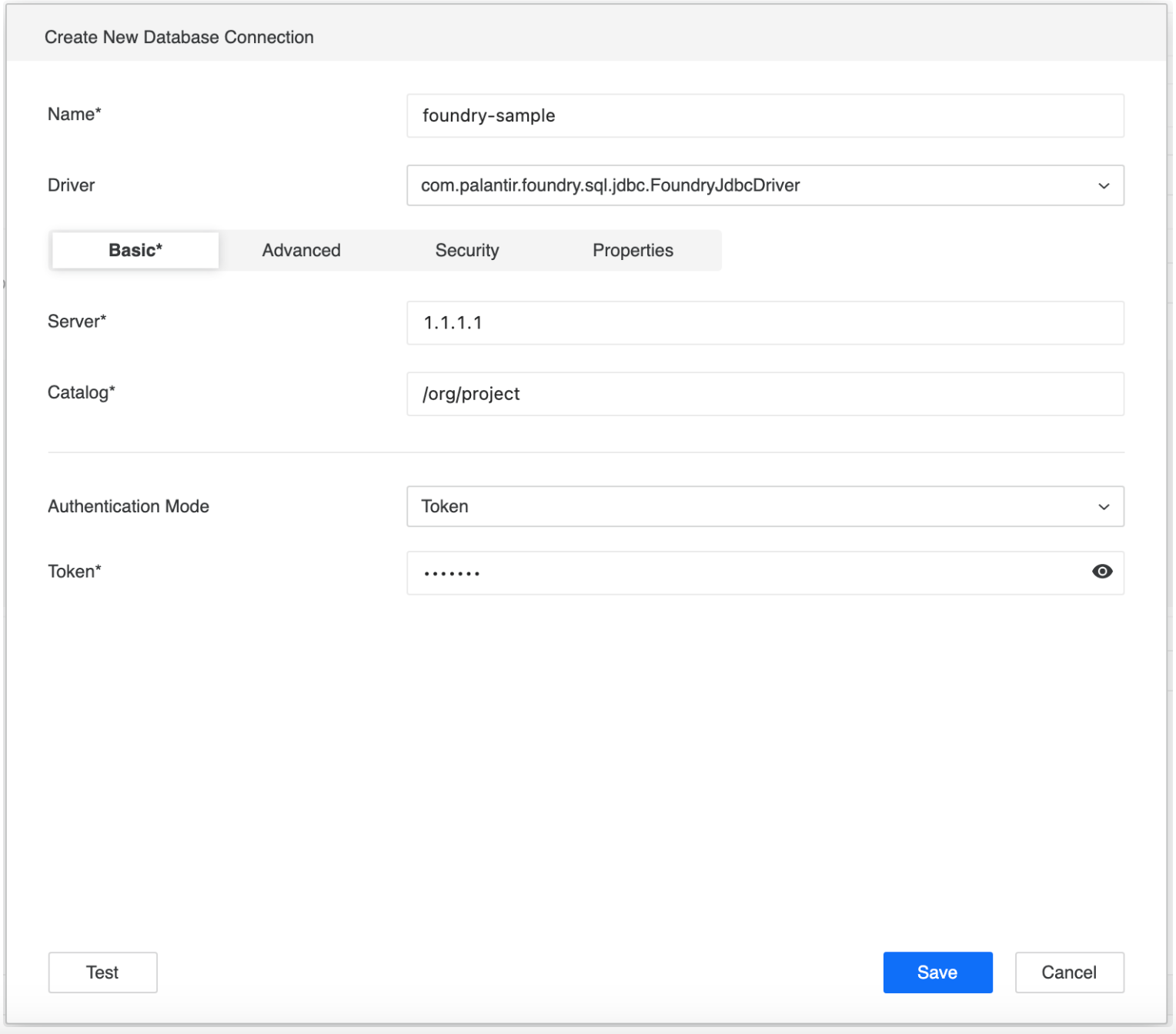
In Default Database Connection field, you can choose existing connection or “Add new database connection”. For adding new connection, please specify connection Name, enter the Server, Catalog, Token. You can add additional parameters in the Advanced tab. For more connection parameters, you can refer to Palantir .
Best Practise
Catalogis a required field in Strategy. Although It is not a required parameter for Foundry JDBC driver. Setting this property can resolve table browsing issues in Strategy.
Dialectis predefined with value of “SPARK“ in Strategy. This is recommended by Palantir Foundry and take full advantage of SparkSQL functionality in Palantir Foundry. As a result, the quoting identifier defined as VLDB setting in “DATABASE.PDS” file of Strategy is backticks. It is not recommended to change this value in connection string.
You can click “Test” button to test out the connection, then click “Save”.
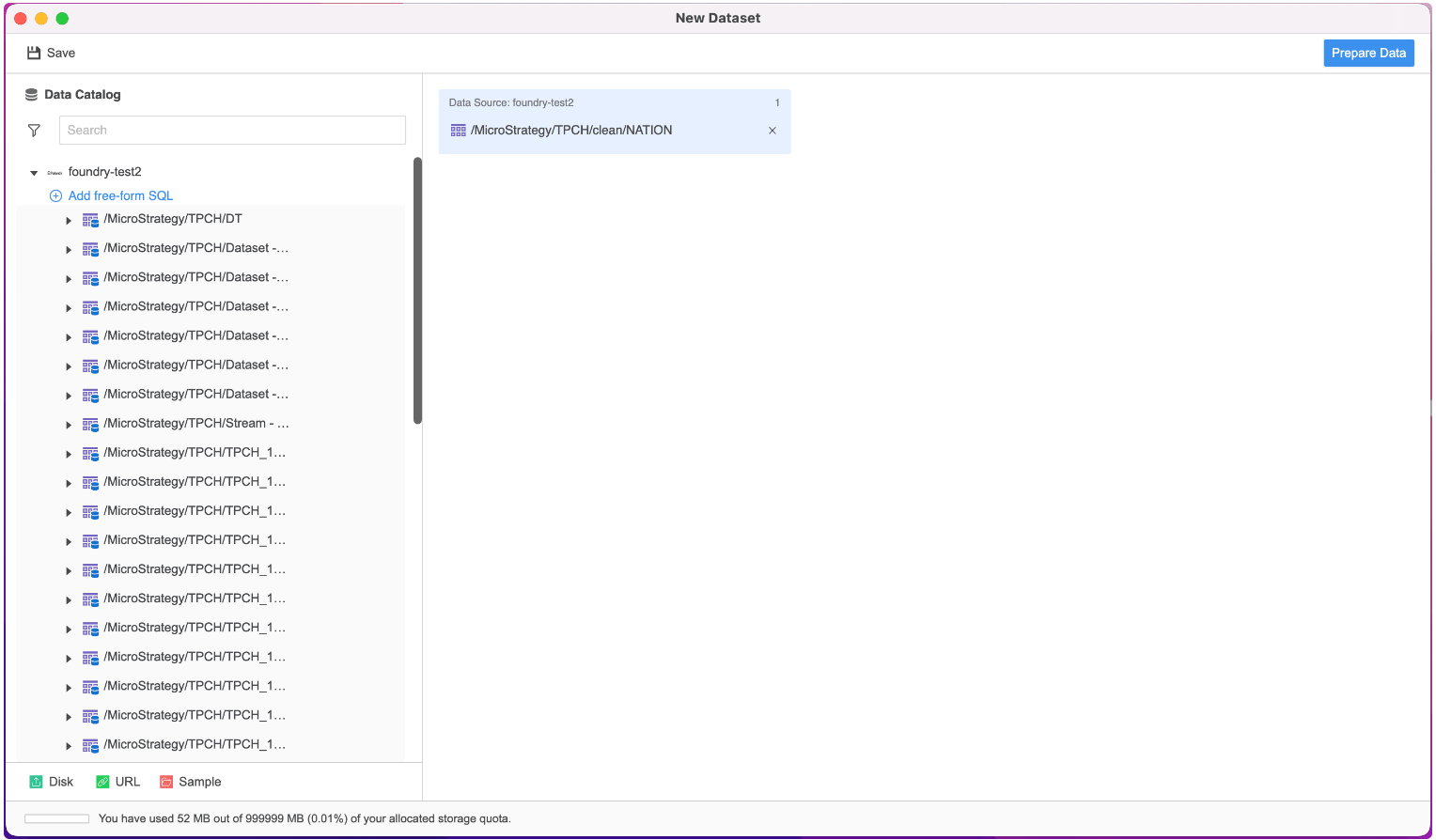
To create Data Import Cube against Palantir Foundry, the best practice is to use Workstation.
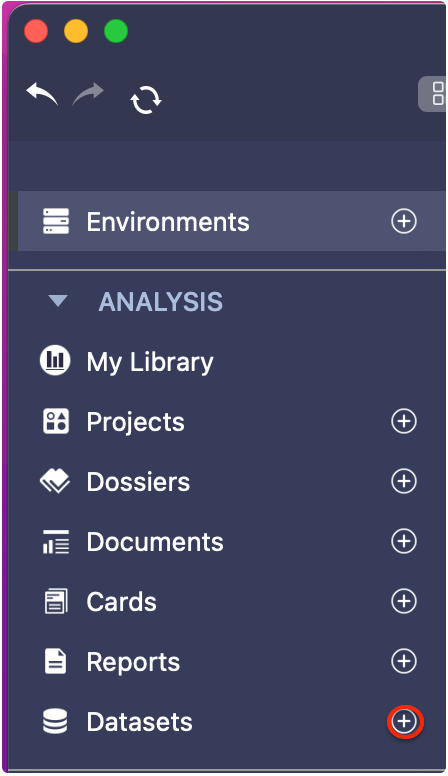
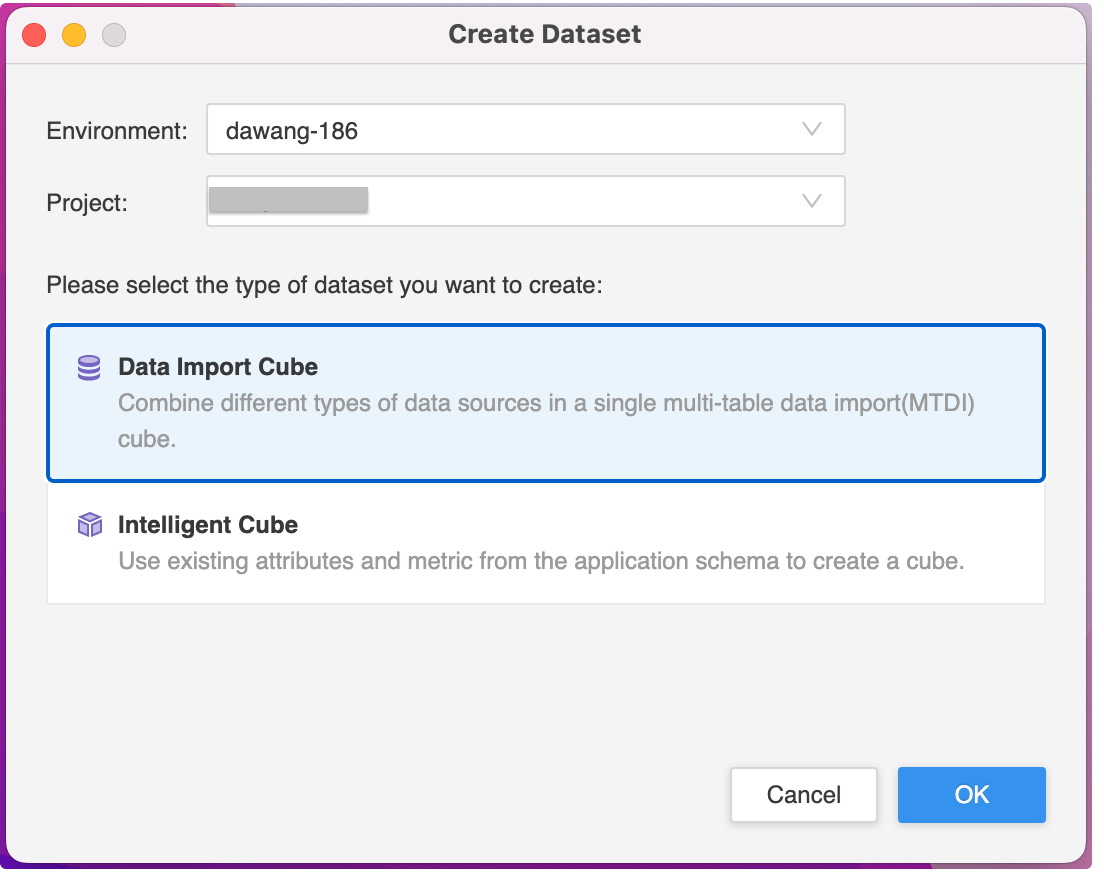
Best Practise:
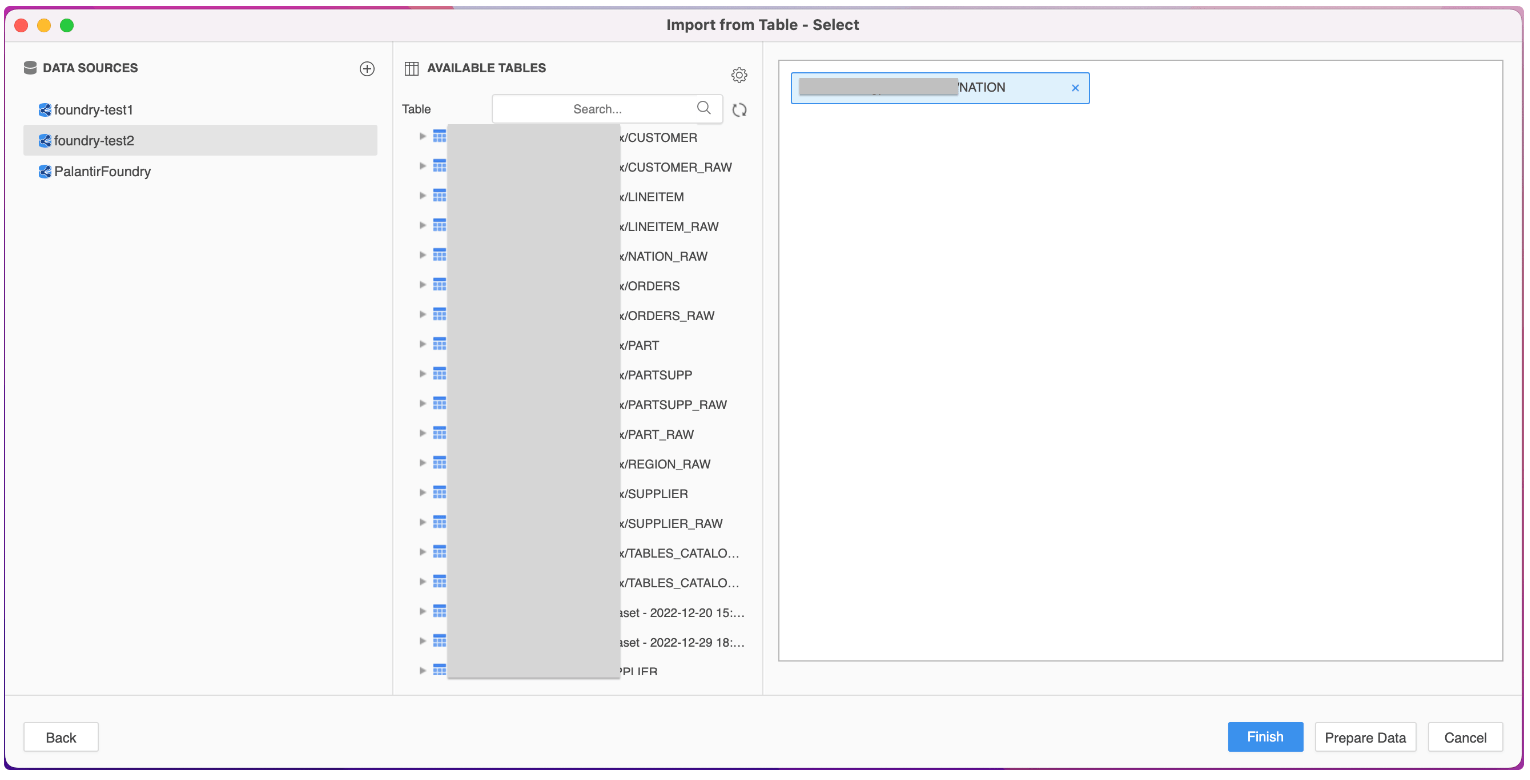
If “Enable New Data Import Experience” is selected:
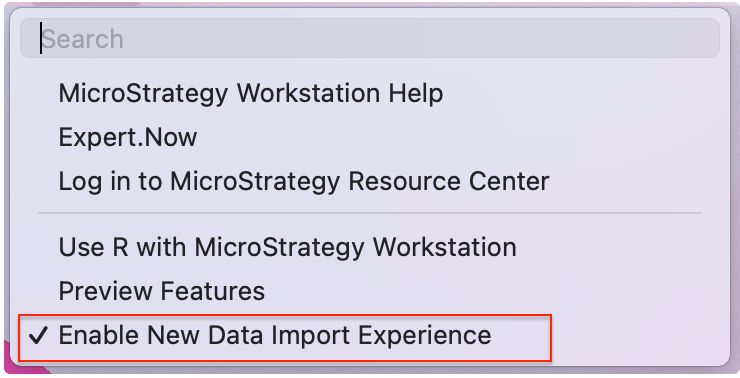
In Workstation, we can “Enable New Data Import Experience” in the “Help” tab.
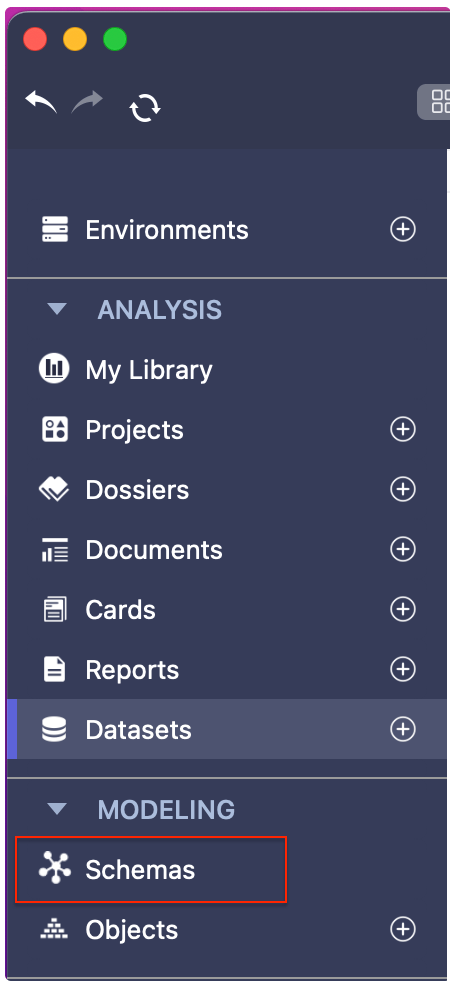
To create schema object against Palantir Foundry, the best practice is to use Workstation.
Click “Save and Update Schema” button on the upper-left corner of Schema Editor.
Then we can create Schema Objects based on the newly added table.
Paramerized Query is supported.
