EducationSoftwareStrategy.com
StrategyCommunity

Knowledge Base

Product

Community

Knowledge Base

TopicsBrowse ArticlesDeveloper Zone

Product

Download SoftwareProduct DocumentationSecurity Hub

Education

Tutorial VideosSolution GalleryEducation courses

Community

GuidelinesGrandmastersEvents
x_social-icon_white.svglinkedin_social-icon_white.svg
Strategy logoCommunity

© Strategy Inc. All Rights Reserved.

LegalTerms of UsePrivacy Policy
  1. Home
  2. Topics

KB485728: Publish MicroStrategy Cubes Directly from Application


Kenneth Osmond

Principal Consultant • MicroStrategy


This article describes the process of publishing MicroStrategy Cubes Directly from Application.

Overview


Most organizations schedule Strategy cube refresh using event-based or time-based schedules configured in Strategy. Cube refresh events are intended to closely follow data warehouse updates or business events. 
When updates to the data warehouse happen frequently, such as hourly, the usual approach to keep Strategy cubes current are time-based schedules configured to refresh cubes a short time after the data warehouse updates are complete. Disruptions to data warehouse updates may occur due to competing workloads, job failures, connectivity failures, unexpected volumes, storage issues, etc. 
When disruptions to the data warehouse updates occur, Strategy cube refresh may be impacted as follows:

  • if the disruption makes the warehouse unavailable, the cube refresh query will fail.
  • if the warehouse is not refreshed before the cube refresh query runs, unnecessary workloads or reloading of stale data occurs.
  • if a temporary disruption occurs at the cube schedule time, current data will not be loaded until the next schedule time, causing an increase in cube update latency.

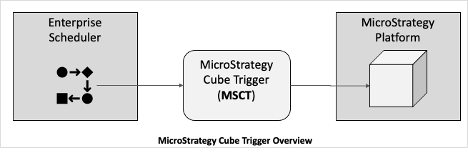
Strategy Cube Trigger (MSCT) allows the process which updates the data warehouse, i.e. the workflow manager or enterprise scheduling tool, to trigger the Strategy cube refresh as soon as data in the warehouse is ready. 
ka04W000001IxQpQAK_0EM4W000005nvji.jpeg


Features


Strategy Cube Trigger features include:

  • New cube refresh processes can be added without changes to MSCT application code, configuration or Strategy administrative changes, such as configuring events, schedules or subscriptions
  • Uses Strategy REST APIs
  • Optional Containerization (Kubernetes)
  • Secure Strategy connections
  • Cube refresh instructions and parameters are provided by the calling process, i.e. the workflow manager or enterprise scheduling tool, as a json request message
  • Requests messages can be sent from the workflow manager or enterprise schedule by:
    • Remote login via scheduler agent and running MSCT script with request as argument.
    • Sending request as a file by sftp to MSCT server. This requires a cron job to be scheduled to run the MSCT cron script, which checks the message receipt folder frequently.
  • Cube details, projects, folders or events in the json request can be discovered by GUID or name, since MSCT will search the Strategy metadata for the objects it needs to complete the request and find any missing data
  • Logging of all json request messages, updated versions of requests and status of requests that are executed
  • Synchronous mode:
    • MSCT will not attempt to re-publish a busy cube.
    • MSCT can wait until a cube is re-published so that a return code can be passed back to the calling process (i.e. workflow manager or enterprise scheduling tool).
  • Multiple requests can be included in one json message
  • Different publishing methods are supported:
    • using Strategy API interface to immediately publish OLAP or MTDI cubes.o    using an incremental refresh report to update OLAP cubes.
    • creating an on-the-fly cube refresh subscription for MTDI cubes to support incremental update, add, delete.
    • triggering exiting event to republish cube by event-triggered schedule.

Solution details


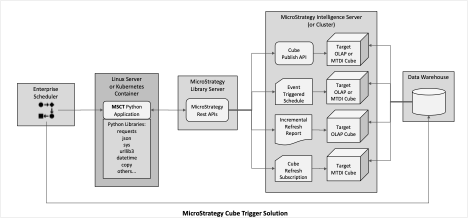
MCST is a very lightweight application that connects the data warehouse update management process to the Strategy cube update management process. It is easily deployed in minutes on a server, shared server or containerized environment and addresses many different cube refresh scenarios.
ka04W000001IxQpQAK_0EM4W000005nvk2.jpeg

The MCST application is structured in five folders as shown below. Requests to refresh cubes can be submitted either by:
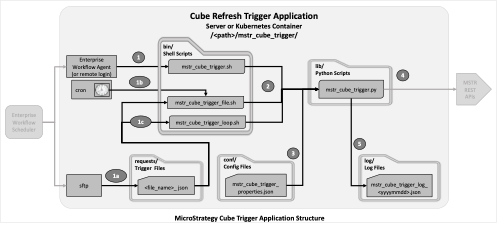
  • calling the application directly
  • having a cron schedule to run the application periodically and search for requests submitted via sftp
ka04W000001IxQpQAK_0EM4W000005nvk7.jpeg
  1. Enterprise Workflow launches mstr_cube_trigger.sh script with json string as parameter 
        OR
    Alternate process 1a + 1b
      1a: Enterprise Workflow transfers trigger request json file to requests folder
      1b: mstr_cube_trigger_cron.sh run by cron to check for request files every minute
        OR
    Alternate process 1c
      1c: mstr_cube_trigger_loop.sh run as a loop to check for request files every minute
  2. Shell script mstr_cube_trigger.sh or mstr_cube_trigger_cron.sh or mstr_cube_trigger_loop.sh launches python script mstr_cube_trigger.py
  3. Python script mstr_cube_trigger.py loads configuration information (url for MSTR library, credentials, etc.) from mstr_cube_trigger_properties.json
  4. Python script mstr_cube_trigger.py calls MSTR REST API calls to trigger cube refresh
  5. Python script mstr_cube_trigger.py writes completion status to log file mstr_cube_trigger_log_<yyyymmdd>.json


Use cases


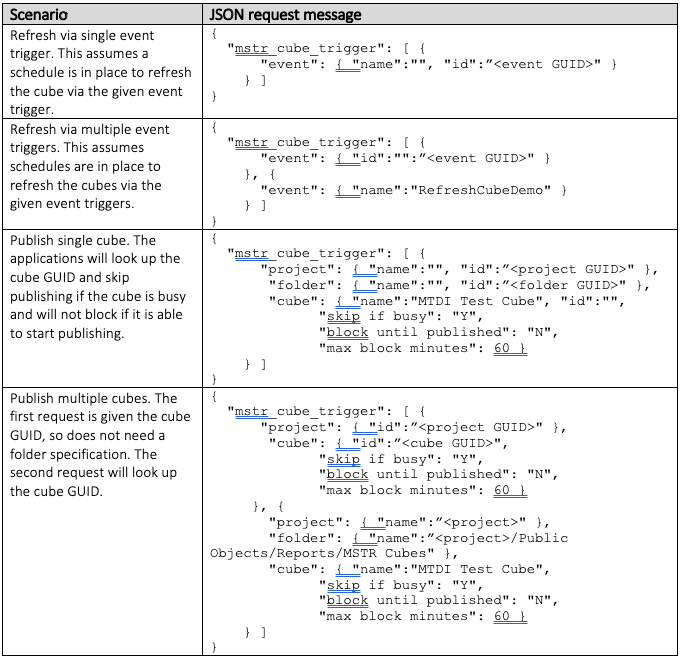
Here are examples of cube refresh use case scenarios. In each scenario, only one of the "name" or "id" values need to be supplied for the "event", "project", "folder" or "cube" elements.
ka04W000001IxQpQAK_0EM4W000005nvkR.jpeg


Installation


Download mstr_cube_trigger.tar from the GitHub repository and extract to the desired home directory.
 

Configuration


The configuration file <path>/mstr_cube_trigger/conf/mstr_cube_trigger_properties.json
is a json structure as below:
 

{  "mstr_cube_trigger_properties": {    "mstr_library_url":"https://<host>/StrategyLibrary/api",    "username":”<username>",    "password":”<password>”    "login_mode":1,    "ssl_verify":0,    "log_print_mode": "none"  }}

The properties login_mode, ssl_verify and log_print mode are optional. The default values shown above will be used if the item is omitted.
The following properties have possible values as shown below:

  • login_mode is the standard Strategy login option (1=standard, 16=ldap, 128=kerberos, etc.)
  • ssl_verify determines whether certificate check will occur during login (0=no, 1=yes)
  • log_print_mode can be either "none", which produces a flat log message or "json", which produces a formatted log message

If the MCST application is to be used with cron, examine the included crontab to see an example of what to add to the cron schedule.
If the MCST application is to be run in a loop at startup, add the command mstr_cube_trigger_loop.sh to the startup scripts or service definition.
If the MCST application is to be used with an enterprise scheduler or workflow agent, configure the agent to run the mstr_cube_trigger.sh script with the json request message as an argument, as in the following examples, being mindful of the single and double quotes:
 

mstr_cube_trigger.sh '{"mstr_cube_trigger":[ {"event":{ "name": "RefreshCubeDemo"}}]}'mstr_cube_trigger.sh '{"mstr_cube_trigger":[ {"event":{"id": "<event GUID>" }}]}'mstr_cube_trigger.sh '{"mstr_cube_trigger":[{"project":{ "id":"<project GUID>"}, "cube":{ "id":"<cube GUID>", "skip if busy":"Y","block until published":"N","max block minutes":60}}]}'mstr_cube_trigger.sh '{"mstr_cube_trigger": [{ "project":{ "name": "<project>"}, "folder":{"name":"<project>/Public Objects/Reports/MSTR Cubes"},"cube":{"name":"MTDI Test Cube","skip if busy":"Y", "block until published":"N","max block minutes":60}}]}'


Log file


The log file, located in <path>/mstr_cube_trigger/log is called mstr_cube_trigger_log_<yyyymmdd>.json and has the yyyymmdd suffix automatically set every day, resulting in one log file per day.
Its contents are timestamped messages with status, method of refresh, request source, request content, updated request content.
There are 2 json log messages per request: the first shows request details and updated request with searched items filled in, and the second shows execution status, as in the example below:
FIRST LOG MESSAGE

{    "timestamp": "2022-06-17 23:10:16",    "pid": 1730476,    "message": {        "incoming request": [            {                "original": {                    "mstr_cube_trigger": [                        {                            "event": {                                "name": "",                                "id": ""                            },                            "project": {                                "name": "<project>",                                "id": ""                            },                            "folder": {                                "name": "",                                "id": "<folder GUID>"                            },                            "cube": {                                "name": "MTDI Test Cube",                                "id": ""                            }                        }                    ],                    "source": {                        "file": "/<path>/mstr_cube_trigger/requests/in_progress/20220617_231014_test_cube_name_test_min.json"                    }                }            },            {                "updated": {                    "mstr_cube_trigger": [                        {                            "event": {                                "name": "",                                "id": ""                            },                            "project": {                                "name": "<project>",                                "id": "<project GUID>"                            },                            "folder": {                                "name": "/<project>/Public Objects/Reports/MSTR Cubes",                                "id": "<folder GUID>"                            },                            "cube": {                                "name": "MTDI Test Cube",                                "id": "<cube GUID>",                                "skip if busy": "Y",                                "block until published": "N",                                "max block minutes": 60                            }                        }                    ],                    "source": {                        "file": "/<path>/mstr_cube_trigger/requests/in_progress/20220617_231014_test_cube_name_test_min.json"                    }                }            }        ]    }}


SECOND LOG MESSAGE
{
    "timestamp": "2022-06-17 23:10:16",
    "pid": 1730476,
    "message": {
        "refresh_type": "publish",
        "status": "background publish",
        "sequence": [
            "start",
            "cube ready",
            "publish",
            "background publish"
        ],
        "start_timestamp": "2022-06-17 23:10:16",
        "finish_timestamp": "2022-06-17 23:10:16",
        "request": {
            "event": {
                "name": "",
                "id": ""
            },
            "project": {
                "name": "<project>",
                "id": "<project GUID>"
            },
            "folder": {
                "name": "/<project>/Public Objects/Reports/MSTR Cubes",
                "id": "<folder GUID>"
            },
            "cube": {
                "name": "MTDI Test Cube",
                "id": "<cube GUID>",
                "skip if busy": "Y",
                "block until published": "N",
                "max block minutes": 60
            }
        }
    }
}

Quick start

Requirements:

  • Strategy environment, with Library running and user account having permission to run REST APIs
  • Linux, VM or Kubernetes container environment to host MCST


If you have a Strategy environment, Active Kafka Streams/Brokers and a Linux environment:

  1. Install python3.6 (or higher) on an available Linux server
  2. Download MCST python code and scripts from GitHub: https://github.com/kjosmond/mstr_cube_trigger
  3. Create home folder and extract the application

Example:

sh# mkdir appssh# tar xf mstr_cube_trigger.tar

  1. Enable scripts and run the make_link.sh script

Example:

sh# cd apps/mstr_cube_trigger/binsh# chmod +x *.shsh# ./make_link.sh

  1. From the home folder, add all required python modules by running: pip3 install -r requirements/requirements.txt

Example:

sh# cd apps/mstr_cube_triggersh# pip3 install -r requirements/requirements.txt

  1. Configure MCST properties file as described in earlier section

Example:

{  "mstr_cube_trigger_properties": {    "mstr_library_url":"https://env-123456.customer.cloud.Strategy.com/StrategyLibrary/api",    "username":”jdoe",    "password":”mypass1”  }}

  1. Configure MCST cron schedule as described in earlier section

Example:
sh# echo '* * * * * /home/apps/mstr_cube_trigger/bin/mstr_cube_trigger_file.sh' >/etc/cron.d/mstr_cube_trigger   
OR
Start MCST to run in a loop as described in earlier section
Example:
/home/apps/mstr_cube_trigger/bin/mstr_cube_trigger_loop.sh
OR
Enterprise workflow scheduler as described in earlier section
Example:
--Workflow:
RUN ON HOST 10.2.216.95 SCRIPT mstr_cube_trigger.sh '{"mstr_cube_trigger":[{"project":{ "id":"<project GUID>"}, "cube":{ "id":"<cube GUID>", "skip if busy":"Y","block until published":"N","max block minutes":60}}]}'

  1. Create a copy of some existing cube and invoke the mstr_cube_trigger.sh script with the appropriate json request as described in earlier section

Example:
sh# /home/apps/mstr_cube_trigger/bin/mstr_cube_trigger.sh '{"mstr_cube_trigger":[{"project":{ "id":"<project GUID>"}, "cube":{ "id":"<cube GUID>", "skip if busy":"Y","block until published":"N","max block minutes":60}}]}'

  1. Observe log file

Example:
sh# cat /home/apps/mstr_cube_trigger/log/cube_trigger_log_20220916.json


Comment

0 comments

Details

Knowledge Article

Published:

October 19, 2022

Last Updated:

October 19, 2022