EducationSoftwareStrategy.com
StrategyCommunity

Knowledge Base

Product

Community

Knowledge Base

TopicsBrowse ArticlesDeveloper Zone

Product

Download SoftwareProduct DocumentationSecurity Hub

Education

Tutorial VideosSolution GalleryEducation courses

Community

GuidelinesGrandmastersEvents
x_social-icon_white.svglinkedin_social-icon_white.svg
Strategy logoCommunity

© Strategy Inc. All Rights Reserved.

LegalTerms of UsePrivacy Policy
  1. Home
  2. Topics

Readme 10.11 - Certified and Supported Configurations


Marcin Sedlak-Jakubowski

Technical Writer • Strategy


This section cover the configurations that work best with MicroStrategy.

When importing objects in Strategy for Office, you may encounter issues that can be diagnosed from the Console and Network logs. 
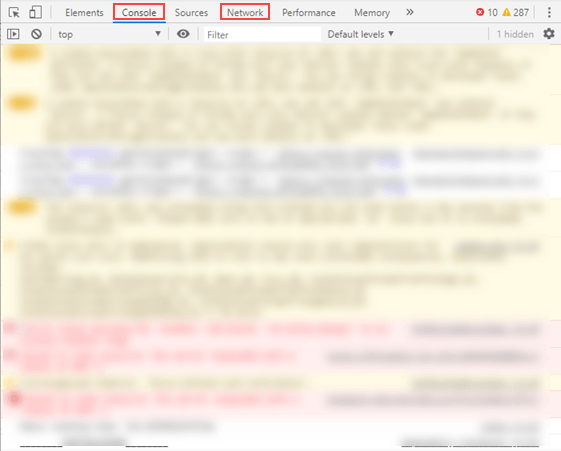
 

  • When import fails and an error is displayed, you should check the Console log for more information.
  • In the Network log, you can find a record of events that occurred, such as http trace, in addition to associated errors. Network logs can be exported to a HAR file. 
ka02R000000g7MmQAI_0EM2R0000019cj1.jpeg

For the Excel desktop app


The Excel desktop app uses Internet Explorer in the background, so you should use the tool, IEChooser:

  1. Go to the default location of IEChooser:
    C:\Windows\SysWOW64\F12
  2. Launch IEChooser.
  3. Choose Strategy for Office as your target to debug. 

For Excel for the web 

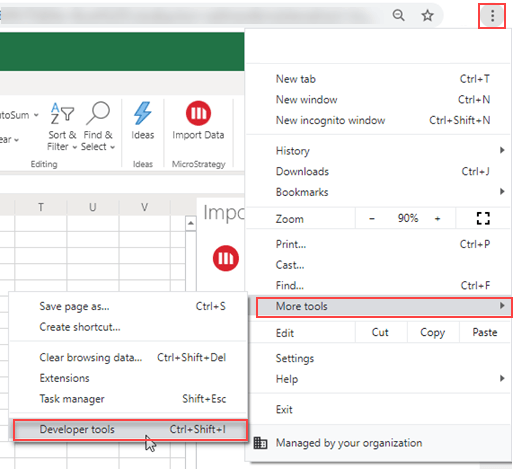
  • Click Customize and control Google Chrome > More tools > Developer Tools.
ka02R000000g7MmQAI_0EM2R0000019ciw.jpeg


For more information on testing, debugging, and troubleshooting with Office add-ins, see the Microsoft documentation.


Comment

0 comments

Details

Knowledge Article

Published:

March 30, 2018

Last Updated:

March 30, 2018