EducationSoftwareStrategy.com
StrategyCommunity

Knowledge Base

Product

Community

Knowledge Base

TopicsBrowse ArticlesDeveloper Zone

Product

Download SoftwareProduct DocumentationSecurity Hub

Education

Tutorial VideosSolution GalleryEducation courses

Community

GuidelinesGrandmastersEvents
x_social-icon_white.svglinkedin_social-icon_white.svg
Strategy logoCommunity

© Strategy Inc. All Rights Reserved.

LegalTerms of UsePrivacy Policy
  1. Home
  2. Topics

KB484732: How to resolve keyword underlining or highlighting, card rendering, and website distortion issues while using HyperWeb by enabling Overlay Highlighting


Vyom Sharma

Quality Engineer, Principal • MicroStrategy


This article addresses the two types of highlighting or underlining of keywords on a webpage: Direct and Overlay. This article also explains how to enable Overlay Highlighting on a website.

Description 


The HyperWeb extension uses two different techniques to highlight or underline keywords on a webpage. 

Direct Highlighting


This is the default highlighting or underlining style that is enabled for most of the webpages. The highlights or underlines are shown by directly modifying the HTML page. Sometimes, these modifications can introduce distortions in the interface of the page which can impact the way the page renders. Below are some examples of the distortions.
 

  • Some words on the website can break 
ka04W000000XOayQAG_0EM4W000001JgYD.jpeg
  • Repetition of words
ka04W000000XOayQAG_0EM4W000001JgYI.jpeg
  • Appending new words on the website 
ka04W000000XOayQAG_0EM4W000001JgYN.jpeg

Overlay Highlighting


This is a new highlighting style that is currently used on some webpages, like LinkedIn. Instead of directly modifying the HTML of the page, a new highlighting container is created, which is then overlayed on top of the keywords. This way, the website itself is not impacted. This technique is typically used on websites that are impacted by the Direct Highlighting approach.
ka04W000000XOayQAG_0EM4W000001JgYX.jpeg

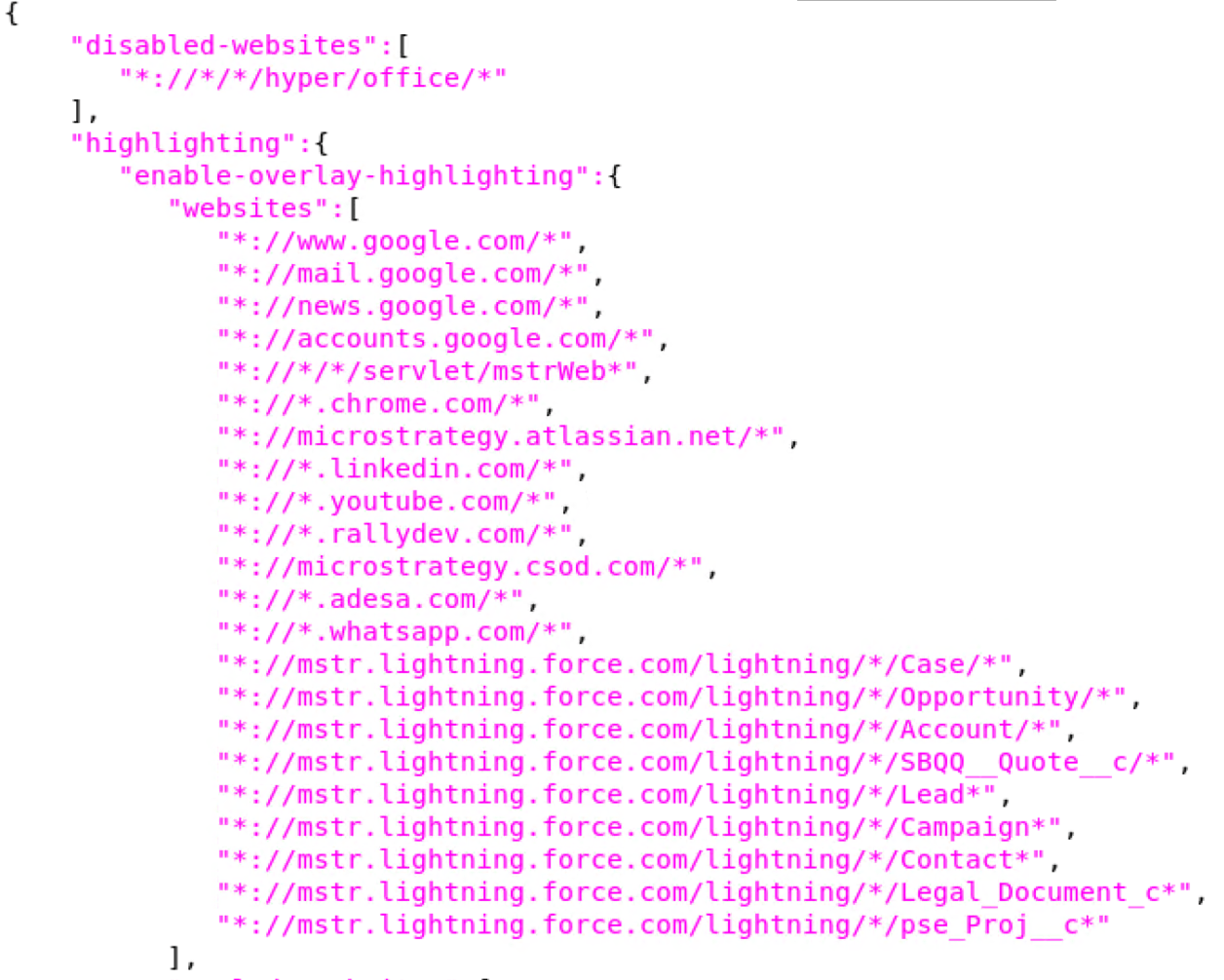
The Strategy HyperIntelligence Administrator can control the websites that can use the Overlay Highlighting technique using the

hyperWebConfig.json
file. This file was first introduced in the Strategy 2020 Update 2 Library Server release. Hence, the admin can only enable Overlay Highlighting on a website with Strategy 2020 Update 2 or higher versions of the Library Server.

How to Enable Overlay Highlighting


The following steps guide you on how to enable Overlay Highlighting on a website that you are experiencing underlining or highlighting issues on. 

  • Remotely connect or log in to the server which has Strategy Library Web installed on it. 
  • Navigate to the location where Tomcat is installed on the server. For example, in the Strategy Cloud provisioned environment:
    /opt/apache/tomcat/

ka04W000000XOayQAG_0EM4W000001JgZ6.jpeg
  • Select the Tomcat version which has Strategy Library Web installed and navigate to the
    webapps
    folder. You should see all the Strategy Webapps unpacked here.
ka04W000000XOayQAG_0EM4W000001Jgb7.jpeg
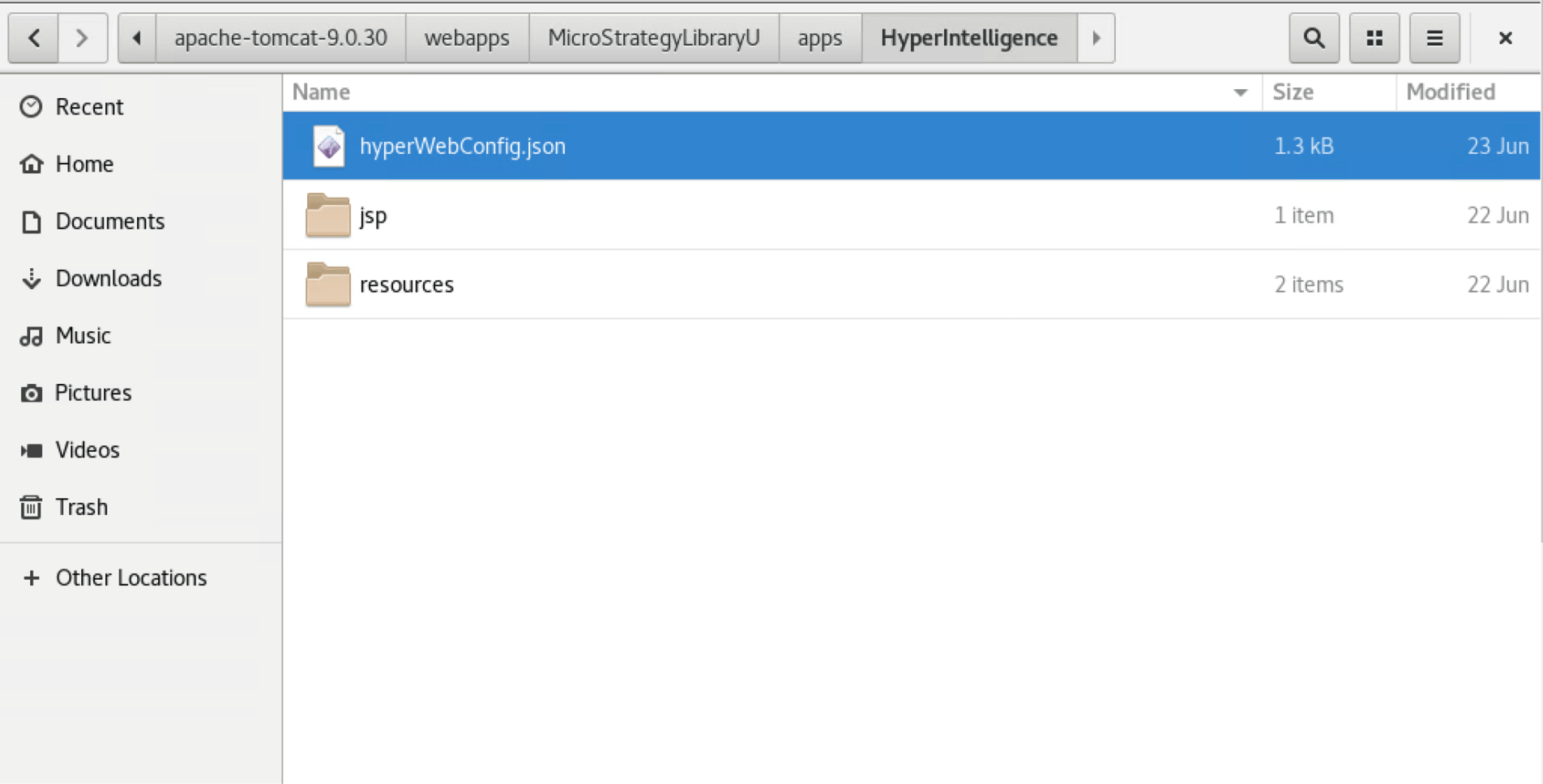
  • Navigate to StrategyLibrary > Apps > HyperIntelligence. The complete path in this case would be
    /opt/apache/tomcat/apache-tomcat-9.0.30/webapps/StrategyLibraryU/apps/HyperIntelligence/
    .
ka04W000000XOayQAG_0EM4W000001JgbH.jpeg
  • Edit the
    hyperWebConfig.json
    file to add or remove the websites which use the overlay highlighting. It is a good idea to create a backup of the
    hyperWebConfig.json
    file in case it gets corrupted.
ka04W000000XOayQAG_0EM4W000001JgbR.jpeg
  • Restart the Web Server for the latest changes to take effect.

Comment

0 comments

Details

Knowledge Article

Published:

November 17, 2020

Last Updated:

November 17, 2020