EducationSoftwareStrategy.com
StrategyCommunity

Knowledge Base

Product

Community

Knowledge Base

TopicsBrowse ArticlesDeveloper Zone

Product

Download SoftwareProduct DocumentationSecurity Hub

Education

Tutorial VideosSolution GalleryEducation courses

Community

GuidelinesGrandmastersEvents
x_social-icon_white.svglinkedin_social-icon_white.svg
Strategy logoCommunity

© Strategy Inc. All Rights Reserved.

LegalTerms of UsePrivacy Policy
  1. Home
  2. Topics

KB484342: SAP HANA column type input parameter support in MicroStrategy


Community Admin

• Strategy


This article addresses the integration of the column type input parameter in MicroStrategy. This article also provides an example set in HANA Studio.

Starting with the release of Strategy ONE (March 2024), dossiers are also known as dashboards.
One of available types of input parameters (IPs) is a column type. A column type helps you with providing an answering to a prompt by presenting a list of values which is taken from a column of an independent table, calculation view (CV) or SQL view. It is also possible to reference to a CV’s column itself and create a self-reference. However, this type of setup is not recommended due to performance issues, and is not supported in Strategy.
Strategy can integrate with non self-referencing, multiple answers column type input parameters via Strategy attribute elements prompts. To achieve the integration between Strategy and CV with this type of IP, you must create an attribute element list type prompt in Strategy and use it to replace the default prompt that Strategy creates automatically for calculation views with input parameters. This article contains an example of such integration. 
Explore the following topics: 

  • Example setup in HANA Studio
  • Column type input parameter integration in MicroStrategy – logical table object workflow
  • Column type input parameter integration in MicroStrategy - using the value prompt
  • Summary 


Example setup in HANA Studio

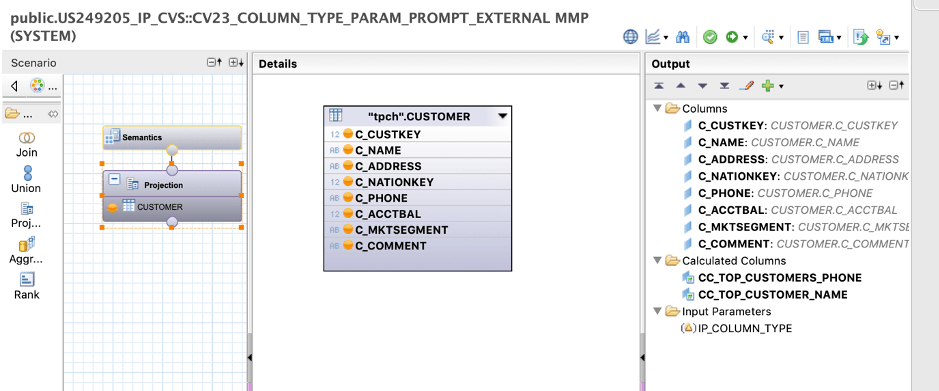
Calculation view definition: this CV comprises of a single project node with a single input parameter (IP_COLUMN_TYPE) and two calculated columns.
ka0PW0000001JccYAE_0EM2R000001Hjhh.jpeg

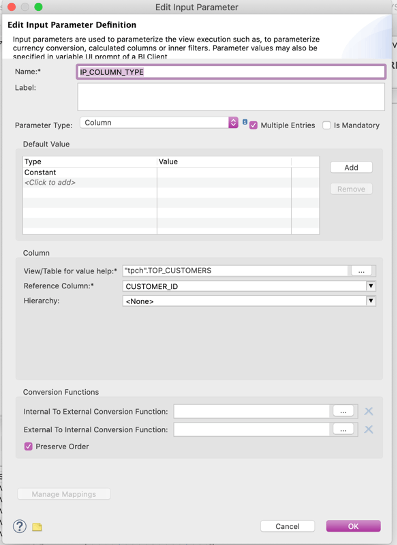
IP definition:

ka0PW0000001JccYAE_0EM2R000001Hjhm.jpeg

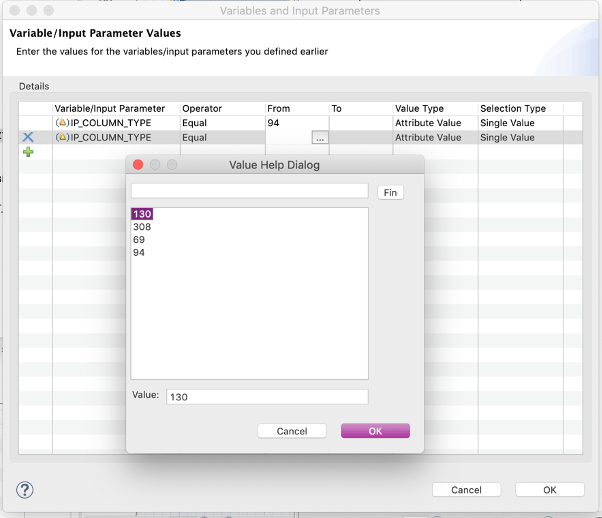
Notice that this IP will use “CUSTOMER_ID” column from TOP_CUSTOMERS table from “tpch” schema.
 
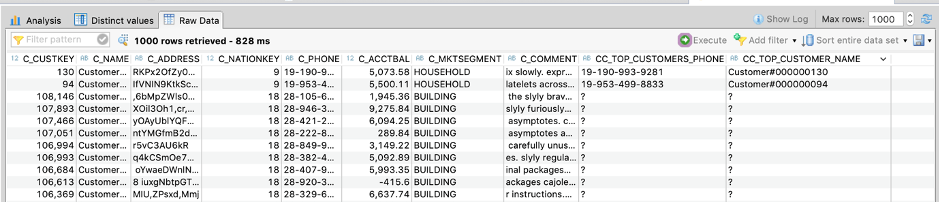
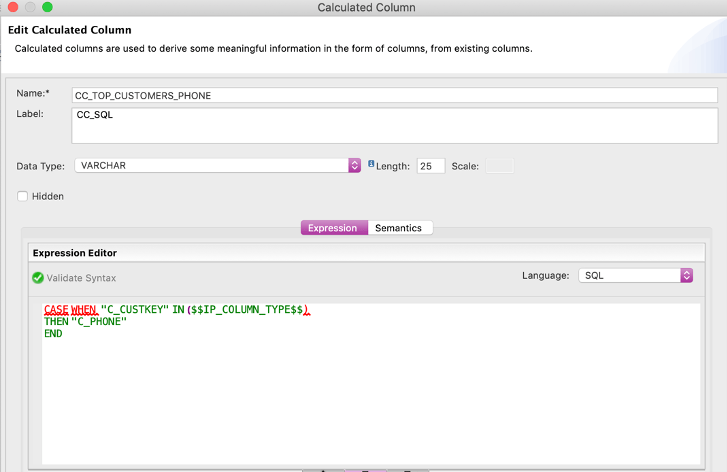
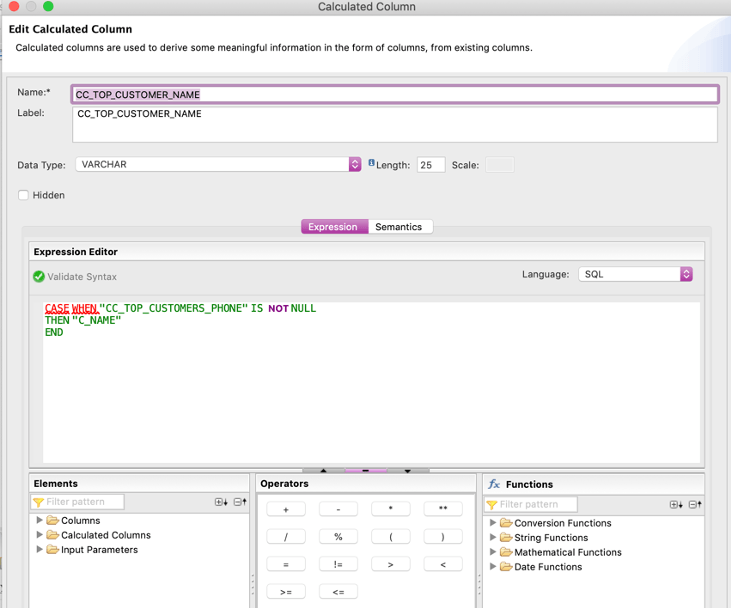
Calculated columns will allow the retrieval of phone numbers and customer names from "top customers."
ka0PW0000001JccYAE_0EM2R000001Hjhr.jpeg
ka0PW0000001JccYAE_0EM2R000001Hjhw.jpeg

Notice that HANA Studio marks in red some parts of the expression. However, the SQL is correct and calculated columns work fine. HANA Studio also does not show all available SQL language functions in its list of functions at the bottom right of the picture. Please refer to the SAP Help for an up-to-date list of supported SQL functions in the Expression Editor for calculated columns.
 
This may come as a surprise, but SQL language is recommended over Column Engine expressions in calculated columns Expression Editor since “plain expressions enable a better optimization process, compared to SQLScript [Column Engine]. Thus, by validating the expression against SQL, you can make sure that it is fully optimized” [HA300_Col16 pg 102]. Nevertheless, one should be cautious about putting declarative logic (if, else, case, when, etc.) since this in turn puts constraints to the HANA optimizer.
 
Now we can see how the CV behaves either by querying it or by using the Data Preview option in HANA Studio.
 
IP behavior in HANA Studio:
 
Data Preview allows you to choose the values for the input parameter with help of list of values taken from TOP_CUSTOMERS.CUSTOMER_ID column:
ka0PW0000001JccYAE_0EM2R000001HjiB.jpeg

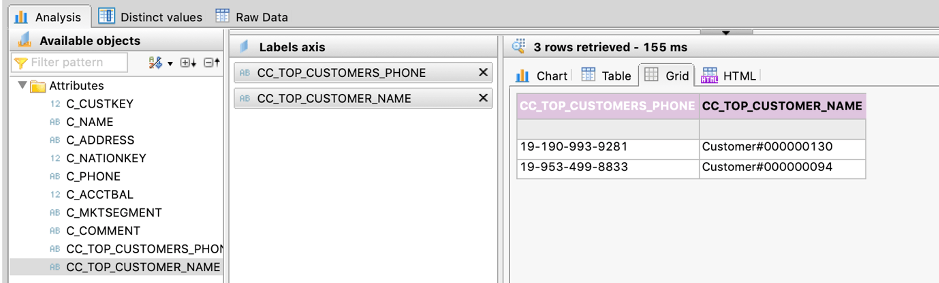
We can see the data for two top customers whose IDs are 94 and 130, respectively:
ka0PW0000001JccYAE_0EM2R000001HjiL.jpeg
ka0PW0000001JccYAE_0EM2R000001HjiQ.jpeg

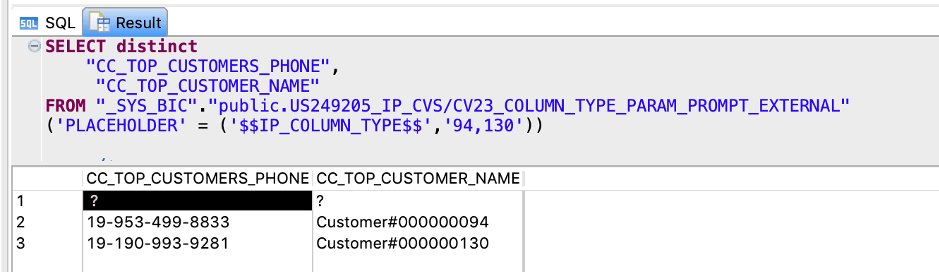
Corresponding SQL query:

ka0PW0000001JccYAE_0EM2R000001HjiV.jpeg

Column type input parameter integration in Strategy – logical table object workflow

In order to replicate this behavior in Strategy, the following workflow is required:

  1. Add a CV and table used in the IP definition into the project in the Warehouse Catalog.
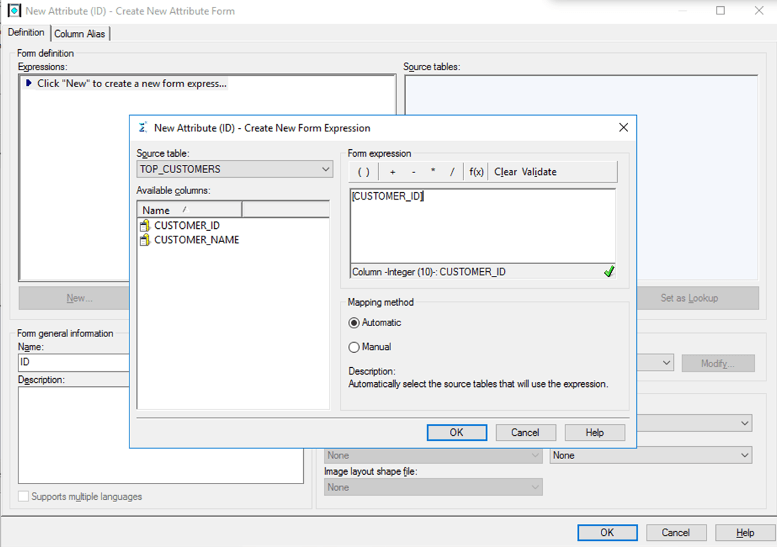
  2. Create an attribute corresponding to the IP's reference column.
  3. Create an attribute element list prompt.
  4. Replace the default prompt with a prompt created in the previous step in logical table object.
  5. Create attributes for the CV and a report or dossier.

Steps with screenshots

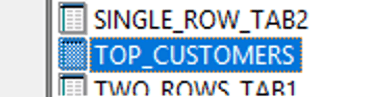
  • Add CV and table used in IP definition into the project in the Warehouse Catalog.
    • Calculation view:
ka0PW0000001JccYAE_0EM2R000001Hjik.jpeg
    • Reference table of IP:
ka0PW0000001JccYAE_0EM2R000001Hjip.jpeg
  • Create an attribute corresponding to the IP's reference column.
ka0PW0000001JccYAE_0EM2R000001Hjj4.jpeg
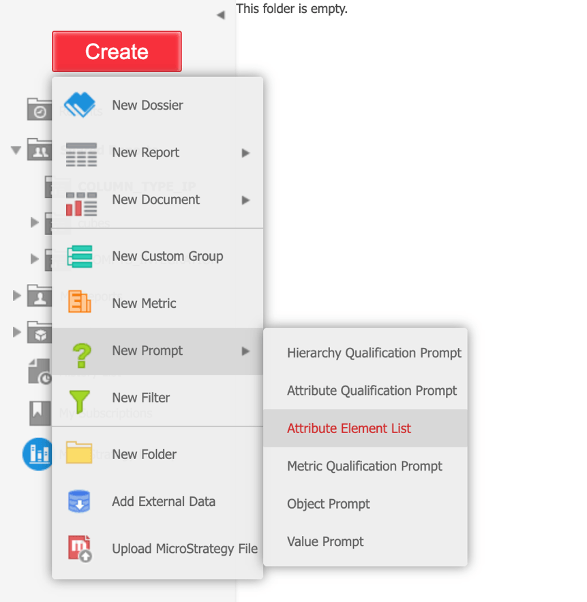
  • Create an attribute element list prompt based on the attribute created in the previous step.
    • Create a prompt in Strategy Web, Workstation, or Developer:
ka0PW0000001JccYAE_0EM2R000001Hjj9.jpeg
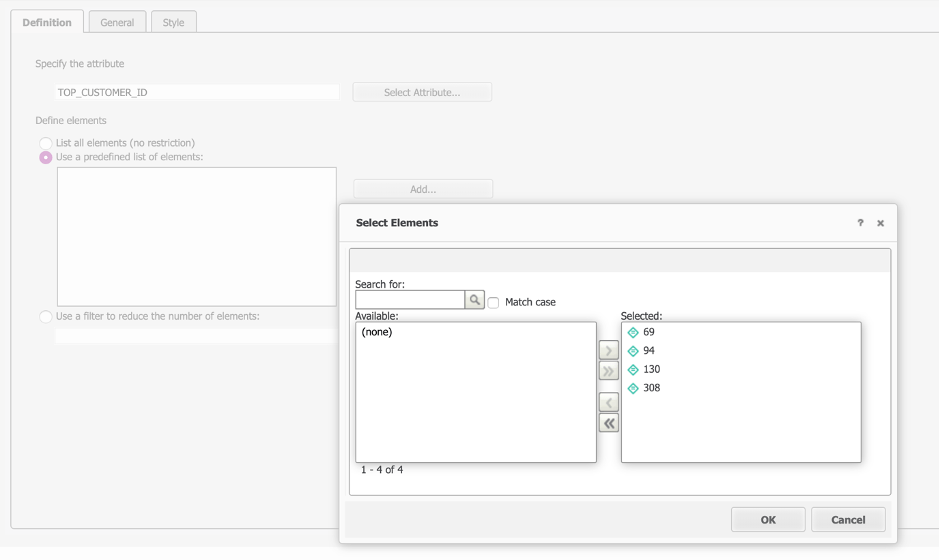
    • Use the “Use a predefined list of elements“ option and add all the values you are interested in:
ka0PW0000001JccYAE_0EM2R000001HjjE.jpeg
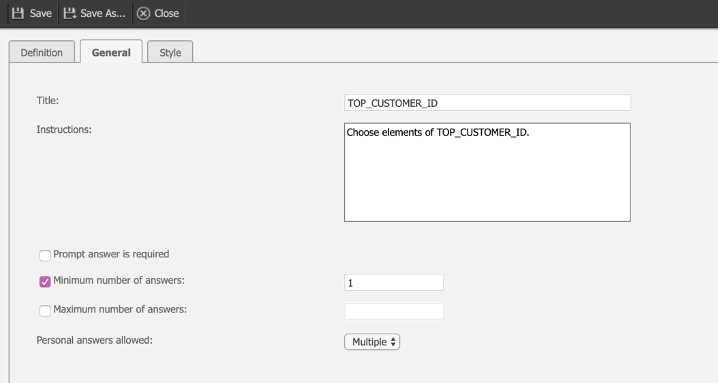
    • Switch to the General tab and make sure the settings of the prompt correspond to the settings of input parameter in HANA. Here, we will only make sure that at least one answer is provided and allow multiple personal answers option so we can save our favorite answers.
ka0PW0000001JccYAE_0EM2R000001HjjO.jpeg
    • Click Save and provide a meaningful name for the prompt:
ka0PW0000001JccYAE_0EM2R000001HjjY.jpeg
  • Replace the default prompt with a prompt created in the previous step in the logical table object.
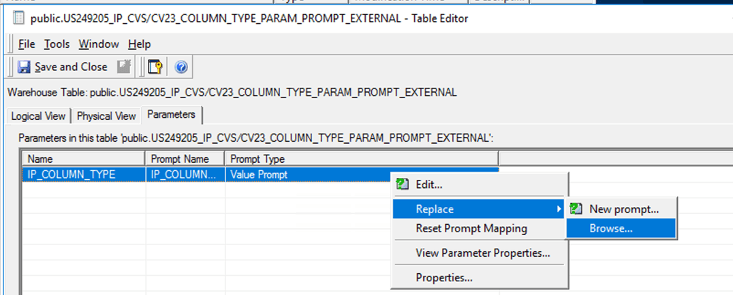
    • In Strategy Developer, replace the default prompt corresponding to the input parameter of our calculation view with the prompt created in the previous step:
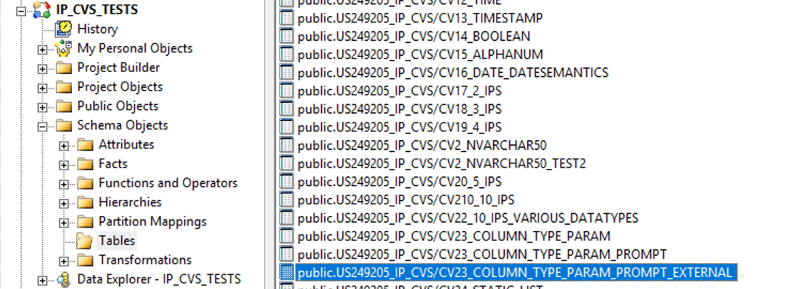
      Logical table objects can be found in Schema Object > Tables.
ka0PW0000001JccYAE_0EM2R000001HjkH.jpeg
    • Point to the prompt created in the previous step, and save and close.
ka0PW0000001JccYAE_0EM2R000001HjkM.jpeg
  • Create attributes and a report or dossier.
    Lastly, we can create a report or dossier that will tightly integrate with non self-referencing SAP HANA column type input parameter, allowing for multiple answers.
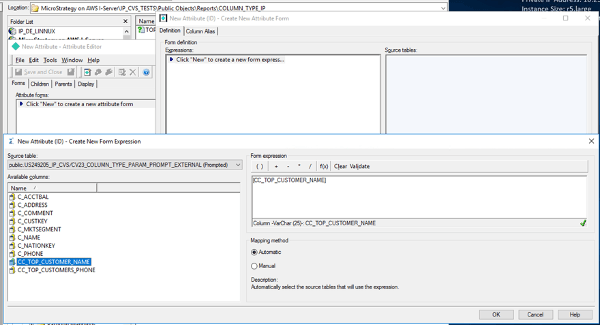
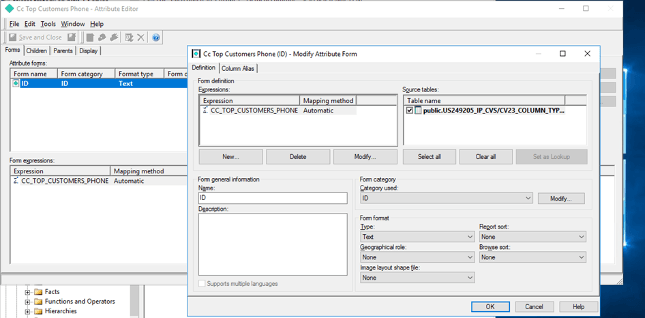
    • First, create relevant attributes. Here, we will create attributes referencing to the CV’s calculated columns – top customer phone and name.
ka0PW0000001JccYAE_0EM2R000001HjkW.jpeg
ka0PW0000001JccYAE_0EM2R000001Hjkb.jpeg
    • Update the schema (good practice after creating attributes).
ka0PW0000001JccYAE_0EM2R000001HjkI.jpeg
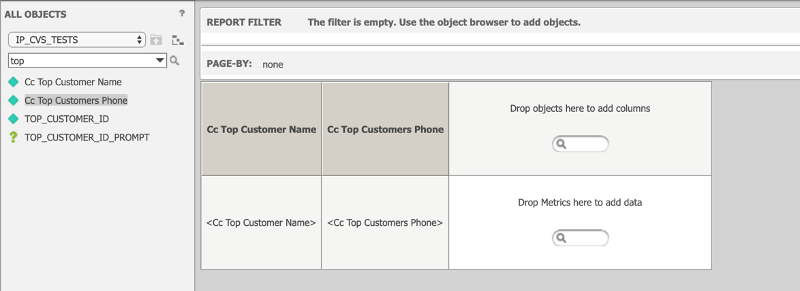
    • Proceed in Web or Workstation with creating a report. Use only the attributes created in the previous step. Do not use the prompt object.
ka0PW0000001JccYAE_0EM2R000001Hjkq.jpeg
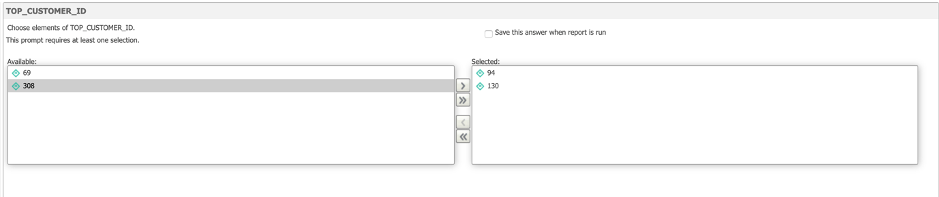
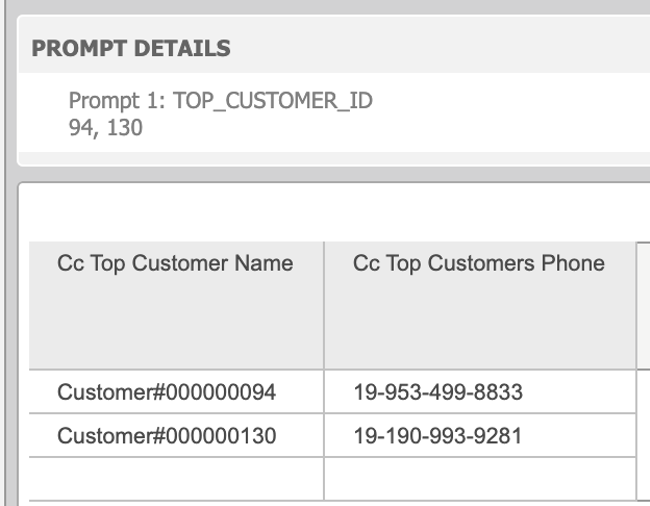
    • When running the report, a prompt appears. Choose the answers you are interested in and see the results.
ka0PW0000001JccYAE_0EM2R000001Hjkv.jpeg
ka0PW0000001JccYAE_0EM2R000001HjlF.jpeg
    • You can also use the attributes in the dossier:
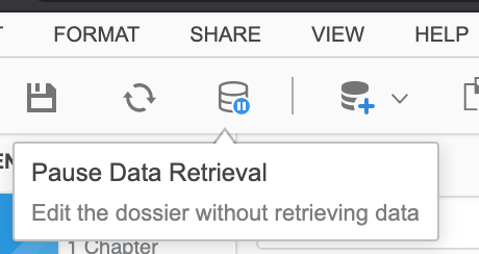
      • Create a new dossier and click the Pause Data Retrieval button.
ka0PW0000001JccYAE_0EM2R000001HjlP.jpeg
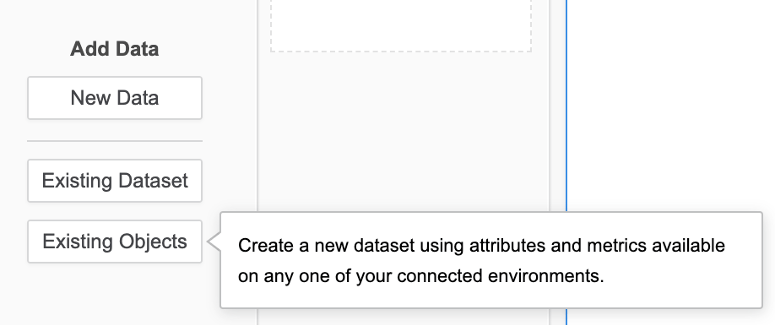
      • Click Add Existing Objects.
ka0PW0000001JccYAE_0EM2R000001HjlZ.jpeg
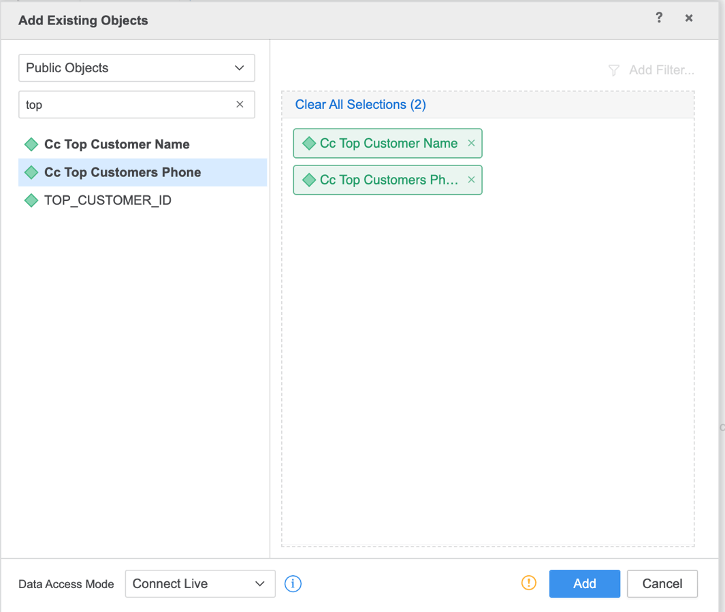
      • Choose relevant attributes.
ka0PW0000001JccYAE_0EM2R000001Hjlt.jpeg
      • You can choose either in-Memory or Live Connect Data Access Mode. The warning sign warns us about not adding any metric – this is fine for our setup.
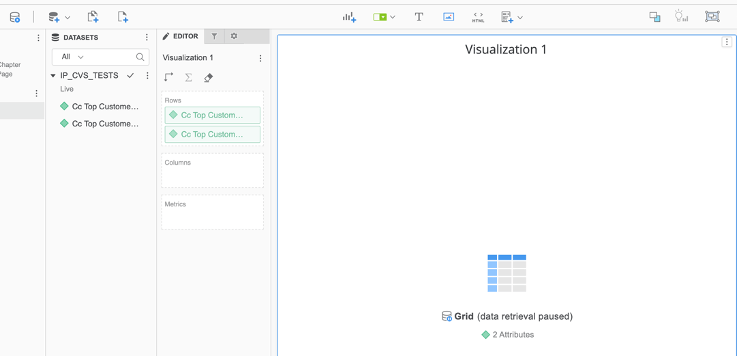
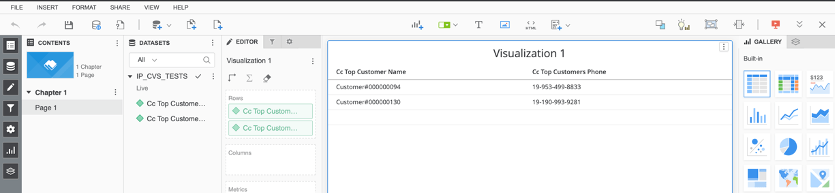
      • Add the attributes to the visualization. To display the data, resume the data retrieval.
ka0PW0000001JccYAE_0EM2R000001Hjm3.jpeg
ka0PW0000001JccYAE_0EM2R000001Hjm8.jpeg
ka0PW0000001JccYAE_0EM2R000001HjmD.jpeg
ka0PW0000001JccYAE_0EM2R000001HjmI.jpeg
    • Use the re-prompt functionality to display the prompt once again and provide answers to the input parameter.


Column type input parameter integration in Strategy - using the value prompt


In case you don't want to bother with the configuration outlined in the sections above, you can leverage a prompt that Strategy uses by default for an input parameter – a value type prompt. In addition to being the default in the warehouse catalog, it is the only prompt available when you want to create a MTDI Cube from a CV with this type of input parameter.
Note that it is not recommended to use the  Build a Query or Type a Query options when creating cubes. Build a Query is not aware of input parameters and will not produce a PLACEHOLDER syntax. The same is true for Type a Query. However, both allow you to manually update generated SQL with a PLACEHOLDER syntax, but you are unable to put any dynamic objects, like prompt, as a value for input parameter.
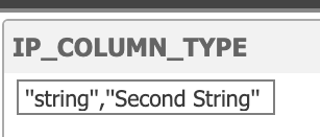
Once you end up with a value type prompt, it is possible to provide multiple answers to a CV’s input parameter, but only if the prompt is of a text type – this occurs if the underlying IP is of a string data type. In such scenario, you must embed each item of a list in two single quotes to comply with SAP HANA syntax. The default value prompt does not inform you about items specified in the IP's reference column.

ka0PW0000001JccYAE_0EM2R000001Hjmc.jpeg
ka0PW0000001JccYAE_0EM2R000001Hjmh.jpeg


Summary


Strategy supports HANA’s multiple-answers, non self-referencing input parameters of column type in the following ways:

  • With Strategy attribute element list prompt object – setup in Strategy Developer is required from the user
  • With a default value type prompt

Comment

0 comments

Details

Knowledge Article

Published:

June 16, 2020

Last Updated:

March 21, 2024