EducationSoftwareStrategy.com
StrategyCommunity

Knowledge Base

Product

Community

Knowledge Base

TopicsBrowse ArticlesDeveloper Zone

Product

Download SoftwareProduct DocumentationSecurity Hub

Education

Tutorial VideosSolution GalleryEducation courses

Community

GuidelinesGrandmastersEvents
x_social-icon_white.svglinkedin_social-icon_white.svg
Strategy logoCommunity

© Strategy Inc. All Rights Reserved.

LegalTerms of UsePrivacy Policy
  1. Home
  2. Topics

KB484339: SAP HANA static list input parameter support in MicroStrategy


Community Admin

• Strategy


This article explains how to achieve setup for supporting static list IP in MicroStrategy.

Starting with the release of Strategy ONE (March 2024), dossiers are also known as dashboards.

Description 


In a SAP HANA calculation view (CV), there is a type of input parameter (IP) called static list. This type allows you to choose an answer for the IP from a pre-defined list of entries – a static list. Strategy allows you to integrate with this type of IP via attribute element list prompt, where an attribute for a prompt refers to a SAP HANA column that contains the values of static list.
Learn how to support a static list IP in Strategy by going through the following topics:

  1. Attribute element list prompt configuration 
  2. Static list input parameter in cubes
  3. Summary


1. Attribute element list configuration 


To support static list IP in Strategy, following the workflow:

  1. Create CV with static list IP.
  2. Add CV and table (BIMC_VARIABLE_VALUE) containing static list data into the project in the Warehouse Catalog.
  3. Create attributes from NAME column of BIMC_VARIABLE_VALUE table and from CV columns of your choice.
  4. Create attribute element list prompt.
  5. Create and add a filter to attribute element list prompt.
  6. Replace the default prompt with a prompt created in the previous steps in logical table object of calculation view.
  7. Create a report or dossier.


Let's take a look at the steps in further details and with screenshots:

  • Create a CV is static list IP.
    • IP definition:
ka0PW0000001JcfYAE_0EM2R000000fxO2.jpeg
    • CV behavior:
      Static List Popup
ka0PW0000001JcfYAE_0EM2R000000fxO7.jpeg
    • Data returned: CC is a calculated column displaying answers provided for IP - 1, 2, or 3
ka0PW0000001JcfYAE_0EM2R000000fxOC.jpeg
  • Add CV and table (BIMC_VARIABLE_VALUE) containing static list data into the project in the Warehouse Catalog.
    • Add _SYS_BI schema to the Warehouse Catalog by modifying the read catalog SQL:
ka0PW0000001JcfYAE_0EM2R000000fxOR.jpeg
    • Add _SYS_BI into the WHERE clauses:
ka0PW0000001JcfYAE_0EM2R000000fxNe.jpeg
ka0PW0000001JcfYAE_0EM2R000000fxOg.jpeg
    • Click OK and Read Warehouse Catalog button.
ka0PW0000001JcfYAE_0EM2R000000fxOl.jpeg
    • Views and tables from _SYS_BI schema appear in the pane to the left.
    • Add BIMC_VARIABLE_VALUE and your calculation view to the right pane:
ka0PW0000001JcfYAE_0EM2R000000fxOv.jpeg
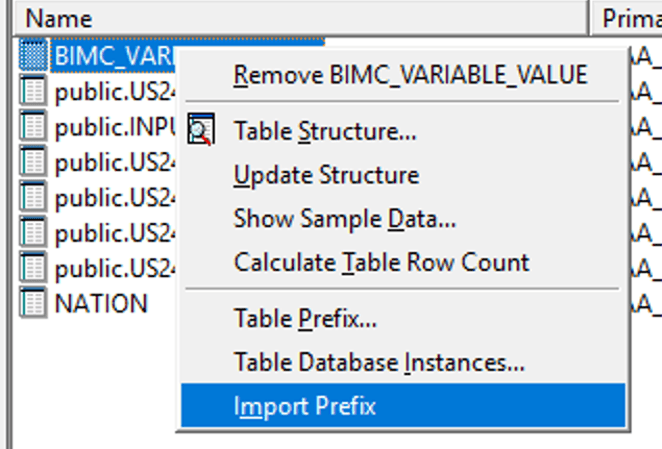
    • Import prefix for both objects:
ka0PW0000001JcfYAE_0EM2R000000fxP0.jpeg
    • Save and close.
  • Create attributes from NAME column BIMC_VARIABLE_VALUE and from CV columns of your choice.
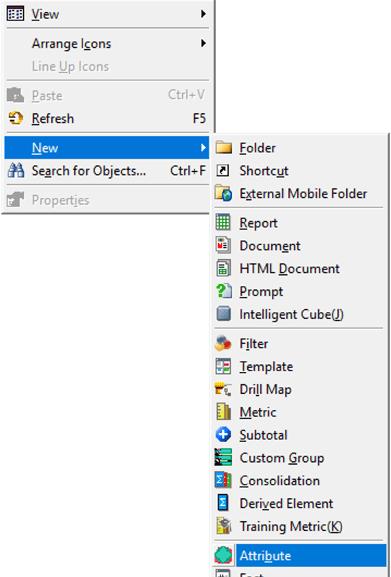
    • Right-click Developer Canvas > New > Attribute
ka0PW0000001JcfYAE_0EM2R000000fxP5.jpeg
    • Choose Name column from BIMC_VARIABLE_VALUE table:
ka0PW0000001JcfYAE_0EM2R000000fxPA.jpeg
    • Optionally, to include Description of static list value, double-click OK and the New button to add a new attribute form:
ka0PW0000001JcfYAE_0EM2R000000fxPF.jpeg
    • Choose Description column to add Attribute Description form:
ka0PW0000001JcfYAE_0EM2R000000fxPK.jpeg
    • Double-click OK and save the attribute – here it is named, “Name.”
    • Analogically create attributes for calculation view columns. In this example, C_NATIONKEY and CC columns were chosen for the two attributes used for reporting.
  • Create a filter.
    • Right-click in Developer Canvas > New > Filter.
ka0PW0000001JcfYAE_0EM2R000000fxPU.jpeg
    • Use attribute created in the previous step - from BIMC_VARIABLE_VALUE table – here, it’s called NAME. You can choose a different way of filtering the values. Here, the filter qualifies on elements with the In list operator.
ka0PW0000001JcfYAE_0EM2R000000fxPZ.jpeg
    • Save the filter.
  • Create and add a filter to attribute element list prompt.
    • Right-click in Developer Canvas > New > Filter.
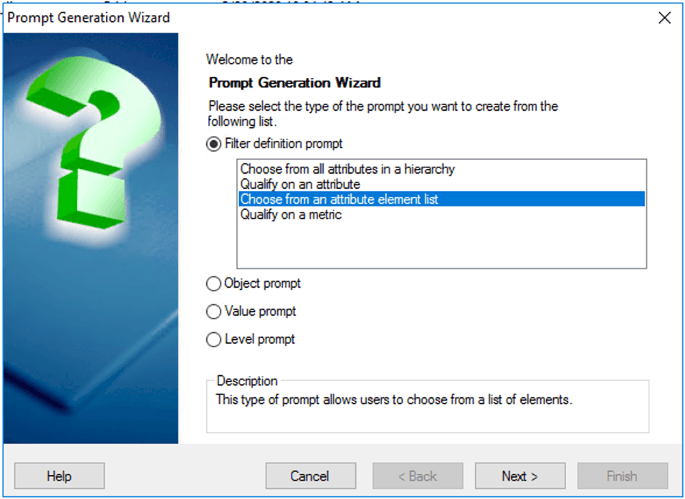
    • Choose the attribute element list type.
ka0PW0000001JcfYAE_0EM2R000000fxPe.jpeg
    • Click Next and choose attribute containing static list data - “Name” attribute.
ka0PW0000001JcfYAE_0EM2R000000fxPj.jpeg
    • Click Next and choose Use a Filter to reduce the number of elements.
    • Choose filter object created in the previous step:
ka0PW0000001JcfYAE_0EM2R000000fxPt.jpeg
    • Specify additional settings according to your needs – here we’re enforcing the user to choose at least one value for a prompt:
ka0PW0000001JcfYAE_0EM2R000000fxPy.jpeg
    • Click Next and finish and save the prompt.
  • Replace the default prompt with a prompt created in the previous steps in the logical table object of a calculation view.
    • Navigate to Schema objects > Tables in the Project tree (on the left pane in Developer):
ka0PW0000001JcfYAE_0EM2R000000fxQ3.jpeg
    • Double-click logical table object corresponding to a calculation view containing input -parameter and navigate to the Parameters tab:
ka0PW0000001JcfYAE_0EM2R000000fxQ8.jpeg
    • Notice that the default prompt name corresponds exactly to the input parameter name of calculation view. Right-click the entry and replace the default value prompt with the prompt created in the previous steps:
ka0PW0000001JcfYAE_0EM2R000000fxQD.jpeg
    • Notice that Prompt Name and Prompt Type changed:
ka0PW0000001JcfYAE_0EM2R000000fxQr.jpeg
  • Create a report or dossier.
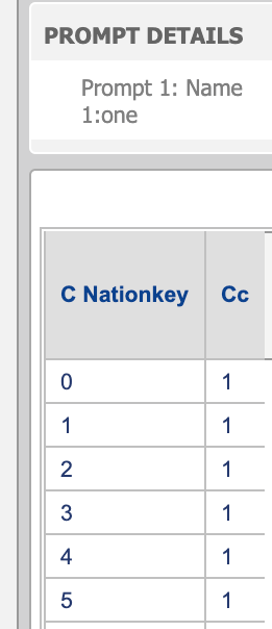
    • Create a report or dossier for reporting on calculation view containing static list input parameter. When executing the reporting object (report or dossier), a prompt appears:
ka0PW0000001JcfYAE_0EM2R000000fxQw.jpeg
    • The exact formatting of the prompt depends on the definition of attribute. Here, it’s “ID:DESC”
    • Report returns the correct data and contains correct SQL syntax:
ka0PW0000001JcfYAE_0EM2R000000fxR1.jpeg
    • SQL Statement:
ka0PW0000001JcfYAE_0EM2R000000fxR6.jpeg
    • Selecting several answers will result in the syntax passing strings regardless of the attributes definition (in the previous steps, we set it to Text).
ka0PW0000001JcfYAE_0EM2R000000fxRB.jpeg

2. Static list input parameters in cubes


In case you do not want to bother with configuration in Developer, it is possible to create an MTDI cube from calculation view containing static list type input parameter using the default value prompt. However, the following conditions apply:


  • It is possible only with the SELECT TABLES option.
  • Cube will use the default value prompt which does not show items from the static list and forces you to manually type in the value.
  • The following prompt is shown in Strategy Web:
ka0PW0000001JcfYAE_0EM2R000000fxRG.jpeg
  • Notice that it is possible to choose different value than what is specified in the static list, which in this example contains values 1, 2 and 3.
    Depending on the definition of the calculation view, the cube may or may not execute correctly:
ka0PW0000001JcfYAE_0EM2R000000fxRL.jpeg
  • The SQL behind the visualization:
ka0PW0000001JcfYAE_0EM2R000000fxRQ.jpeg

3. Summary


This article described how to achieve integration with SAP HANA’s calculation views static list type input parameter with the Strategy attribute element list prompt. If you want to use Freeform SQL reports for retrieving the static list data, the following SQL can be helpful:


SELECT NAME, DESCRIPTION FROM "_SYS_BI"."BIMC_VARIABLE_VALUE"
WHERE VARIABLE_NAME='YOUR_IP_NAME_HERE'

--AND CUBE_NAME = 'YOUR_CV_NAME_HERE'
--Use filter on CUBE_NAME if name of your input parameter is not unique.


Comment

0 comments

Details

Knowledge Article

Published:

June 15, 2020

Last Updated:

March 21, 2024