EducationSoftwareStrategy.com
StrategyCommunity

Knowledge Base

Product

Community

Knowledge Base

TopicsBrowse ArticlesDeveloper Zone

Product

Download SoftwareProduct DocumentationSecurity Hub

Education

Tutorial VideosSolution GalleryEducation courses

Community

GuidelinesGrandmastersEvents
x_social-icon_white.svglinkedin_social-icon_white.svg
Strategy logoCommunity

© Strategy Inc. All Rights Reserved.

LegalTerms of UsePrivacy Policy
  1. Home
  2. Topics

KB442473: Server Health Check: Intelligence Server Configuration


Community Admin

• Strategy


Most of the default settings from the Intelligence Server Configuration are from 32-bit era. This KB is showing which one of them should be changed/increased.

Strategy Intelligence Server Configuration (Mouse Right Click on Project Source)
 
   1. Server Definition >> Advanced:
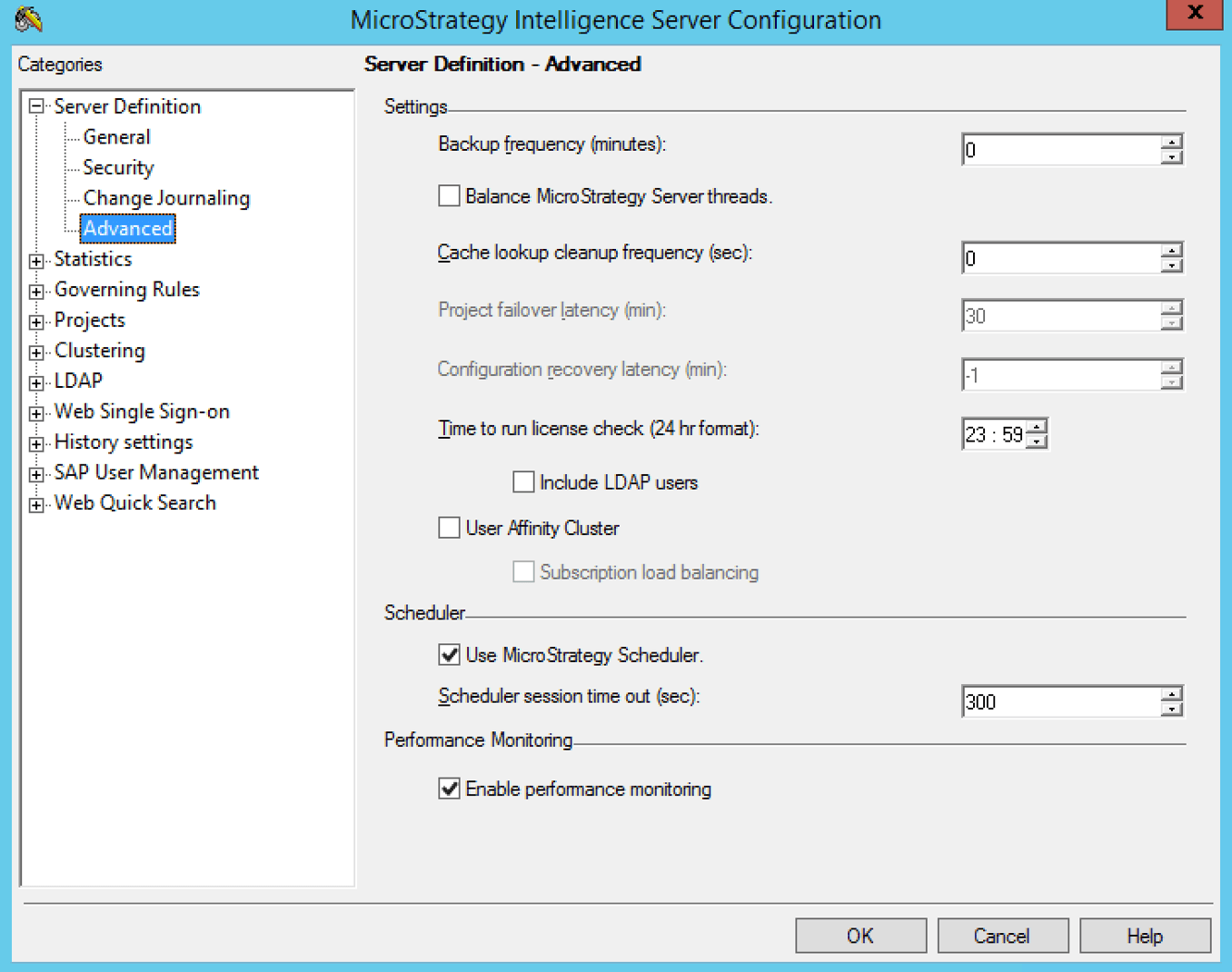
 

  • Balance Strategy Server Threads – Check if this option is enabled. If it is, turn it off.


  • Cache lookup cleanup frequency – If we are using clustering this must be “0”.


ka04W000000ObBVQA0_0EM44000000RbZv.png

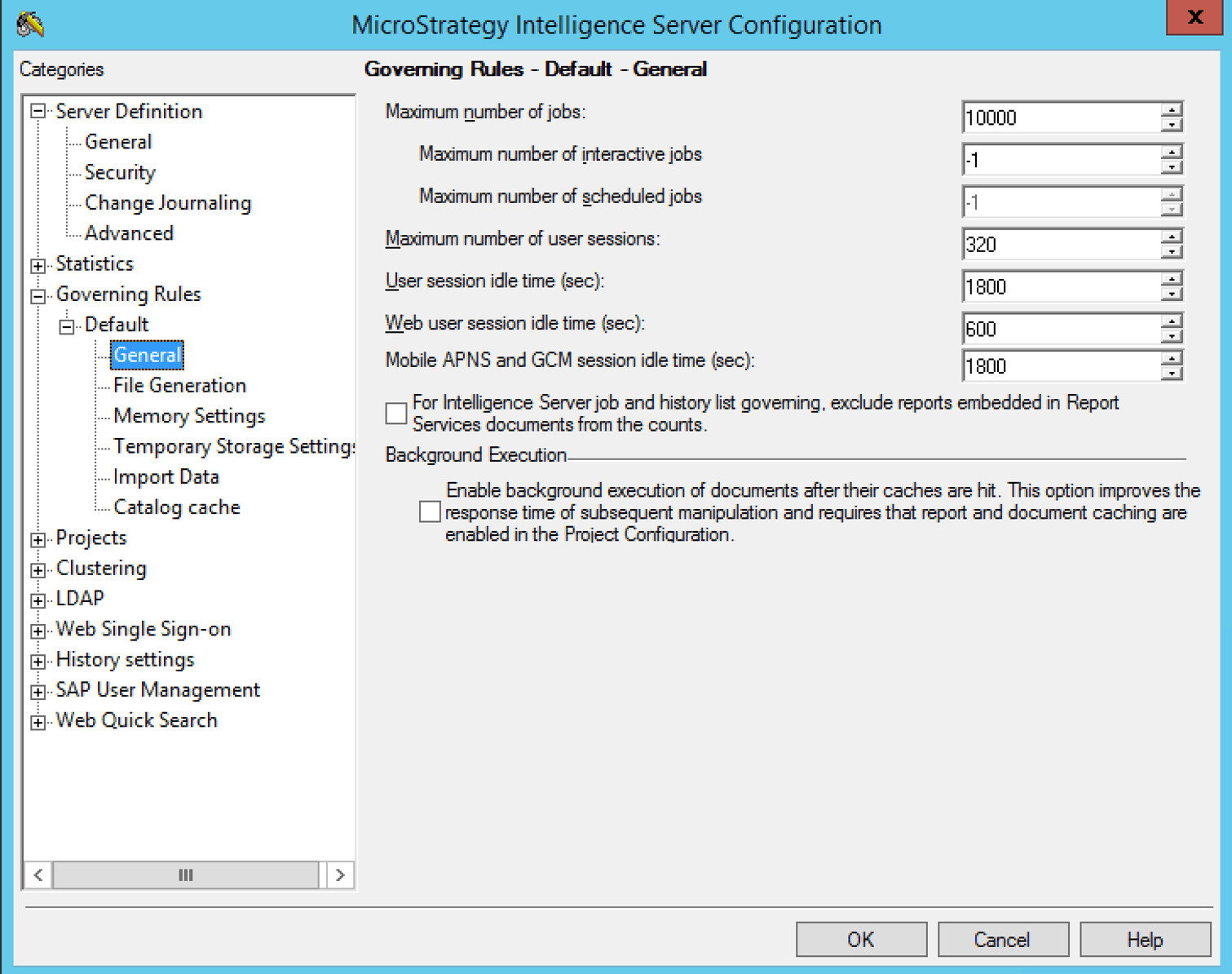
2. Governing Rules >> General:
 

  •     User session idle time – When this setting is high, until the timeout happens, the working set for that user is being held in memory. Working set stores all the information of what the user was doing. If you open three tabs, they will be stored in working set (up to ten messages per user). Reduce this number to 600 seconds (10 minutes). You can change the number of “messages”, i.e. reports and documents available for manipulation, in Web’s Project Defaults >> History List.


  •     Background Execution – When you first execute a document, the server will send only the first layout, just to give you good first impression. If you click somewhere (drill, sort, change layout) the server will start creating the document instance by adding the remaining layouts. If you check Background Execution option this will trigger the creation of the document instance in the background, so when you do the first manipulation it will be fast. For very high concurrent systems, keep this setting OFF.


ka04W000000ObBVQA0_0EM44000000RbaA.png

3. Governing Rules >> Memory Settings:
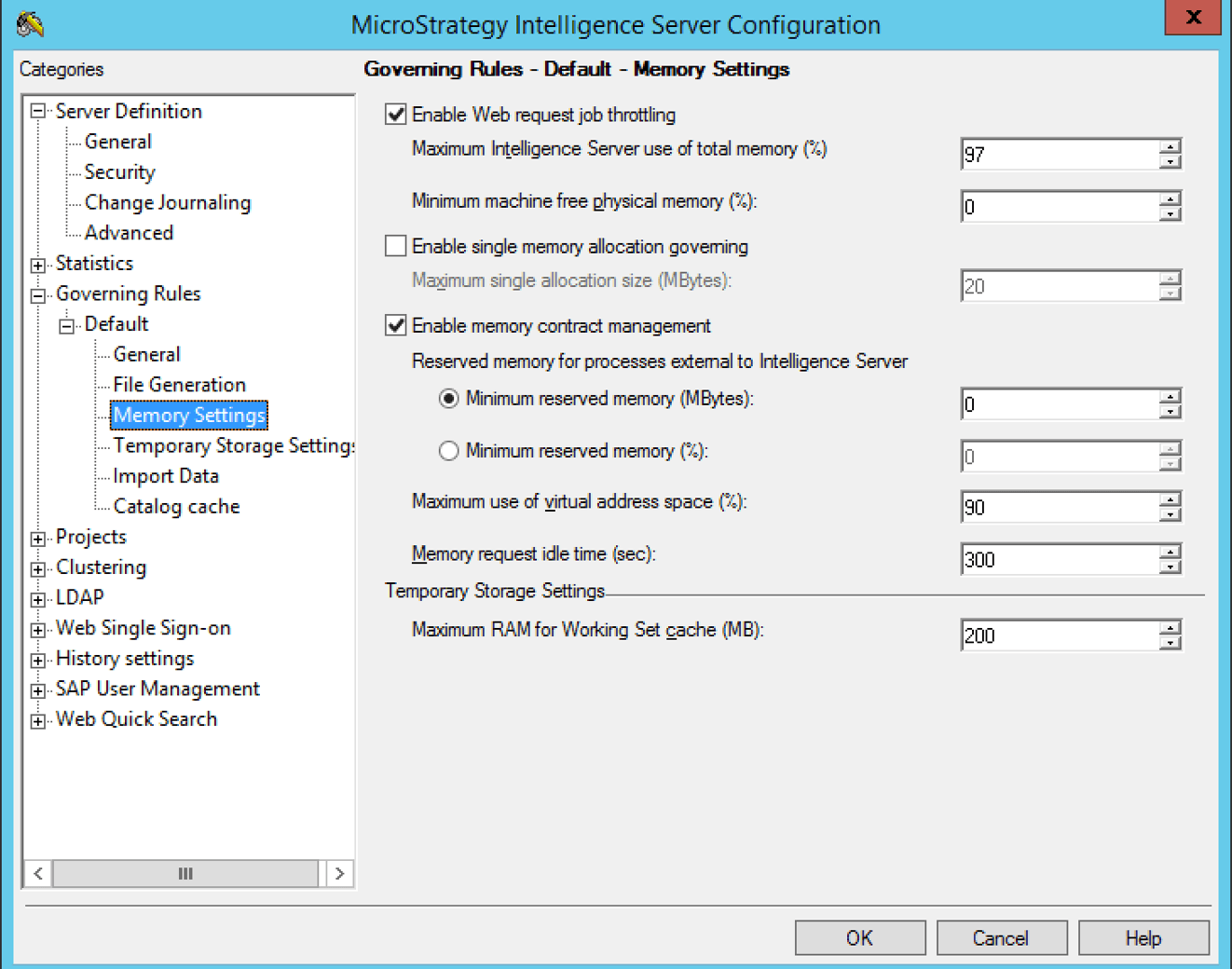
 

  •     Maximum RAM for working set cache – Check if this setting is increased to a reasonable level. It can be increased up to 64 GB for very large environments. {assuming machine has about 500GB+ RAM}


  •     Enable Memory Contract Manager – Keep this option checked always. MCM will reject new memory requests if the memory usage is too high. Reserve 10% for the processes external to Intelligence Server. Bear in mind that if swapping is enabled on operating system level, you should take that into consideration in your calculation. If swap space is set up at 10 GB and you have 30 GB of RAM, if your reserve 10% for external processes, Strategy can use 36 GB of memory, so that includes swap space.


ka04W000000ObBVQA0_0EM44000000RbaK.png

4. Governing Rules >> Temporary Storage Settings
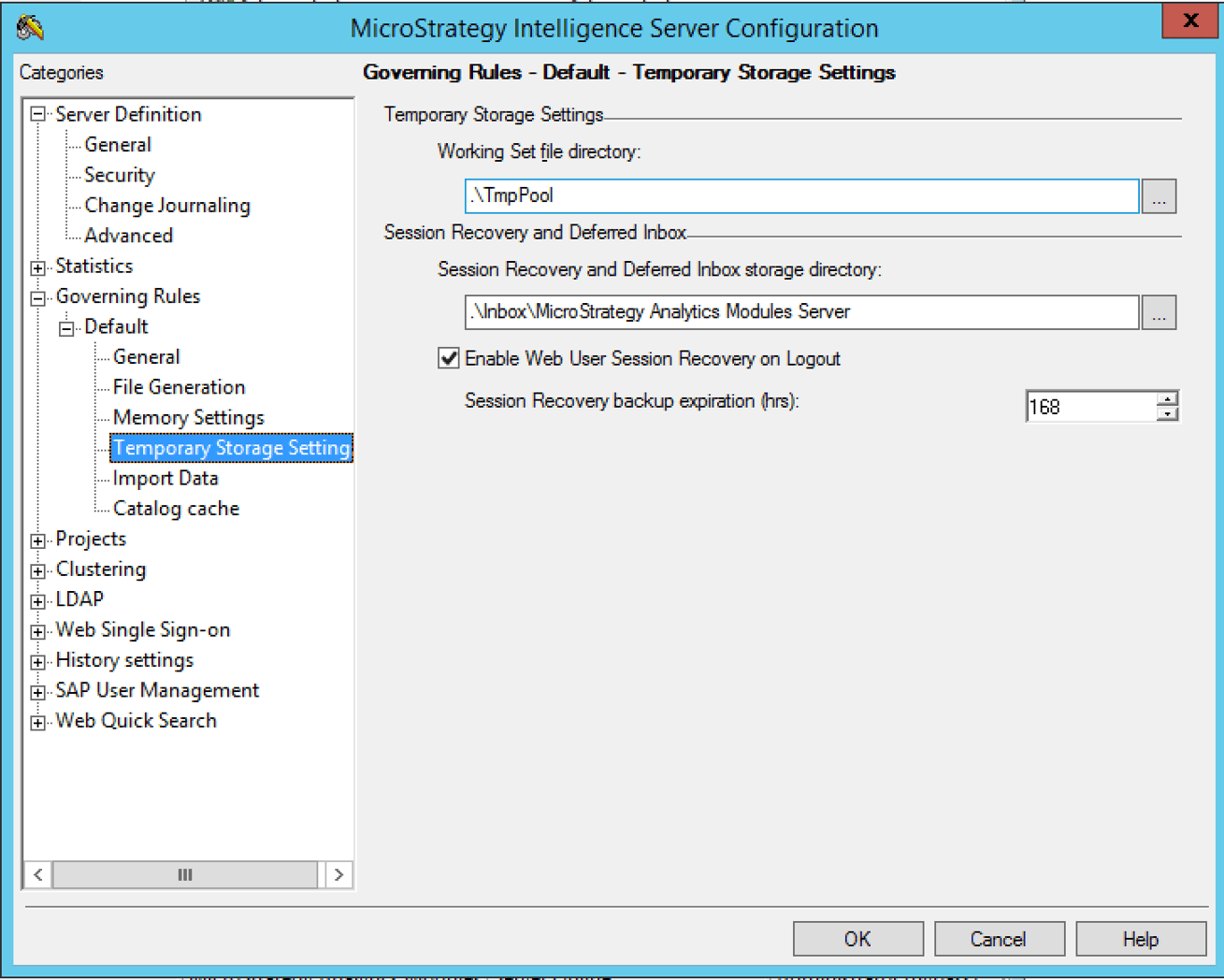
 

  •     Enable Web User Session Recovery on Logout – saves whatever you’re working on to disc (disable this option as anything using disc space will deteriorate performance)


ka04W000000ObBVQA0_0EM44000000RbaP.png

 
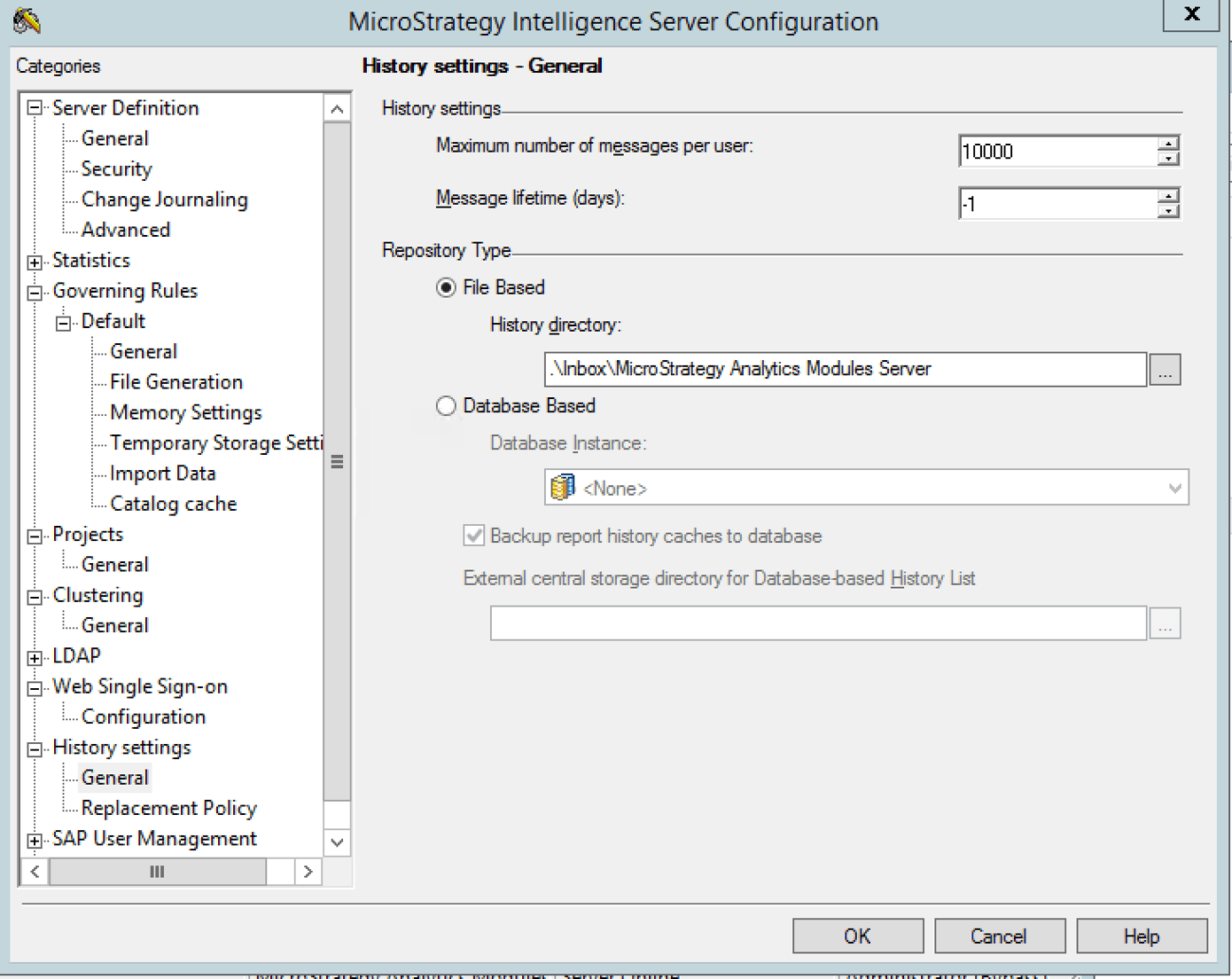
5. History settings >> General:
 

  •     Always use Hybrid Repository Type over File Based
ka04W000000ObBVQA0_0EM44000000RbaU.png

 
KB442473


Comment

0 comments

Details

Knowledge Article

Published:

December 27, 2018

Last Updated:

December 27, 2018