EducationSoftwareStrategy.com
StrategyCommunity

Knowledge Base

Product

Community

Knowledge Base

TopicsBrowse ArticlesDeveloper Zone

Product

Download SoftwareProduct DocumentationSecurity Hub

Education

Tutorial VideosSolution GalleryEducation courses

Community

GuidelinesGrandmastersEvents
x_social-icon_white.svglinkedin_social-icon_white.svg
Strategy logoCommunity

© Strategy Inc. All Rights Reserved.

LegalTerms of UsePrivacy Policy
  1. Home
  2. Topics

“Server error when loading settings in Governing Settings.” error when click Governing Setting, Security Settings or All Settings in Workstation in MicroStrategy2021 Update 4


Danfeng Zhan

Principal Product Specialist • Strategy


This issue has been classified as a defect by MicroStrategy. The impact is limited to MicroStrategy Intelligence Server with incorrect SSL settings. A solution for this issue is available in current releases.

SYMPTOM:
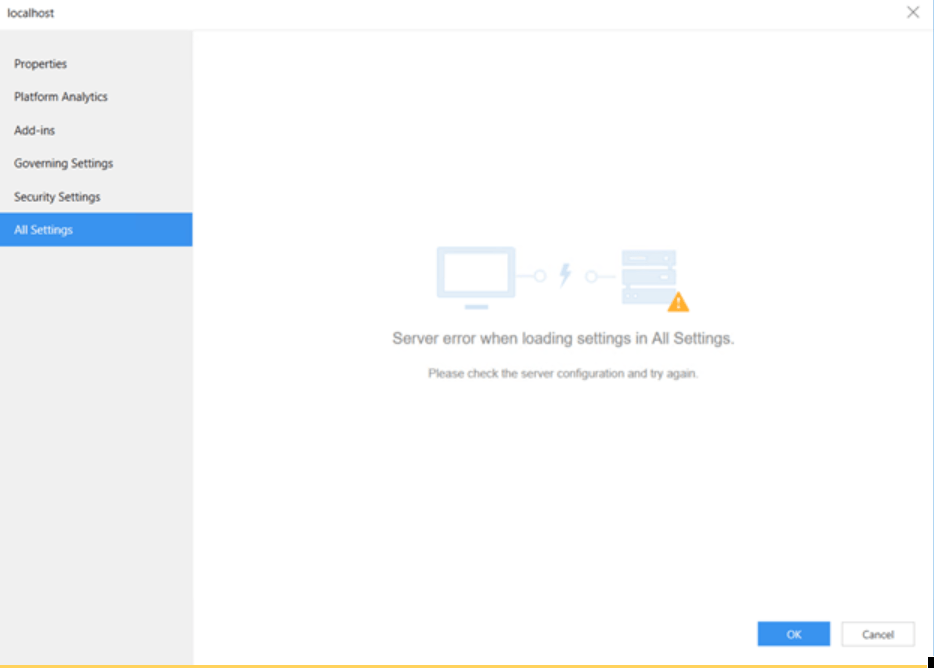
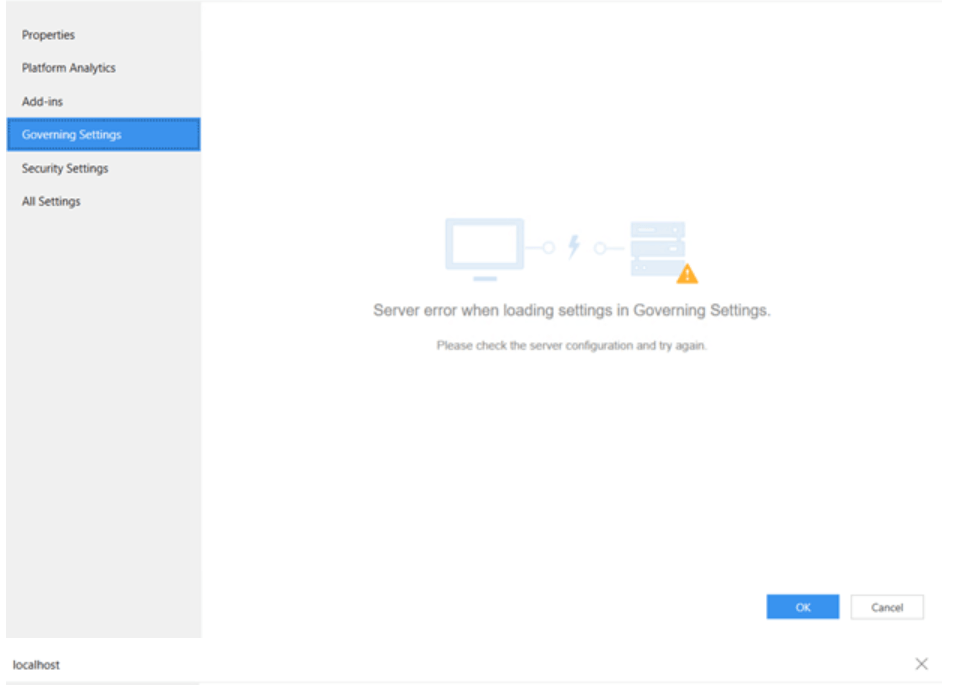
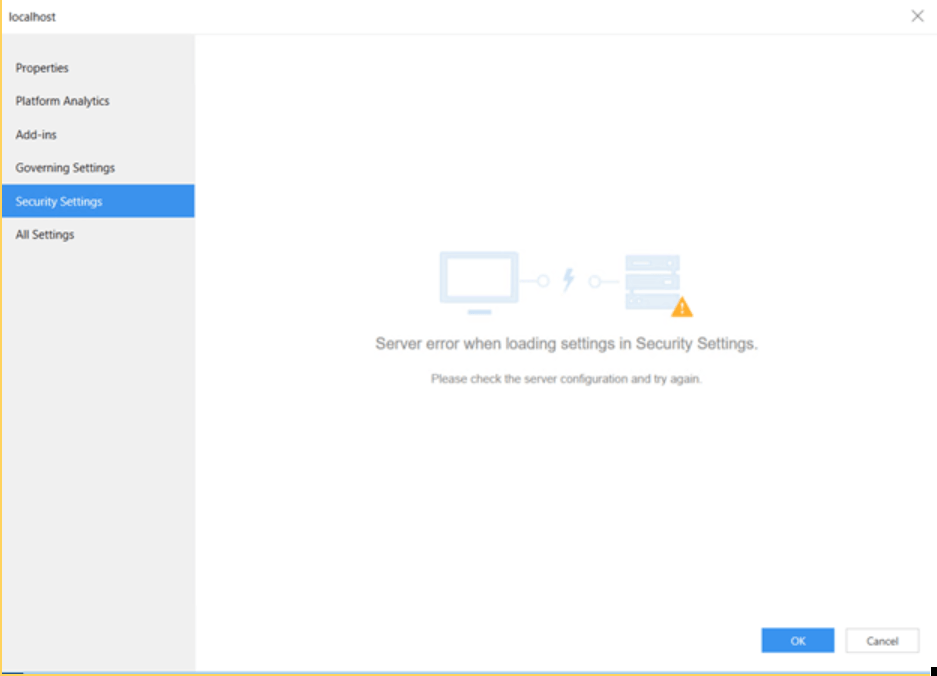
“Server error when loading settings in Governing Settings.” error when Click Governing Setting, Security Settings, All Settings via the Environment>Properties menu in Workstation in Strategy2021 Update 4 as shown below:
ka04W000001ItBMQA0_0EM4W000004XIwW.png

ka04W000001ItBMQA0_0EM4W000004XIwX.png

ka04W000001ItBMQA0_0EM4W000004XIwY.png


CAUSE:
 
The Intelligence Server Rest API fails to execute in the environment due to the incorrect setting of SSL.
NOTE:
 

  • The error message is general and the plugin in workstation doesn’t log sufficient info into the workstation log. This could be one of the possible causes but may not be the only cause.


  • Refer to workstation.log located in C:\Users\ {UserName}\ AppData\Local\Strategy_Inc\log only for suppletory check.


  • Reach out to Strategy Technical Support if the workaround uncheck SSL is not acceptable.

ACTION:
There are two solutions:
 

  1. Reconfigure the SSL to ensure the certificate is correct.
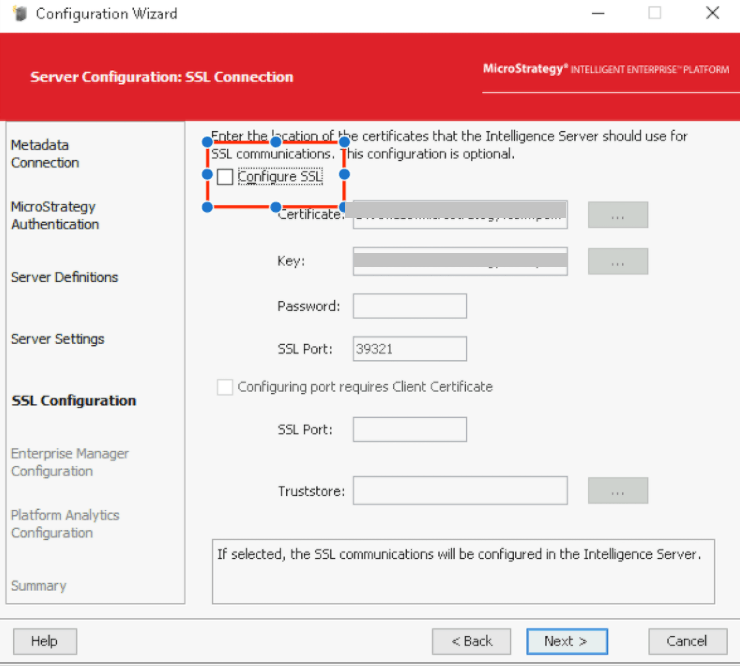
  2. Uncheck the "Configure SSL" checkbox during SSL Configuration with Configuration Wizard as shown below: (This is not recommended.)
ka04W000001ItBMQA0_0EM4W000004XIwZ.png


Comment

0 comments

Details

Knowledge Article

Published:

January 11, 2022

Last Updated:

January 11, 2022