Starting with the release of Strategy ONE (March 2024), dossiers are also known as dashboards.
https://www2.Strategy.com/producthelp/Current/MSTRWeb/WebHelp/Lang_1033/Content/alerts_editor.htm
Grid Reports
Thresholds
Distribution Services
Dossiers
Library Mobile
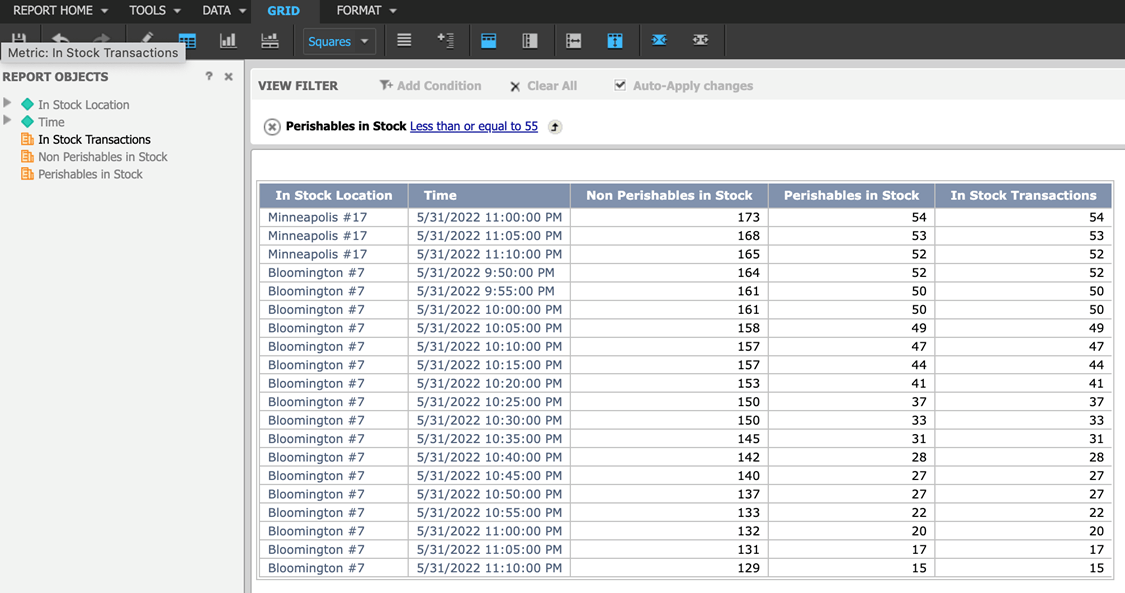
Create a grid report with the desired datapoints. In my example, I am creating a report around inventory stock. I have filtered it to only show rows that have Perishable Stock <= 55
2. Setup your schedule
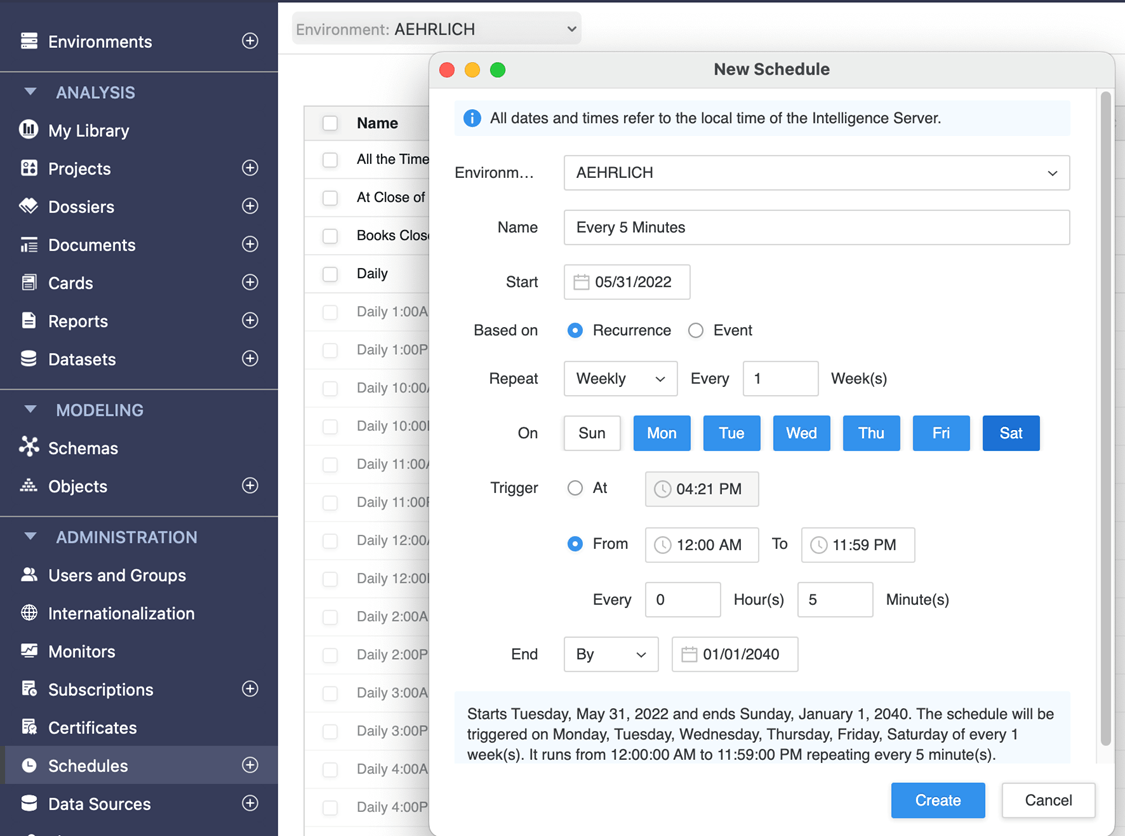
It is easy to create a new schedule with Workstation. I’m going to create a schedule for every 5 minutes that runs all day Monday through Saturday.
3. Enable a threshold on your metric
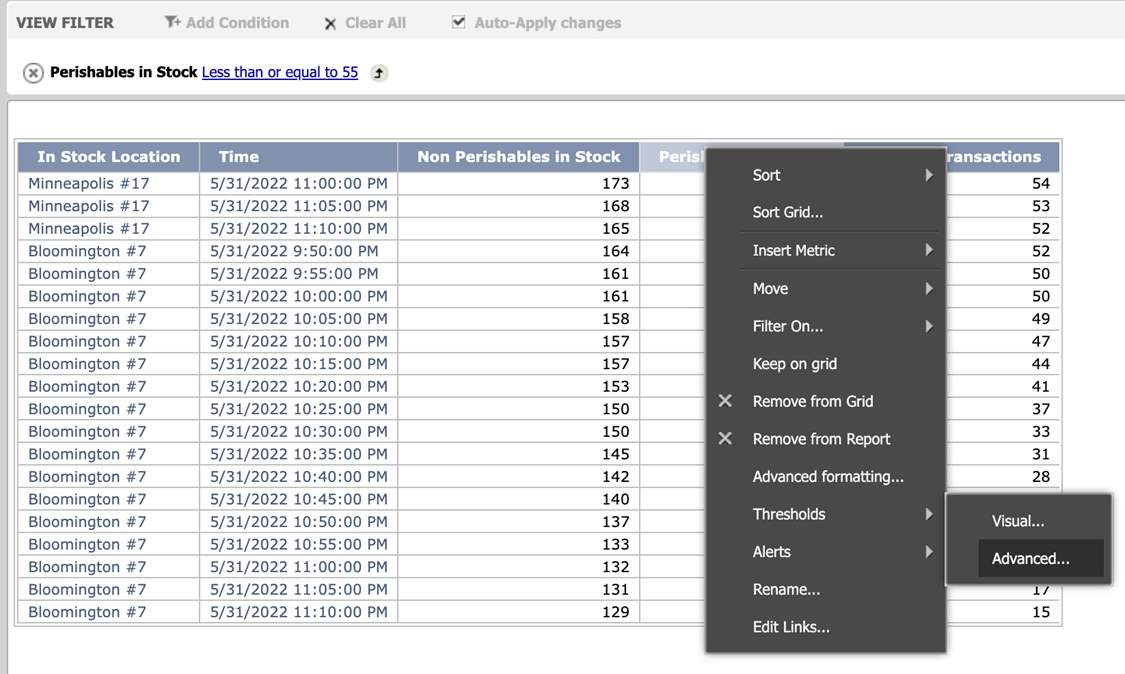
Let’s put a threshold on our Perishables in Stock metric that notifies us when Perishables in Stock reach a quantity of 55 or below. Right click on the metric, and select Thresholds à Advanced
4. Create an Email Alert Threshold
Next, we’ll create a threshold that sends an email whenever Perishables for a location gets below a quantity of 55. We’ll set it up so it runs the report and therefore executes the threshold data alert every 5 minutes.
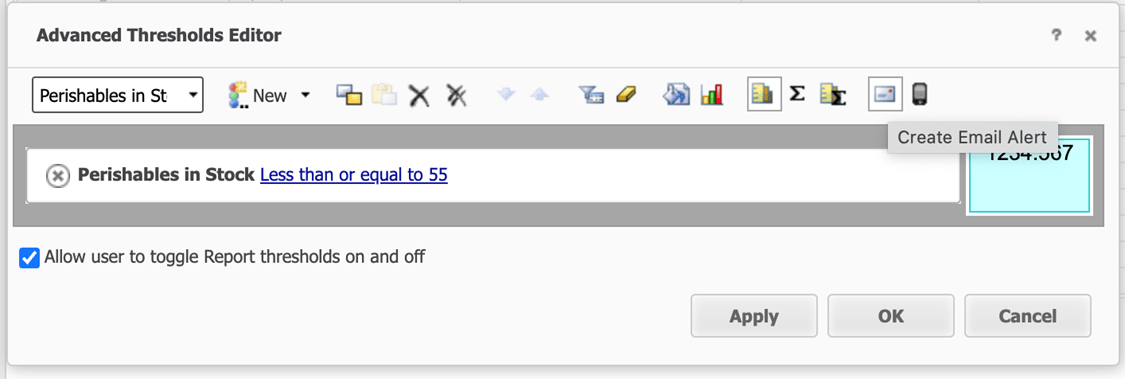
Select the metric “Perishables in Stock”, set the condition to “less than or equal to” 55. Also, let’s add some color to the cell when the threshold is met. Finally, click “Apply”.
Next, click the “Create Email Alert” icon
5. Pick your contacts & Schedule
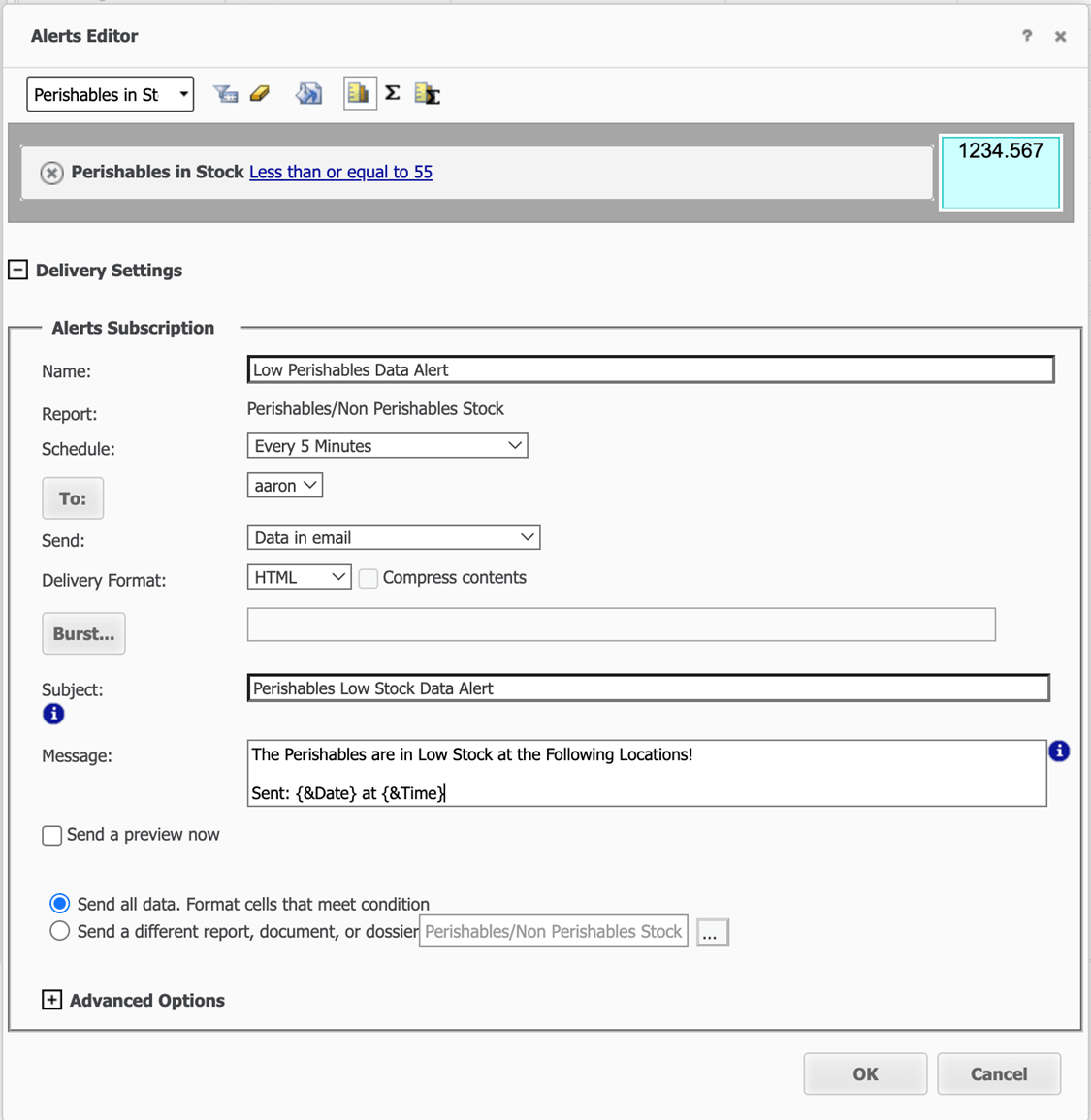
Expand the Delivery Settings and rename the Subscription to “Low Perishables Data Alert.”
Next, let’s set the Schedule to our Every 5 Minutes schedule and select our contacts.
Finally, let’s have the email send HTML format and give the message an informative title and message. Now you’re done! Click OK and Save the Report.
6. Send a Dossier for a full snapshot
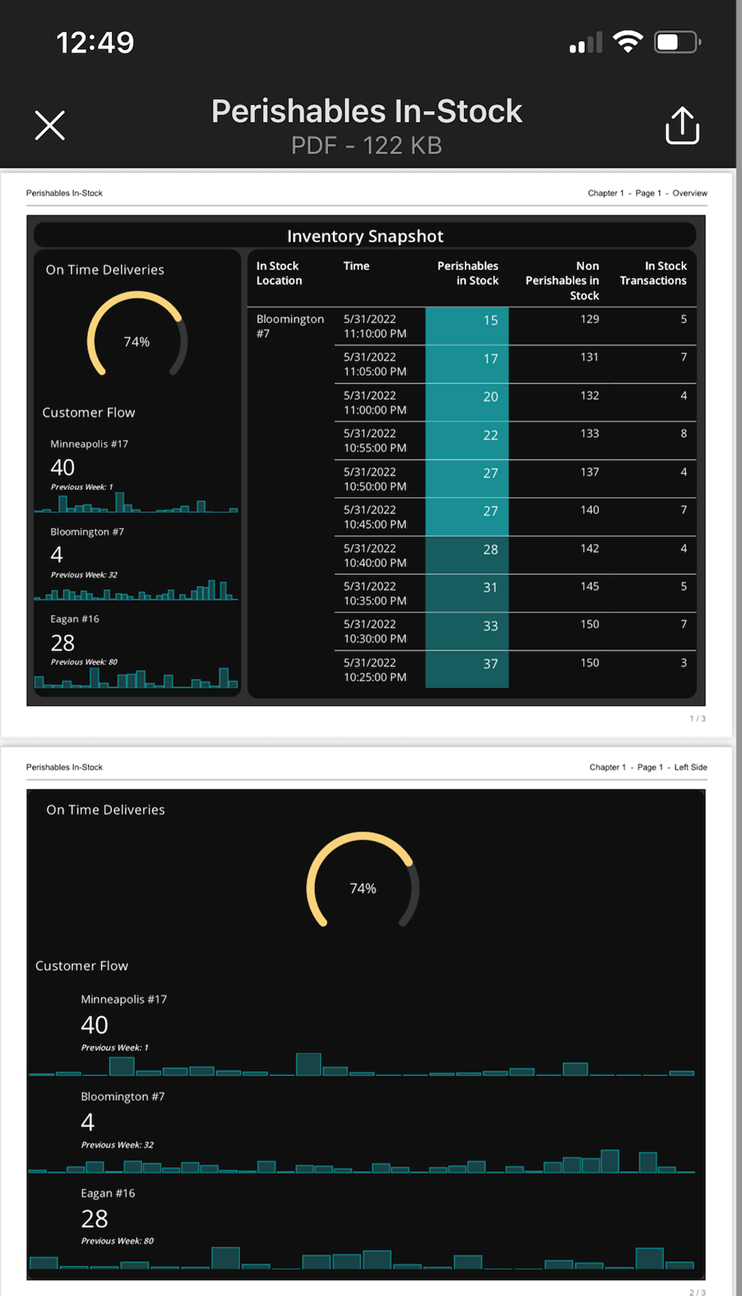
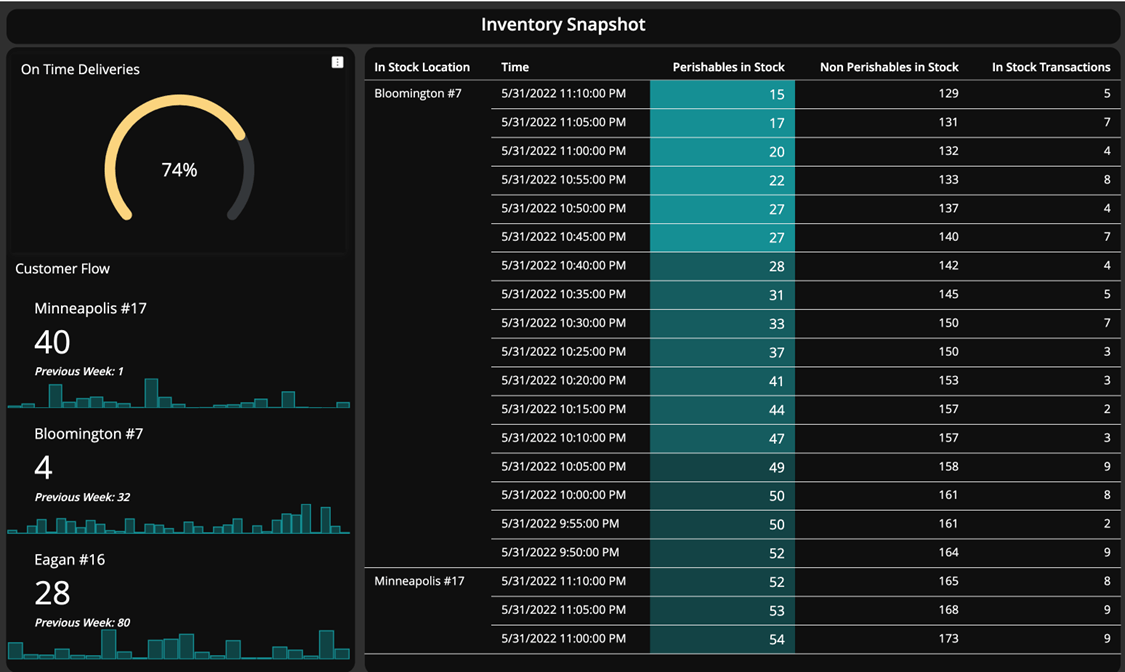
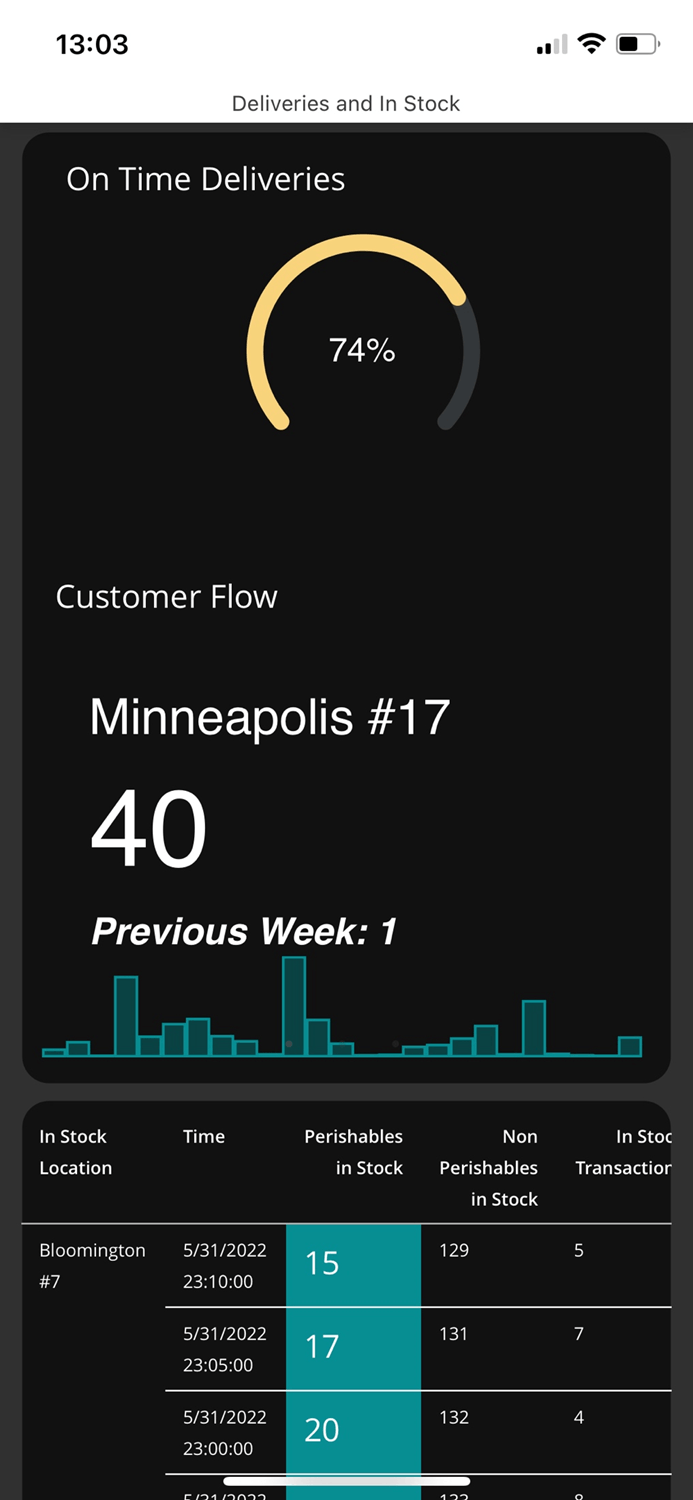
Let’s create a snappy-looking Dossier that uses this in-stock data alongside sales and shipment data for the locations. We’ll include a link to the Dossier in our alert email that will allow us to explore the Dossier on Library Mobile.
Here’s the Dossier:
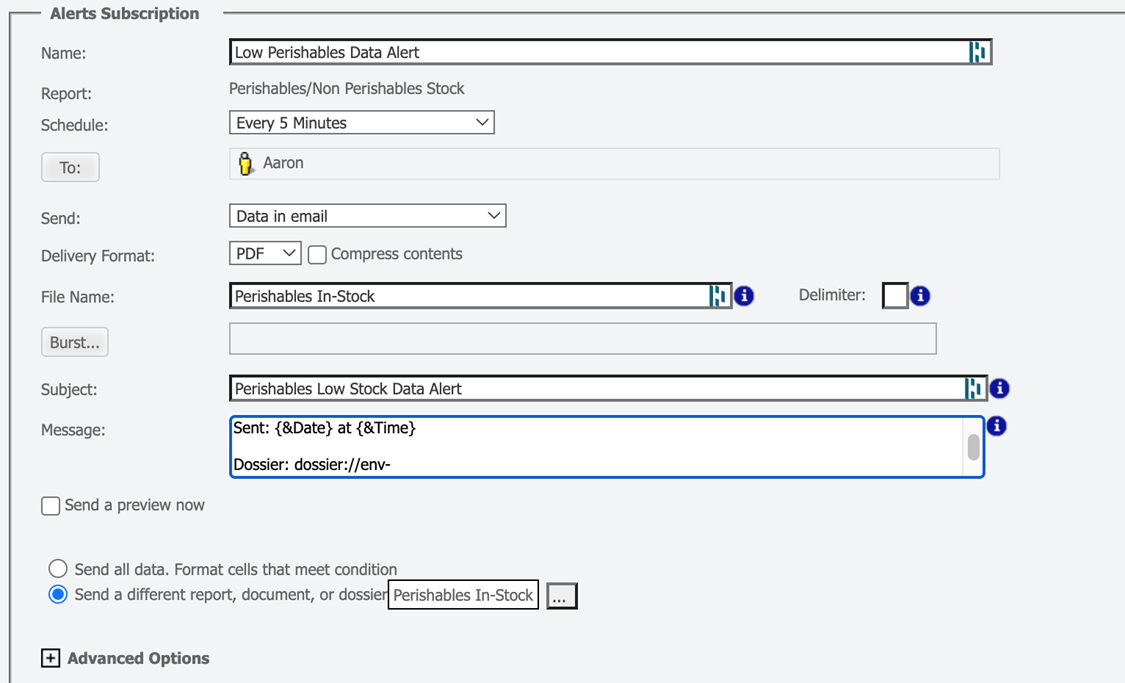
Let’s link to this in the alert email. NOTE: to share for Library Mobile replace “https” with “dossier”.. Also I elect to send a different report, document, or dossier..
Now, when I receive an email alert on my phone, I can interact with my data on my mobile device!
The email:
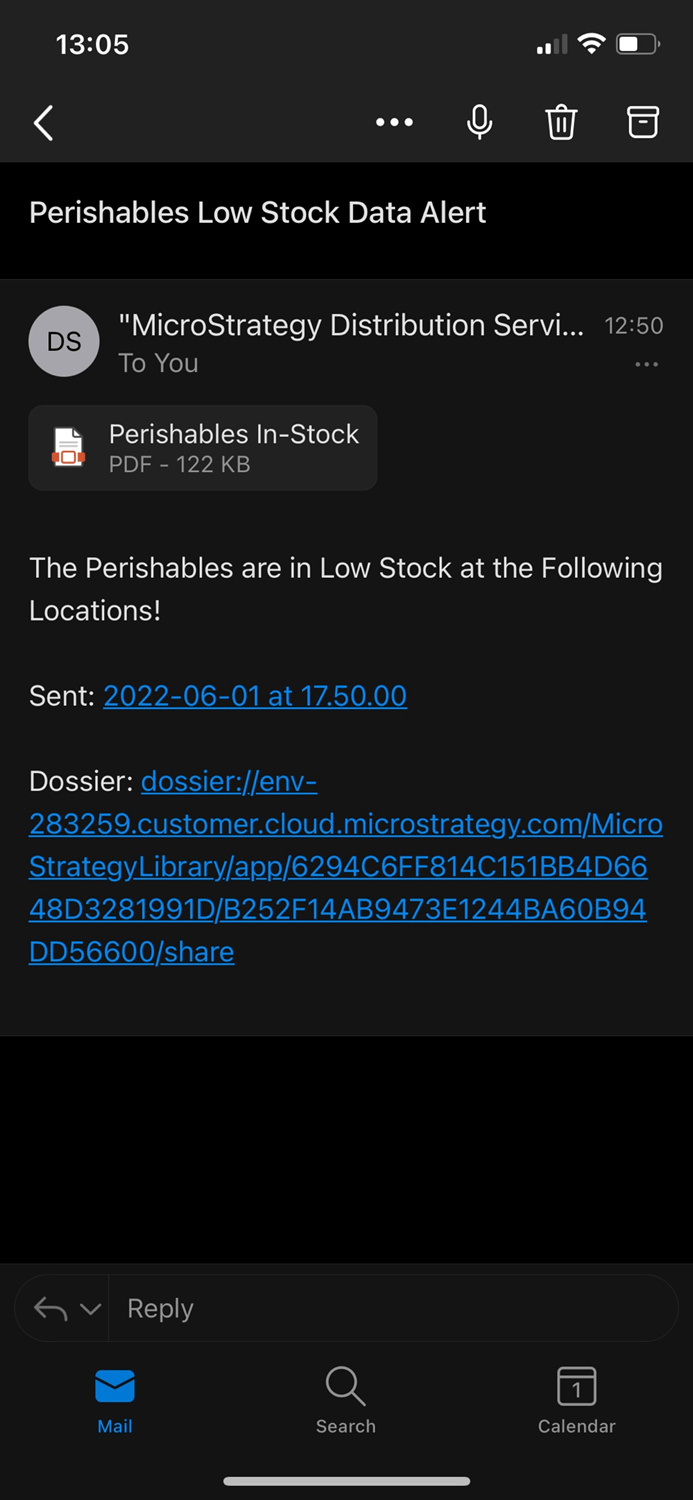
Library Mobile:
(Not to mention I can save off a historical PDF for my own reference with each alert too…)
Attachment: