EducationSoftwareStrategy.com
StrategyCommunity

Knowledge Base

Product

Community

Knowledge Base

TopicsBrowse ArticlesDeveloper Zone

Product

Download SoftwareProduct DocumentationSecurity Hub

Education

Tutorial VideosSolution GalleryEducation courses

Community

GuidelinesGrandmastersEvents
x_social-icon_white.svglinkedin_social-icon_white.svg
Strategy logoCommunity

© Strategy Inc. All Rights Reserved.

LegalTerms of UsePrivacy Policy
  1. Home
  2. Topics

KB484977: Slow performance in MicroStrategy Web caused by the search engine process startup failure and incorrect JVM path reference


Mengran (Molly) Wang

Senior Cloud Support Engineer III • MicroStrategy


This article addresses the slow performance experienced in Web due to the search engine process startup failure and incorrect JVM path reference.

Description 


The following scenarios can be experienced due to the search engine process startup failure and incorrect JVM path reference: 

  • When browsing folders, logging in, or executing objects in Strategy Web, performance is significantly slow. Most actions take 5-10 seconds. 
  • When collecting the Kernel XML API log, the getQuickSearchStatus request spends 10 seconds waiting for a response. 
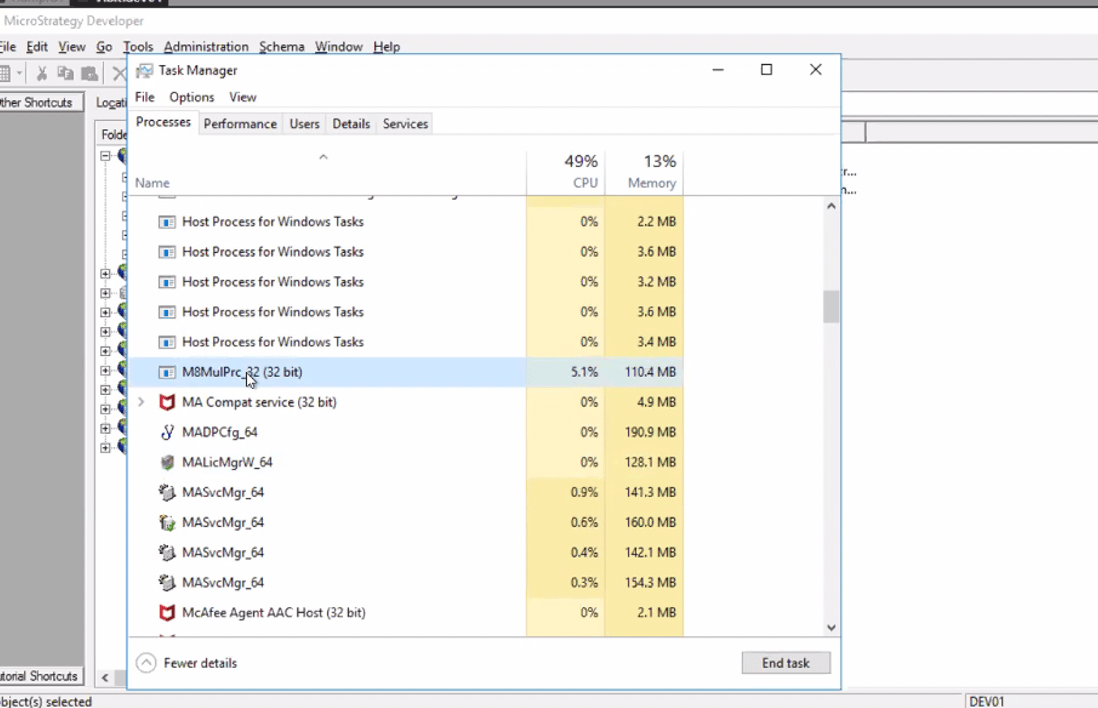
  • After restarting the Intelligence Server, the
    M8MulPrc_32.exe (32 bit)
    process is not observer in the Task Manager. This means that the search engine process is not started. Every time Web requests a response from the search engine, the request times out in 10 seconds, resulting in performance issues. 

Solution 

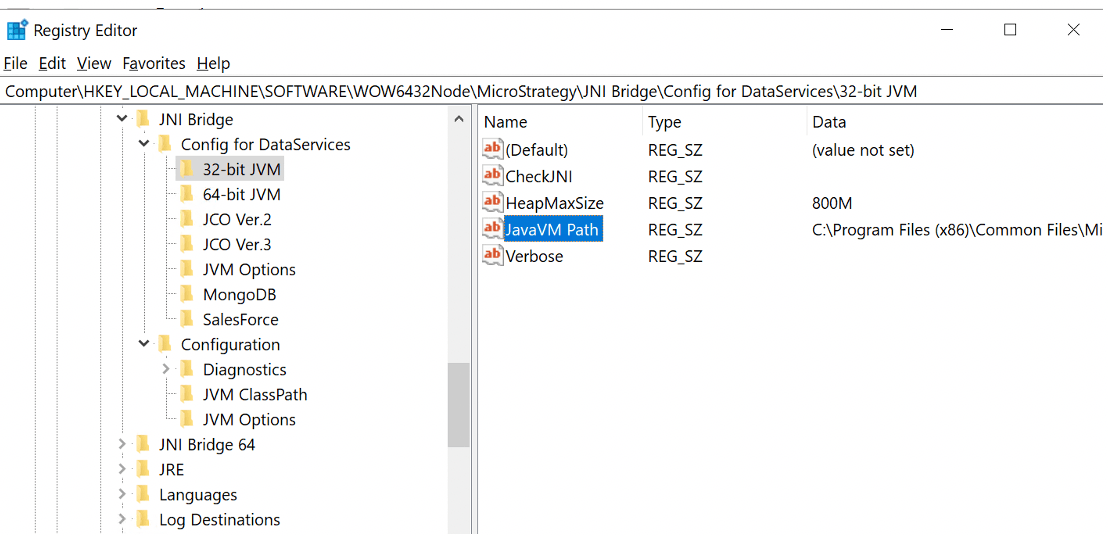
  • Modify the registry key
    JavaVM Path
    under under
    HKLM\SOFTWARE\Wow6432Node\MicroStrategy\JNI Bridge\Config
    for
    DataServices\32-bit JVM


    to

    C:\Program Files (x86)\Common Files\MicroStrategy\JRE\180_252\Win32\bin\client\jvm.dll
ka04W000001EtmpQAC_0EM4W0000027Oeg.jpeg
  • **
    C:\Program Files (x86)\Common Files\MicroStrategy\JRE\180_252\Win32\bin\server\jvm.dll
    is incorrect.
  • Create a new search index folder and apply in Web Quick search path.
    OR
    Restart the Intelligence Server.

You can see that the

M8MulPrc_32.exe(32 bit)
process is up and running:

ka04W000001EtmpQAC_0EM4W0000027Ogw.jpeg


See that the slowness is gone as well.


Comment

0 comments

Details

Knowledge Article

Published:

April 12, 2021

Last Updated:

April 12, 2021