When the user uses MySQL as Strategy metadata or data warehouse, and recently upgrade the MySQL ODBC driver from 5.x version to the higher version 8.0. MD users will encounter the situation that I-server couldn’t be started, and DW users will encounter the situation that MySQL couldn’t be connected. Error message displays: “Specified driver could not be loaded.”
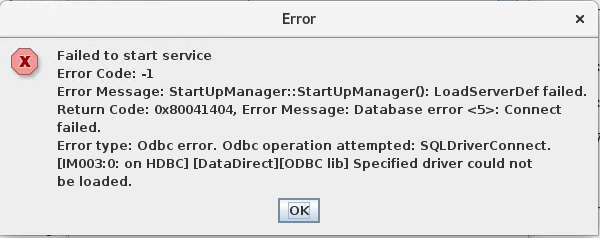

According to MySQL official documents that the driver name has been changed along with its version number as ‘libmyodbc8w.so’ for Linux and ‘myodbc8w.dll’ for Windows. The previous driver name ‘libmyodbc5w.so’ and ‘myodbc5w.dll’ for the 5.x version MySQL driver may no longer exist after upgrade, and the already in use DSN driver path in the odbc.ini file couldn’t point to the 8.0 driver automatically.
After upgrade to MySQL 8.0 ODBC driver, administrator needs to modify the MySQL DSN driver name and the driver path manually as following.
For Windows:
1. Run regedit.exe to edit registry
2. Navigate to HKEY_LOCAL_MACHINE/SOFTWARE/ODBC/ODBC.INI
3. Find the DSN and double click to modify the driver string value to the 8.0 driver location
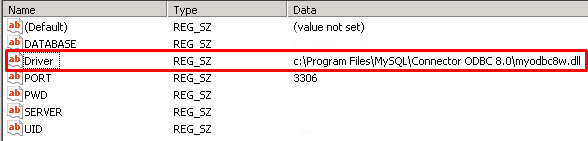
4. Navigate to HKEY_LOCAL_MACHINE/SOFTWARE/ODBC/ODBC.INI/ODBC Data Sources
5. Double click on the DSN and modify the string value to ‘MySQL ODBC 8.0 Unicode Driver’

For Linux:
1. Navigate to the odbc.ini file which usually under the install path directly.
2. Vim to modify the [ODBC Data Sources] and [DSN] sections.For example:
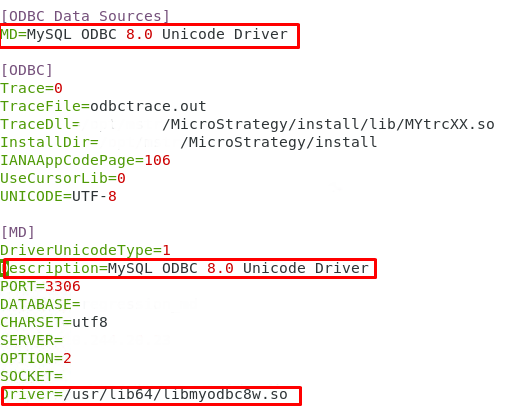
Note: Since Amazon Aurora MySQL and Maria DB also use the same ODBC driver as MySQL, may have the same circumstance. The solution can be the same.
KB442300
