
EducationSoftwareStrategy.com
StrategyCommunity

Knowledge Base

Product

Community

Knowledge Base

TopicsBrowse ArticlesDeveloper Zone

Product

Download SoftwareProduct DocumentationSecurity Hub

Education

Tutorial VideosSolution GalleryEducation courses

Community

GuidelinesGrandmastersEvents
x_social-icon_white.svglinkedin_social-icon_white.svg
Strategy logoCommunity

© Strategy Inc. All Rights Reserved.

LegalTerms of UsePrivacy Policy
  1. Home
  2. Topics

Testing MicroStrategy Mobile 10.x in the iOS Simulator


Community Admin

• Strategy


An introduction to launching MicroStrategy Mobile in the iOS Simulator through Xcode.

Prerequisites:

  • Refer to the Installation and requirements article in the Strategy Mobile SDK developer zone for detailed prerequisites.
  • Note: Users do not need to be enrolled in the iOS Developer Program for testing with the iOS Simulator. That requirement is only for app distribution .

Getting Started

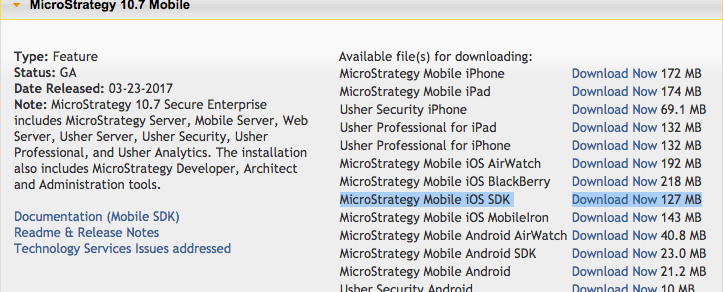
  • Navigate to the download site and download the appropriate version of the Strategy Mobile iOS SDK. In this tutorial we will be using Strategy Mobile version 10.7:
ka0PW0000002l65YAA_0EM440000002LoR.png
  • The download should contain a disk image (dmg) file. Double-click this file to mount it in macOS:
ka0PW0000002l65YAA_0EM440000002LoW.png
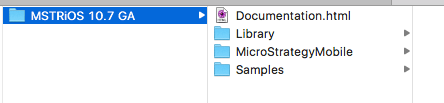
  • The disk image will contain a number of files, copy these into a new folder, as the disk image is by default read-only:
ka0PW0000002l65YAA_0EM440000002Log.png
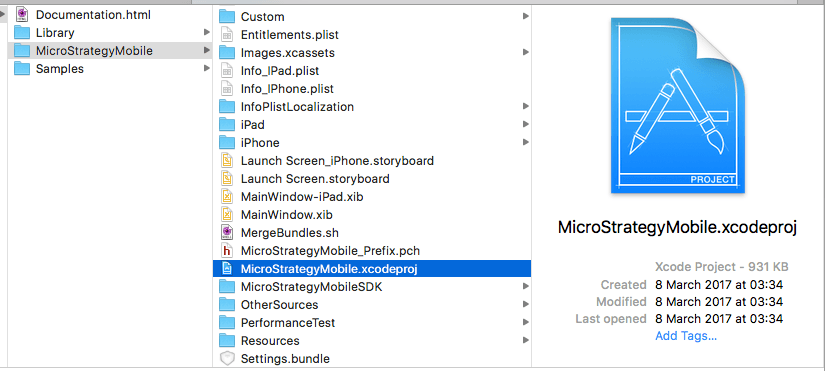
  • In the new folder structure, navigate into the "StrategyMobile" folder and double-click the "StrategyMobile.xcodeproj" file:
ka0PW0000002l65YAA_0EM440000002Loq.png

This is the Strategy Mobile Xcode project designed for rebranding the Strategy Mobile application. Without any customizations, this should behave the same way as the same version downloaded directly from the App Store onto an iOS device. 
Launching Strategy Mobile in the iPad iOS Simulator

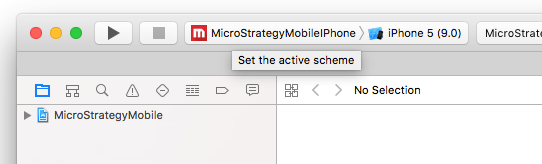
  • After opening the StrategyMobile Xcode project in Xcode, a view similar to this will be seen in the top left corner of the project window:
ka0PW0000002l65YAA_0EM440000002LpZ.png
  • The current selection in the image above is to run the iPhone app in the iPhone 5 simulator, running iOS Version 9.0.
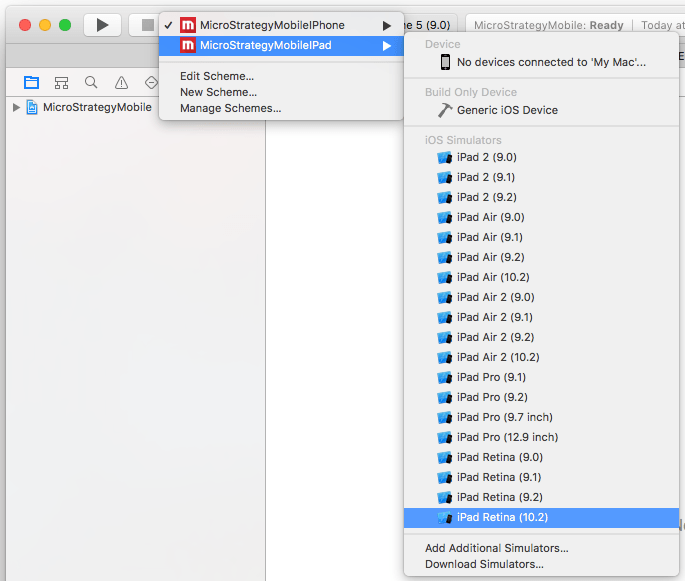
  • To change this to the iPad app, click on "StrategyMobileIPhone" and choose "StrategyMobileIPad" and select the appropriate iPad simulator:
ka0PW0000002l65YAA_0EM440000002Lpe.png
  • In the image above, we're selecting to run the StrategyMobile for iPad application within the iPad Retina simulator, running iOS Version 10.2.
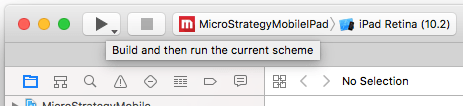
  • After selecting the application and the simulator, click the "Play" button on the top left, to launch the application in the appropriate simulator:
ka0PW0000002l65YAA_0EM440000002Lpj.png

Xcode will now:

  1. Compile the project as-is.
  2. Launch the appropriate iOS Simulator selected earlier.
  3. Deploy the compiled application within the previously launched simulator.
  4. Launch the application when deployment is complete.


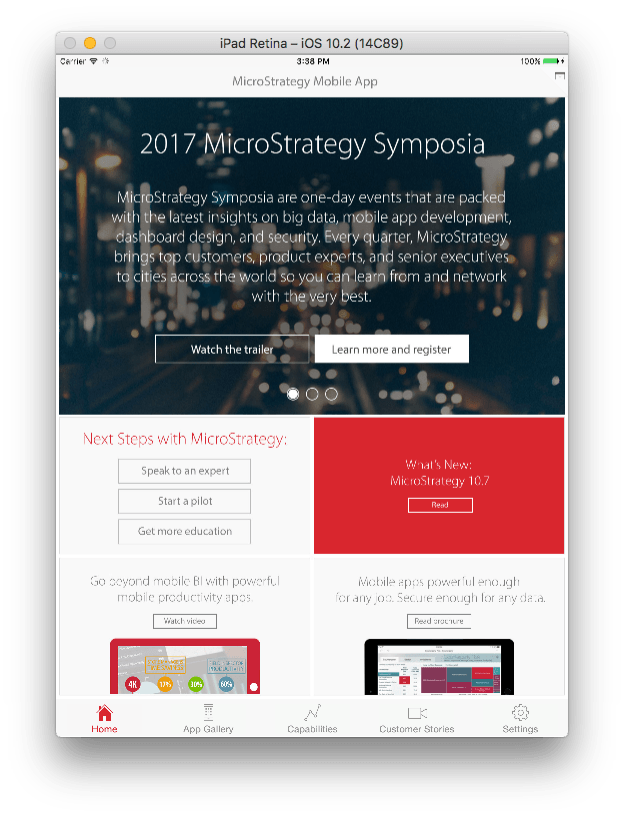
After clicking this button, the app should appear fully launched, similar to the app from the app store after it is freshly installed and launched for the first time:
ka0PW0000002l65YAA_0EM440000002Lpo.png

The application can now be configured through the app settings, via the button on the bottom-right corner of the app, similar to the application from the app store.


Comment

0 comments

Details

Knowledge Article

Published:

May 16, 2017

Last Updated:

July 22, 2024