EducationSoftwareStrategy.com
StrategyCommunity

Knowledge Base

Product

Community

Knowledge Base

TopicsBrowse ArticlesDeveloper Zone

Product

Download SoftwareProduct DocumentationSecurity Hub

Education

Tutorial VideosSolution GalleryEducation courses

Community

GuidelinesGrandmastersEvents
x_social-icon_white.svglinkedin_social-icon_white.svg
Strategy logoCommunity

© Strategy Inc. All Rights Reserved.

LegalTerms of UsePrivacy Policy
  1. Home
  2. Topics

The MicroStrategy Dataset Connector Fails During Import After Configuring HTTPS


Daniel Zumbaugh

Principal Product Specialist • MicroStrategy


This article outlines how to resolve the MicroStrategy dataset connector error: "Error in importing file. Check the file to import.[Get data failed. Error in importing files. Please check the file to import. Error type: Data Import Error. No data was loaded. Node JS command may exit unexpectedly.]".

Symptom


When this error occurs, the connector can still connect to the server and preview the data selected. The issue only occurs once an import is attempted.

Cause


If HTTPS has been enabled, it will look for a valid certificate when the data connector tries to load data. So the error could be caused by any of the following issues:

  • The certificate has expired
  • The certificate is self-signed
  • The certificated is considered non-trusted for any other reason

Action


In order for the Intelligence Server to accept the import despite this error, you must add a line to the load_data.js file:
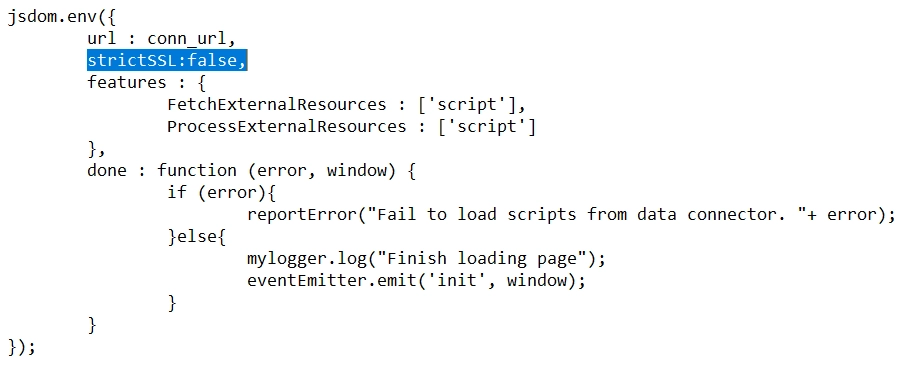
  1. Navigate to Strategy_Install_Location > Intelligence Server > GenericGateway_SDK.
  2. Open the load_data.js file.
  3. Within the function jsdom.env({ add the line strictSSL:false.
ka02R000000kdQXQAY_0EM2R000000h26p.jpeg

KB483290


Comment

0 comments

Details

Knowledge Article

Published:

May 10, 2019

Last Updated:

May 10, 2019