EducationSoftwareStrategy.com
StrategyCommunity

Knowledge Base

Product

Community

Knowledge Base

TopicsBrowse ArticlesDeveloper Zone

Product

Download SoftwareProduct DocumentationSecurity Hub

Education

Tutorial VideosSolution GalleryEducation courses

Community

GuidelinesGrandmastersEvents
x_social-icon_white.svglinkedin_social-icon_white.svg
Strategy logoCommunity

© Strategy Inc. All Rights Reserved.

LegalTerms of UsePrivacy Policy
  1. Home
  2. Topics

KB484026: The metric qualification of conditional metrics is ignored in case there are no attributes in a dossier visualization whose data source is in live connect mode


Zhen Xie

Senior Consultant • MicroStrategy


This article describes why the metric qualification in conditional metrics are ignored when there are no attributes in a dossier visualization with the data source in live connect mode. This article also provides solutions to avoid this behavior.

Starting with the release of Strategy ONE (March 2024), dossiers are also known as dashboards.

Description 


In some business cases, you may want to show only a metric value in a dossier visualization. When the metric contains a metric qualification condition and the data access mode of the dossier is a live connection, the metric value may not result as expected. This is due to the metric qualification being ignored. 

Steps to reproduce

The Strategy Tutorial project is used in the following example.

  • In Strategy Web, create a filter named, "Filter_Cost>=2000000." The metric qualification is Cost>=200,000.
ka0PW0000001JbLYAU_0EM2R000000nl4E.jpeg
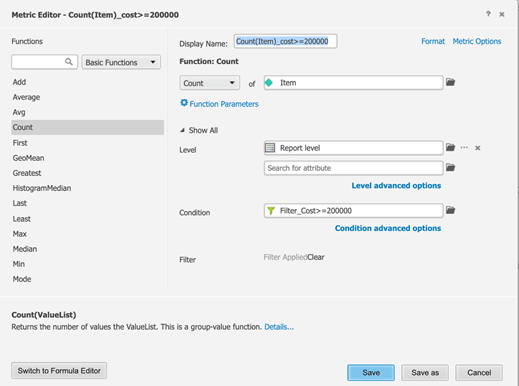
  • Create a conditional metric named, "Count(Item)_cost>=200000."
ka0PW0000001JbLYAU_0EM2R000000nl4J.jpeg
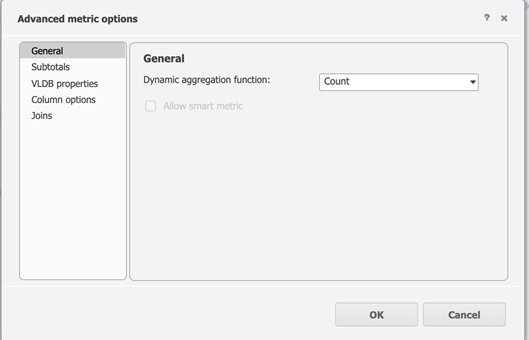
  • Click Metric Options in the upper right corner of the Metric Editor.
  • From the Dynamic aggregation function drop-down, choose Count.
ka0PW0000001JbLYAU_0EM2R000000nl4O.jpeg
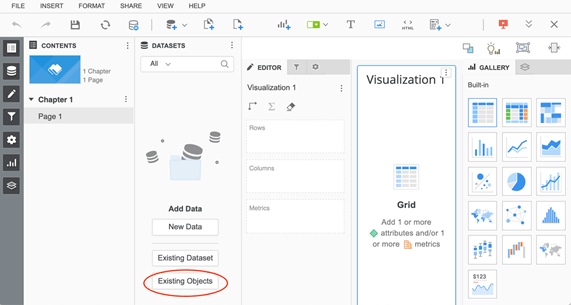
  • Create a new dossier and click Existing Objects.
ka0PW0000001JbLYAU_0EM2R000000nl4T.jpeg
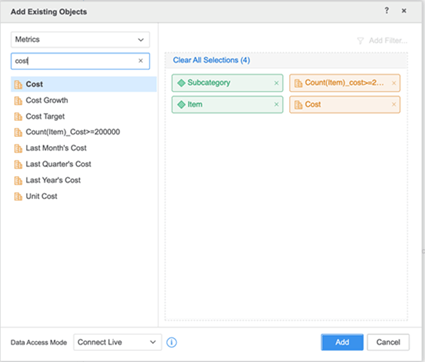
  • Add the project attributes and metrics to the dossier. Choose Connect Live from the Data Access Mode drop-down.
ka0PW0000001JbLYAU_0EM2R000000nl4Y.jpeg
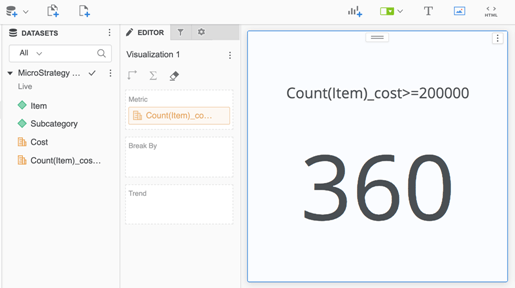
  • Add the metric, "Count(Item)_cost>=2000000," to a KPI visualization. The metric value is 360. This value represents the total number of items, but not the number of items whose cost is equal or greater than 200,000.
ka0PW0000001JbLYAU_0EM2R000000nl4d.jpeg

Why is this happening?


First, look at the query details of the KPI visualization by clicking on the More icon.
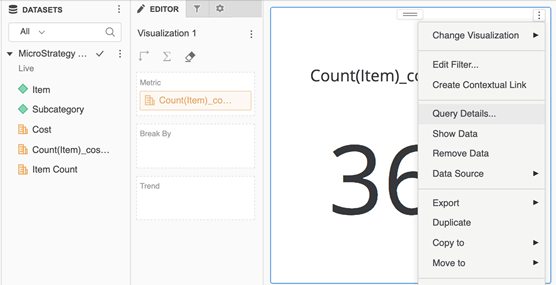
ka0PW0000001JbLYAU_0EM2R000000nl4i.jpeg

You can see the following:

*******************************************…Tables Accessed:lu_itemSQL Statements:Pass0 -select count(distinct a11.item_id) AS WJXBFS1from public.lu_item a11…*******************************************
In live connection mode, the query of each visualization is run against the warehouse. The above SQL pass shows that the lookup table for Item is queried without the metric qualification (Cost>=200000) applied. As a result, the total number of Item is returned for the metric.
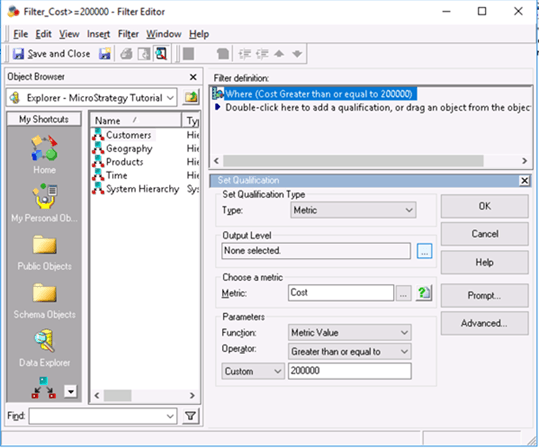
The metric condition is ignored because the output level of the metric qualification, Cost>=200000, is not set properly. If you open the Filter Editor for "Filter_Cost>=200000" on Strategy Developer, there are more settings, such as Output Level, in the editor than those in Strategy Web. This is one of the differences between Developer and Web.

ka0PW0000001JbLYAU_0EM2R000000nl4s.jpeg

The default output level is "None selected," which means the metric is being calculated at the report level, if any of the following are true:

  • The metric is a compound metric
  • The metric's dimensionality is set to report level
  • The metric's dimensionality is set to nothing


If none of above criteria are met, then the metric's dimensionality is used. 
In our case, Cost's metric is set to the report level, so the output level of the metric qualification is the report level. In case of dossiers with live connection mode, the metric qualification is calculated at the dossier visualization level. Since no attributes are added to the visualization, the SQL engine is unable to figure out which level Cost is aggregated at. Thus, the metric qualification is ignored. 
 

Solution


There are two ways to have the conditional metric return the desirable results.
 

Specify the output level of the metric qualification

If you want to know how many items cost equal to or greater than 200,000, then set the output level to be Item.
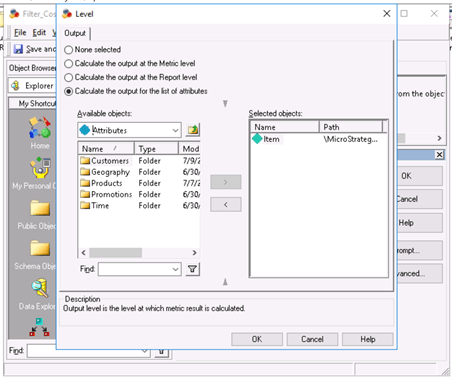
  • In Strategy Developer, open the Filter Editor.
  • Click the ... button next to the Output Level text box. You can see the Level dialog.
ka0PW0000001JbLYAU_0EM2R000000nl4t.jpeg
  • In the Output tab, select the Calculate the output for the list of attributes radio button.
  • Under Available objects, locate Item.
  • Select the attribute and click the > button to move it to the Selected objects pane.
  • Click OK and save the changes to the metric qualification.

You can see the metric result in the dossier change to the expected value of 37.
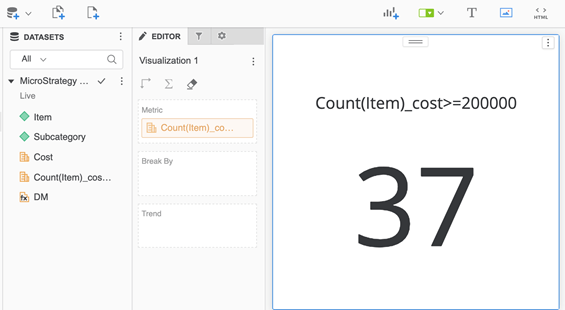
ka0PW0000001JbLYAU_0EM2R000000nl4x.jpeg

 
The query details show that the metric qualification is applied:

**********************************…Tables Accessed:lu_itemitem_mnth_slsSQL Statements:Pass0 -…CREATE UNLOGGED TABLE TUGE6T203MQ000(       item_id          INTEGER)Pass1 -…insert into TUGE6T203MQ000select        a11.item_id AS item_idfrom          public.item_mnth_sls a11group by   a11.item_idhaving      sum(a11.TOT_COST) >= 200000Pass2 -…select      count(distinct a11.item_id) AS WJXBFS1from        public.lu_item a11    join      TUGE6T203MQ000 pa12        on   (a11.item_id = pa12.item_id)…*****************************************
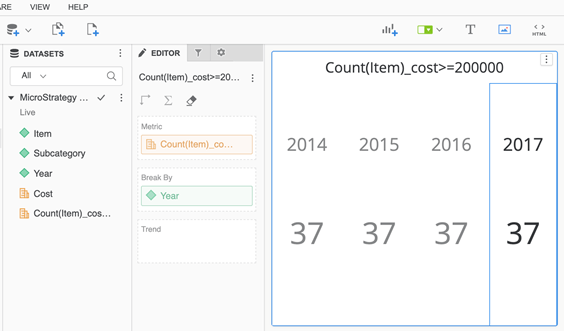
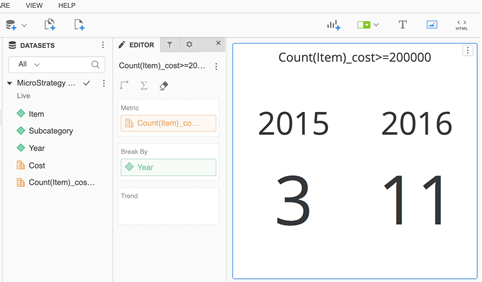
Directly adding the Year attribute to the visualization, to determine how many items for each year will cost equal to or greater than 200,000, may not yield the expected result. This is because the output level for the output metric qualification is set to Item, regardless of the visualization level. 

ka0PW0000001JbLYAU_0EM2R000000nl52.jpeg

You must add Year to the output level of the metric qualification to get the correct results. 
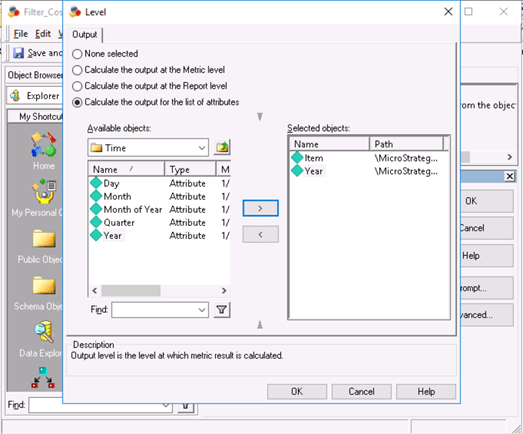
ka0PW0000001JbLYAU_0EM2R000000nl57.jpeg

The metric values are now correct.

ka0PW0000001JbLYAU_0EM2R000000nl5H.jpeg

Set the data access mode of the dataset to in-memory, instead of live connection. 


When adding existing objects to your dossier, you can set the data access mode as In memory.
As shown below, the "Count(Item)_cost>=200000" metric returns the expected value. In this case, the data for {Subcategory, Item, Cost, Count(Item)_cost>=200000} is first retrieved from warehouse to memory when the metric qualification is applied at the report level {Item}. Then, the query for the visualization is run against the in-memory dataset for dynamic aggregation on the metric, Count(Item)_cost>=200000. Note that the dynamic aggregation function is set to Count (from step 2 in Steps to Reproduce).
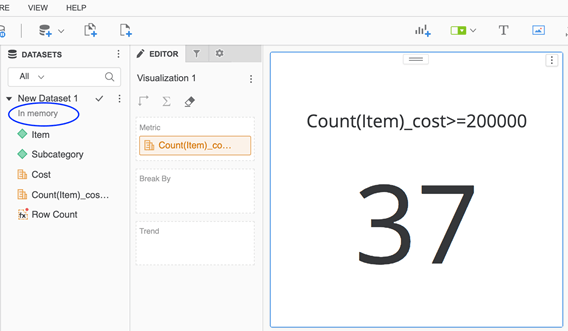
ka0PW0000001JbLYAU_0EM2R000000nl5M.jpeg


When more attributes are added to the dataset and visualization, the metric value will change accordingly.
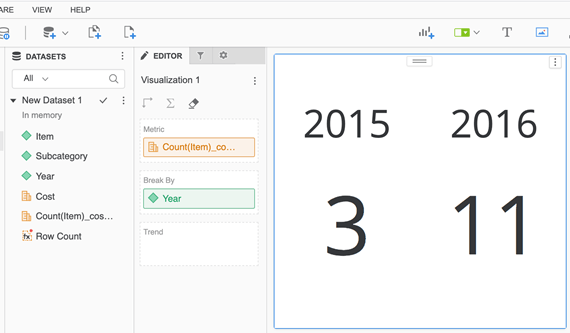
ka0PW0000001JbLYAU_0EM2R000000nl5b.jpeg


Comment

0 comments

Details

Knowledge Article

Published:

February 6, 2020

Last Updated:

March 21, 2024