EducationSoftwareStrategy.com
StrategyCommunity

Knowledge Base

Product

Community

Knowledge Base

TopicsBrowse ArticlesDeveloper Zone

Product

Download SoftwareProduct DocumentationSecurity Hub

Education

Tutorial VideosSolution GalleryEducation courses

Community

GuidelinesGrandmastersEvents
x_social-icon_white.svglinkedin_social-icon_white.svg
Strategy logoCommunity

© Strategy Inc. All Rights Reserved.

LegalTerms of UsePrivacy Policy
  1. Home
  2. Topics
  3. Tornado Chart by Vitara

Tornado Chart by Vitara


Community Admin

Placeholder •


Starting with the release of Strategy ONE (March 2024), dossiers are also known as dashboards.

Description

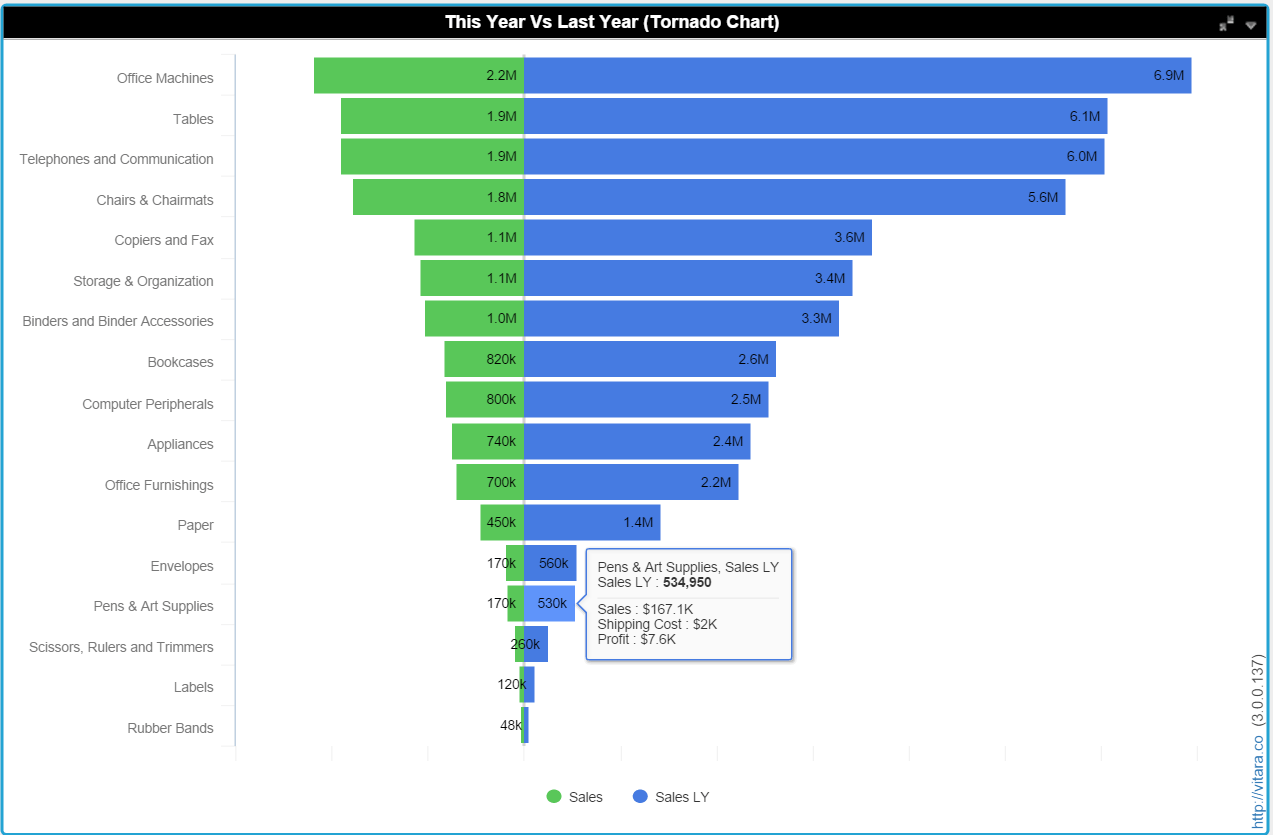
Tornado Charts, also known as Butterfly charts, is an effective visualization technique for comparing two data series side by side.
Tornado diagrams, also called tornado plots or tornado charts, are a special type of Bar chart, where the data categories are listed vertically instead of the standard horizontal presentation, and the categories are ordered so that the largest bar appears at the top of the chart, the second largest appears second from the top, and so on. They are so named because the final chart visually resembles either one half of or a complete tornado. For example, this representation is ideal for displaying data comparing this year and last year sales values which is very common measure in the Retail industry. 
View the image below for reference:
ka0PW0000001JZDYA2_0EM440000002Lt7.png

Requirements

  • Attributes: 1 attribute
  • Metrics: 2 metrics (one for left and one for right side)

Note that the Time attribute (Optional for Play Axis) and additional Metrics can be added to Tooltips as shown in screenshot.
Minimum Strategy version: 10.3


MicroStrategy Features

  • Fully customizable with editors in Dossier or Web Report Services Documents (DHTML widgets) for appearance
  • Compatible with all supported versions of Strategy Desktop, Web, Library and Mobile

Vitaracharts is now FREE for Desktop and Workstation. 
Please contact sales@vitaracharts.com to get a 30-day trial key.
Take note that this visual is a part of the VitaraCharts library.
Download visualizations: www.vitaracharts.com
Online interactive visualizations can be accessed here: https://cloud.vitaracharts.com
Publisher: Vitara
Vitara is a Strategy technology partner and offers a fully supported, production-ready chart plugin (VitaraCharts) with 30+ stunning visualizations to enhance Strategy analytics. All Vitara visualizations are customizable and supported through upgrades for a hassle-free experience. We perform extensive testing for backward compatibility with all currently certified versions of Strategy and also ensure all new versions of Strategy are tested and supported across all charts.
 
For more details please contact sales@vitaracharts.com or www.vitaracharts.com.
 

Installation Instructions: 

Note that Vitaracharts is now FREE for Desktop and Workstation
Contact Vitara sales@vitara.co for a 30 day free trial key.
Download Visualizations here. Online Interactive visualizations can be accessed here.
 

Installation on the Web

  1. Download the zip file from https://s3.amazonaws.com/vizpackage/Release/3.0/3.0.0.141/VitaraCharts.zip
  2. Extract the VitaraCharts folder from the zip.
  3. Stop WebServer (IIS/Tomcat or equivalent).
  4. Delete VitaraCharts folder under plugins directory if one exists
  5. Copy over the new version of the VitaraCharts folder into the plugins folder of your Strategy web installation. For instance, if Web is installed under c:\tomcat\webapps\Strategy, you will place VitaraCharts under c:\tomcat\webapps\Strategy\plugins.
  6. REPLACE the license.txt file in the VitaraCharts folder with the license file provided to you.
  7. Start WebServer.
  8. Clear Caches and Restart client browser.


Installation on the Desktop

For Desktop use, just import the downloaded VitaraCharts.zip file as a new visualization.

  1. Go to File > Add Visualization from File. https://s3.amazonaws.com/vizpackage/Release/3.0/3.0.0.141/VitaraCharts.zip
  2. Replace the license.txt with the version provided to you.
    • On Windows, look for the license.txt file under C:\Program Files\Strategy\Strategy Desktop\code\plugins\VitaraCharts.
    • On a Mac, in order to locate license.txt.:
      1. Go to Applications.
      2. Locate Strategy Desktop.
      3. Right click and choose Show Package Contents.
      4. Navigate to Contents > Resources > Code > Plugins > VitaraCharts.
      5. The license.txt is in this folder and needs to be replaced.

Installation on the Desktop

  1. Download the zip file from https://s3.amazonaws.com/vizpackage/Release/3.0/3.0.0.141/VitaraChartsMobile.zip.
  2. Extract all the folders from the zip file. (There will be a separate folder for each visualization in addition to the VitaraCharts folder).
  3. Stop WebServer (IIS/Tomcat or equivalent).
  4. Delete VitaraCharts related folders under plugins directory (if any exist)
  5. Copy over the new version of the just extracted folders into the plugins folder of your Strategy mobile installation. For instance, if mobile server is installed under c:\tomcat\webapps\StrategyMobile, you will place all folders under c:\tomcat\webapps\StrategyMobile\plugins.
  6. Replace the license.txt file in the VitaraCharts folder with the license file already provided.
  7. Start WebServer.
  8. Connect your iPad to the mobile server.

Note that for custom visualizations to work in mobile, you need to also include the MobileBase plugin provided by Strategy in the mobile plugins directory. Report Services documents are fully supported (for viewing) in mobile. Also note that there are some limitations for viewing VI dashboards in mobile. These limitations will be removed in a soon to be released update. Stay tuned for more information.

Installation on the Desktop

  1. Download the zip file from https://s3.amazonaws.com/vizpackage/Release/3.0/3.0.0.141/VitaraCharts.zip.
  2. Extract the VitaraCharts folder from the zip.
  3. Stop WebServer (IIS/Tomcat or equivalent).
  4. Backup your VitaraCharts\license.txt and VitaraCharts\custom\global.txt.
  5. Delete the current deployment of VitaraCharts in the Strategy plugins folder.
  6. Copy over the new version of the VitaraCharts folder to the plugins folder.
  7. Replace the license.txt file in the VitaraCharts folder with the backup you created earlier.
  8. Copy over the color palette information (Corporate1,Corporate2, Corporate3) from the backup of the global.txt into the global.txt present in VitaraCharts\custom.
  9. Start WebServer. Then clear the caches in your client browser and restart browser.

Access Strategy web to open a dashboard or document with VitaraCharts included.
 

Learning Resources

Interested in learning more about Dossier authoring? Visit the Learning Center on Community!
Or go to our Documentation pages for more product information.


Comment

0 comments

Details

Example

Published:

May 16, 2017

Last Updated:

March 21, 2024