EducationSoftwareStrategy.com
StrategyCommunity

Knowledge Base

Product

Community

Knowledge Base

TopicsBrowse ArticlesDeveloper Zone

Product

Download SoftwareProduct DocumentationSecurity Hub

Education

Tutorial VideosSolution GalleryEducation courses

Community

GuidelinesGrandmastersEvents
x_social-icon_white.svglinkedin_social-icon_white.svg
Strategy logoCommunity

© Strategy Inc. All Rights Reserved.

LegalTerms of UsePrivacy Policy
  1. Home
  2. Topics

KB483974: Transaction Services report workaround for Google BigQuery ODBC driver in Windows (no Transaction support)


Ladislav Jerabek

Software Engineer, Principal • Strategy


This article provides a Transaction Services report workaround for Google BigQuery ODBC driver in Windows with no Transaction support.

Description

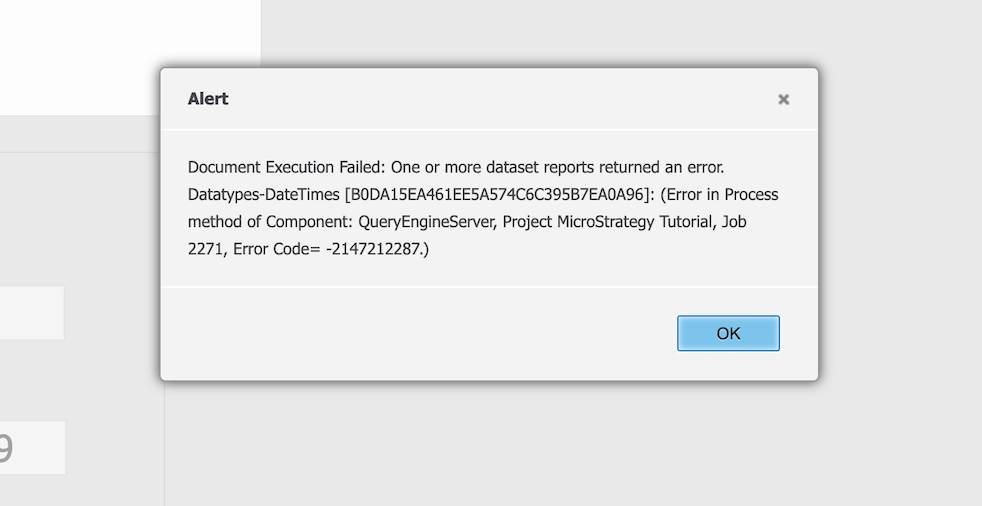
Google BigQuery doesn't support automatic transactions. This means, adding the begin transaction and commit transaction SQL causes the following error.

Document Execution Failed: One or more dataset reports returned an error. Datatypes-DateTimes [B0DA15EA461EE5A574C6C395B7EA0A96]: (Error in Process method of Component: QueryEngineServer, Project Strategy Tutorial, Job 2271, Error Code = -2147212287.)
 

ka04W000001IsNYQA0_0EM4W0000039J5M.jpeg

Solution


Starting in Strategy 2021 Update 3, the VLDB setting, No Atomic Transaction Management, is added to the DBRole/DBMS level to omit begin transaction/commit transaction keywords. 

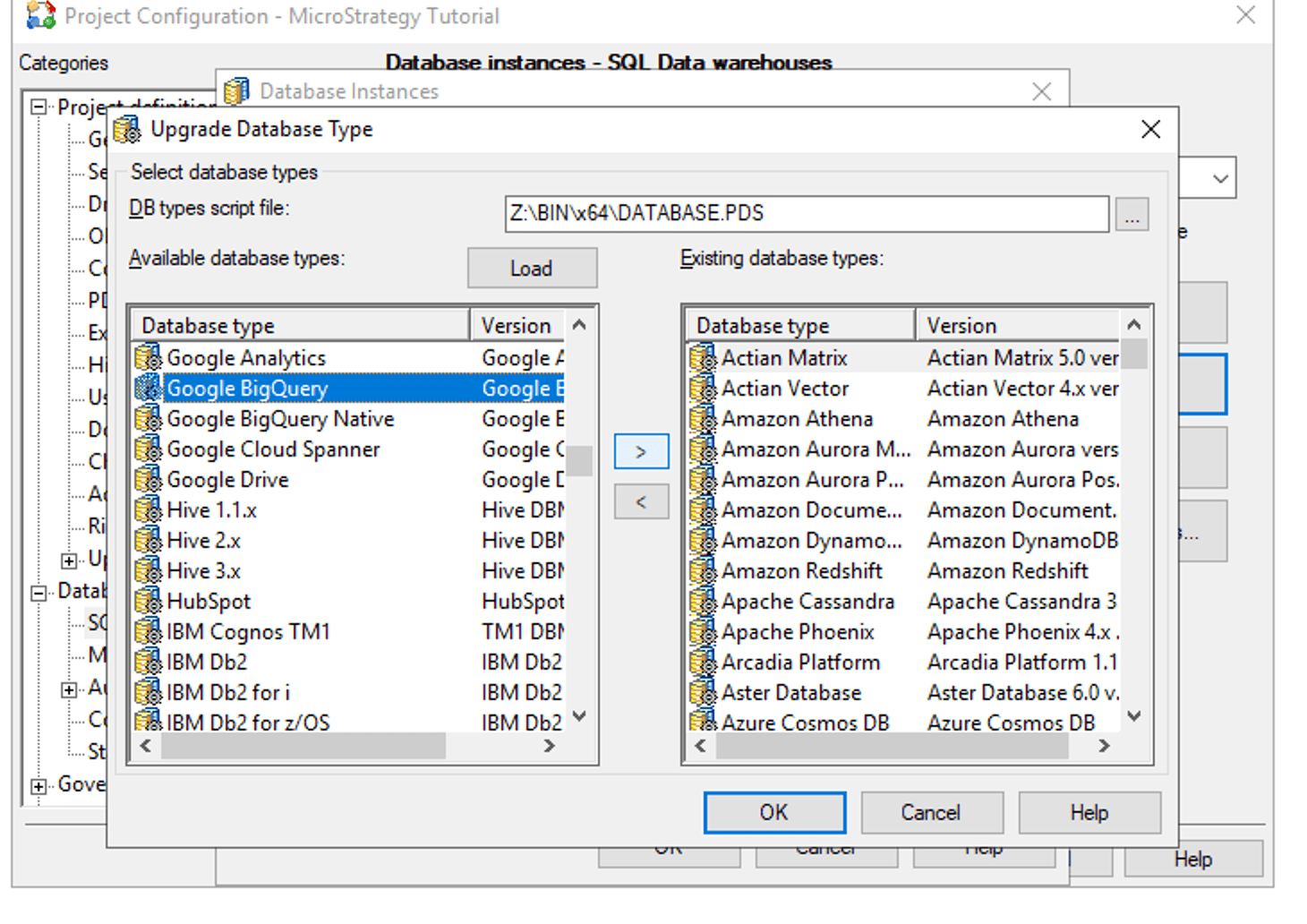
DBMS Update 


Note: The new setting is only applicable if you are upgrading from Strategy 2021 Update 2 to Strategy 2021 Update 3. If you are already using Strategy 2021 Update 3, you do not need to do anything. 
To apply the No Atomic Transaction Management setting, you must manually load the DBMS object and restart the Intelligence Server. 
ka04W000001IsNYQA0_0EM4W0000039Kak.jpeg


Workaround

If you are using a version prior to Strategy 2021 Update 3 and not plan to upgrade, refer to the following steps to work around this issue. 

Prerequisites 

  • Make sure that the ODBC driver version is 2.02.02.1007 or newer. 
  • To verify the version, open ODBC Administrator > Drivers.
    If you need to upgrade your driver, please see Upgrade Your Driver on Windows. 

Transaction Services Report Workaround

  1. Open the Windows
    regedit.exe
    file.
  2. Browse in
    HKLM/SOFTWARE/ODBC/ODBC.INI/<Your GBQ DSN>.
  3. Create a new string value named IgnoreTransactions and set its value to 1.
  4. Start the Intelligence Server.
  5. Using Strategy Developer, log in and edit the Transaction report.
  6. In the top menu, go to Data > VLDB Properties.
  7. In the VLDB Properties editor, go to Governing > Autocommit.
  8. Deselect Default value and set the value to OFF.

Upgrade Your Driver on Windows

  1. Obtain the ODBC driver version 2.02.02.1007 or newer. 
  2. Log in to your MSTR Windows environment. 
  3. On the server, go to
     C:\Program Files (x86)\Common Files\MicroStrategy\ODBC
    and locate the folder with your driver type. For example,
    BigQuery.
  4. Under
     C:\Program Files (x86)\Common Files\MicroStrategy\ODBC
    , create a folder with your driver's name, followed by
    .new
    . For example,
    BigQuery.new.
  5. Copy all files from the Simba's archive to the new folder, following the structure in the original BigQuery folder. You should note the files in the Simba's archive have a different structure compared to the Strategy's driver (BigQuery) folder. 
  6. Shut down the Intelligence Server.
  7. Rename the BigQuery folder to
    BigQuery.old.
  8. Rename the BigQuery.new folder to
    BigQuery.
  9. Start the Intelligence Server. 

Comment

0 comments

Details

Knowledge Article

Published:

January 14, 2020

Last Updated:

October 21, 2021