All backup related logs are:
~/Mstrbak-client/logs/MSTRBAK - BACKUP.log
~/Mstrbak-client/DBMigratorLogger
~
/log/MACmdMgrW.xml
If you don't find the error messages or the solutions cannot resolve the problem, please collect the logs above and open a case with the Strategy Support team.
It is possible when you input the correct password, the "invalid credentials" error still returns.
Root cause: The tool needs to be run by the root user.
Solution: Download
MSTRBak.zipand try again.
See KB484972: "Metadata is required to be backed up" error occurs when running the MSTRBak tool.
See KB484973: "Collaboration server back up false" error occurs when running the MSTRBak tool.
See KB484970: "Platform Analytics back up false" errors occurs when running the MSTRBak tool.
See KB484974: MSTRBak fails in silent mode against the response file.
Solution: Check if the user has permission to access the file path.
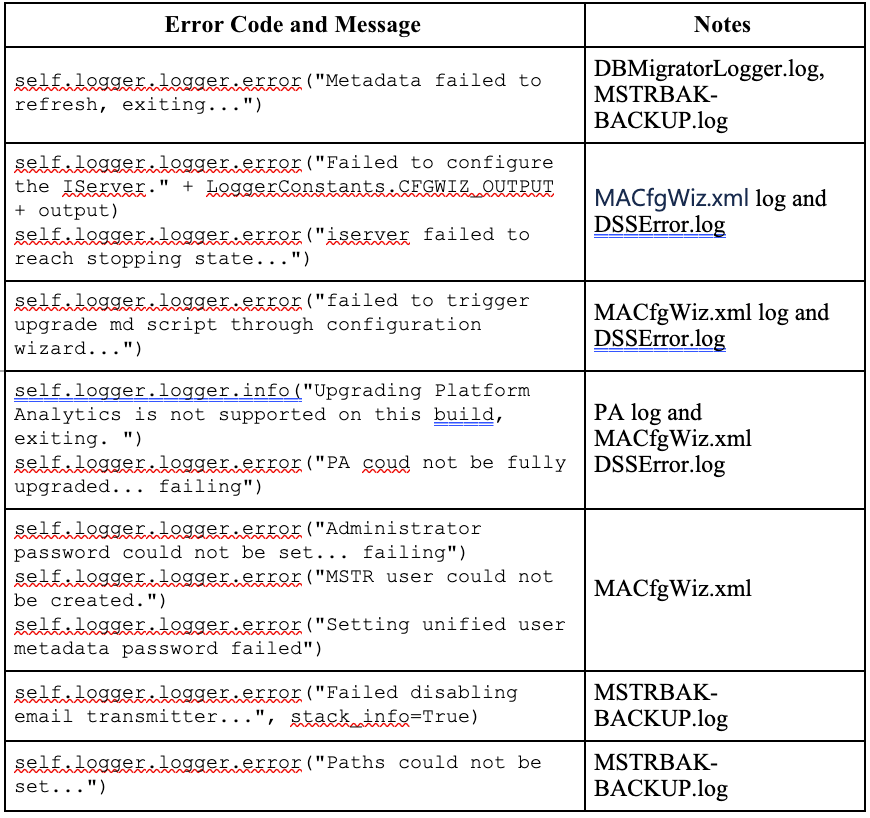
For incremental refresh, the following are the required log files:
<Install Path>Mstrbak-client/logs/MSTRBAK-BACKUP.log
<MSTR Install Path>/MicroStrategy/logs/DSSErrors.log
<MSTR Install Path>/MicroStrategy/logs/MACfgWiz.xml
<Install Path>Mstrbak-client/DBMigratorLogger.log
If you can’t find a solution to resolve th problem, please collect the above logs and open a case with the Strategy Cloud team.
The incremental refresh can fail for many different reasons. Here is a list of our general error messages and what logs to collect to investigate further. If the resolutions provided do not resolve the issue, please create a case and send the log files to Strategy Technical Support.
Root cause: The issue is caused by a missing necessary package to run the command. There are some necessary packages that need to be installed on the environment. You can spot the following error in the log, “Command not found“.

Solution: Simply install the missing package and re-run the update. For installing the missing package, run the below command:
yum install <missing package>
Root cause: This is caused because you cannot update any other environment except for the environment that is restored from the original source environment. For further information, please refer to the official documentation.
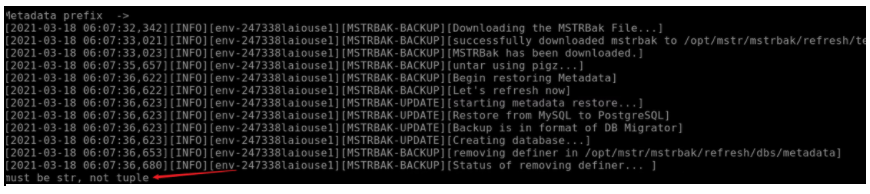
Solution: If you need support for this function, please contact Strategy Technical Support.
Root cause: It is caused by the missing tmux package in thee current environment. The MSTRBak tool has added logic to restart the tomcat server for the update process. This restart will allow the update to take effect to Web/Library/Mobile. However, the RDP console will rely on the tomcat server for the restart process. If you are using a normal session during the update process, once then window closes, then you will lose track of the update process and the process cannot be completed normally. Thus, we strongly recommend using the tmux to start an independent session, and make sure the process can be completed without interruptions.
Solution: On the destination environment, install tmux. To install yum, refer to the public doc.
Command:
yum install tmux
