EducationSoftwareStrategy.com
StrategyCommunity

Knowledge Base

Product

Community

Knowledge Base

TopicsBrowse ArticlesDeveloper Zone

Product

Download SoftwareProduct DocumentationSecurity Hub

Education

Tutorial VideosSolution GalleryEducation courses

Community

GuidelinesGrandmastersEvents
x_social-icon_white.svglinkedin_social-icon_white.svg
Strategy logoCommunity

© Strategy Inc. All Rights Reserved.

LegalTerms of UsePrivacy Policy
  1. Home
  2. Topics

KB483358: "Unable to establish a connection to database. Please check the provided host port, username, and password are correct. Failed to validate the database information."


Archana Munukuntla

Quality Architect • MicroStrategy


Scenario : 

  • While installing Strategy 2019 Platform Analytics through windows platform installer,
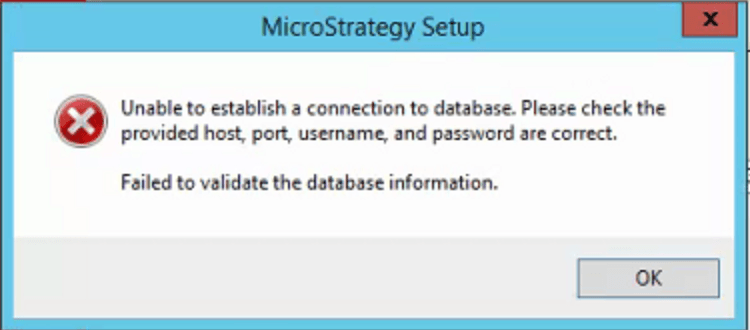
    • when user provides own DB warehouse connection information, and if DB is enabled with SSL login, installer will throw below error message and might hang. 
    • Screenshot : 
ka02R000000kecKQAQ_0EM2R000000hPNU.jpeg
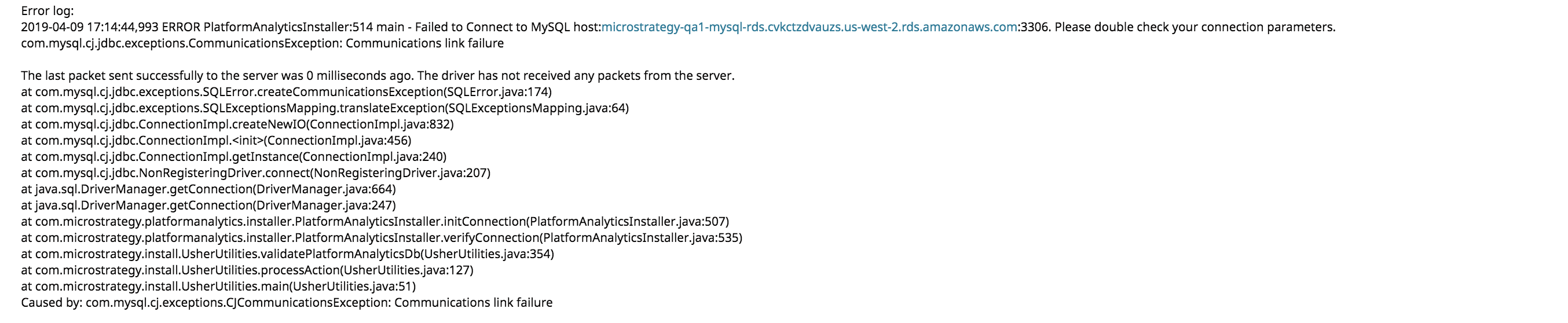
  • Verify below log file for the error 
    • Log File Path :  C:\Users\[User Account]\AppData\Local\Temp\platform-analytics-installation.log
ka02R000000kecKQAQ_0EM2R000000hPNZ.jpeg
    • 
      Caused by: javax.net.ssl.SSLHandshakeException: java.security.cert.CertificateException: java.security.cert.CertPathValidatorException: Path does not chain with any of the trust anchors
          at sun.security.ssl.Alerts.getSSLException(Alerts.java:192)
          at sun.security.ssl.SSLSocketImpl.fatal(SSLSocketImpl.java:1946)
          at sun.security.ssl.Handshaker.fatalSE(Handshaker.java:316)
          at sun.security.ssl.Handshaker.fatalSE(Handshaker.java:310)
          at sun.security.ssl.ClientHandshaker.serverCertificate(ClientHandshaker.java:1639)
          at sun.security.ssl.ClientHandshaker.processMessage(ClientHandshaker.java:223)
          at sun.security.ssl.Handshaker.processLoop(Handshaker.java:1037)
          at sun.security.ssl.Handshaker.process_record(Handshaker.java:965)
          at sun.security.ssl.SSLSocketImpl.readRecord(SSLSocketImpl.java:1064)
          at sun.security.ssl.SSLSocketImpl.performInitialHandshake(SSLSocketImpl.java:1367)
          at sun.security.ssl.SSLSocketImpl.startHandshake(SSLSocketImpl.java:1395)
          at sun.security.ssl.SSLSocketImpl.startHandshake(SSLSocketImpl.java:1379)
          at com.mysql.cj.protocol.ExportControlled.performTlsHandshake(ExportControlled.java:315)
          at com.mysql.cj.protocol.StandardSocketFactory.performTlsHandshake(StandardSocketFactory.java:206)
          at com.mysql.cj.protocol.a.NativeSocketConnection.performTlsHandshake(NativeSocketConnection.java:99)
          at com.mysql.cj.protocol.a.NativeProtocol.negotiateSSLConnection(NativeProtocol.java:347)
          ... 17 more


  • Follow below steps to troubleshoot the PA Installation on Windows :
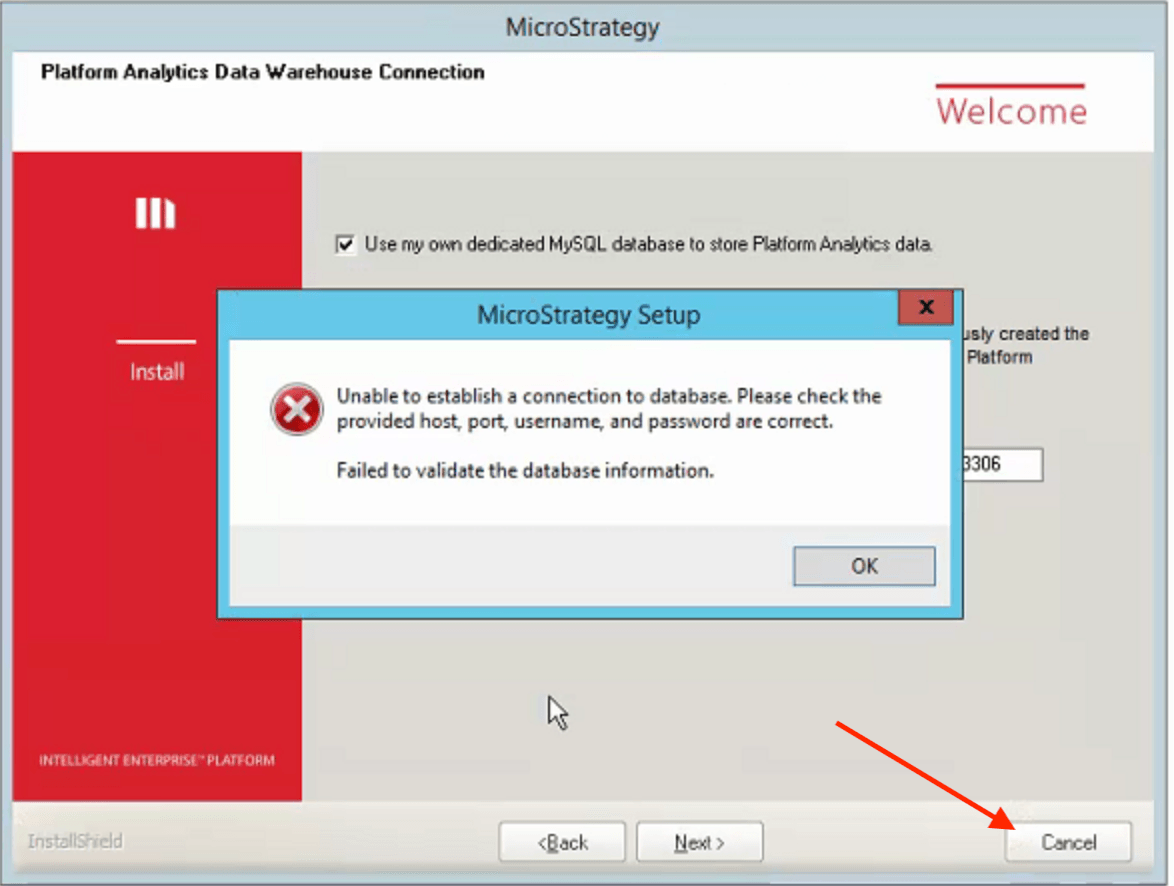
    • If installer has run into mentioned issue, hit the cancel button 
      • Screenshot : 
ka02R000000kecKQAQ_0EM2R000000hPNe.jpeg
    • Relaunch platform installer and navigate to PA Warehouse page & provide DB Warehouse connection :: Do No Hit Next button
    • Open installation temporary directory by following steps : 
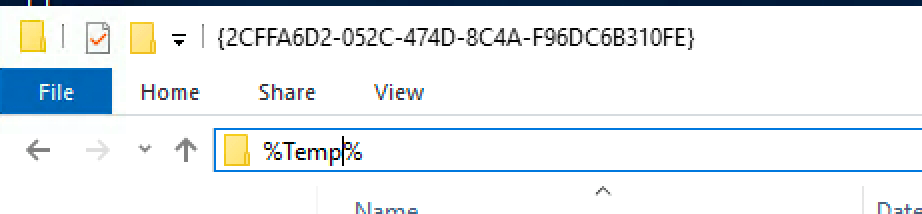
      • Open Windows File Explorer & type %Temp%
        • Screenshot : 
ka02R000000kecKQAQ_0EM2R000000hPNj.jpeg
      • Navigate to Temp location & search for platform-analytics-installer.jar file, RMC → Open File Location → Delete the file
        • Location : C:\Users\admin\AppData\Local\Temp\2 
ka02R000000kecKQAQ_0EM2R000000hPNo.jpeg
    • Replace platform-analytics-installer.jar with attached platform-analytics-installer.jar file (attached)
    • and click on Next on Platform installer, this will resolve issue. 

Comment

0 comments

Details

Knowledge Article

Published:

June 12, 2019

Last Updated:

June 26, 2019