EducationSoftwareStrategy.com
StrategyCommunity

Knowledge Base

Product

Community

Knowledge Base

TopicsBrowse ArticlesDeveloper Zone

Product

Download SoftwareProduct DocumentationSecurity Hub

Education

Tutorial VideosSolution GalleryEducation courses

Community

GuidelinesGrandmastersEvents
x_social-icon_white.svglinkedin_social-icon_white.svg
Strategy logoCommunity

© Strategy Inc. All Rights Reserved.

LegalTerms of UsePrivacy Policy
  1. Home
  2. Topics

KB440841: Unable to generate Enterprise Manager files (Export for Compliance dashboard) when executing License Manager with predefined parameters on MicroStrategy Secure Enterprise


Community Admin

• Strategy


This knowledge base article describes an issue that has been classified as a defect by MicroStrategy. In MicroStrategy Secure Enterprise when executing License Manager from command line with predefined parameters to generate Enterprise Manager files, the files do not get generated and no error message is displayed.

SYMPTOM
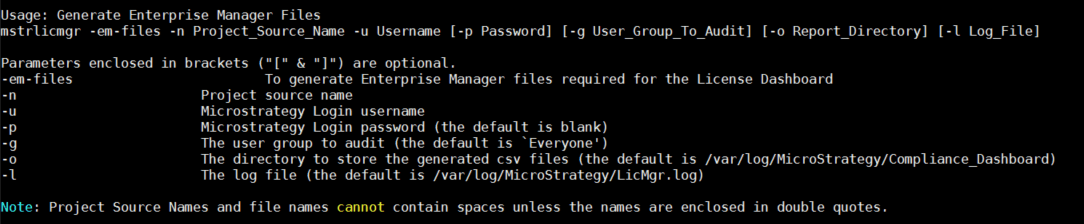
In Strategy Secure Enterprise 10.x, when executing License Manager with predefined parameters to generate Enterprise Manager files (as shown in License Manager Help screen), files are not generated and no error message is displayed.
mstrlicmgr -em-files -n Project_Source_Name -u Username [-p Password] [-g User_Group_To_Audit] [-o Report_Directory] [-l Log_File]
ka04W000000OatzQAC_0EM44000000WOHY.png

STEPS TO REPRODUCE

  1. Navigate to file path location of Strategy License Manager (mstrlicmgr)
  2. Execute the following command with the necessary inputs: ./mstrlicmgr -em-files -n Project_Source_Name -u Username [-p Password] [-g User_Group_To_Audit] [-o Report_Directory] [-l Log_File]
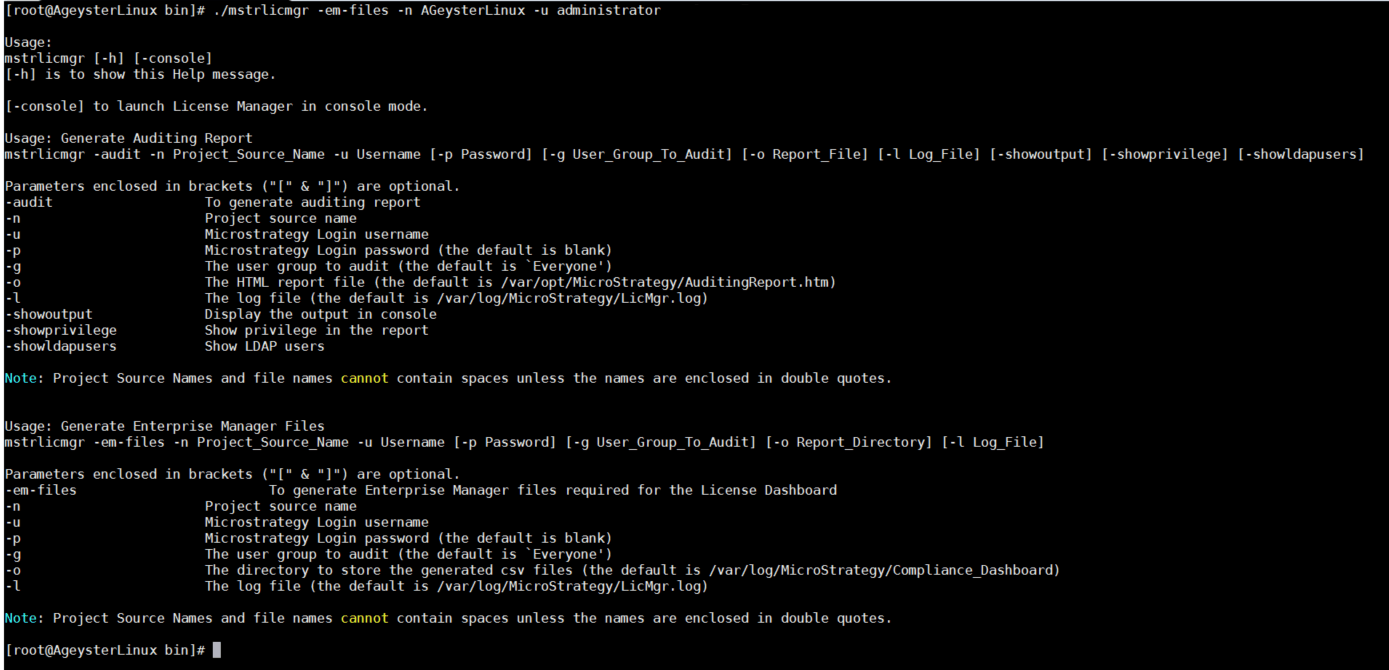
  3. No Enterprise Manager files are generated nor is an error message shown. Help message is shown (as image below)
ka04W000000OatzQAC_0EM44000000WOHs.png

CAUSE
This issue occurs due to incorrect command in the syntax shown in the help screen. The command option in the code is defined as:
 

  • String EM_REPORT_KEY="-emfiles";

There is no dash in the command option (help shows "-em-files")
ACTION
Currently this issue is being reviewed by Strategy for a potential code fix on an upcoming Strategy release. 
WORKAROUND

  1. Execute the following command with the necessary inputs: ./mstrlicmgr -emfiles -n Project_Source_Name -u Username [-p Password] [-g User_Group_To_Audit] [-o Report_Directory] [-l Log_File]
  2. Enterprise Manager files are then generated in the specified directory; [-o Report_Directory]

Comment

0 comments

Details

Knowledge Article

Published:

May 18, 2018

Last Updated:

November 12, 2018