EducationSoftwareStrategy.com
StrategyCommunity

Knowledge Base

Product

Community

Knowledge Base

TopicsBrowse ArticlesDeveloper Zone

Product

Download SoftwareProduct DocumentationSecurity Hub

Education

Tutorial VideosSolution GalleryEducation courses

Community

GuidelinesGrandmastersEvents
x_social-icon_white.svglinkedin_social-icon_white.svg
Strategy logoCommunity

© Strategy Inc. All Rights Reserved.

LegalTerms of UsePrivacy Policy
  1. Home
  2. Topics

KB484403: Unable to parse the command line output when upgrading the Platform Analytics Repository on Spanish Localized Windows


Andrew Geyster

Principal Product Specialist • MicroStrategy


This article addresses the error encountered when upgrading the Platform Analytics Repository on a Spanish localized Windows environment. This article also provides a solution to avoid this error.

Description


As of Strategy 2020 Update 2, the method for updating the Platform Analytics Repository has been moved to the Configuration Wizard. For more information about the upgrade, see Upgrade Platform Analytics Repository.
In a Spanish localized Windows environments, Strategy has observed that the error, ‘Unable to parse the Command Line Output,’ may prevent the successful upgrade of the Repository when it attempts to stop the Platform Analytics Consumer Service. This error is a defect and is currently under investigation by the  Strategy Technology teams.

ka04W000000Uv3SQAS_0EM2R000001I6BA.jpeg


A similar error can be observed due to the permissions of the User Account running Configuration Wizard if they are insufficient to gather the Service status. Before taking the steps to resolve the issue, the User Account permissions can be verified by running the Windows Command Prompt and executing the following statement:

sc query MSTR_PlatformAnalyticsConsumer
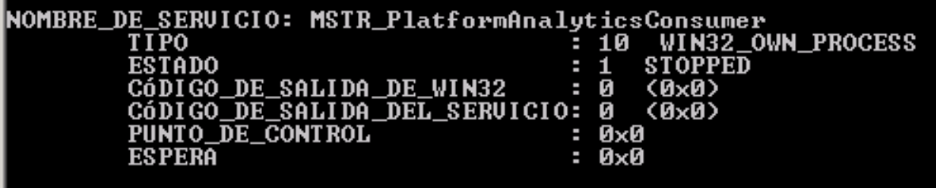
If the User Account has sufficient privileges, a result set defining the service status will be provided, such as the example below.

ka04W000000Uv3SQAS_0EM2R000001I6BF.jpeg

Solution

Option 1


The behavior for this defect is specific to Spanish localization. Temporarily changing the localization and display language to English will allow the Configuration Wizard to proceed and the machine can then be set back to the original setup.
 

Option 2


Platform Analytics Consumer installations also come with the custom installer. This can be used for updating and installing through shell rather than the Configuration Wizard. For more information see Manually Deploy the Platform Analytics Repository.

  1. Stop the Platform Analytics Consumer service.
  2. Take a backup of the Platform Analytics Repository prior to the execution of the custom install to be a recovery point, given any unforeseen circumstances that could damage the warehouse.
  3. Execute the
    platform-analytics-custom-install.bat
    with the options parameter set to update. ‘
    -o update
    .’

Option 3


If the machine can not be temporarily set to a English localization then the Platform Analytics Repository can be updated manually by executing the appropriate DDL files.

  • Stop the Platform Analytics Consumer service.
  • Before any manual updates take a backup of the Platform Analytics Repository to be a recovery point, given any unforeseen circumstances that could damage the warehouse.
  • On the Platform Analytics machine, navigate to
    /Platform Analytics/directory
    . By default, this is found in
    C:\Program Files (x86)\MicroStrategy\Platform Analytics.
  • If the Platform Analytics Repository is on MySQL, the following steps will be using the files located under the ‘
    src
    ’ directory. If the Repository is on PostgreSQL, the directory will be ‘
    src_pg
    .'
  • In the respective folder for the database type, open the folder for the Strategy 2020 Update 2 Repository Upgrade, ‘
    updates.11.2.2.
    '
  • The
    updates.11.2.2
    directory contains the ‘
    cleanup.sql
    ’ file. Open this file and execute it against the Platform Analytics Repository to prepare the warehouse for the 2020 Update 2 upgrade.
  • After the application of the ‘
    cleanup.sql
    ’ file within the DDL directory, there is ‘
    Platform_Analytics_DDL.11.2.2.sql
    .’ This file is the next to be applied to the Platform Analytics Repository.
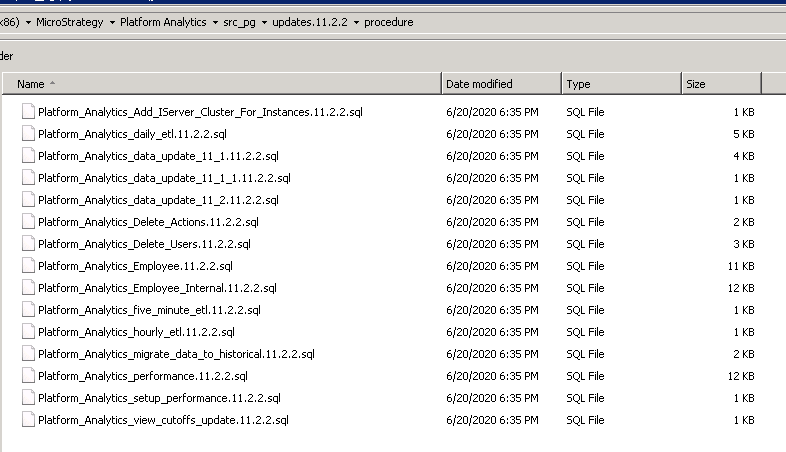
  • Once the DDL has been applied, the Procedures can be updated using the files under the procedure directory. This directory contains 14 SQL files that each need to be executed in alphabetical order.
ka04W000000Uv3SQAS_0EM2R000001I6Bt.jpeg
  • After all of the procedure SQL files have been executed, download and run the text file attached to this article for your Repository Warehouse type to update your
    ETL_PA_VERSION
    table:
    • For MySQL, click here.
    • For PostgreSQL, click here.

Comment

0 comments

Details

Knowledge Article

Published:

July 13, 2020

Last Updated:

July 13, 2020