EducationSoftwareStrategy.com
StrategyCommunity

Knowledge Base

Product

Community

Knowledge Base

TopicsBrowse ArticlesDeveloper Zone

Product

Download SoftwareProduct DocumentationSecurity Hub

Education

Tutorial VideosSolution GalleryEducation courses

Community

GuidelinesGrandmastersEvents
x_social-icon_white.svglinkedin_social-icon_white.svg
Strategy logoCommunity

© Strategy Inc. All Rights Reserved.

LegalTerms of UsePrivacy Policy
  1. Home
  2. Topics

KB484734: ESRI Maps do not work properly on web servers configured to use HTTP and in Workstation due to ESRI enforcing HTTPS only


Alejandro Olvera Velasco

Product Manager, Principal • MicroStrategy


This article addresses the HTTPS-only enforcement by ESRI starting on December 8th, 2020. Learn how this can affect ESRI maps in your documents and dossiers.

Starting with the release of Strategy ONE (March 2024), dossiers are also known as dashboards.

Description 

On December 8th, 2020, ESRI will enforce HTTPS-only on their services. For information, see ESRI's update. 
This breaks the functionality of ESRI maps in documents and dossiers on all versions of Strategy prior to Strategy 2021. 
This change affects ESRI maps in the following ways: 

  • Area maps shape information from the ESRI's cloud service cannot render when a proxy is configured to communicate with the ESRI server. 
  • Area maps using shapes' information from the ESRI's cloud service cannot render on Internet Explorer. 
  • ESRI maps Export to PDF function does not work, except when using Workstation on local mode. 

Features using ESRI's World Geocoding Services stopped working since September 29th, 2020: 

  • The geographical search function for ESRI maps does not work. 

Why is this happening?

ESRI started enforcing HTTPS-only connections for their World Geocoding Services starting on September 29th, 2020. For more information, click here. Starting on December 8th, 2020, ESRI is enforcing HTTPS-only connections on all their services, which prevents the ESRI base map from loading in Strategy. 
 

Solution 


The following steps can be taken for Strategy Web and Strategy Library (including Strategy Library for Android devices). 

  • Change your Web Server's security configuration to use HTTPS to ensure that the geographical search function works.
  • To ensure Area maps that obtain their shapes from ESRI's cloud service work correctly on Internet Explorer, perform the following:
    • In the
      esriConfig.xml
      file, modify the map layer source URL from HTTP to HTTPS. You can find
      esriConfig.xml
      at
      <Strategy deployment path>/WEB-INF/xml/config/esriConfig/xml
      . 
ka0PW0000001JeXYAU_0EM4W000001JhU7.jpeg
  • To ensure Area maps that obtain their shapes from ESRI's cloud service work correctly when using a proxy for the ESRI Server, perform the following:
    • In the
      esriConfig.xml
      file, modify the map layer source URL from HTTP to HTTPS. You can find
      esriConfig.xml
      at
      <Strategy deployment path>/WEB-INF/xml/config/esriConfig.xml
      . 
ka0PW0000001JeXYAU_0EM4W000001JhU7.jpeg
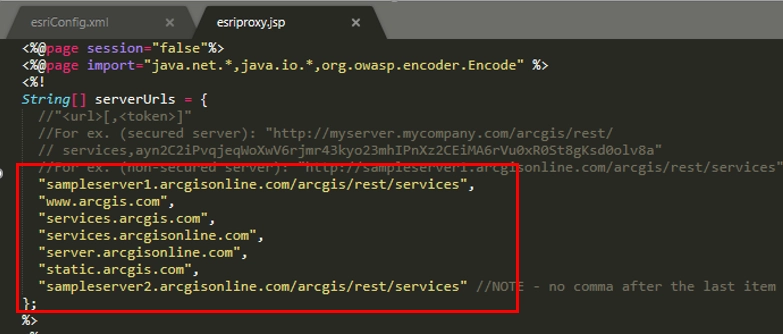
    • In the
      esriproxy.jsp
      file, modify the serverURLs by deleting the "
      http://
      " prefix. You can find
      esriproxy.jsp
      at
      <Strategy deployment path>
      /jsp/esriproxy.jsp
      .
ka0PW0000001JeXYAU_0EM4W000001JhVA.jpeg
  • To ensure the ESRI Maps to Export to PDF function works correctly,  perform the following:
    • In the
      esriConfig.xml
      file, modify the map layer source URL from HTTP to HTTPS. You can find
      esriConfig.xml
      at
      <Strategy deployment path>/WEB-INF/xml/config/esriConfig/xml
      . 
ka0PW0000001JeXYAU_0EM4W000001JhU7.jpeg

For Strategy Workstation or Desktop

  • NO workaround to make geographical search function work properly. This issue has been fixed in Strategy Workstation and Desktop 2021 (11.3). If you require assistance for Workstation or Desktop versions 2019 (11.1.x) and 2020 (11.2.x), please contact Support.
  • To ensure ESRI Maps Export to PDF function works correctly in live mode:
    • In the
      esriConfig.xml
      file, modify the map layer source URL from HTTP to HTTPS. You can find
      esriConfig.xml
      at
      <Strategy deployment path>/WEB-INF/xml/config/esriConfig/xml
      . 
ka0PW0000001JeXYAU_0EM4W000001JhU7.jpeg

Comment

0 comments

Details

Knowledge Article

Published:

November 18, 2020

Last Updated:

March 21, 2024